Quick Fix Checklist:
- Switch from Mobile Data to a stable Wi-Fi connection
- Force close Instagram and reopen it
- Check if Instagram servers are down
- Disable Low Power Mode from iPhone settings
Step-by-Step Guide to Fix Instagram Reels Not Loading
1 Disable Data Saver Mode (Most Important Fix)
Instagram includes a built-in Data Saver mode that limits video quality to reduce internet usage. While useful, this feature often causes Instagram Reels to not load, buffer continuously, or show a black screen.
To fix this issue, open Instagram and go to Profile > Settings and Privacy > Data Usage and Media Quality. Turn OFF Data Saver and enable Upload at Highest Quality.
This allows Instagram to load videos without restriction and significantly improves Reels playback performance.
If your videos are also not loading on TikTok, check our TikTok Videos Not Loading Fix guide.
2 Clear Instagram Cache (Offload App Method)
Over time, Instagram stores temporary files (cache) to load content faster. However, corrupted or overloaded cache can prevent Reels from loading or cause freezing issues.
On iPhone, you can’t directly clear cache like Android. Instead, go to Settings > General > iPhone Storage > Instagram and tap Offload App, then reinstall it.
This clears all temporary files without deleting your login data, making it one of the most effective fixes.
If multiple apps are crashing or lagging, check our Apps Crashing on iPhone guide.
3 Update Instagram to Latest Version
If you are using an outdated version of Instagram, it may not be fully compatible with iOS 18 or iOS 19. This can cause Reels to stop loading, freeze during playback, or show errors.
Open the App Store, search for Instagram, and tap Update if available.
App updates include bug fixes, performance improvements, and compatibility patches that fix loading issues.
If your iPhone is also overheating while using Instagram, visit our iPhone Overheating Fix guide.
4 Check Internet Connection Stability
A weak or unstable internet connection is the number one reason why Instagram Reels fail to load. Slow speeds can cause buffering, low-quality playback, or complete failure to load videos.
Try switching between Wi-Fi and mobile data. Restart your router or enable Airplane Mode for 10 seconds to refresh your connection.
For best performance, use a stable Wi-Fi network instead of 4G/5G in weak signal areas.
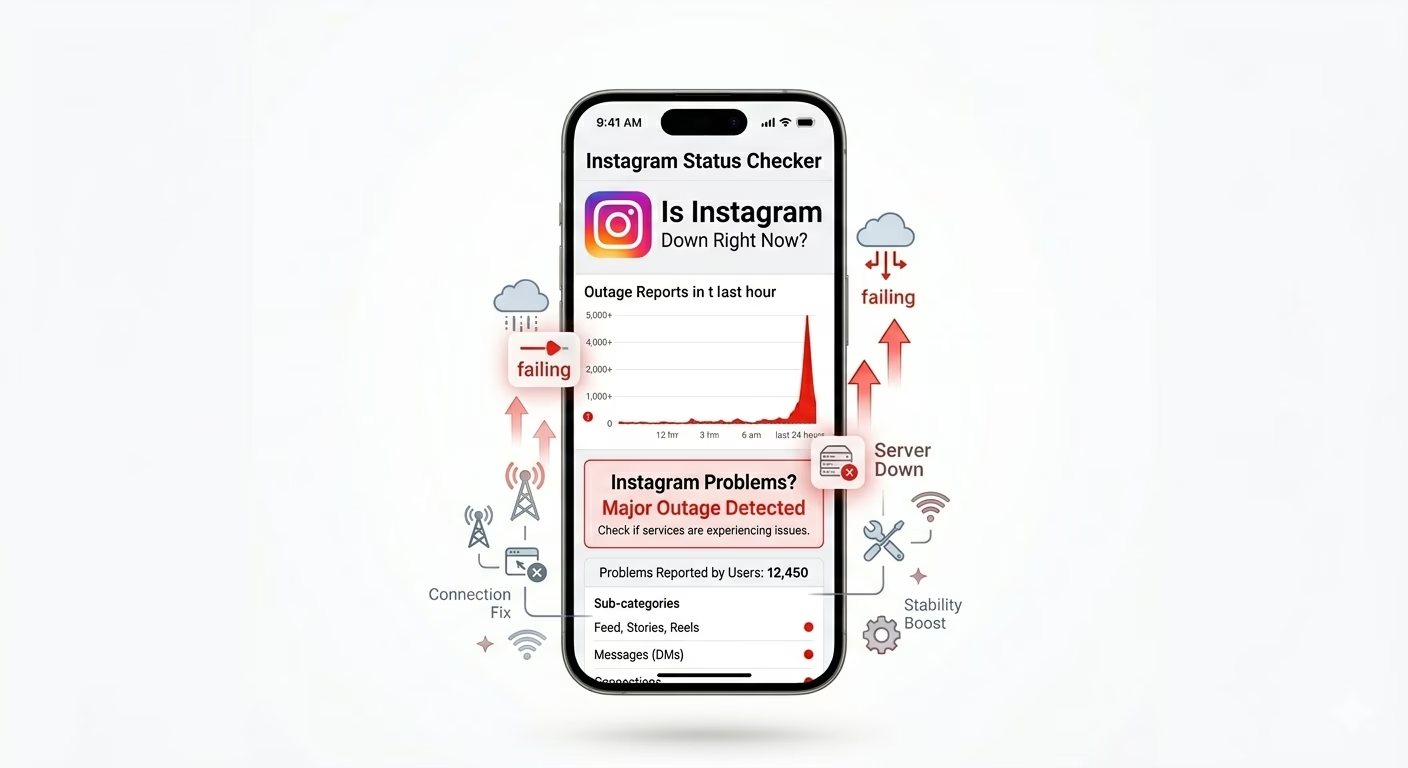
5 Check Instagram Server Status
Sometimes the problem is not on your device. Instagram servers can go down, causing Reels to stop loading for everyone.
Visit websites like Downdetector to check if Instagram is facing outages.
If servers are down, the only solution is to wait until Instagram fixes the issue.
Why Instagram Reels Are Not Loading
- Slow Internet: Weak connection causes buffering and loading failure
- Cache Issues: Corrupted temporary files break playback
- Outdated App: Old version creates compatibility issues
- Low Storage: Less storage affects video loading
- Server Problems: Instagram outages stop Reels globally
Pro Tips to Fix Reels Faster
- Keep 2GB Free Space: Helps apps run smoothly
- Restart iPhone Weekly: Clears RAM and bugs
- Disable Low Power Mode: Improves app performance
- Avoid VPN: Can slow down video loading
Frequently Asked Questions
Why are Instagram Reels showing a black screen?
This usually happens due to slow internet or corrupted cache. Switching networks or clearing cache fixes the issue.
How do I fix Instagram Reels not loading on iPhone?
Disable Data Saver, clear cache, update the app, and check your internet connection. These are the most effective fixes.
Does clearing Instagram cache delete data?
No, it only removes temporary files. Your account, posts, and messages remain safe.
Can iOS updates cause Instagram issues?
Yes, new iOS updates can sometimes create compatibility issues until apps are updated.