Quick Fix Checklist:
- Turn Wi-Fi OFF and ON from Control Center
- Restart your iPhone and Wi-Fi router
- Stay within proper Wi-Fi signal range
- Turn OFF Bluetooth to reduce interference
Step-by-Step Guide to Fix iPhone Wi-Fi Disconnecting Issue
1 Forget and Reconnect to Wi-Fi Network
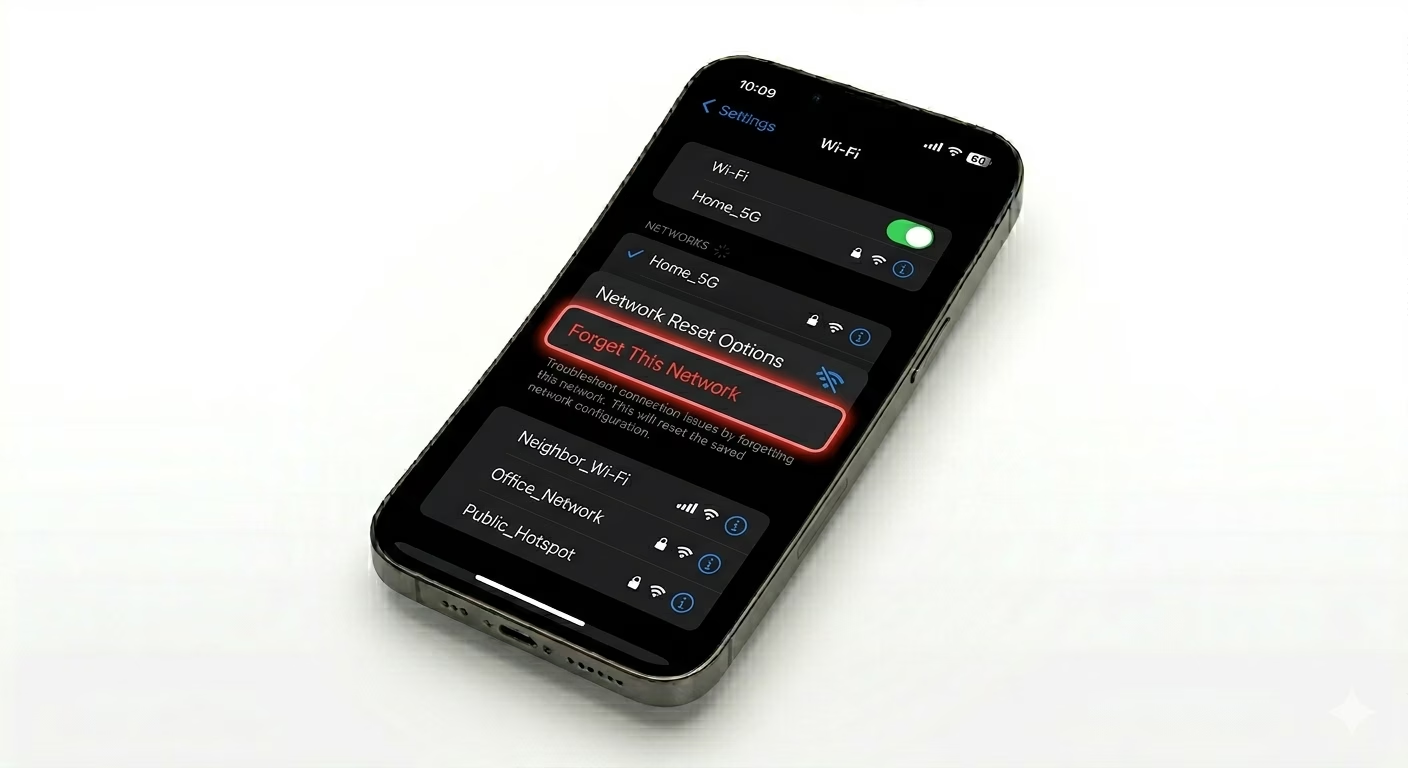
If your iPhone keeps disconnecting from Wi-Fi, the saved network profile may be corrupted. This is very common after iOS updates.
Go to Settings > Wi-Fi, tap the "i" icon next to your network, and select Forget This Network. After that, reconnect by entering your password again.
This creates a fresh connection and often fixes issues like Wi-Fi dropping, slow internet, or authentication errors.
If your internet is slow even after reconnecting, you can also check our iPhone Battery Drain Fix because background issues can affect connectivity.
2 Disable Wi-Fi Assist (Important Fix)
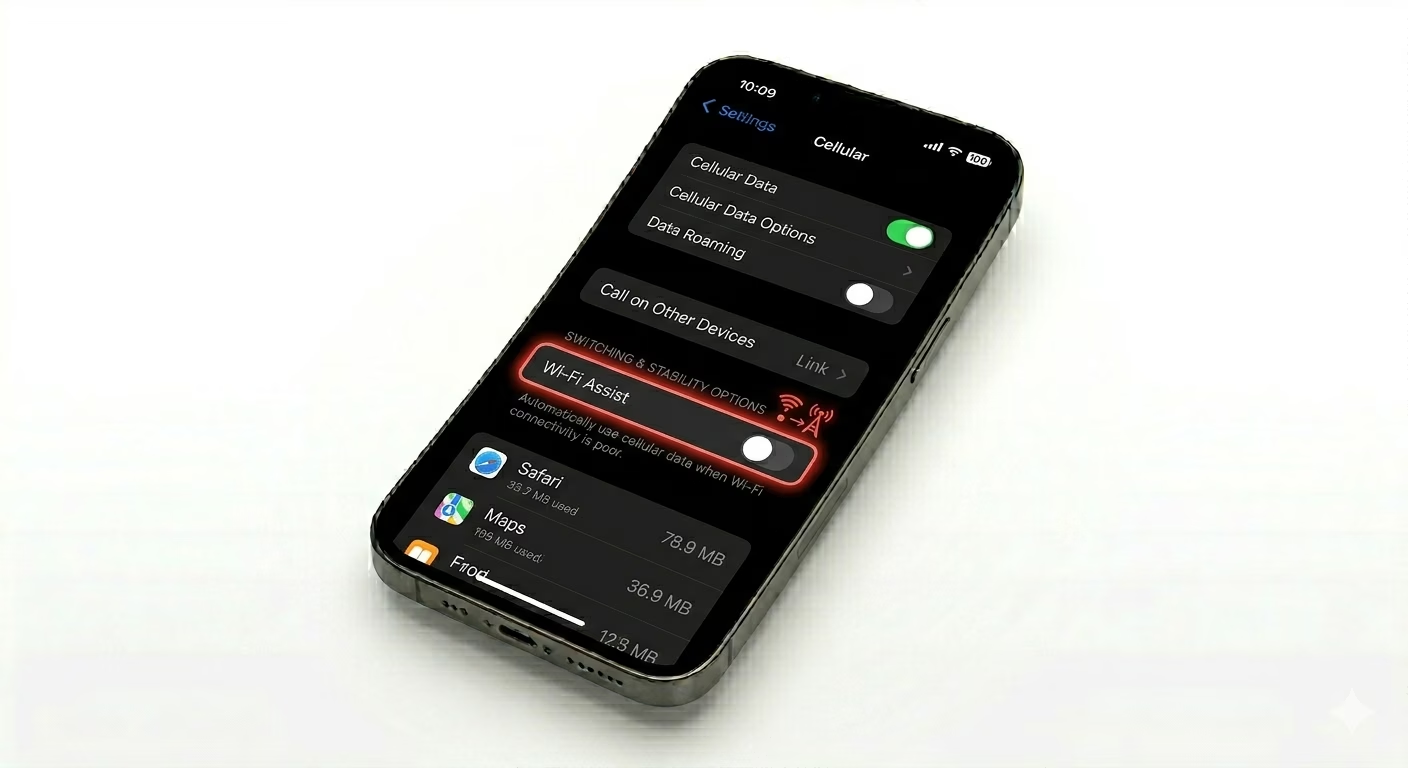
Wi-Fi Assist automatically switches your iPhone to mobile data when Wi-Fi signal is weak. However, this feature can make it seem like your Wi-Fi is disconnecting even when it’s working fine.
Go to Settings > Cellular (Mobile Data) and scroll down to turn Wi-Fi Assist OFF.
This prevents your iPhone from jumping between Wi-Fi and cellular data, giving you a more stable connection.
3 Reset Network Settings
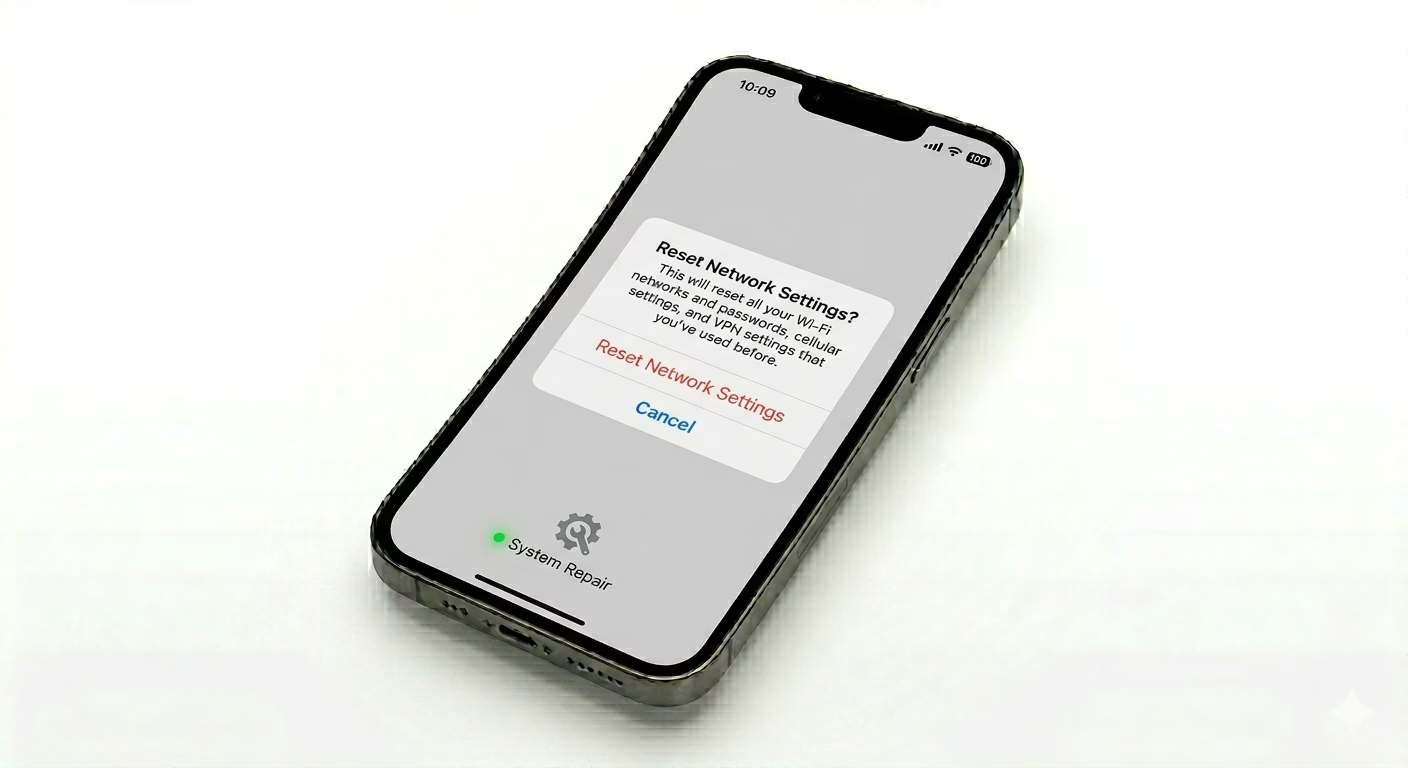
If your iPhone Wi-Fi keeps disconnecting frequently, there may be a deeper network configuration issue. Resetting network settings can fix hidden bugs.
Go to Settings > General > Transfer or Reset iPhone > Reset > Reset Network Settings.
This will remove all saved Wi-Fi networks, passwords, and VPN settings, so make sure you remember your credentials before proceeding.
This is one of the most powerful fixes for Wi-Fi not staying connected on iPhone.
4 Check Router and Network Settings
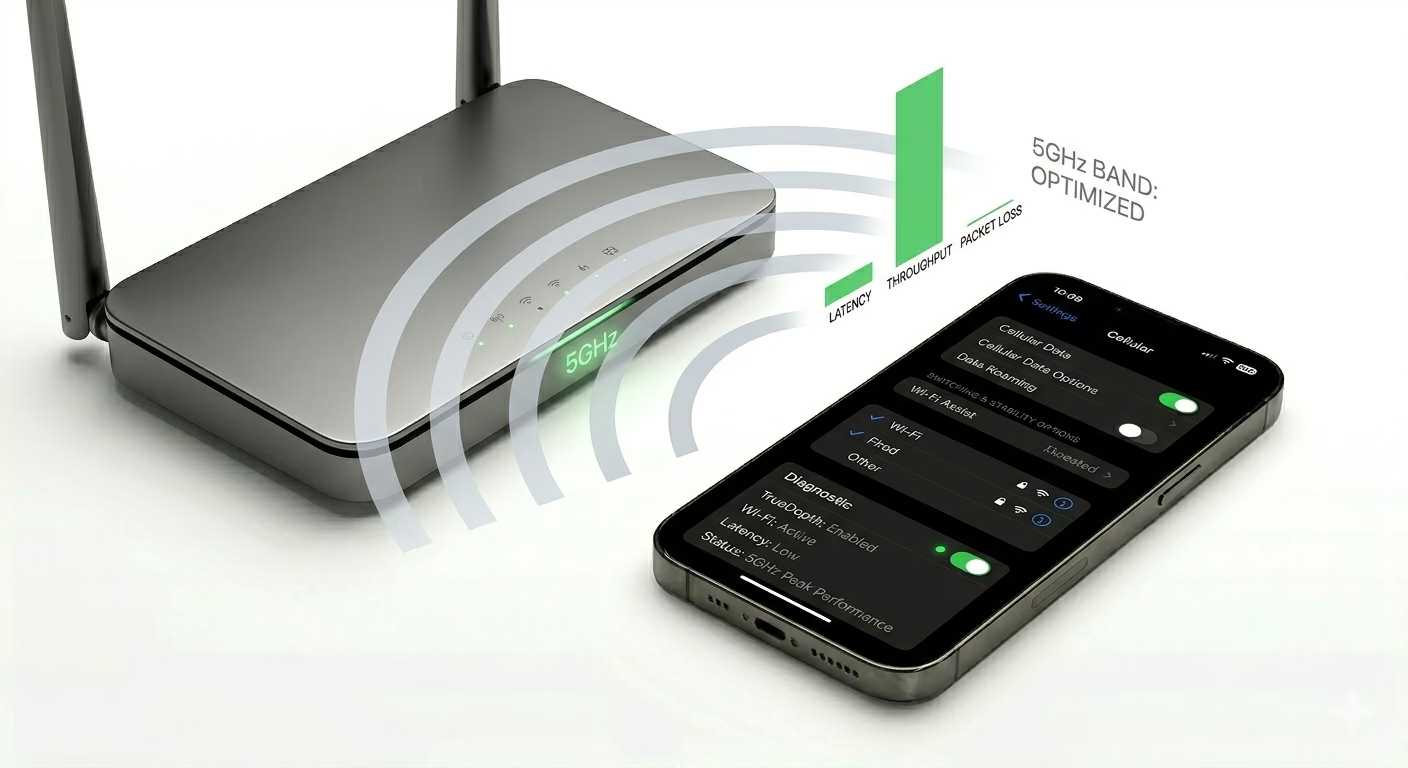
Sometimes the problem is not your iPhone but your Wi-Fi router. Outdated firmware, incorrect frequency bands, or too many connected devices can cause unstable connections.
Restart your router and ensure it is updated. If possible, use 5GHz Wi-Fi for better speed and stability.
Also avoid overcrowded networks and check if other devices are facing the same issue.
Why iPhone Wi-Fi Keeps Disconnecting
- Weak Signal: Distance from router or interference
- Wi-Fi Assist: Auto-switching to mobile data
- iOS 19 Bugs: Software glitches after update
- Router Issues: Outdated firmware or overload
Pro Tips to Keep Wi-Fi Stable:
- Disable VPN: VPN apps can interrupt Wi-Fi stability
- Use Private Wi-Fi Carefully: Toggle OFF if issues occur
- Restart Weekly: Keeps system and network fresh
- Update iOS: Fixes hidden connectivity bugs
Frequently Asked Questions
Why does my iPhone Wi-Fi disconnect automatically?
This usually happens due to Wi-Fi Assist, weak signal, or software bugs. Disabling Wi-Fi Assist and resetting network settings often fixes it.
Why does Wi-Fi disconnect when I lock my iPhone?
This may be due to Low Power Mode or background restrictions. Turn off Low Power Mode to maintain connection.
Can router problems cause Wi-Fi disconnecting?
Yes, outdated router firmware or network overload can cause frequent disconnections on iPhone.