Quick Fix:
- Turn ON Low Power Mode
- Reduce screen brightness
- Restart your iPhone
- Check battery usage in settings
How to Fix iPhone Battery Drain on iOS 18
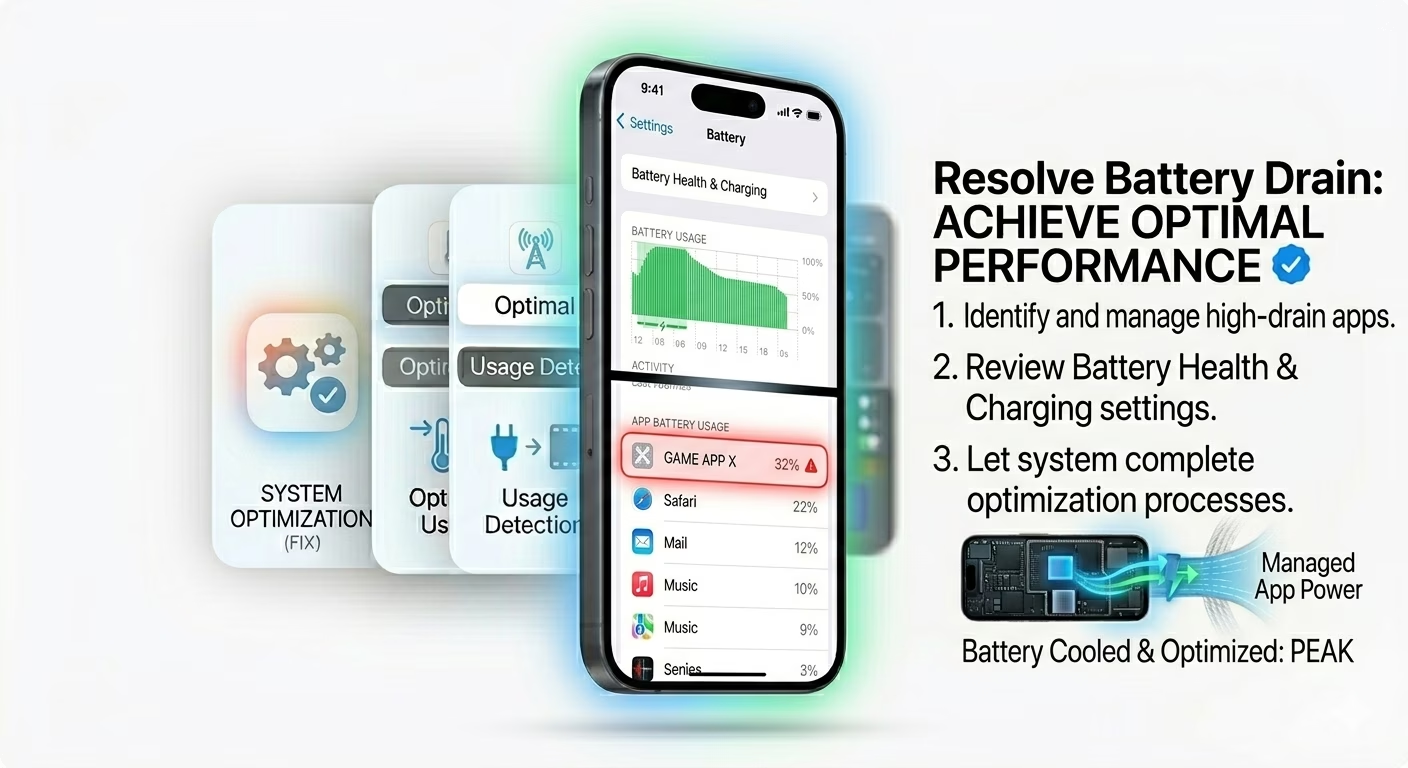
1 Check Battery Usage
The first step is to identify which apps are draining your battery. Go to Settings → Battery and scroll down to see battery usage by app.
If you notice any app using too much power in the background, limit its usage or remove it completely.
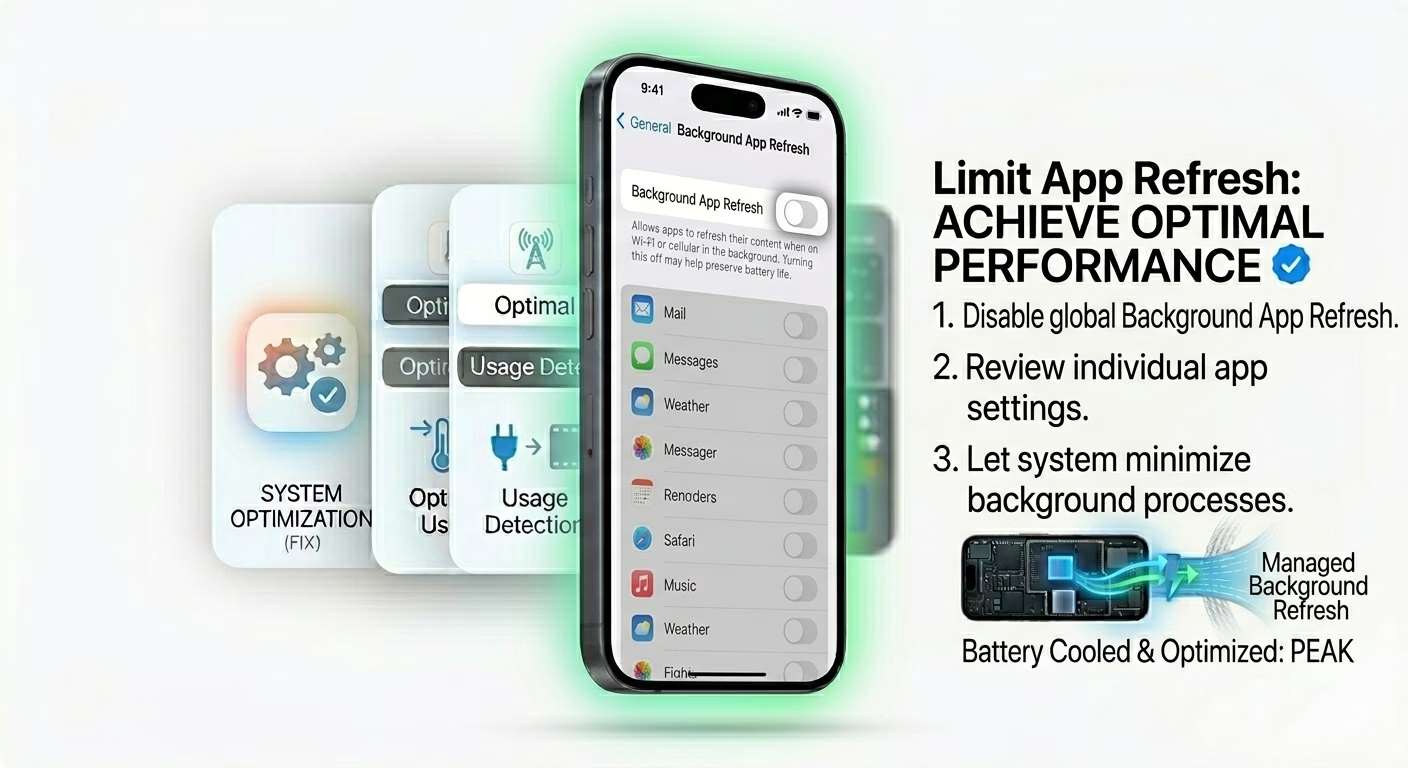
2 Disable Background App Refresh
Background App Refresh allows apps to update even when you are not using them, which drains battery.
Go to Settings → General → Background App Refresh and turn it OFF or limit it to important apps only.
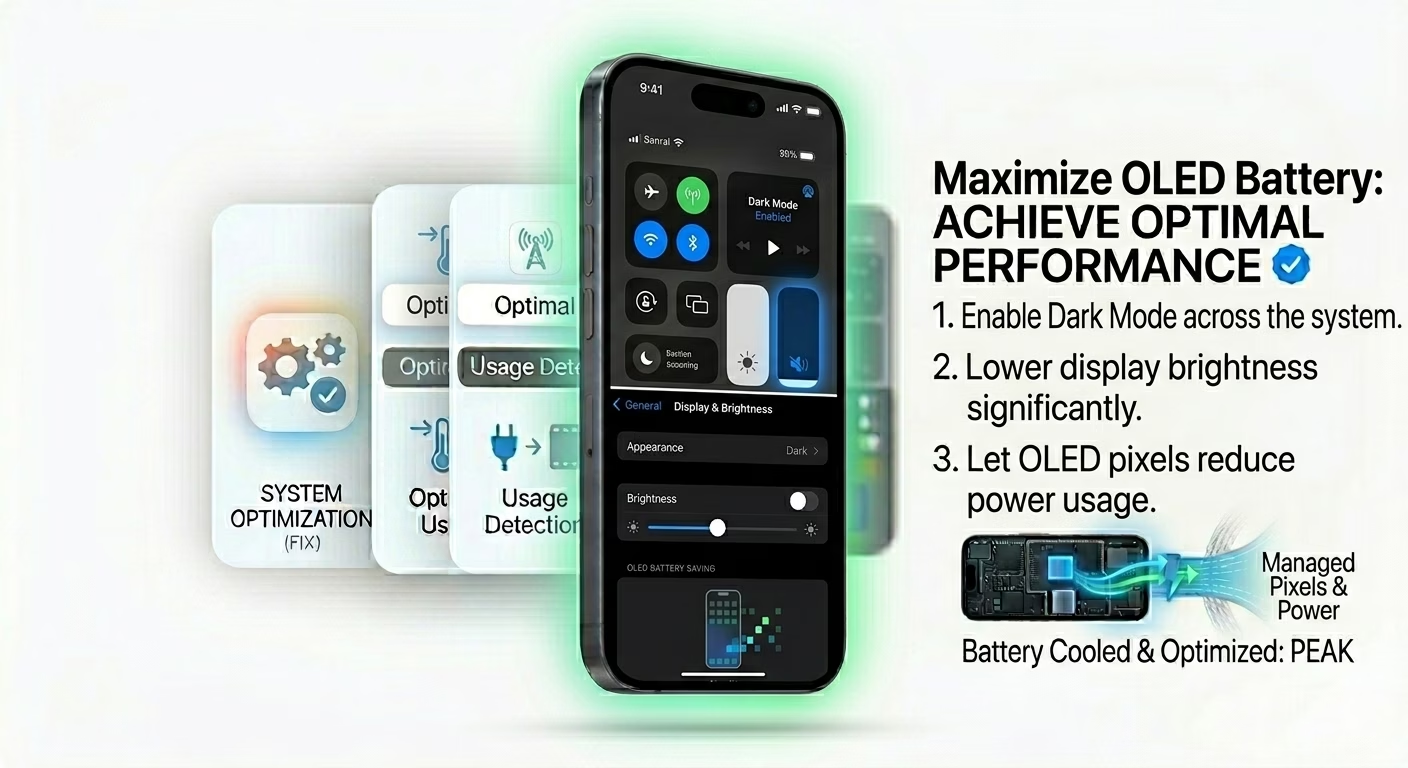
3 Reduce Screen Brightness & Use Dark Mode
The display is the biggest battery consumer. Lower your brightness and enable Auto-Brightness.
If your iPhone has an OLED screen, turning ON Dark Mode can significantly improve battery life.
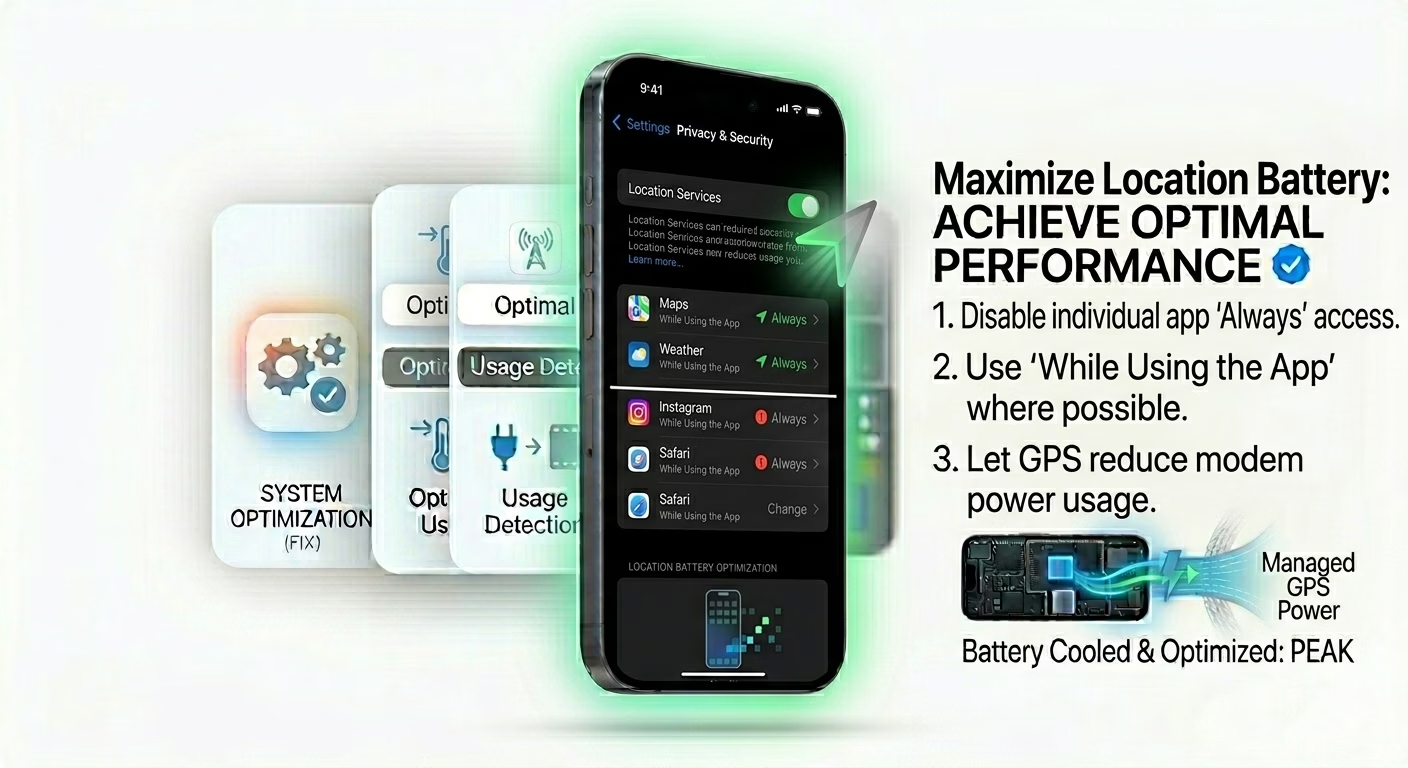
4 Turn Off Location Services
Apps using GPS in the background can drain battery quickly.
Go to Settings → Privacy & Security → Location Services and set apps to “While Using the App” instead of “Always”.
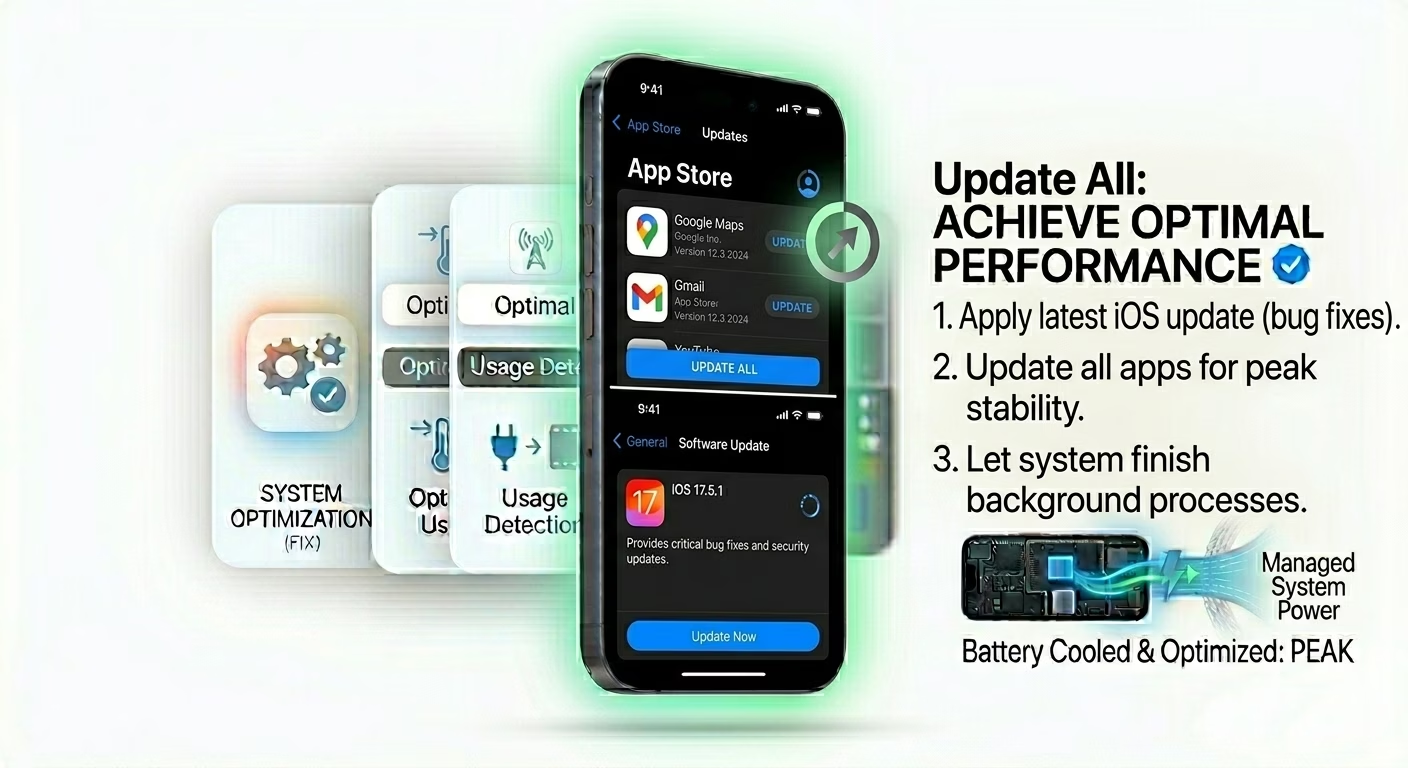
5 Update Apps and iOS
Outdated apps may not be optimized and can cause battery drain. Update all apps from the App Store.
Also make sure your iPhone is running the latest stable version of iOS 18.
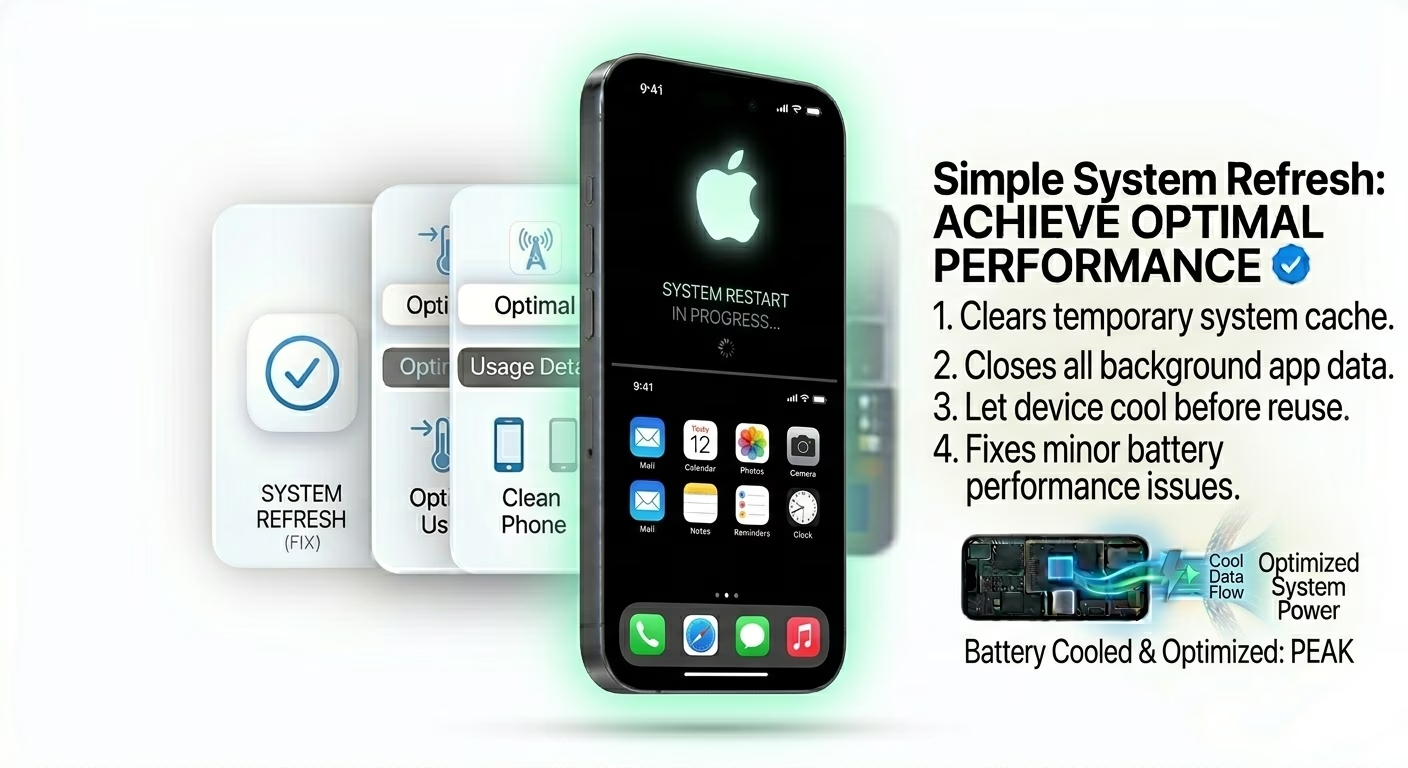
6 Restart Your iPhone
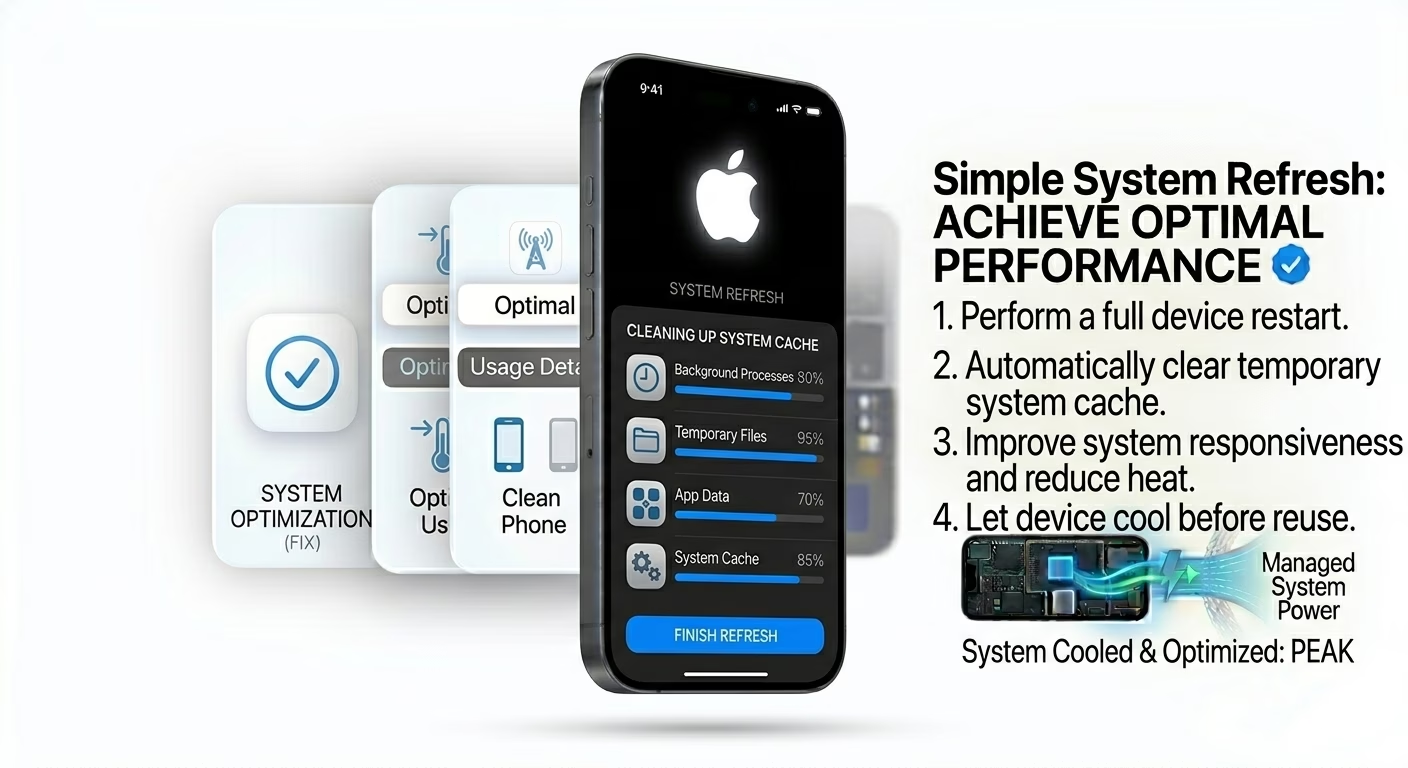
A simple restart can fix temporary bugs causing battery drain. It refreshes system processes and improves performance.
7 Check Battery Health
If your battery health is below 80%, your iPhone will not perform efficiently.
Go to Settings → Battery → Battery Health & Charging to check your battery condition.
Why iPhone Battery Drains Fast
- Background apps running constantly
- High screen brightness
- Location services usage
- Software bugs
- Old or damaged battery
Pro Tips to Improve Battery Life
- Use WiFi instead of mobile data
- Turn OFF unnecessary notifications
- Enable Low Power Mode when needed
- Avoid using phone while charging
Frequently Asked Questions
Why is my iPhone battery draining overnight?
This is usually caused by background apps, notifications, or poor network signal.
Does Low Power Mode really help?
Yes, it reduces background activity and improves battery life significantly.
When should I replace my battery?
If battery health drops below 80%, replacing it is recommended.