Quick Fix Checklist:
- Update all apps from the App Store immediately
- Restart your iPhone to clear RAM and temporary bugs
- Keep at least 5GB free storage available
- Force close the crashing app and reopen it
Step-by-Step Guide to Fix Apps Crashing on iOS 19
1 Update All Apps (Most Important Fix)
After installing iOS 19, many apps may not be fully optimized for the new system. This is the number one reason why apps keep crashing on iPhone after an update.
Open the App Store, tap your profile icon, and scroll to available updates. Tap Update All to install the latest versions.
Developers regularly release updates to fix bugs, improve compatibility, and stop crashes. If you skip this step, your apps may continue to freeze or close unexpectedly.
This fix is essential for issues like apps crashing iOS 19, iPhone apps keep closing, and app crashing after update.
If a specific app like TikTok is crashing, check our TikTok Crashing Fix.
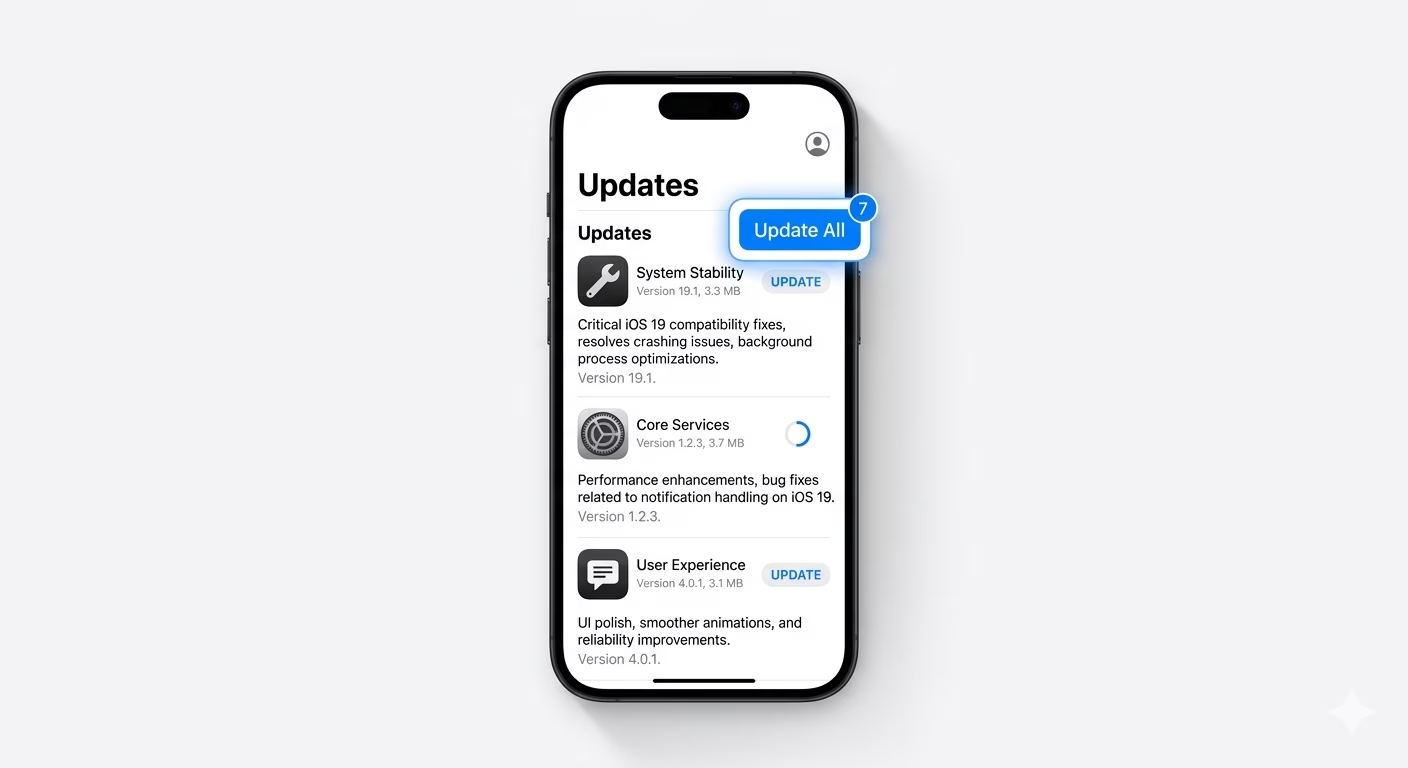
2 Reinstall or Offload the Crashing App
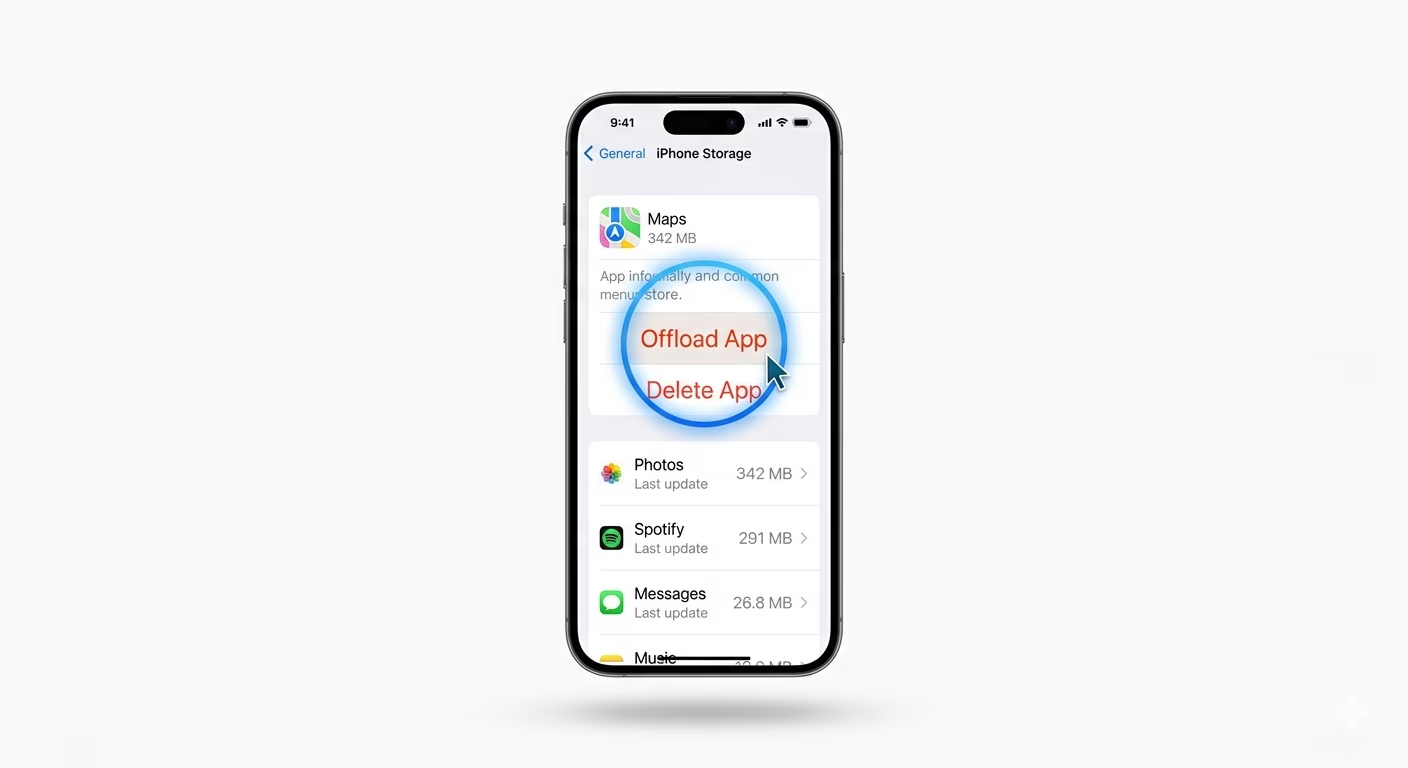
If only one or two apps are crashing, their local data may be corrupted. Reinstalling the app refreshes its files and fixes most stability issues.
Go to Settings > General > iPhone Storage, select the app, and tap Offload App. Then reinstall it.
If the issue continues, delete the app completely and install it again from the App Store.
This method works best for app keeps crashing on iPhone and app not opening iOS 19 problems.
3 Reset All Settings (Fix System Conflicts)
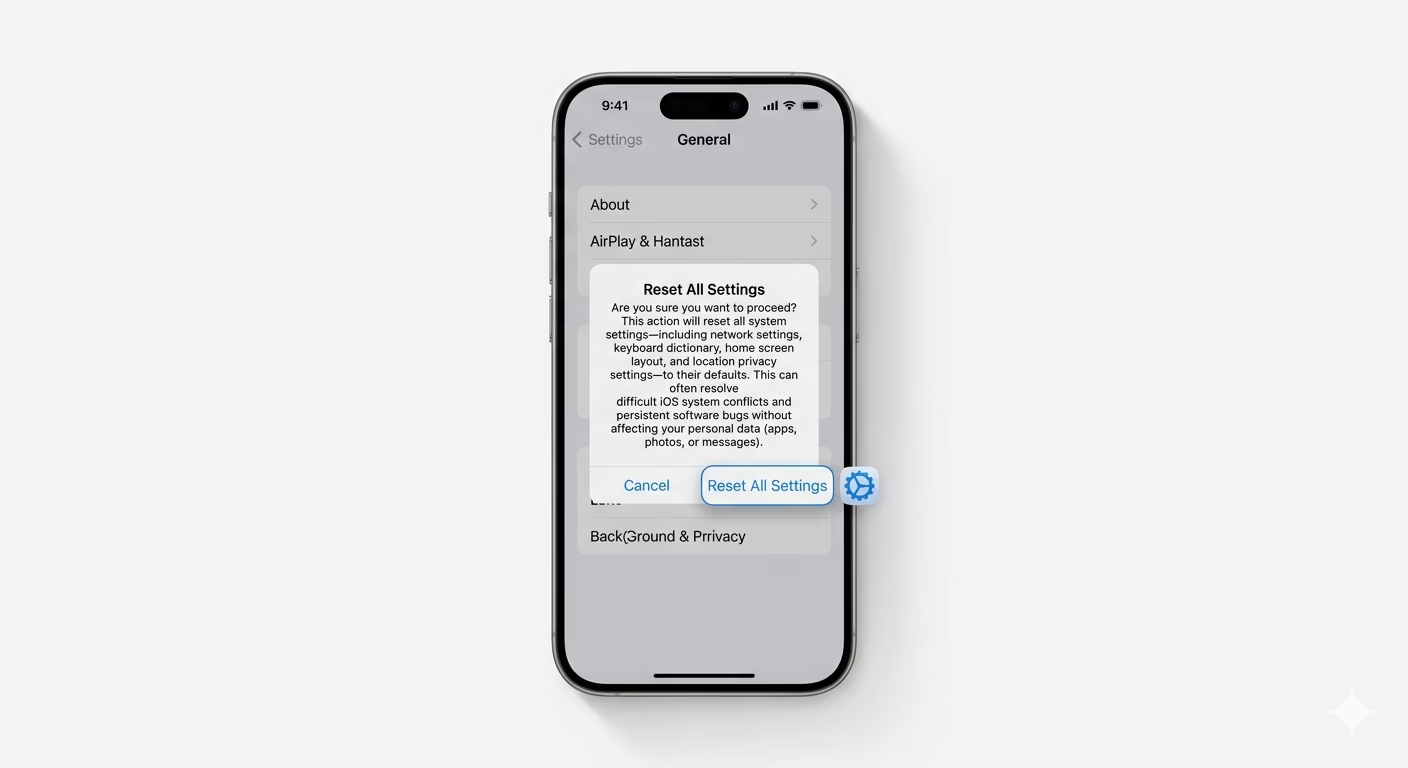
If multiple apps are crashing, the problem is likely within your system settings. Resetting all settings removes conflicts without deleting your personal data.
Go to Settings > General > Transfer or Reset iPhone > Reset > Reset All Settings.
This will reset WiFi, Bluetooth, and system preferences but keep your photos, apps, and files safe.
This fix is very effective for iPhone apps crashing after iOS update and iOS 19 bugs causing crashes.
4 Free Up Storage Space
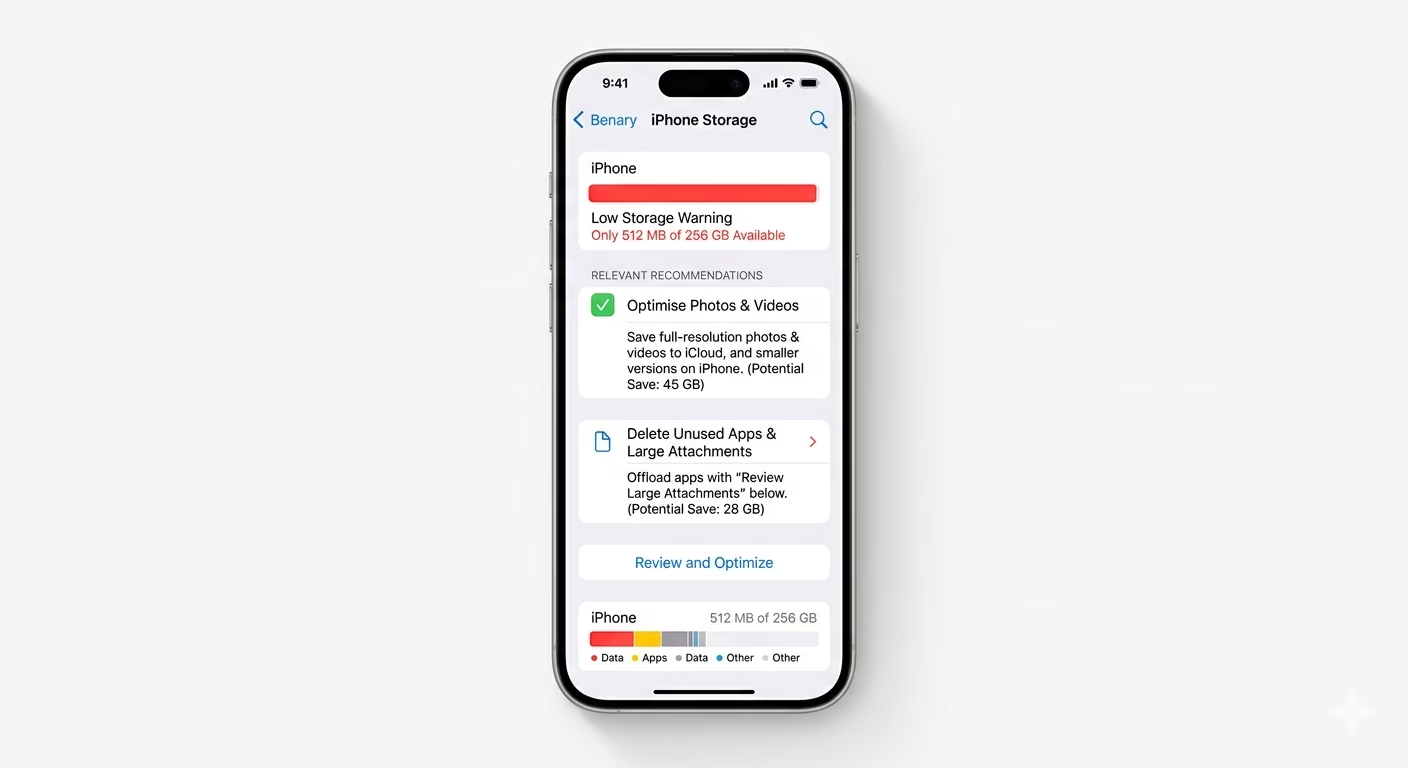
Low storage is a major reason behind app crashes. iOS needs free space to create temporary files, and without it, apps may freeze or fail to open.
Go to Settings > General > iPhone Storage and ensure you have at least 3–5GB free space.
Delete unused apps, large videos, or duplicate files to improve performance.
This is important for fixing apps crashing due to low storage and iPhone lagging and crashing apps.
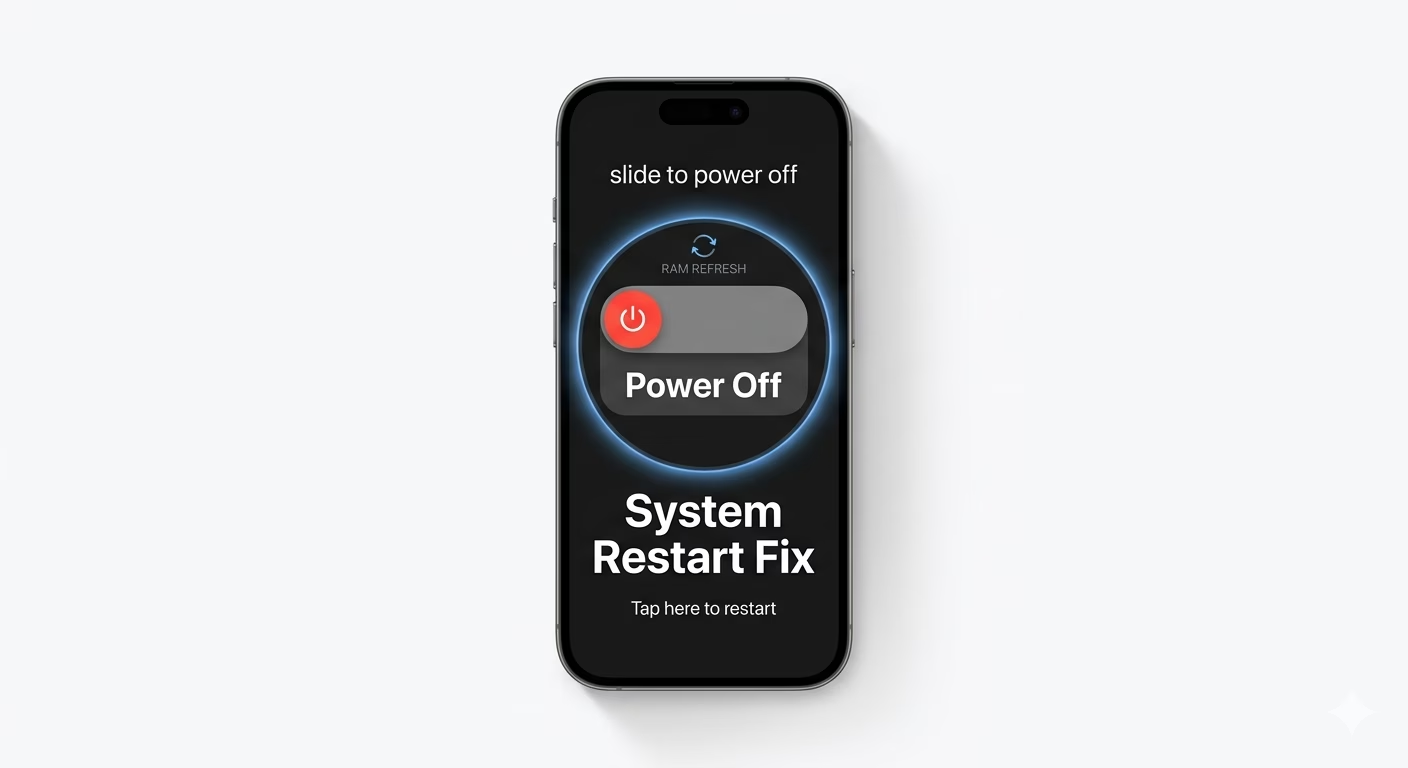
5 Restart Your iPhone
A simple restart can fix many temporary system glitches causing apps to crash. Restarting clears RAM and refreshes system processes.
Press and hold the Power + Volume button, then slide to power off. Turn your iPhone back on after a few seconds.
This helps resolve random app crashes and apps freezing on iPhone.
Why Are Apps Crashing on iOS 19?
- App Compatibility Issues: Apps not optimized for iOS 19
- Low Storage: Not enough space for temporary files
- Corrupted Cache: Old data causing conflicts
- System Bugs: New iOS updates may have glitches
- Too Many Background Apps: Consuming RAM
Pro Tips to Prevent App Crashes:
- Keep all apps updated regularly
- Restart your iPhone once a week
- Avoid installing too many heavy apps
- Use stable internet for online apps
- Keep at least 5GB storage free
Frequently Asked Questions
Why do apps keep crashing after iOS 19 update?
This usually happens due to compatibility issues, outdated apps, or system bugs. Updating apps and resetting settings fixes most problems.
How do I stop apps from crashing on iPhone?
Update apps, clear storage, restart your device, and reinstall problematic apps. These are the most effective fixes.
Does resetting settings delete my data?
No, resetting settings only clears system preferences. Your photos, apps, and files remain safe.