Quick Fix Checklist:
- Try a different Apple-certified (MFi) cable and adapter
- Restart your iPhone to refresh the charging system
- Clean the charging port carefully
- Check power source (wall socket, USB port)
Step-by-Step Guide to Fix iPhone Not Charging
1 Inspect and Clean Charging Port (Most Common Fix)
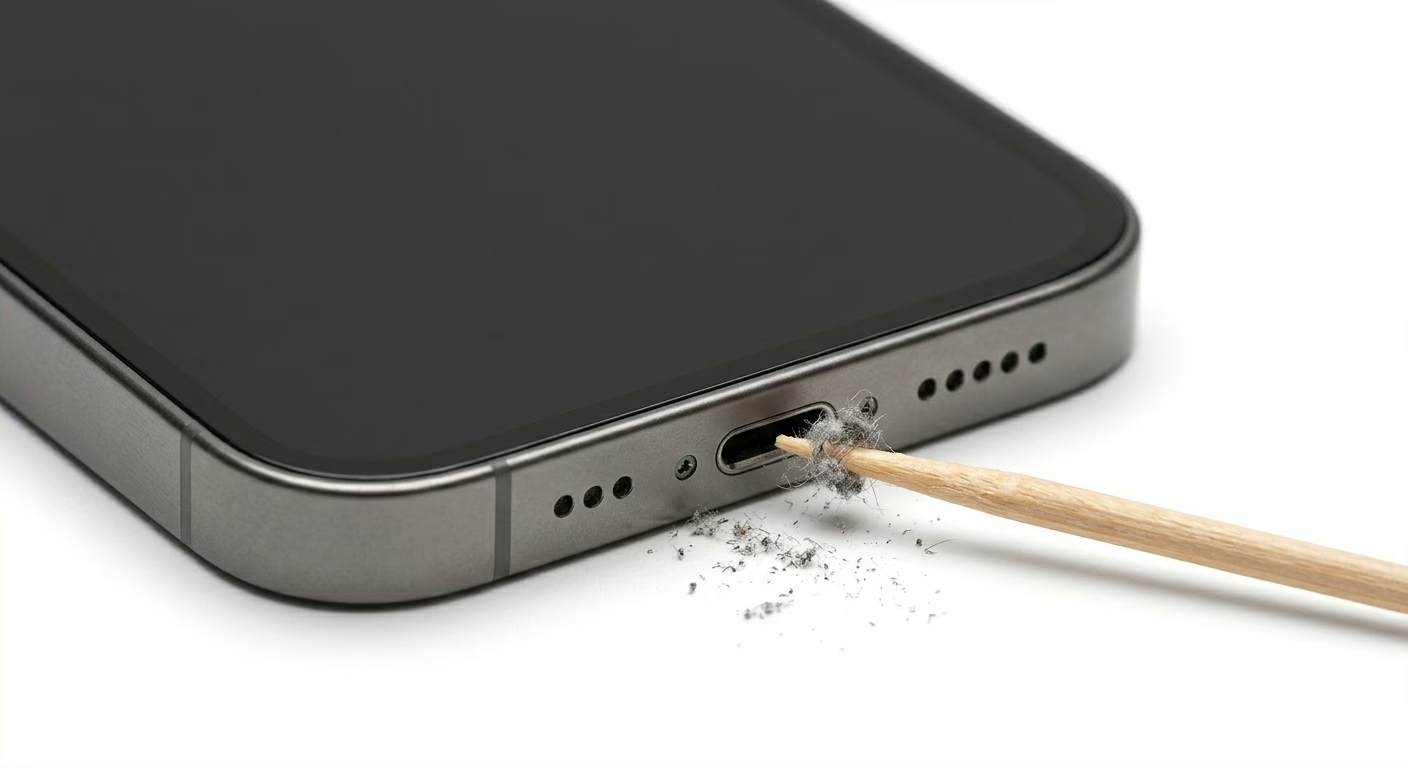
The most common reason why iPhone is not charging is a dirty or blocked charging port. Dust, lint, and debris from pockets can build up inside the port and prevent proper connection.
Use a wooden toothpick, soft brush, or compressed air to gently clean the port. Avoid using metal objects as they can damage internal pins.
After cleaning, reconnect your charger and check if the issue is resolved.
If your iPhone is also overheating while charging, check our iPhone Overheating Fix guide.
2 Check Charging Cable and Adapter
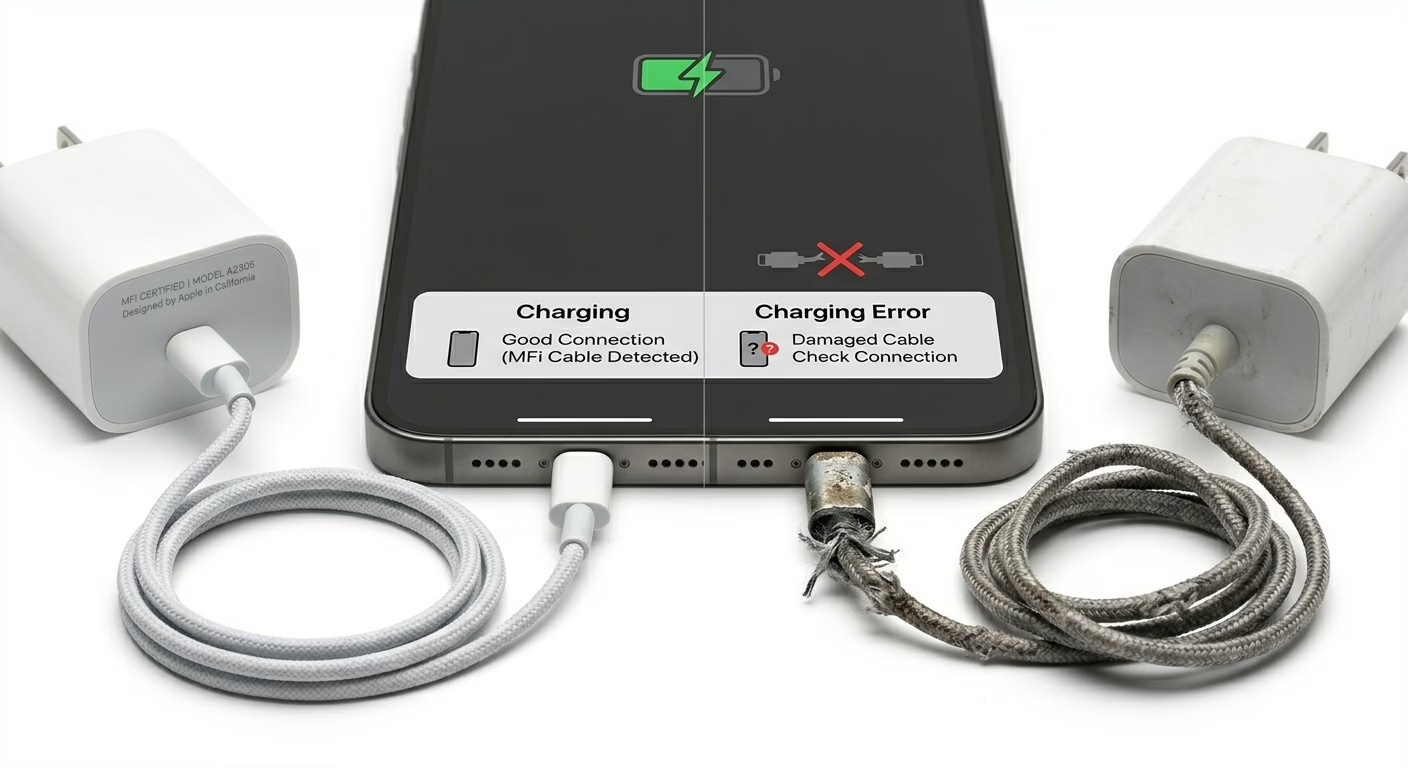
Using a damaged or non-certified cable can cause charging issues or trigger "Accessory Not Supported" errors.
Always use Apple-certified (MFi) cables and adapters. Try a different cable and charger to confirm whether the issue is with accessories.
If your iPhone charges with another cable, your original cable is faulty.
3 Disable Optimized Battery Charging
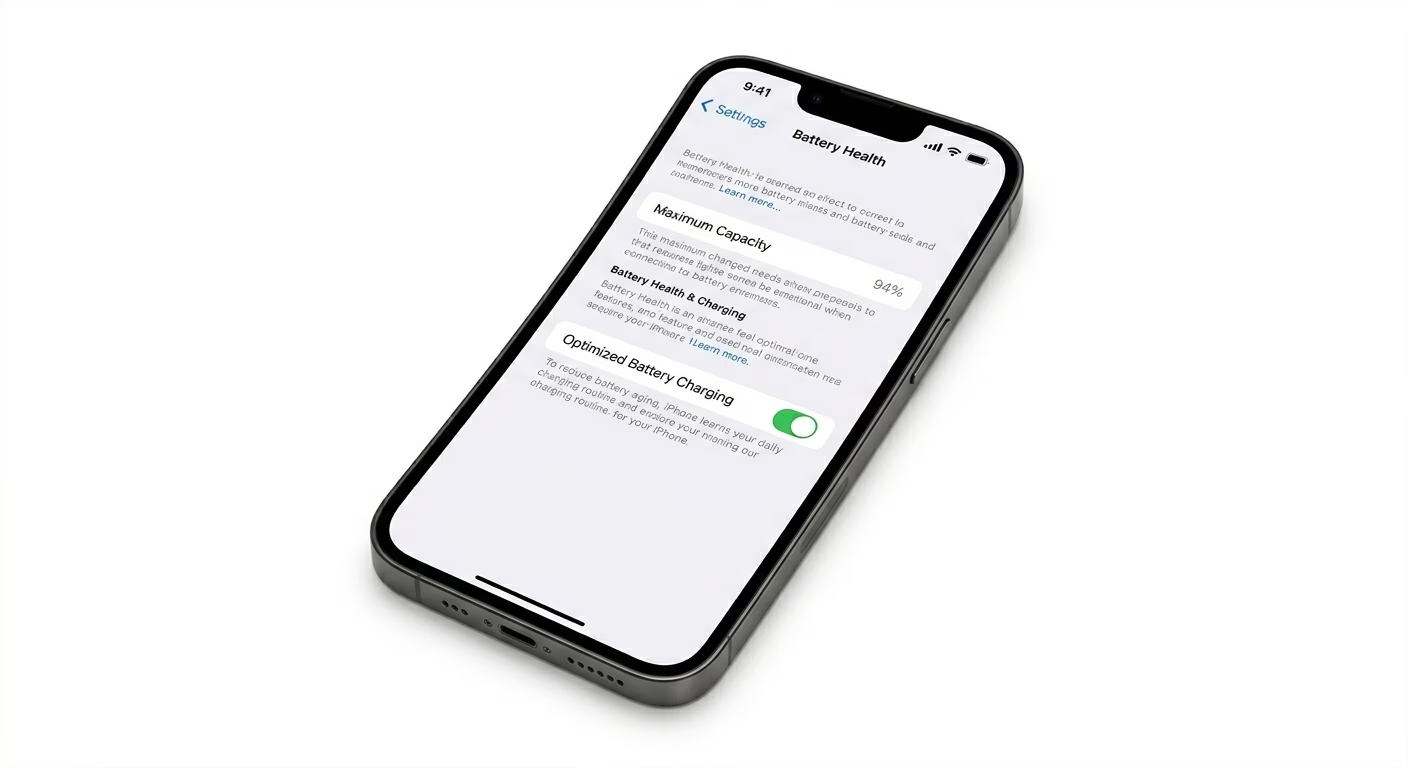
iOS 18 and iOS 19 include battery protection features like Optimized Charging and 80% limit, which can stop charging at a certain level.
Go to Settings > Battery > Battery Health & Charging and disable charging optimization temporarily to test if your phone charges fully.
This is not a bug — it’s a feature designed to extend battery life.
4 Update iOS to Latest Version
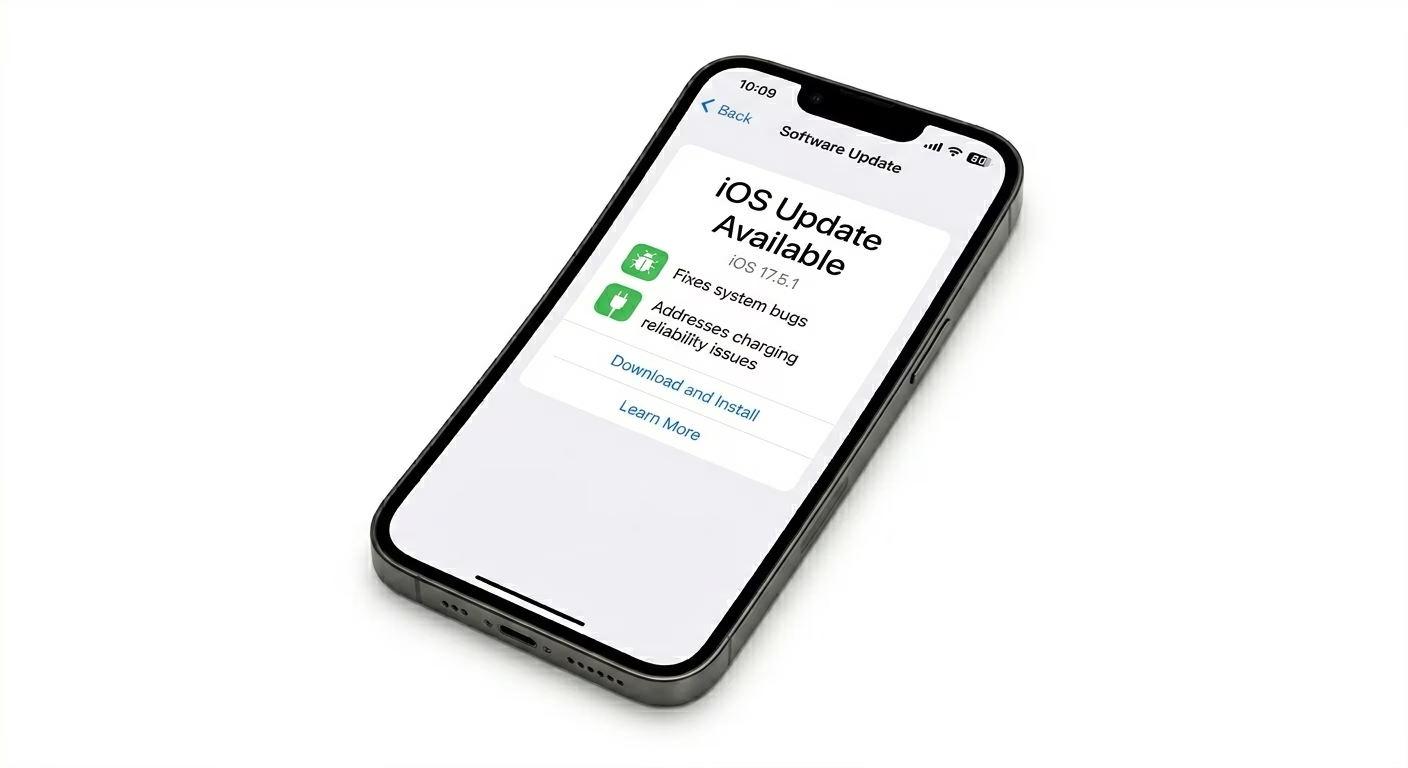
Sometimes charging issues appear after a major iOS update due to bugs. Apple usually releases quick patches to fix these problems.
Go to Settings > General > Software Update and install the latest update available.
Updating your device can fix charging bugs and improve system stability.
If your apps are also crashing, visit our Apps Crashing Fix guide.
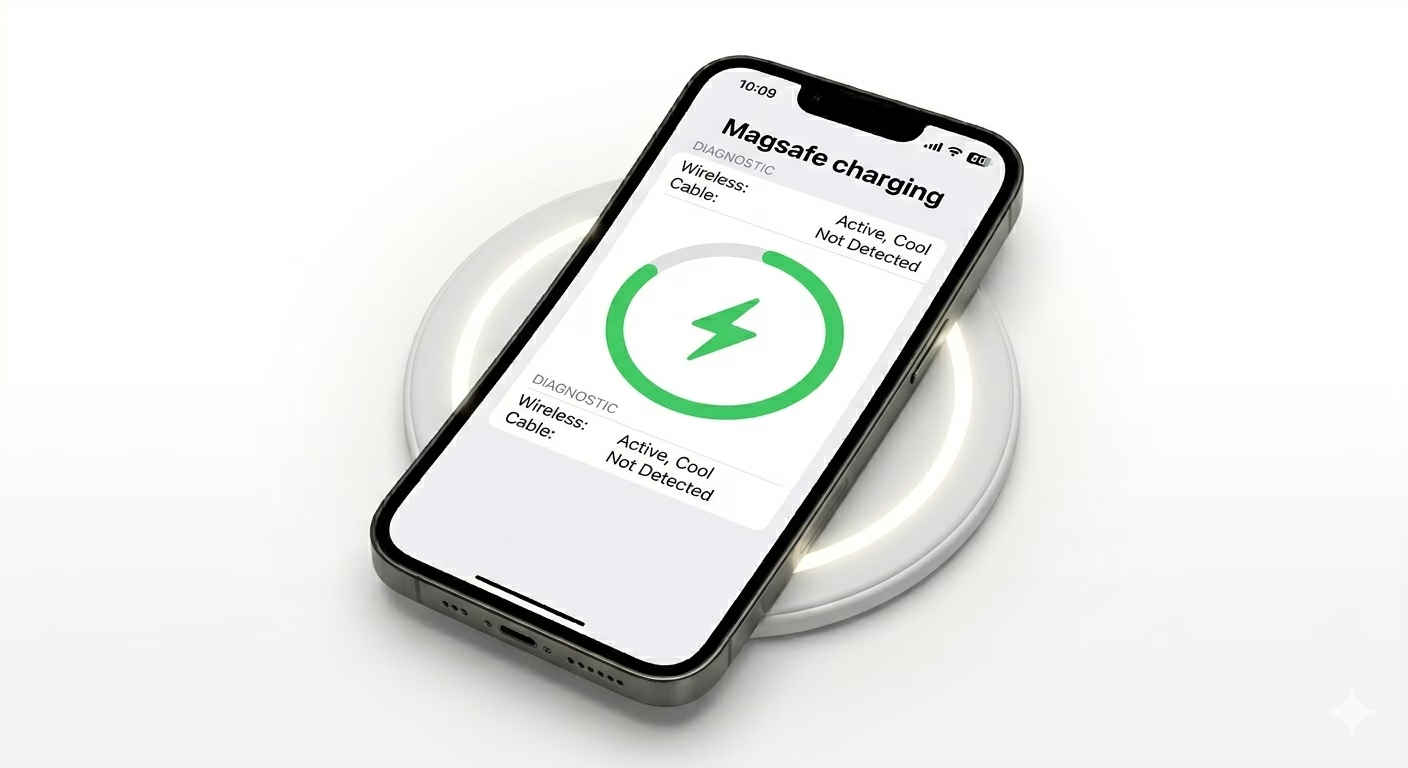
5 Try Wireless Charging (MagSafe/Qi)
If your iPhone supports wireless charging, try using a MagSafe or Qi charger. This helps identify whether the issue is with the charging port or the battery.
If wireless charging works but cable charging does not, the problem is likely in the charging port.
Why iPhone Is Not Charging
- Dirty Charging Port: Blocks connection
- Faulty Cable: Damaged or non-certified charger
- iOS Bugs: Software glitches after updates
- Temperature Issues: Too hot or cold stops charging
- Battery Health: Degraded battery affects charging
Pro Tips to Fix Charging Faster
- Avoid Using Phone While Charging: Reduces heat
- Use Original Accessories: Prevents errors
- Keep Port Clean: Avoid dust buildup
- Charge in Cool Environment: Heat slows charging
Frequently Asked Questions
Why does my iPhone say "Accessory Not Supported"?
This happens due to damaged cables, dirty ports, or non-certified chargers. Use original accessories to fix it.
Why is my iPhone charging slowly?
Slow charging can be caused by weak adapters, background apps, or high temperature.
Can a bad battery stop charging?
Yes, if battery health is very low, the iPhone may not charge properly. Consider battery replacement.
What does "Liquid Detected" mean?
This means moisture is present in the port. Let your iPhone dry completely before charging.