Quick Fix Checklist:
- Perform a Force Restart immediately
- Charge your iPhone for at least 30 minutes
- Use an original Apple cable and adapter
- Connect your iPhone to a computer (Finder/iTunes)
Step-by-Step Guide to Fix iPhone Stuck on Apple Logo
1 Force Restart Your iPhone (Most Effective Fix)
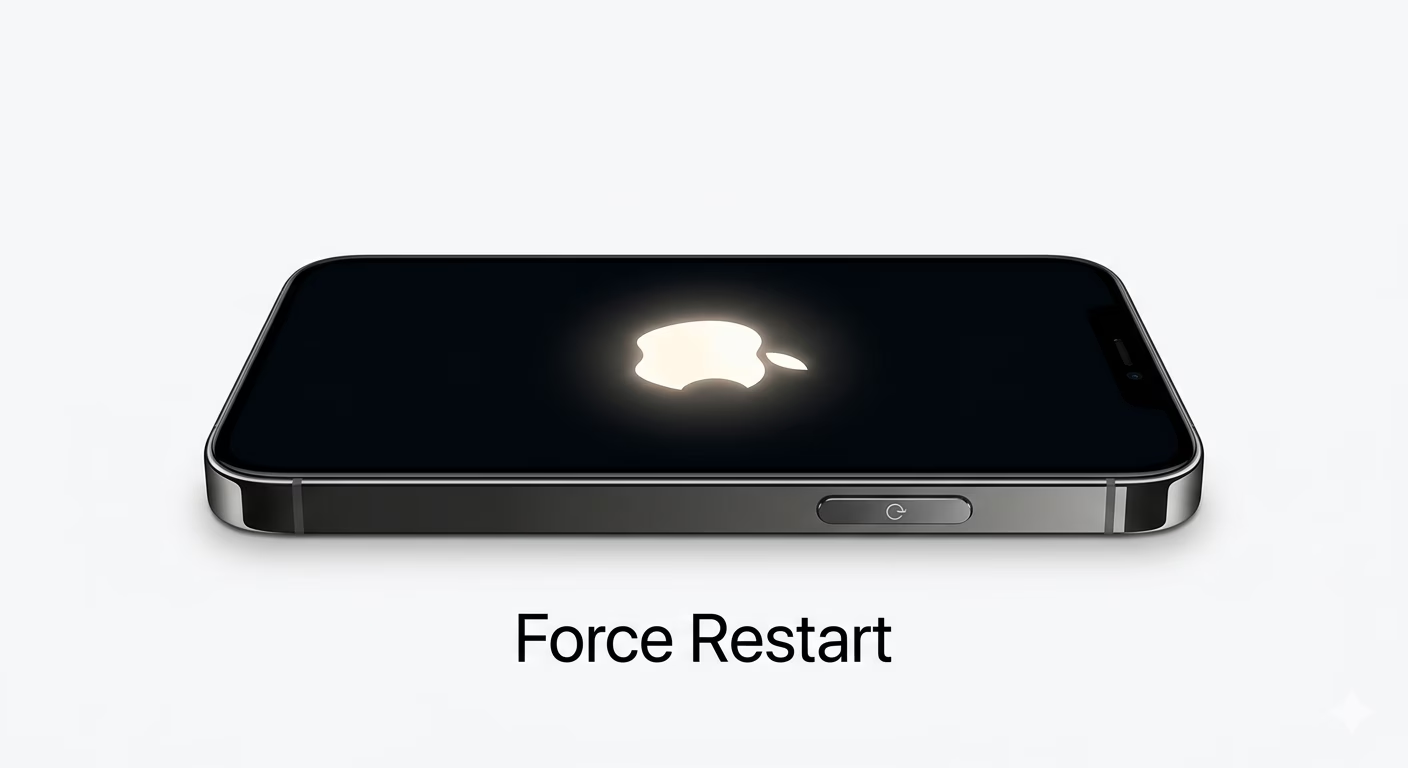
The first and most important step to fix iPhone stuck on Apple logo is performing a force restart. This method refreshes the system and breaks the boot loop without deleting your data.
For iPhone 8 and later models: Press and quickly release Volume Up, then press and quickly release Volume Down. After that, press and hold the Side button until the Apple logo appears again.
This method works in most cases where the issue is caused by temporary software glitches or incomplete system processes.
If your iPhone is also overheating or freezing, check our iPhone Overheating Fix guide.
2 Use Recovery Mode (Fix Without Data Loss)
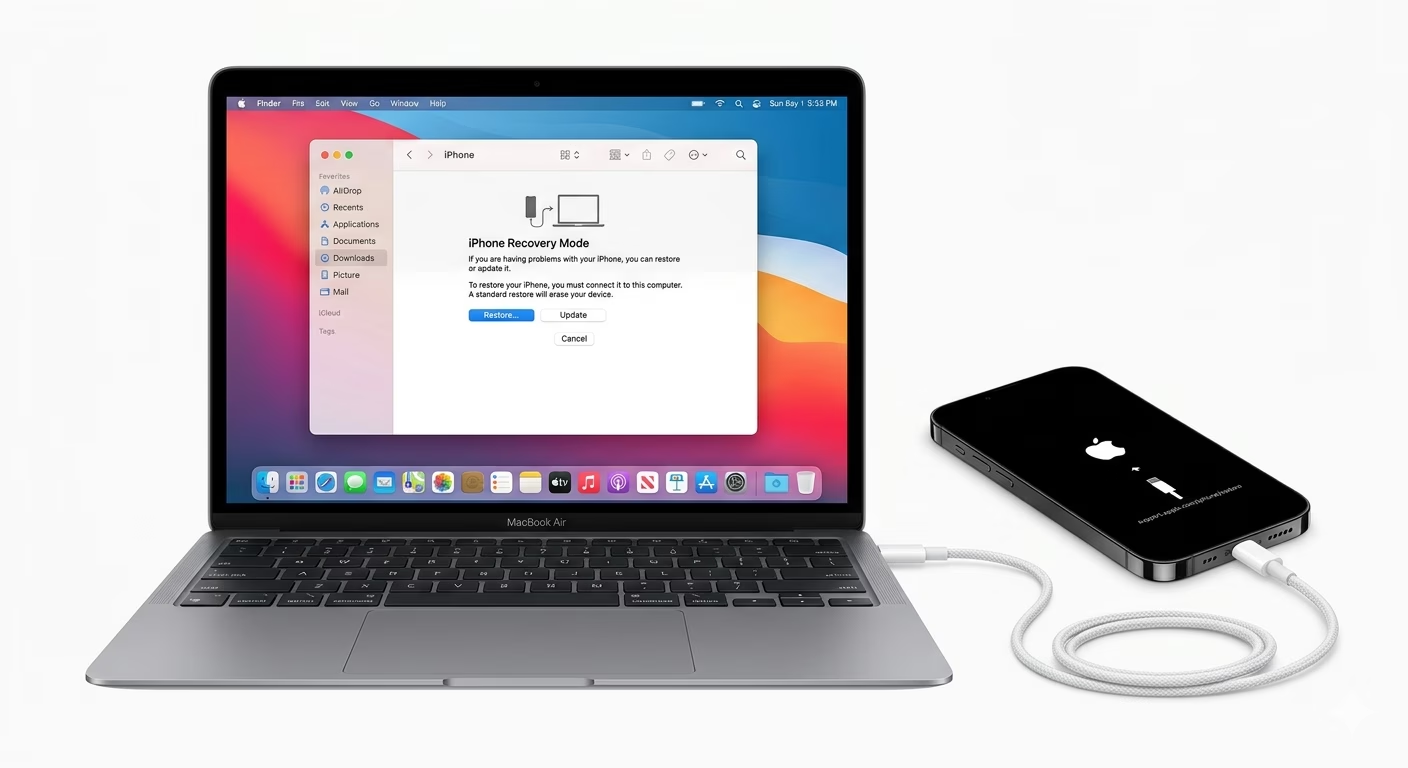
If force restart does not work, the next step is to use Recovery Mode. This allows you to reinstall iOS without deleting your data.
Connect your iPhone to a Mac or Windows PC. Open Finder (Mac) or iTunes (Windows). Now perform the force restart steps again but keep holding the Side button even after the Apple logo appears until you see the "Connect to Computer" screen.
When prompted, select "Update" instead of Restore. This will reinstall iOS while keeping your files safe.
This method is highly effective for fixing corrupted system files or failed iOS updates.
If multiple apps are crashing after update, read our Apps Crashing Fix guide.
3 DFU Mode Restore (Advanced Solution)
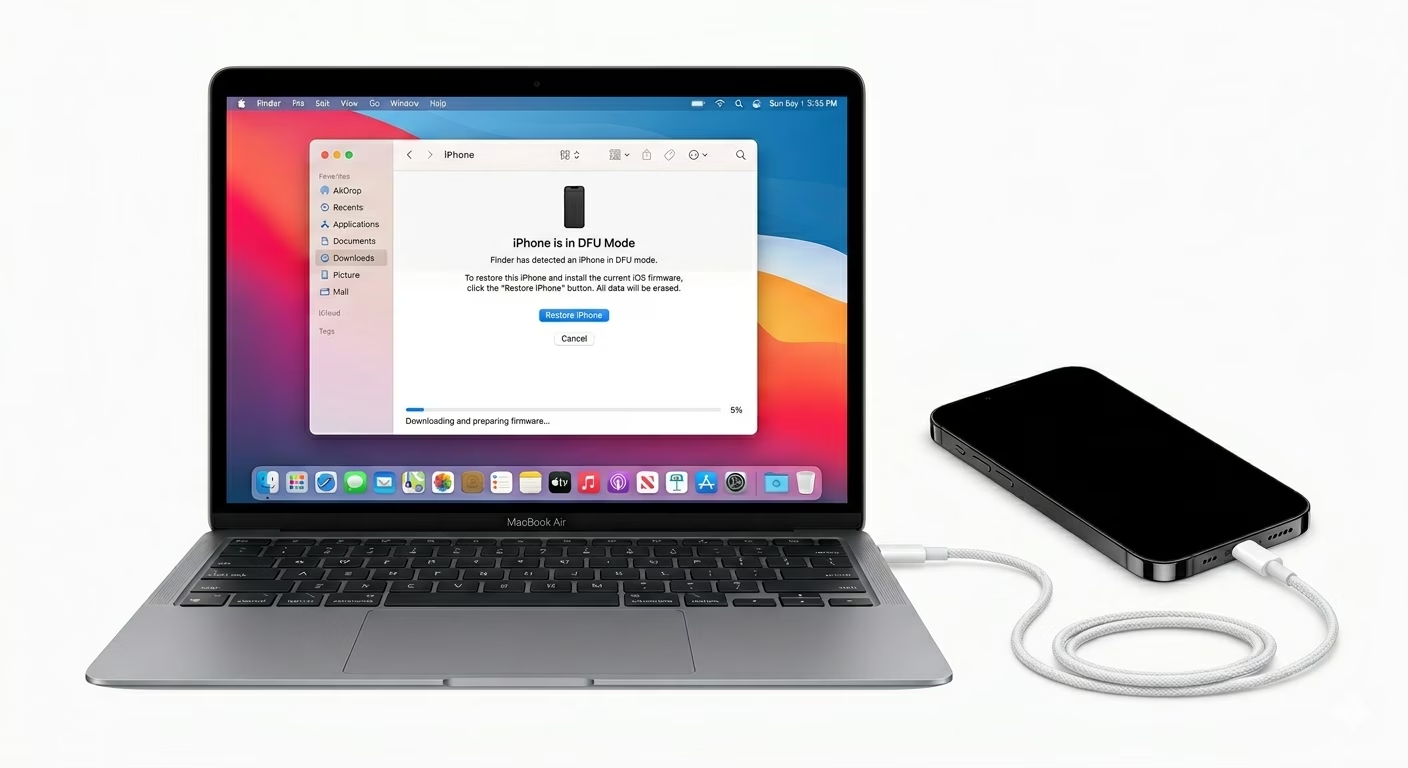
If Recovery Mode fails, DFU (Device Firmware Update) mode is the deepest repair method available. This completely reloads the firmware and removes all corrupted system data.
Connect your iPhone to a computer. Press and hold the Side button + Volume Down for 10 seconds. Then release the Side button but keep holding Volume Down until the screen stays completely black.
If the screen remains black and Finder/iTunes detects the device, your iPhone is in DFU mode.
Important: This process will erase all data. Only use DFU if you have a backup or if other methods fail.
If your iPhone also has charging issues, check our iPhone Not Charging Fix guide.
4 Charge Your iPhone and Check Cable
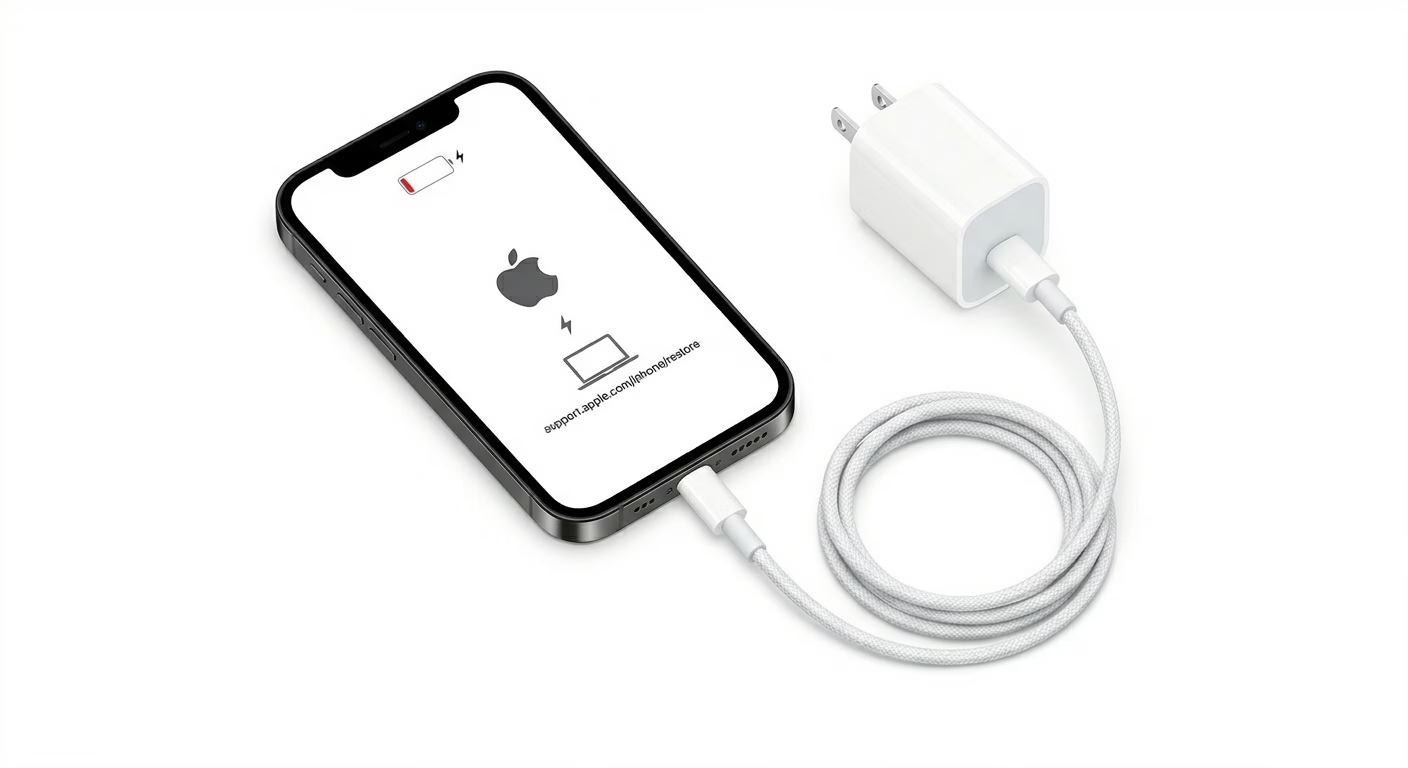
Sometimes your iPhone gets stuck on the Apple logo due to low battery or unstable power supply. If the device doesn’t have enough power to boot properly, it may remain stuck.
Connect your iPhone to an original Apple charger and let it charge for at least 30–60 minutes. Avoid using cheap or damaged cables.
This simple step can fix many boot-related issues.
Why iPhone Gets Stuck on Apple Logo
- Corrupted iOS Update: Incomplete or failed update causes boot loop
- Low Storage: iPhone cannot load system files properly
- Jailbreak Issues: Modified system files break boot process
- Hardware Problems: Battery or motherboard faults
- Restore Errors: Backup incompatibility issues
Pro Tips to Prevent This Issue
- Keep 5–10GB Free Storage: Prevents system crashes
- Always Update Safely: Avoid interrupting iOS updates
- Use Original Accessories: Cheap cables can cause issues
- Backup Regularly: Use iCloud or iTunes backups
Frequently Asked Questions
Will I lose data if my iPhone is stuck on Apple logo?
No, if you use Recovery Mode with the "Update" option, your data remains safe. However, DFU restore will erase everything.
How long should Apple logo stay on screen?
If the Apple logo stays for more than 20–30 minutes without progress, your iPhone is likely stuck.
Can low storage cause boot loop?
Yes, extremely low storage can prevent iOS from loading, causing the device to get stuck on the Apple logo.
What if nothing works?
If all methods fail, it may be a hardware issue. Visit an Apple Service Center for diagnosis.