Quick Cooling Checklist:
- Remove your iPhone case to release trapped heat
- Turn OFF Background App Refresh
- Reduce screen brightness and disable Always-On Display
- Avoid using your iPhone while charging
Step-by-Step Guide to Fix iPhone Overheating After iOS 18
1 Check Background Activity (Most Common Cause)
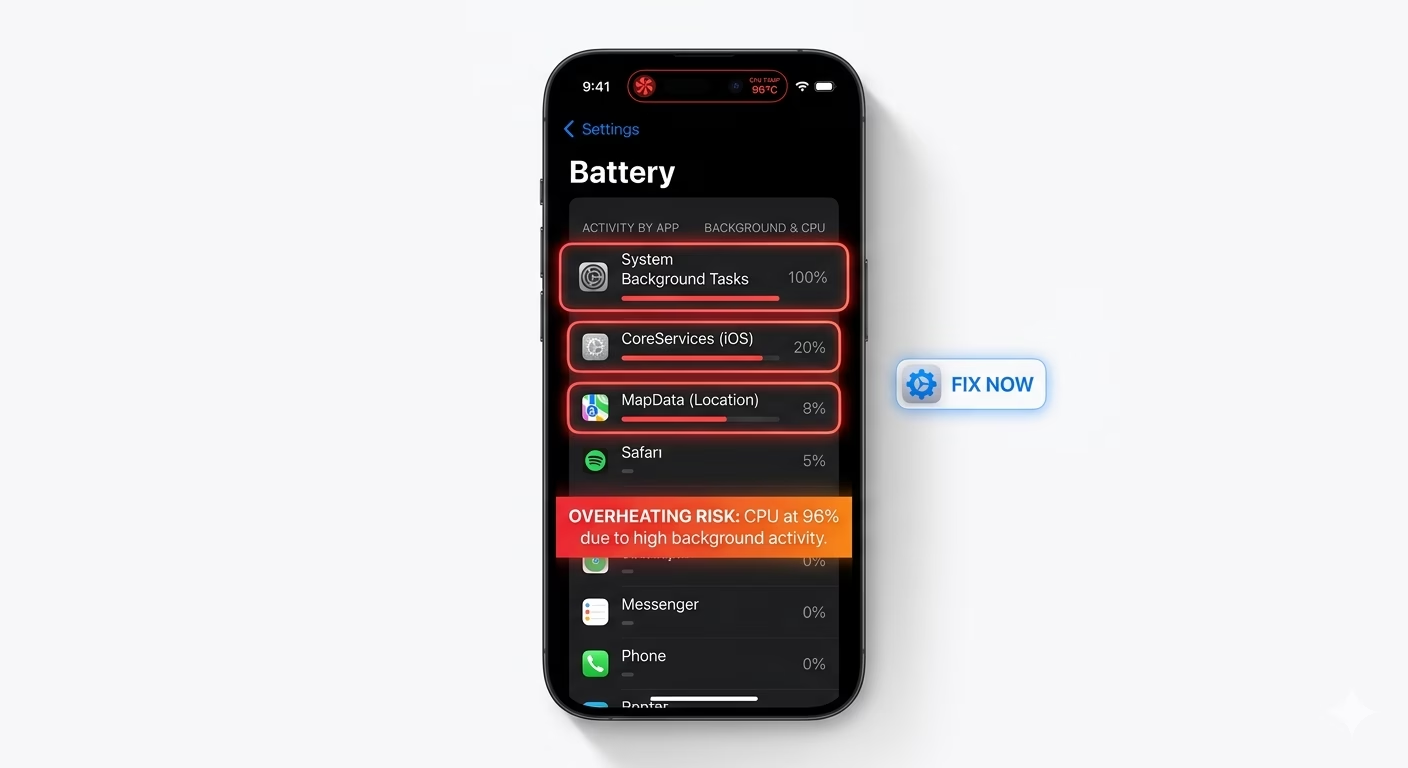
After installing iOS 18, your iPhone performs heavy background tasks such as indexing photos, optimizing storage, and syncing apps. This process increases CPU usage, which leads to overheating.
Go to Settings > Battery and check which apps are consuming the most power. If any app is using excessive battery in the background, force close it or disable its background activity.
This step is crucial if your iPhone overheating after update or iPhone getting hot for no reason.
If your battery is also draining fast, check our iPhone Battery Drain Fix guide.
2 Reset All Settings (Fix Hidden System Bugs)
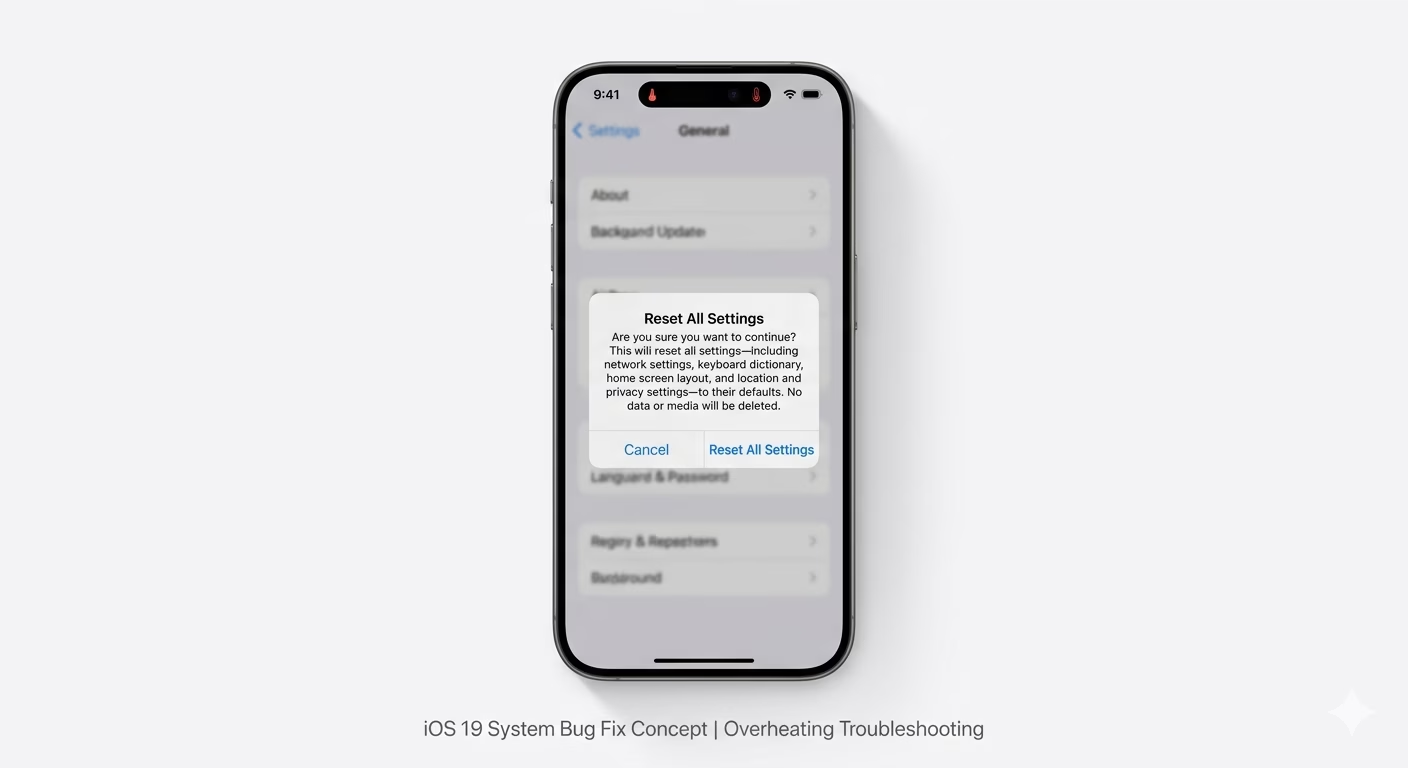
Sometimes old settings conflict with new iOS 18 configurations, causing the processor to overwork continuously. Resetting all settings can fix overheating without deleting your personal data.
Go to Settings > General > Transfer or Reset iPhone > Reset > Reset All Settings.
This will reset WiFi, Bluetooth, and system preferences, but your photos and apps remain safe.
This method is highly effective for iPhone overheating iOS 18 fix and iPhone heating issue after update.
3 Manage Location Services
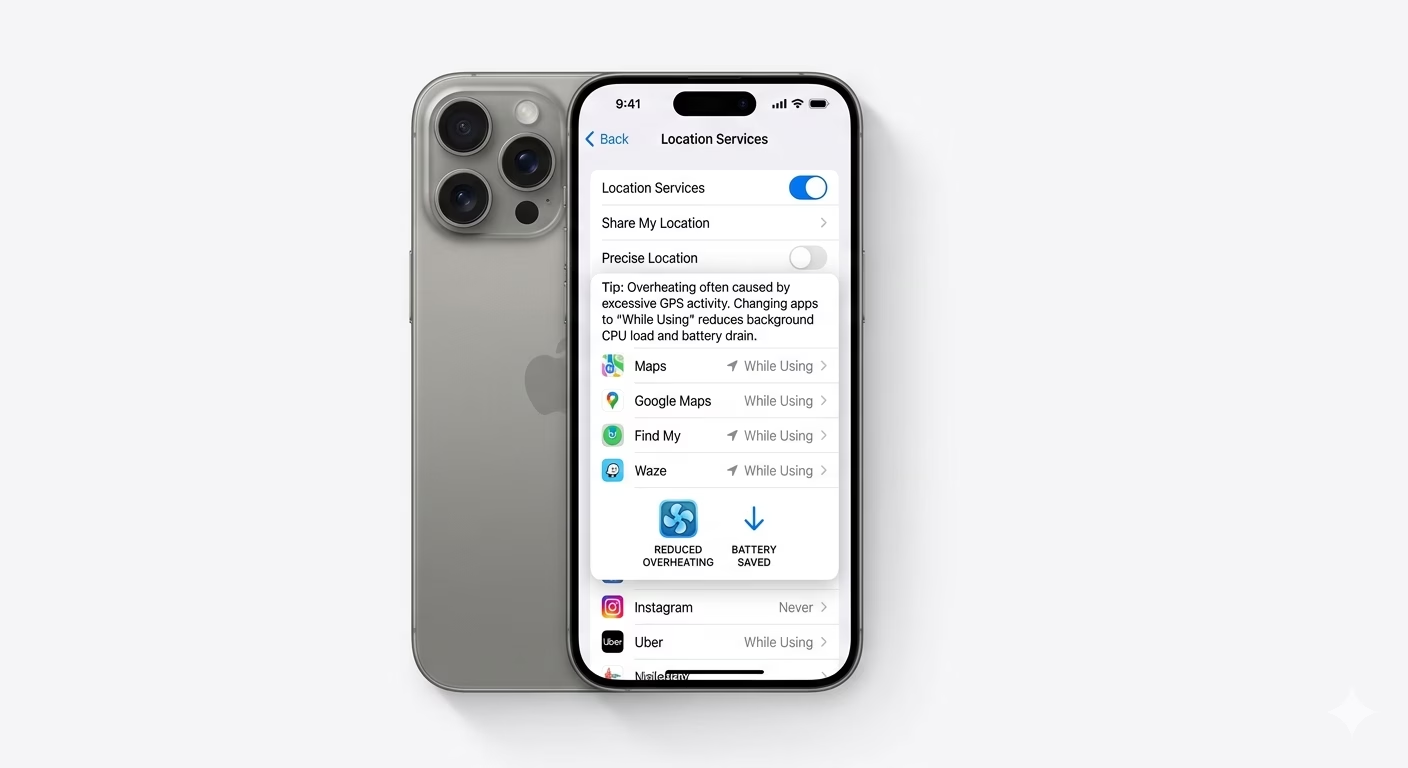
Location Services (GPS) continuously run in the background and can significantly increase device temperature. Many apps use location even when not needed.
Go to Settings > Privacy & Security > Location Services and set apps to "While Using the App" or turn them OFF completely.
This reduces CPU load and helps fix iPhone overheating problem quickly.
4 Avoid Using iPhone While Charging
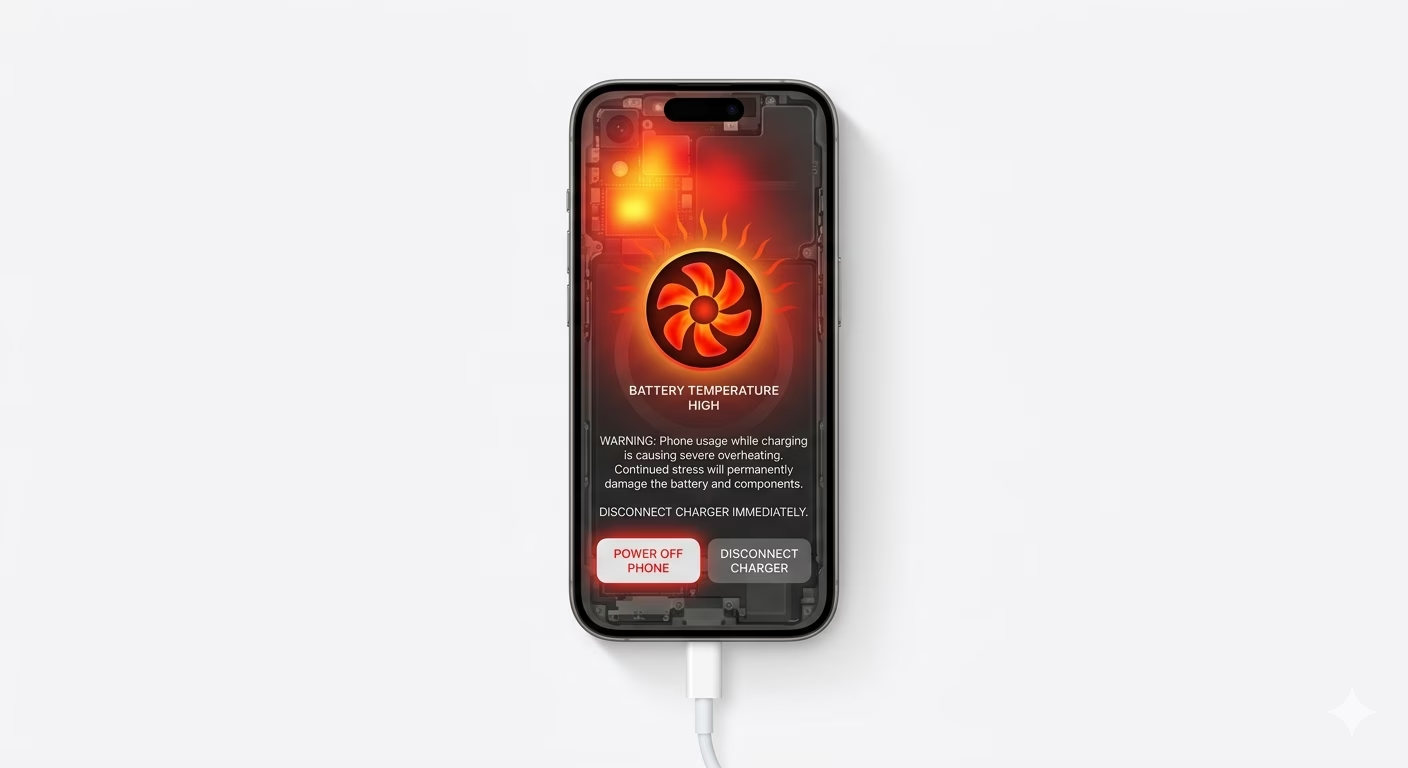
Using your iPhone while charging—especially for gaming, video streaming, or TikTok—generates double heat from both the battery and processor.
Always let your iPhone charge without heavy usage. This is one of the easiest ways to prevent iPhone overheating while charging.
If your device also has charging issues, check our iPhone Not Charging Fix.
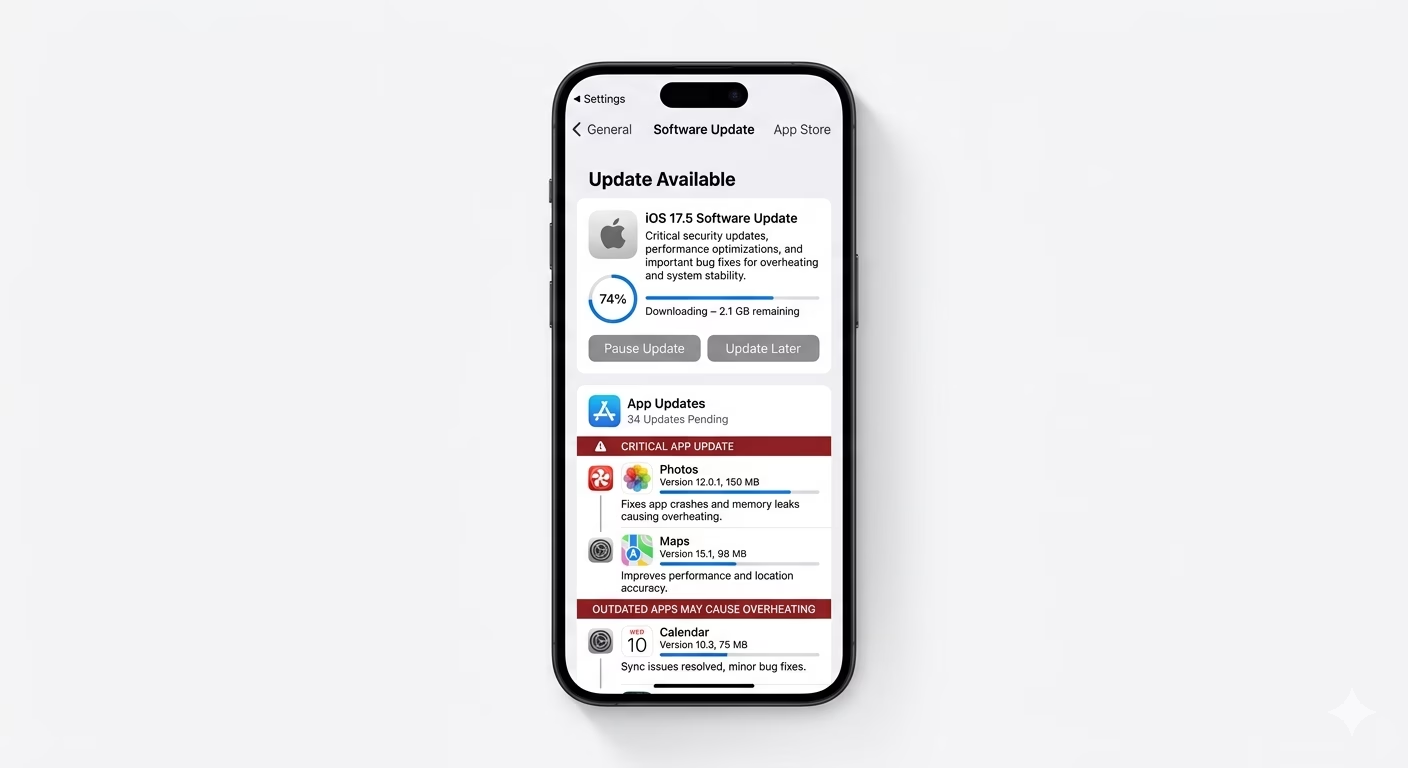
5 Update Apps and iOS
Outdated apps may not be optimized for iOS 18, causing excessive CPU usage and overheating. Developers release updates to fix compatibility issues.
Go to the App Store and update all apps. Also check Settings > General > Software Update for any iOS patches.
This helps fix iPhone overheating after iOS update and improves overall performance.
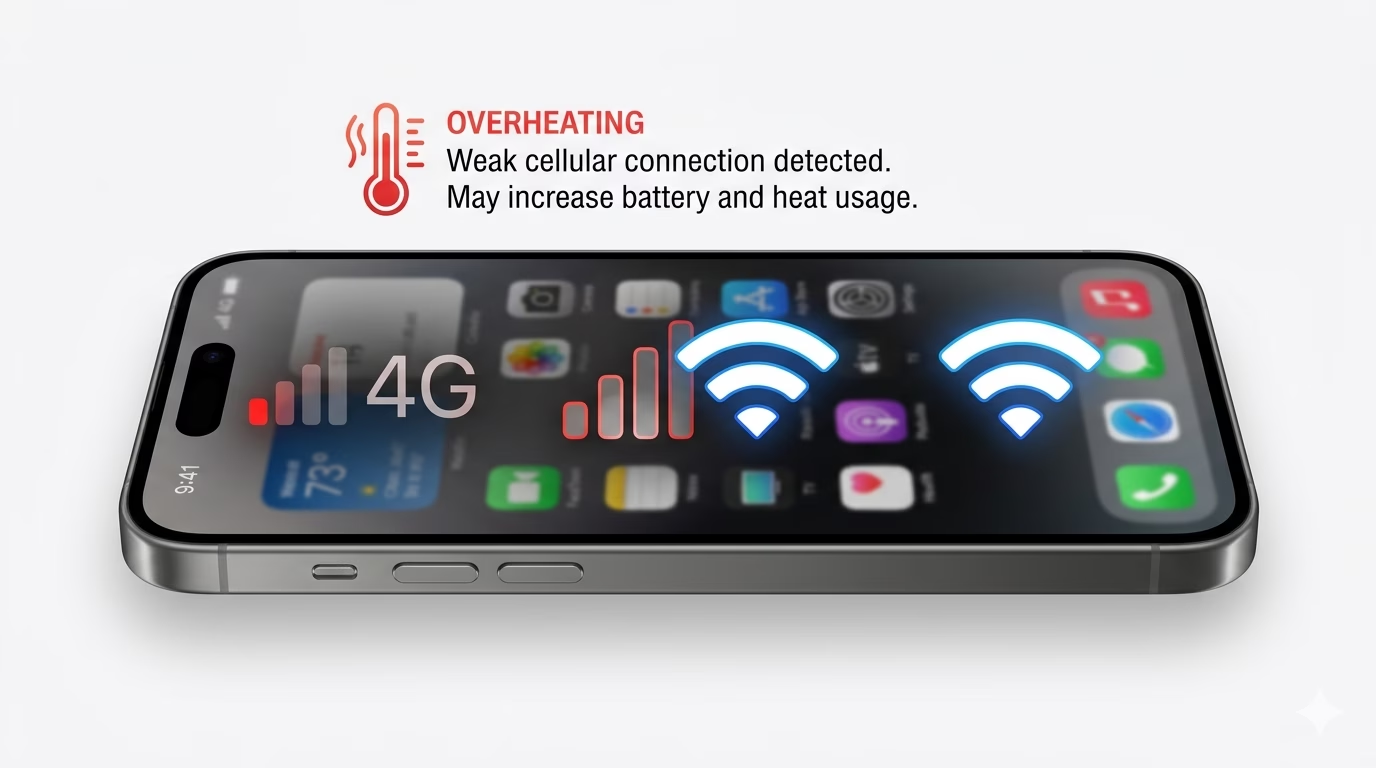
6 Improve Network Signal
Weak mobile signal forces your iPhone to constantly search for a better connection, which increases heat and battery usage.
Switch to WiFi when possible or enable Airplane Mode temporarily in low-signal areas.
This is especially useful if your iPhone gets hot during internet use or streaming.
Why Is Your iPhone Overheating?
- Background Processing: iOS updates trigger heavy system tasks
- App Compatibility Issues: Old apps not optimized for iOS 18
- Charging Heat: Fast charging generates extra temperature
- Poor Network Signal: Constant searching increases CPU load
- High Screen Brightness: Increases power consumption
Pro Tips to Keep iPhone Cool:
- Keep your iPhone out of direct sunlight
- Remove thick phone cases during heavy usage
- Enable Low Power Mode to reduce CPU load
- Avoid gaming or video editing for long sessions
- Use only original or certified Apple chargers
Frequently Asked Questions
Is it normal for iPhone to heat after iOS update?
Yes, for the first 24–48 hours, your iPhone performs background tasks which may cause temporary heating. If it continues, you should apply the fixes above.
Can overheating damage my iPhone?
Yes, continuous overheating can reduce battery life and affect performance. It’s important to fix the issue early.
How can I cool down my iPhone quickly?
Stop using it, remove the case, turn on Airplane Mode, and keep it in a cool place. Avoid placing it in a fridge.