Quick App Checklist:
- Switch between WiFi and Mobile Data
- Turn OFF any VPN connection
- Restart your iPhone
- Check if Instagram servers are down
How to Fix Instagram Not Refreshing (Step-by-Step)
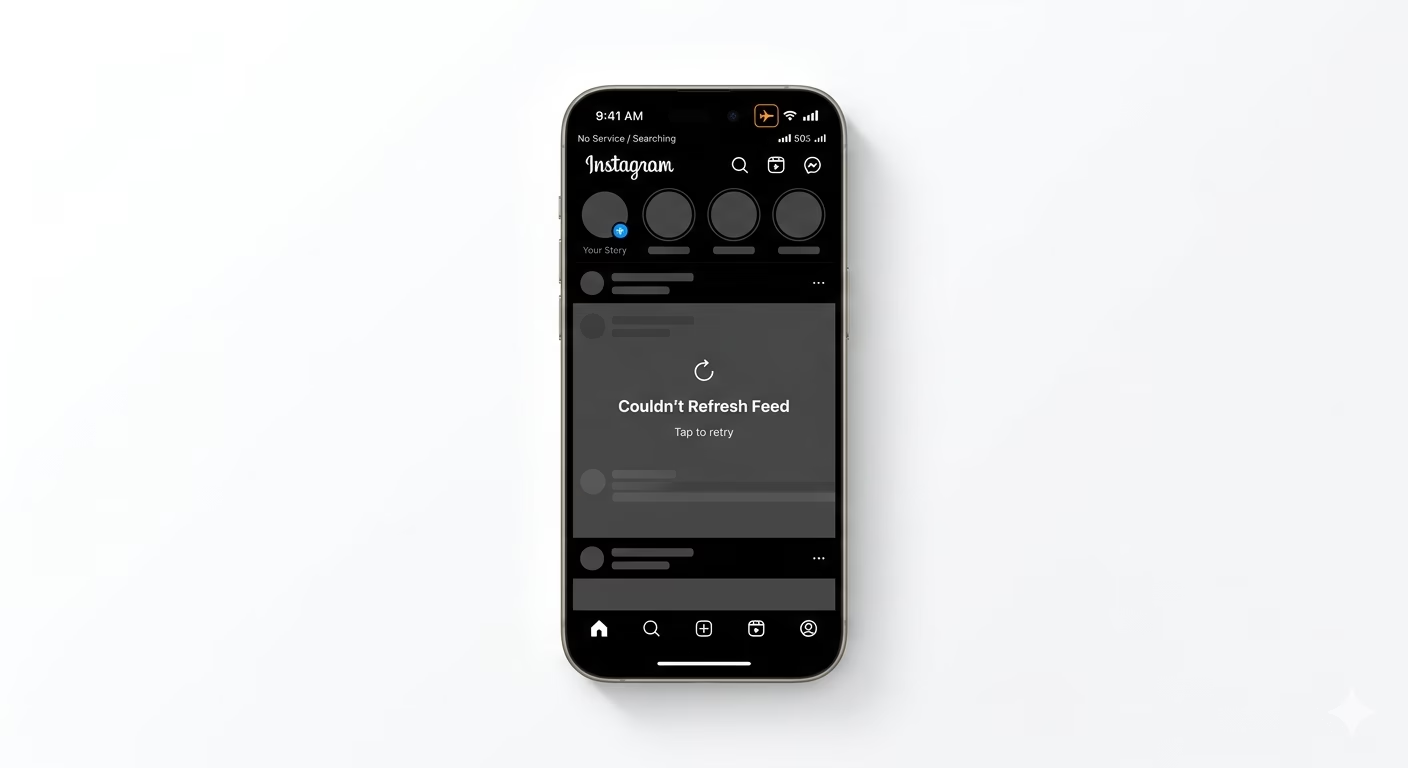
1 Check Your Internet Connection
The most common reason Instagram is not refreshing is a weak or unstable internet connection. Try switching between WiFi and mobile data to see if the issue gets fixed. If both connections are slow, restart your router or turn Airplane Mode ON and OFF.
A stable connection is required for Instagram to load new posts, stories, and reels properly.
2 Restart the Instagram App
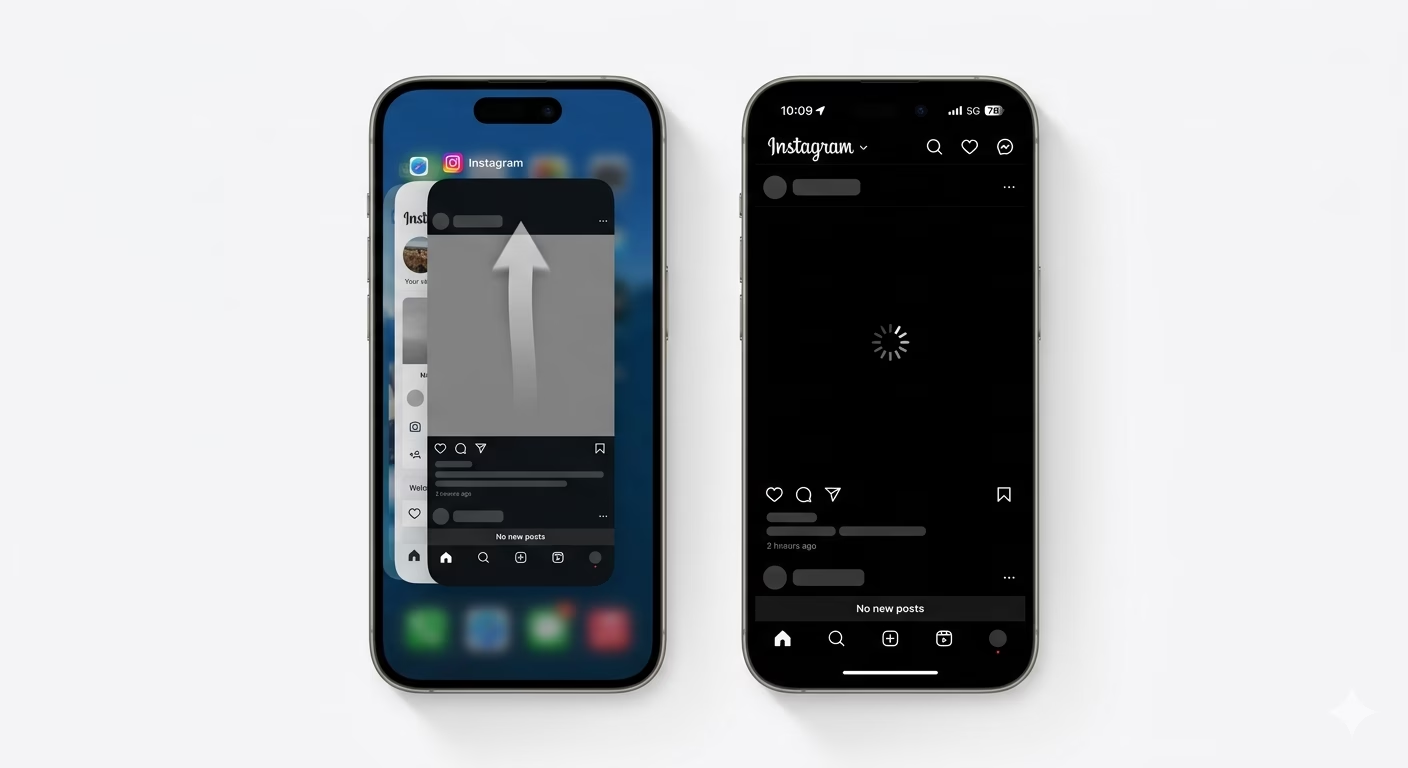
Sometimes the app gets stuck due to temporary bugs. Close Instagram completely from the background and reopen it. This refreshes the app session and often fixes the feed loading issue instantly.
If the problem continues, try restarting your iPhone as well.
3 Update the Instagram App
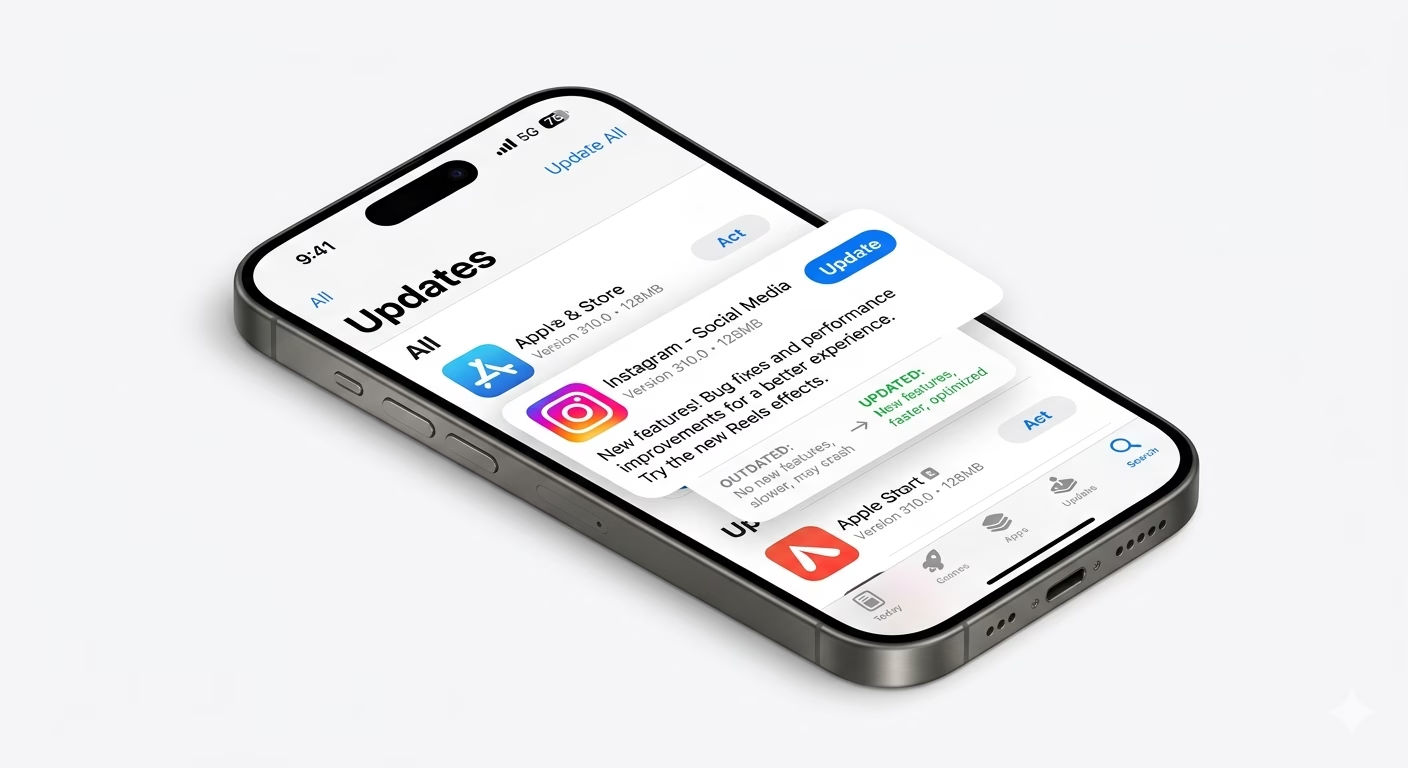
Using an outdated version of Instagram can cause errors like “Couldn’t Refresh Feed.” Go to the App Store and check for updates. Install the latest version to fix bugs and improve performance.
App updates often fix compatibility issues with iOS 18.
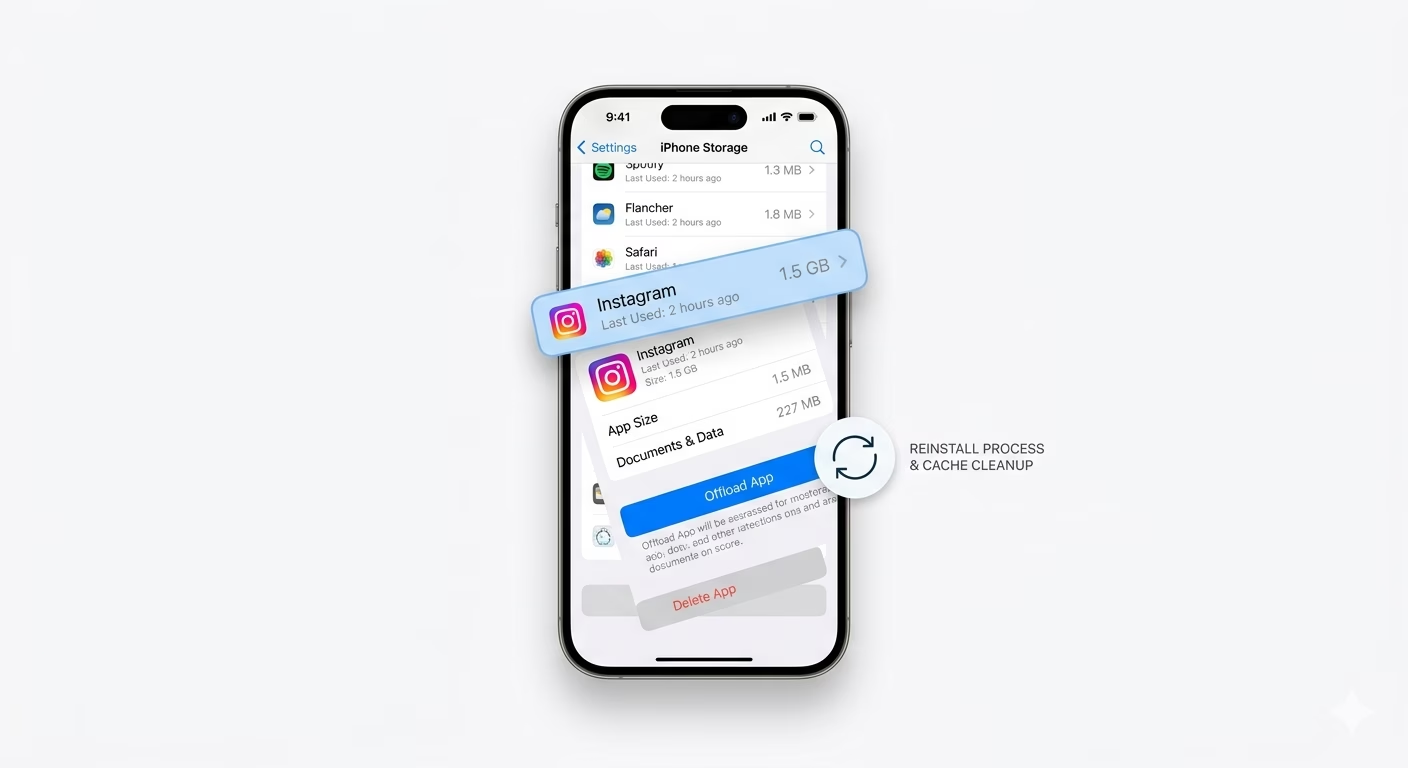
4 Reinstall the App (Clear Cache)
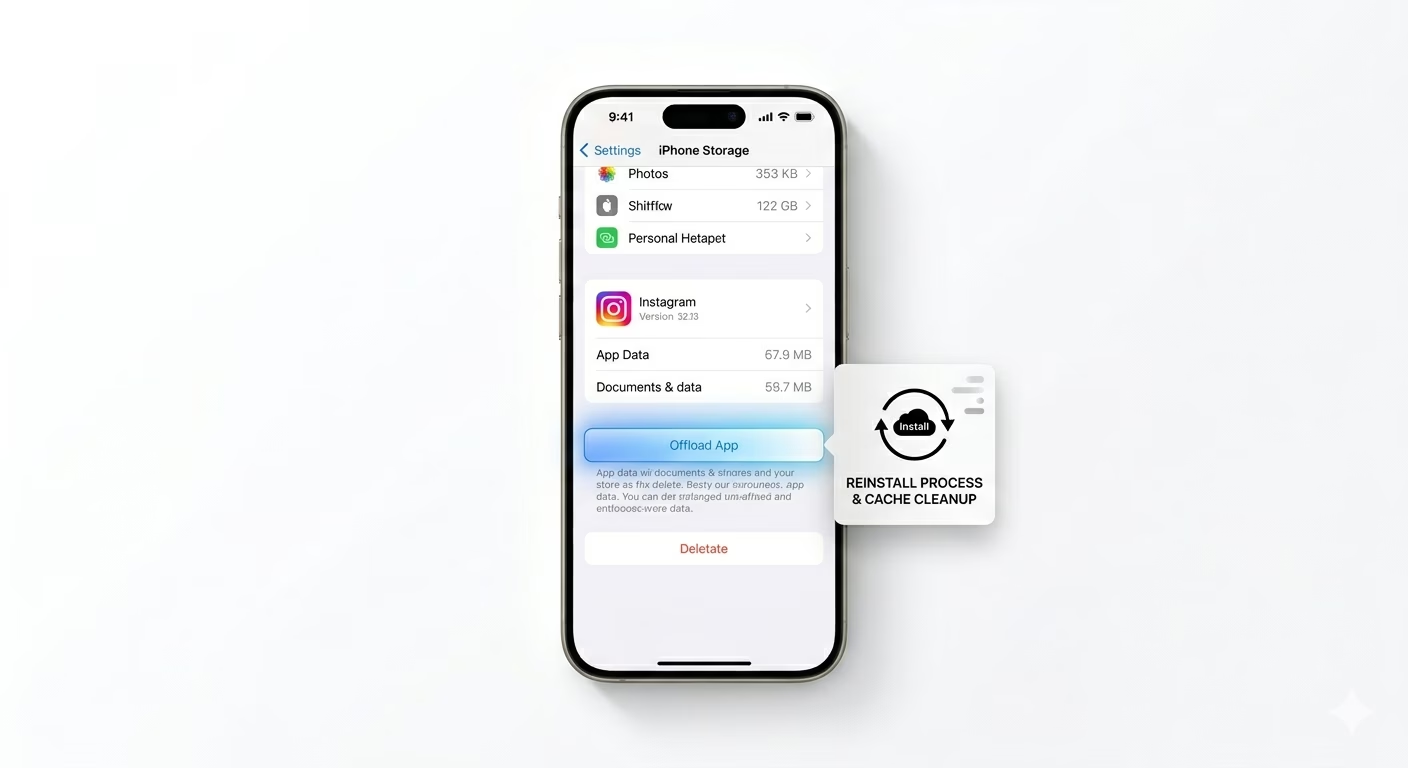
If Instagram still isn’t refreshing, reinstalling the app can help. This clears corrupted cache files that may be causing the issue.
Go to Settings → General → iPhone Storage → Instagram → Offload App, then reinstall it.
5 Check for Account Issues
Sometimes Instagram blocks actions due to suspicious activity. Log in through a browser and check if there are any warnings or verification prompts. Complete them to restore normal functionality.
This is especially common if you used automation tools or VPN services.
Why Instagram Feed Is Not Refreshing
- Weak internet connection
- Instagram server downtime
- Outdated app version
- Account restrictions or temporary blocks
- Cache or app data issues
Pro Tips to Fix Instagram Faster
- Log out and log back into your account
- Disable Low Data Mode in settings
- Keep your iPhone updated to the latest iOS version
- Free up storage space for better app performance
Frequently Asked Questions
Why does Instagram say couldn’t refresh feed?
This usually happens due to internet issues, server problems, or app bugs. Try switching networks or updating the app.
How do I fix Instagram not loading posts?
Restart the app, check your internet connection, and reinstall Instagram if needed.
Is Instagram down right now?
You can check websites like Downdetector to see if Instagram servers are down globally.