Quick Fix Checklist:
- Clean the TrueDepth camera (top notch area)
- Restart your iPhone to refresh Face ID system
- Remove screen protector if it blocks sensors
- Make sure your face is clearly visible (no heavy mask or sunglasses)
Step-by-Step Guide to Fix Face ID Not Working on iPhone
1 Check Face ID Settings Properly
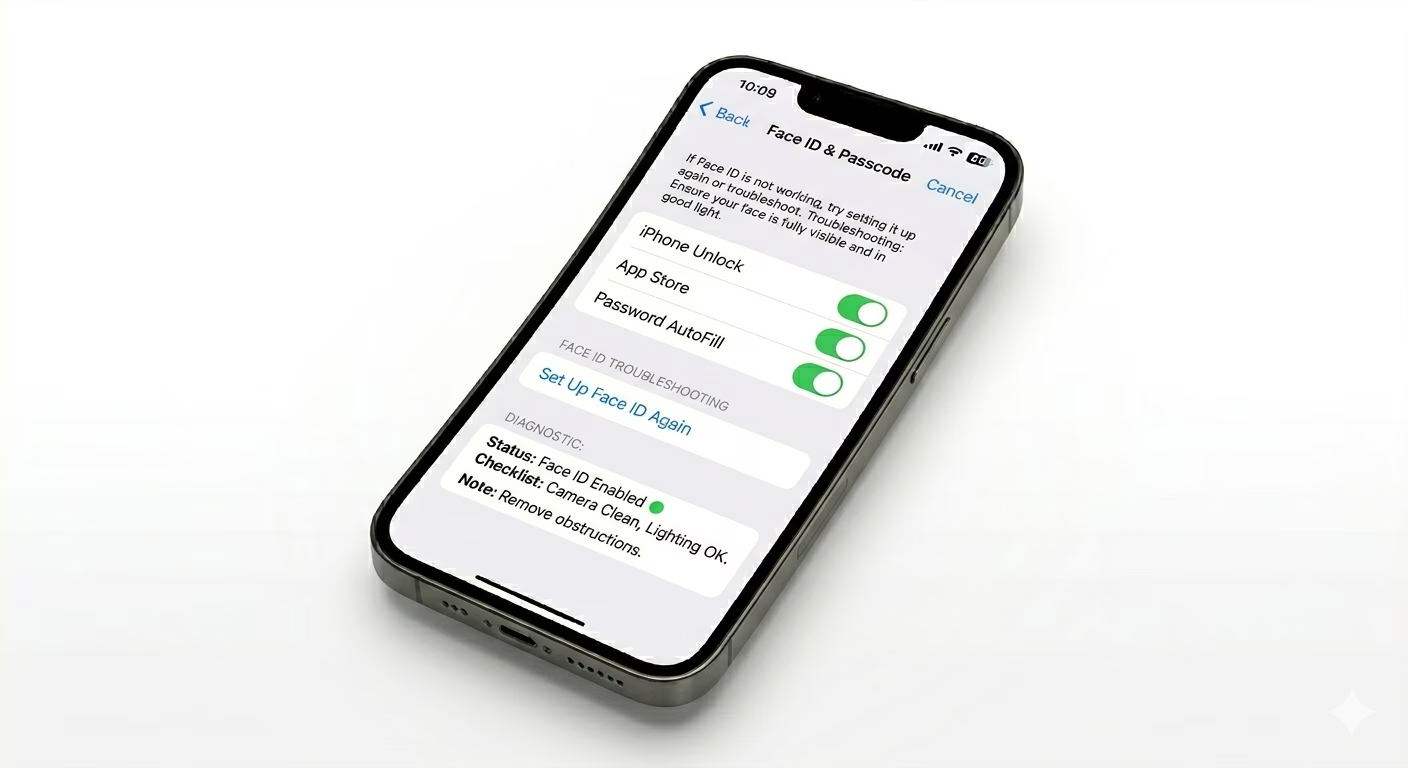
After updating to iOS 19, some Face ID settings may automatically change or reset. This can prevent Face ID from working correctly even if the hardware is fine.
Go to Settings > Face ID & Passcode and make sure options like iPhone Unlock, App Store, and Password AutoFill are enabled. Also check Attention Aware Features, as this requires you to look directly at the screen for Face ID to work.
If Face ID works inconsistently, try turning these settings OFF and ON again to refresh the system.
If your iPhone is also overheating or lagging, that can affect sensors too. Check our iPhone Overheating Fix guide.
2 Reset Face ID and Set Up Again
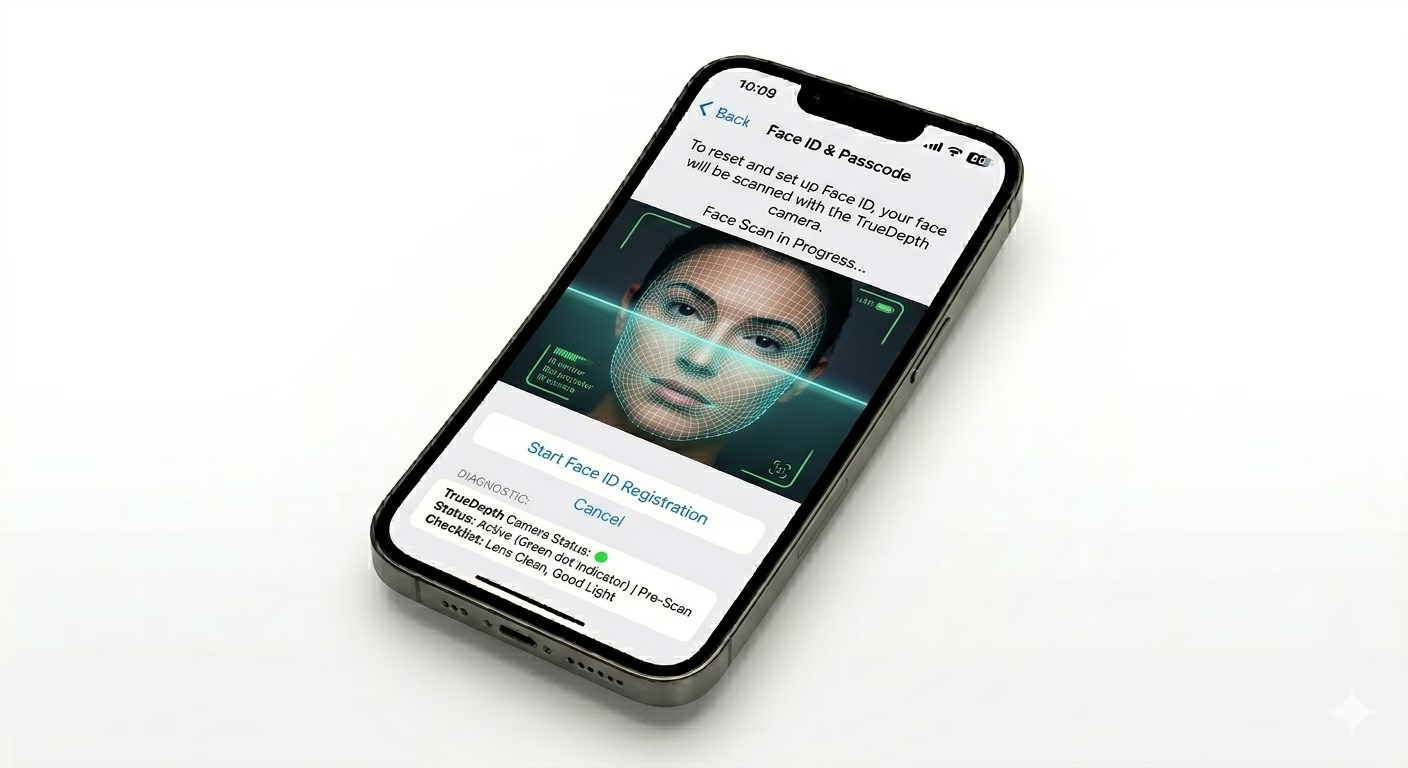
If Face ID stopped working after iOS 19 update, your saved facial data might be corrupted. Resetting Face ID is one of the most effective fixes.
Go to Settings > Face ID & Passcode and tap Reset Face ID. Then select Set Up Face ID and scan your face again in a well-lit environment.
Make sure you move your head slowly during setup so the TrueDepth camera can capture your full face profile accurately.
This method fixes most issues like Face ID not recognizing face, Face ID failed setup, or Face ID not available errors.
3 Update iOS to Latest Version
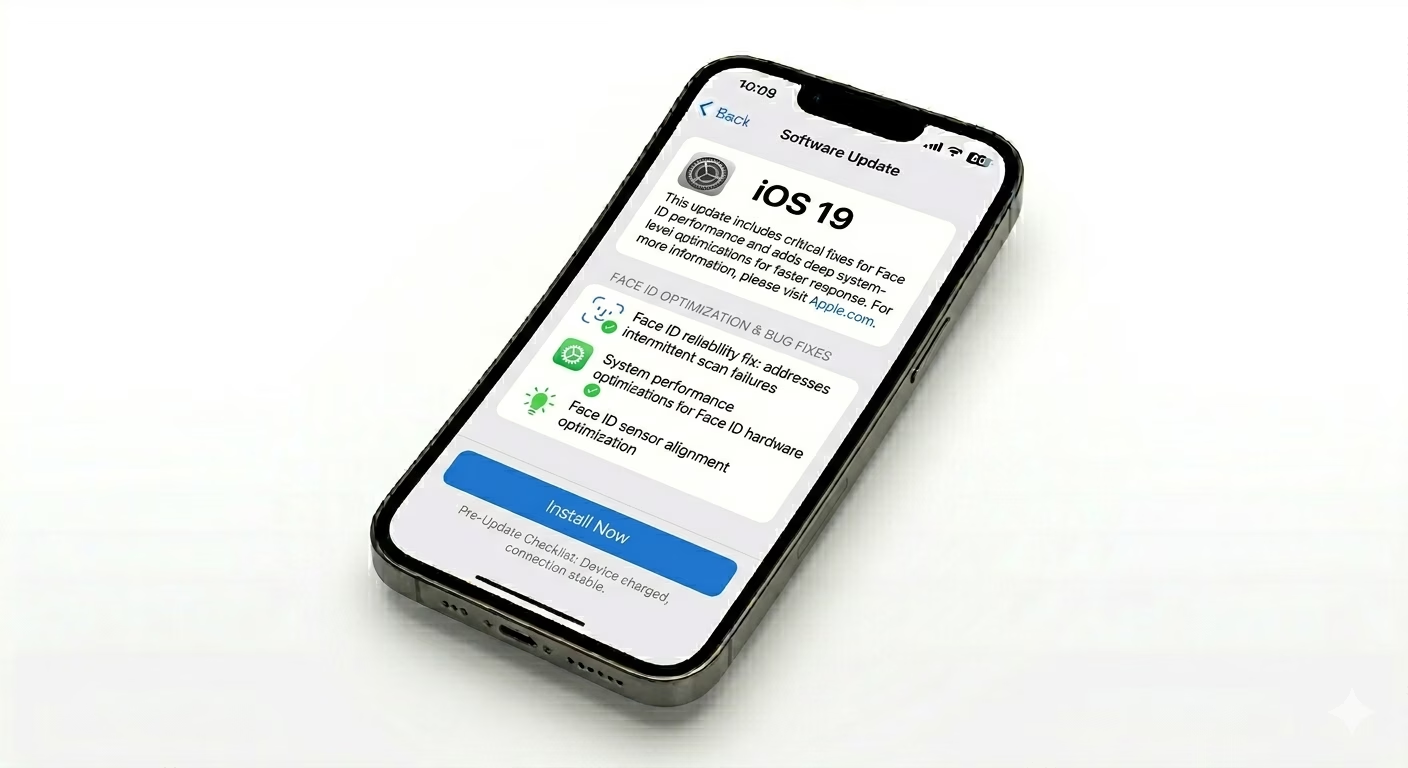
Sometimes Face ID stops working due to bugs in the initial iOS 19 release. Apple usually fixes these problems in minor updates like iOS 19.0.1 or later versions.
Go to Settings > General > Software Update and install any available update. This can fix Face ID glitches, sensor communication errors, and security issues.
If multiple apps are also malfunctioning, check our Apps Crashing Fix guide for deeper troubleshooting.
4 Check for Physical Obstructions
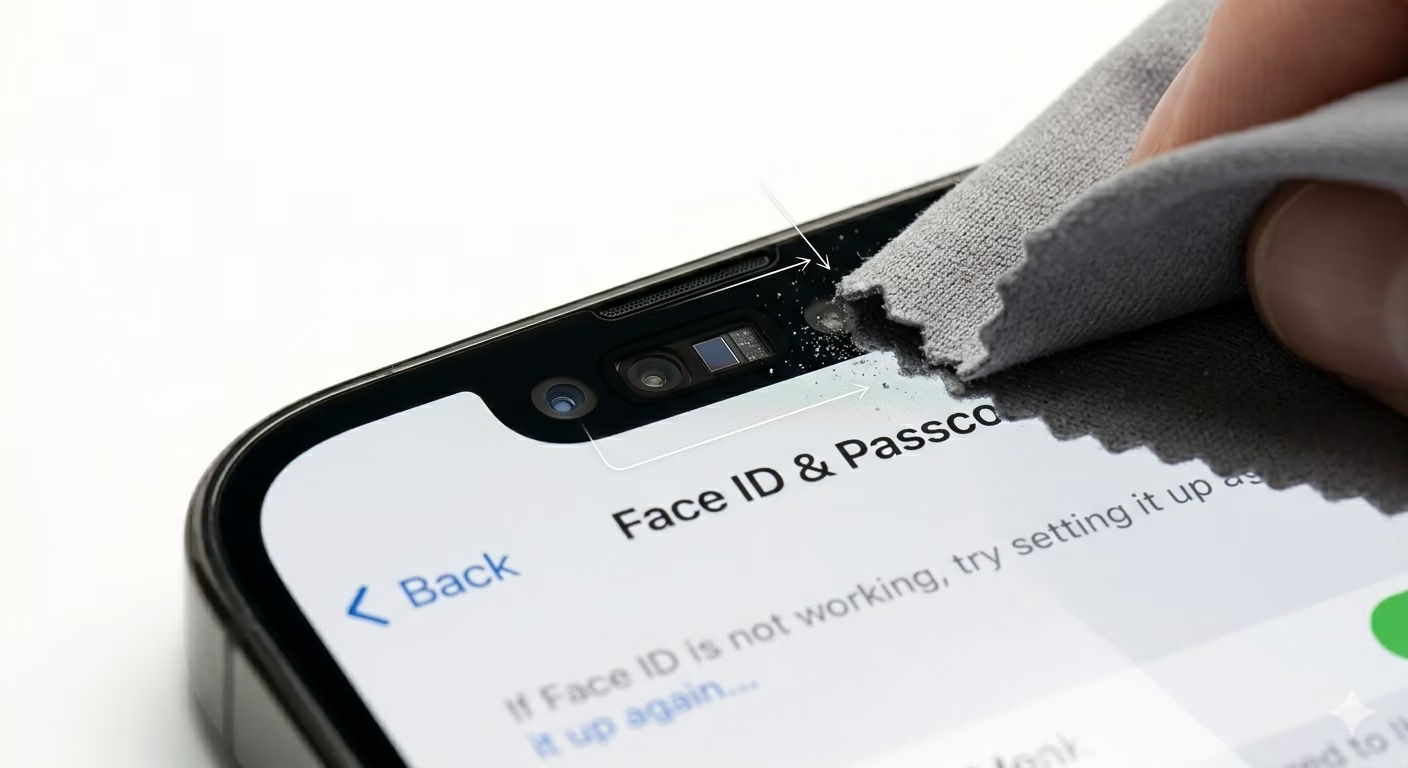
The TrueDepth camera system is very sensitive. Even a small amount of dust, dirt, or a poorly installed screen protector can block Face ID.
Clean the top notch area using a soft, dry cloth. Avoid using liquids. If you are using a thick screen protector or case, remove it and test Face ID again.
Also ensure that your fingers are not covering the camera while unlocking your phone.
Why Face ID Stops Working on iPhone
- Software Bugs: iOS 19 update issues affecting Face ID
- Dirty Sensors: Dust or debris blocking TrueDepth camera
- Corrupted Face Data: Old scan not matching current appearance
- Hardware Damage: Internal sensor failure after drop or water exposure
Pro Tips to Improve Face ID Accuracy:
- Hold Proper Distance: Keep iPhone 10–20 inches from your face
- Use Good Lighting: Avoid very dark environments
- Add Alternative Appearance: Useful if you wear glasses or change looks
- Keep Sensors Clean: Regularly wipe the notch area
Frequently Asked Questions
Why is Face ID not available on my iPhone?
This error usually appears due to software bugs, sensor blockage, or hardware issues. Restart your iPhone and reset Face ID to fix it.
Can screen protector affect Face ID?
Yes, a low-quality or thick screen protector can block sensors in the notch area, causing Face ID to fail.
Does iOS update break Face ID?
Sometimes yes. New updates can introduce temporary bugs, but Apple usually fixes them quickly in later patches.