Quick Connection Checklist:
- Make sure Bluetooth is turned ON in iPhone settings
- Place AirPods in case and close lid for 10 seconds
- Ensure AirPods have enough charge
- Sign in with the same iCloud account on your devices
Steps to Fix AirPods Connection Issues
1 Remove Existing Pairing Data
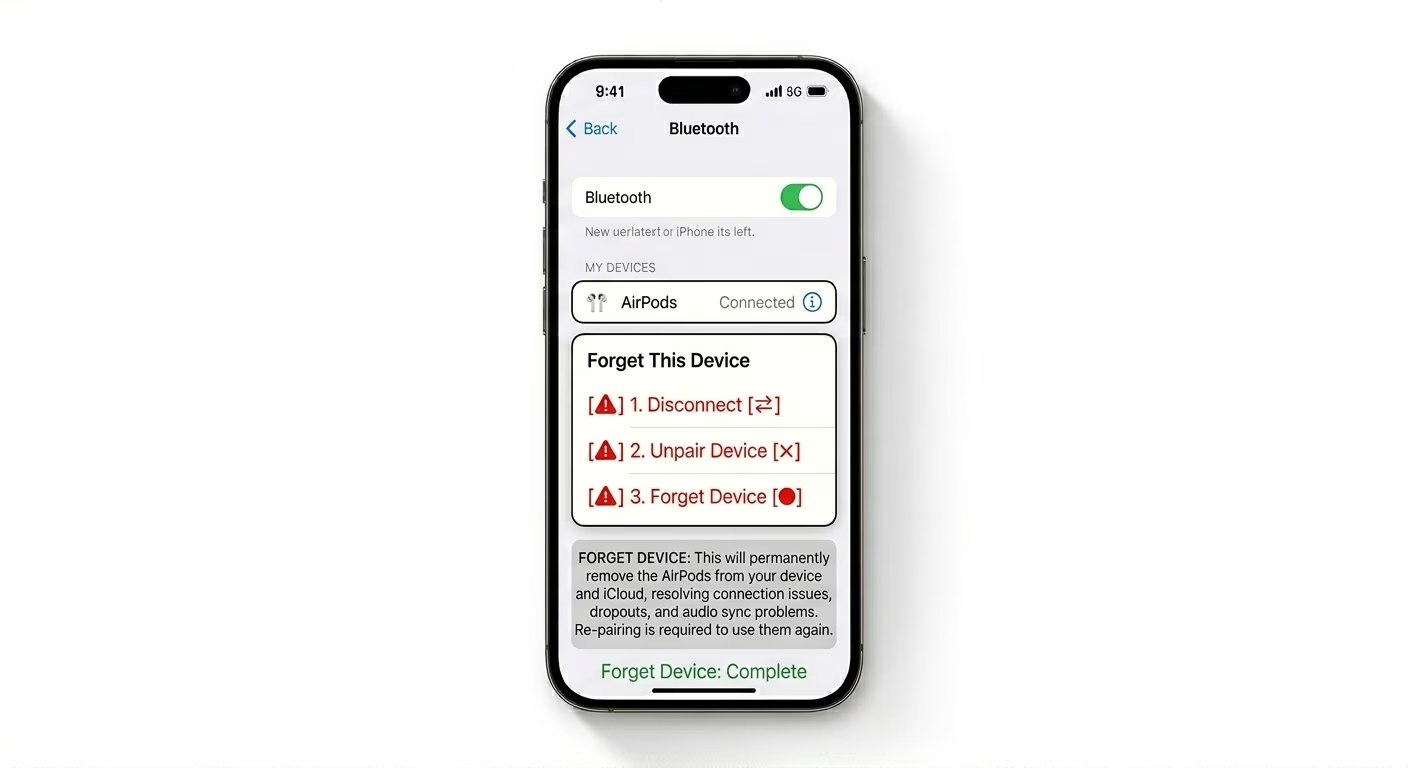
If your AirPods are not connecting properly, the saved Bluetooth data may be corrupted. Go to Settings > Bluetooth, tap the “i” icon next to your AirPods, and select “Forget This Device.” This clears old pairing data and allows a fresh connection setup.
Related issue: AirPods connection troubleshooting
2 Reset AirPods Completely
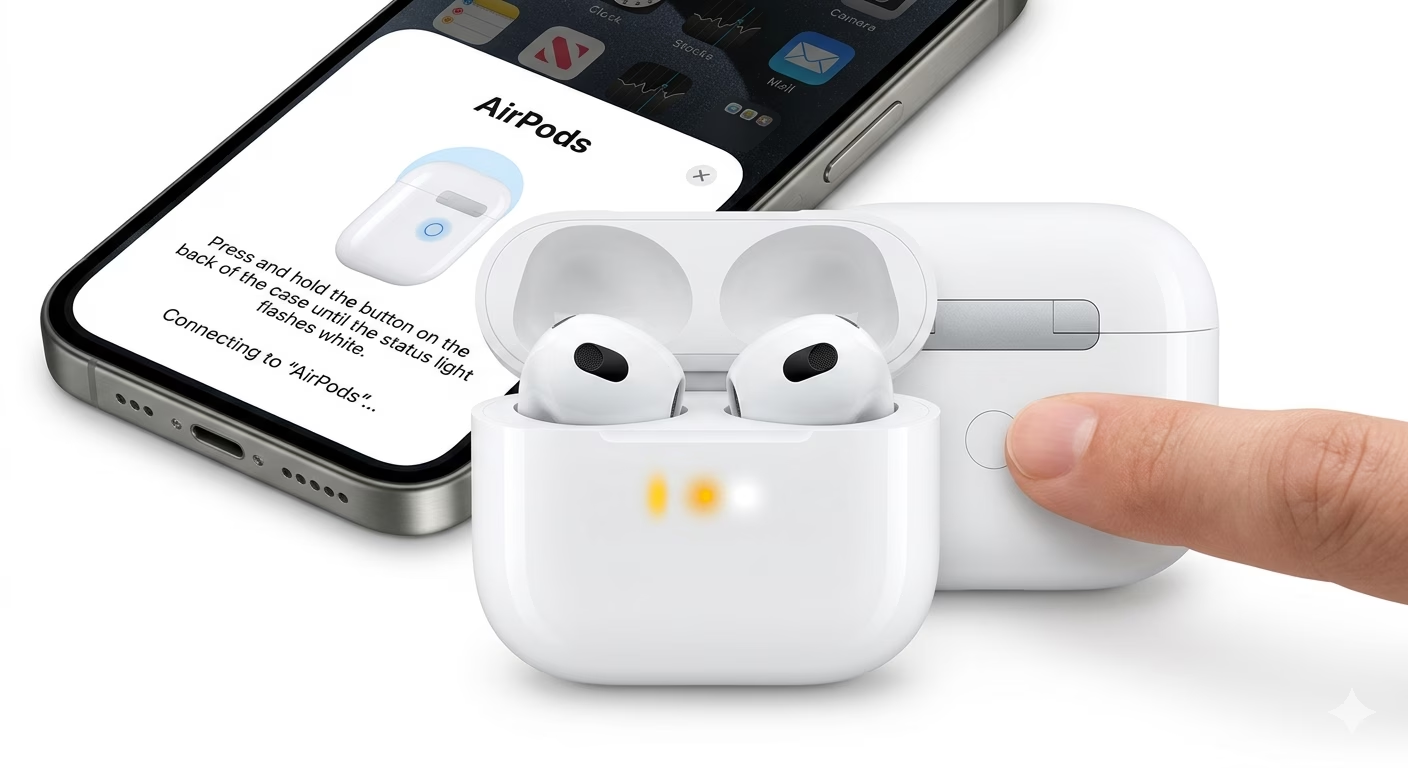
A full reset often fixes hidden connection bugs. Open the lid, press and hold the setup button for 15 seconds until the light flashes amber and then white. After resetting, reconnect the AirPods near your iPhone.
If your device also has Bluetooth issues, check: iPhone Bluetooth not working fix
3 Update iPhone & AirPods Firmware
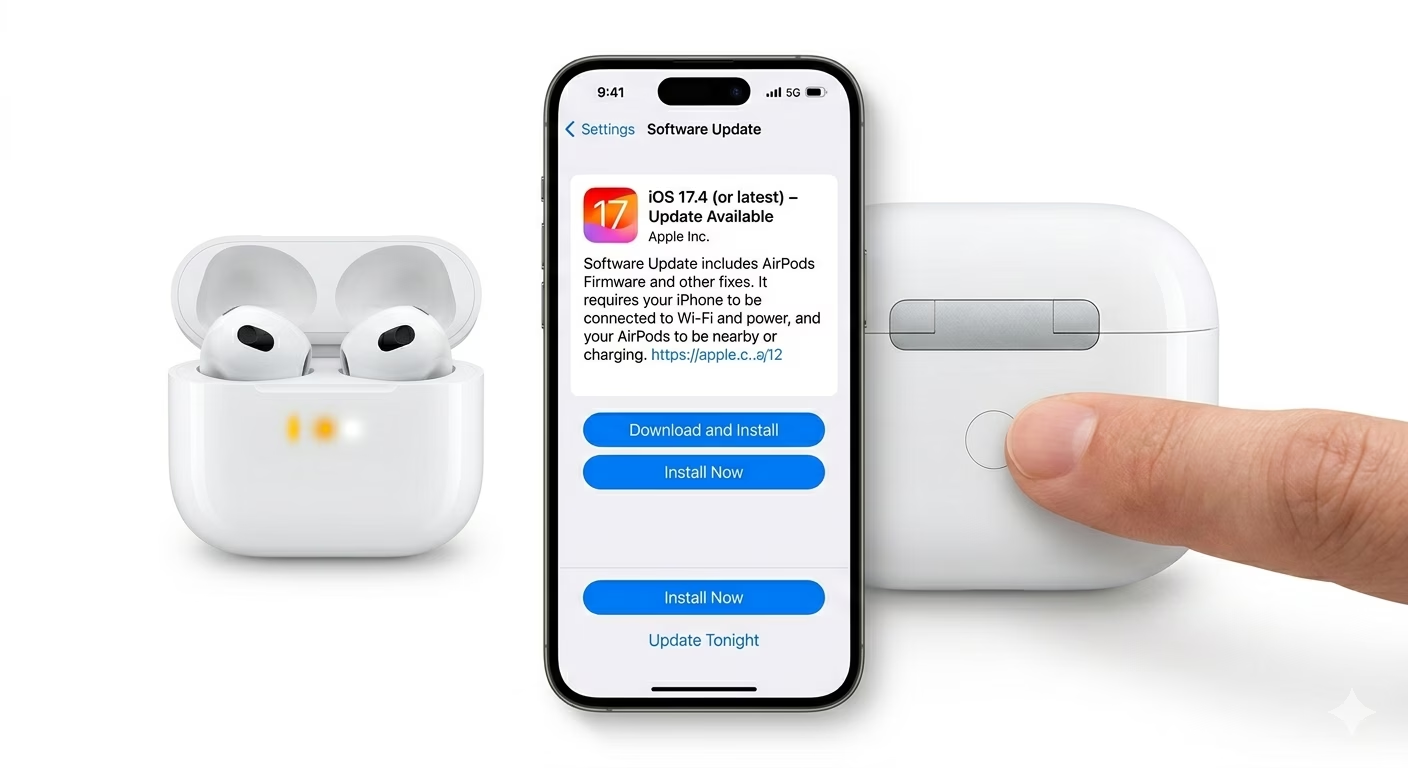
Outdated software can cause connection failures. Go to Settings > General > Software Update and install the latest iOS version. Also keep AirPods in their case near your iPhone while charging so firmware updates install automatically.
You may also like: iOS update failed fix
Why AirPods Won’t Connect
- Bluetooth Conflicts: Other devices may interrupt connection.
- Stuck Pairing: AirPods may still be linked to another device.
- Low Battery: Case or earbuds may not have enough charge.
- Software Bugs: iOS or firmware glitches can block pairing.
Pro Tips
- Reconnect One Earbud: Try pairing one AirPod at a time for testing.
- Control Center Fix: Select AirPods manually from audio output menu.
- Check Device Conflicts: Disconnect other Bluetooth devices nearby.
- Reset Network Settings: Helps fix persistent connection issues.
Frequently Asked Questions
Why do AirPods flash white but don’t connect?
This usually happens due to Bluetooth overload or interference. Restarting your iPhone and resetting AirPods usually fixes it.
Can AirPods connect without the case button?
No, the setup button is required for initial pairing. Without it, AirPods cannot enter pairing mode.