Quick Fix:
- Check Apple's System Status page
- Force restart your iPhone
- Toggle Airplane Mode on and off
- Ensure battery is above 50% or plugged in
Steps to Resolve iOS Installation Failures
1 Reset Network Settings
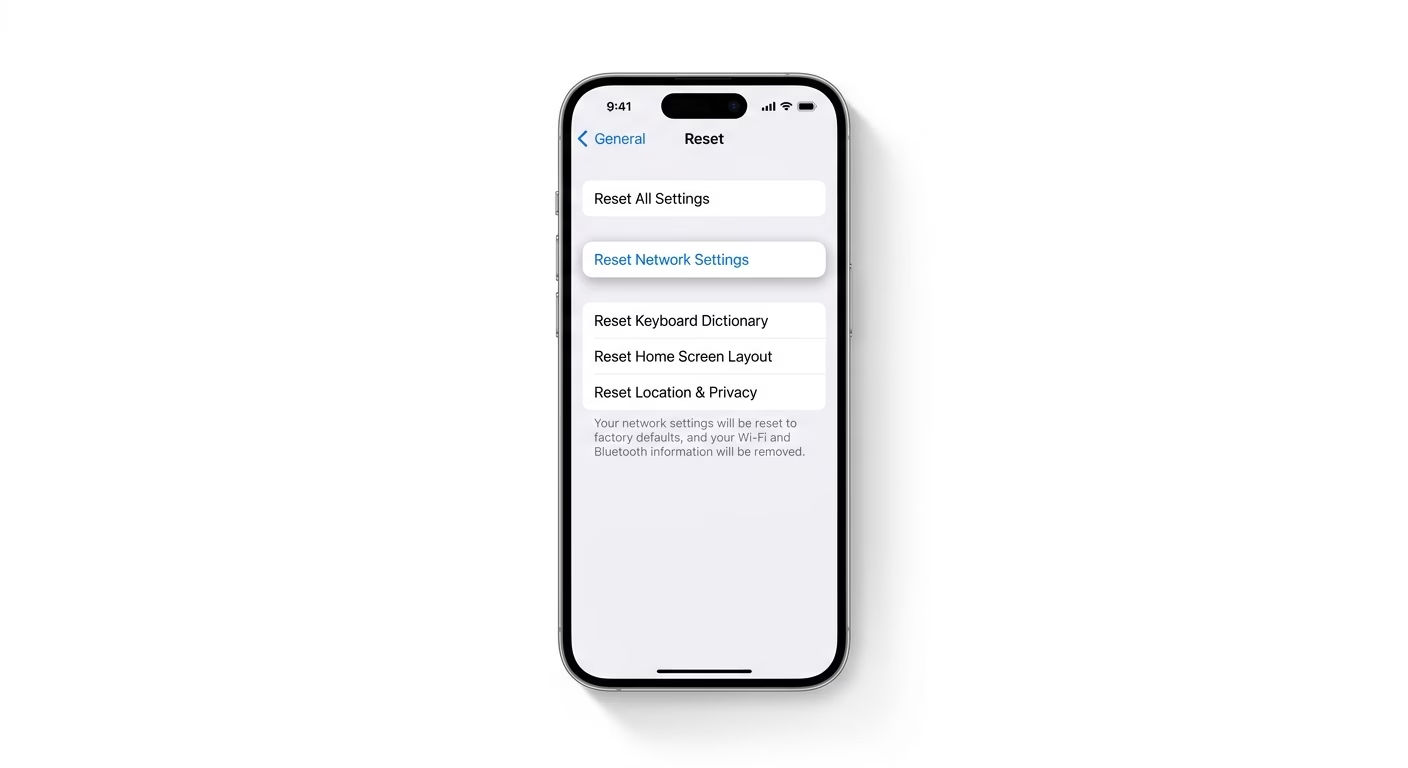
Sometimes the update fails because the download got corrupted from a network issue. Go to Settings > General > Transfer or Reset iPhone > Reset > Reset Network Settings. This will refresh your Wi-Fi connections and can fix the “Update Failed” loop. Note: You’ll have to re-enter your Wi-Fi passwords after this.
2 Remove Beta or Configuration Profiles
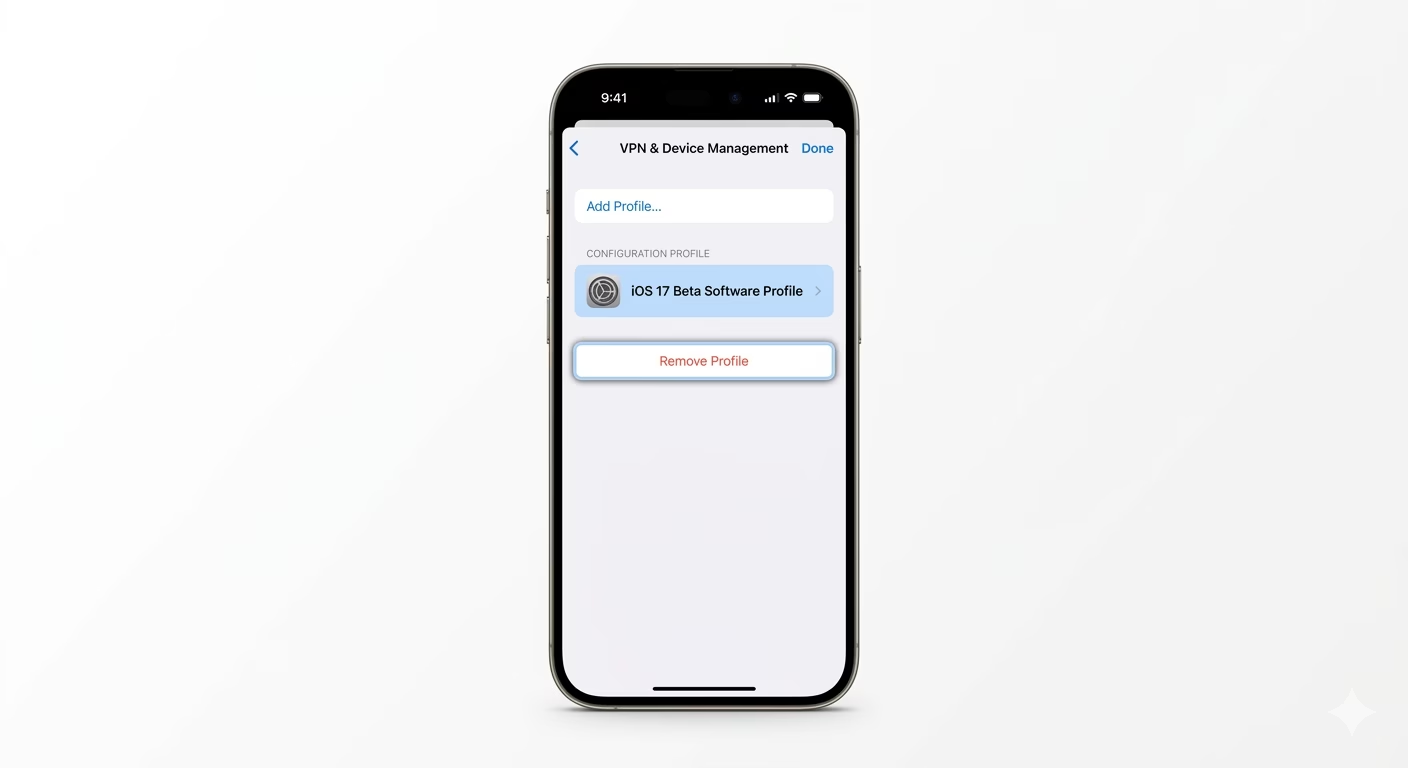
If you’ve used an iOS Beta before, an old profile might be stopping the official update. Go to Settings > General > VPN & Device Management. If you see a Beta Profile, tap it and choose Remove Profile. Restart your iPhone, then check for updates again.
3 Update via DFU Mode
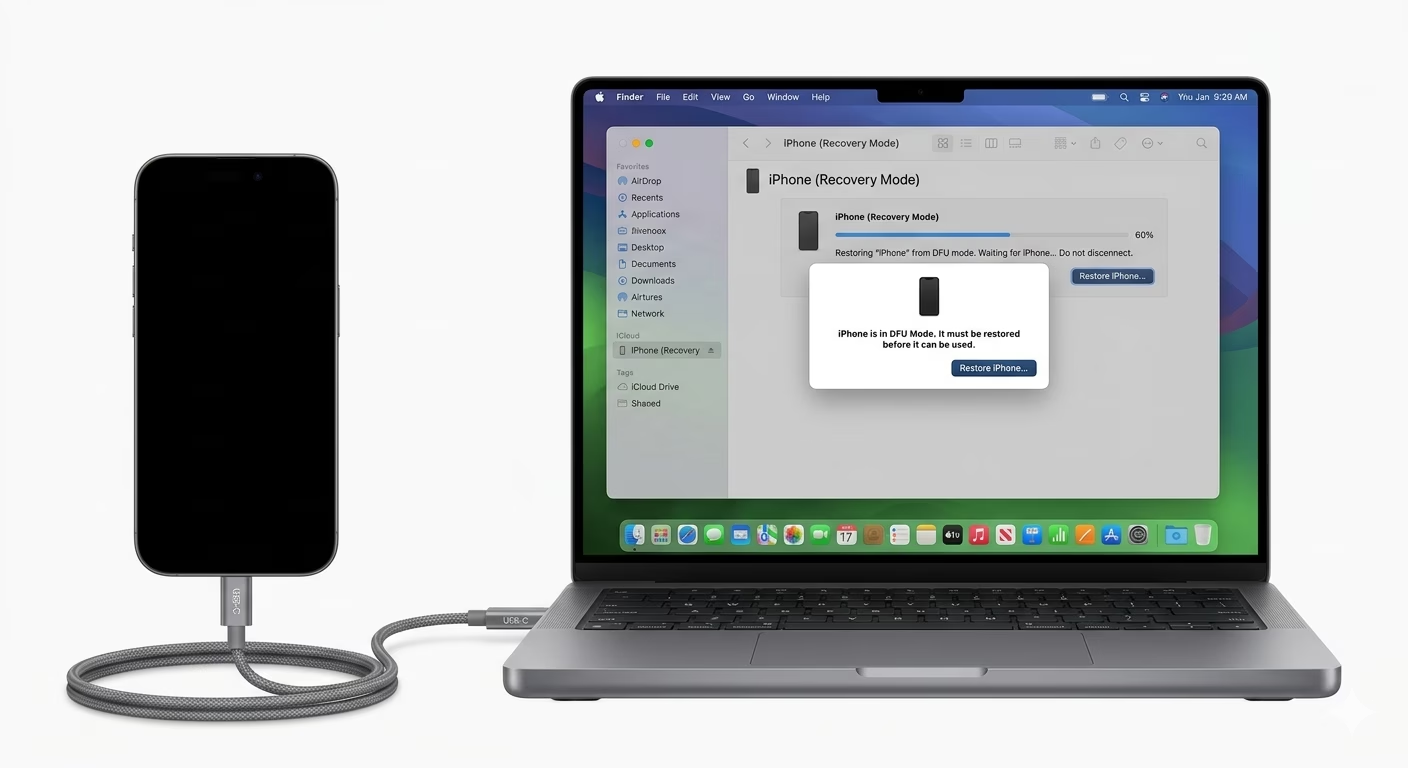
If a regular Recovery Mode update doesn’t work, try DFU (Device Firmware Update) mode. This is the deepest restore option available. Connect your iPhone to a computer, then use the specific button sequence for your model to enter DFU mode. This lets your computer fully reload the iPhone’s software, which can fix even the toughest update problems.
Why This Happens?
- Apple's servers are down or extremely busy
- Inconsistent internet connection during the "Verify" stage
- Corrupted update files stored in the cache
- Internal hardware sensor issues preventing installation
Pro Tips:
- Wait 24 hours after a major iOS release; servers are usually less busy on the second day.
- Always use Safari for Apple-related support links if you need to download manual profiles.
- Make sure your iPhone's Date & Time is set to "Set Automatically" or the update won't verify.
Frequently Asked Questions
Why does it say "Unable to Verify Update"?
This usually means your iPhone isn’t connected to the internet. The device needs to communicate with Apple’s servers to verify that the update is safe before it can start installing.
Can I fix this without a computer?
Yes, you can usually fix this issue right on your iPhone by deleting the update file from iPhone Storage and resetting your network settings. You’ll only need a computer if your iPhone is completely stuck and won’t update through normal methods.