Quick Troubleshooting:
- Ensure your iPhone has at least 2GB of free storage space
- Force close the video app (YouTube, Netflix, Photos) and restart it
- Check your internet speed if streaming 4K or HDR content
- Disable "Low Power Mode" as it limits video processing power
Steps to Resolve Video Playback Errors
1 Fix "Unable to Load Video" in Photos
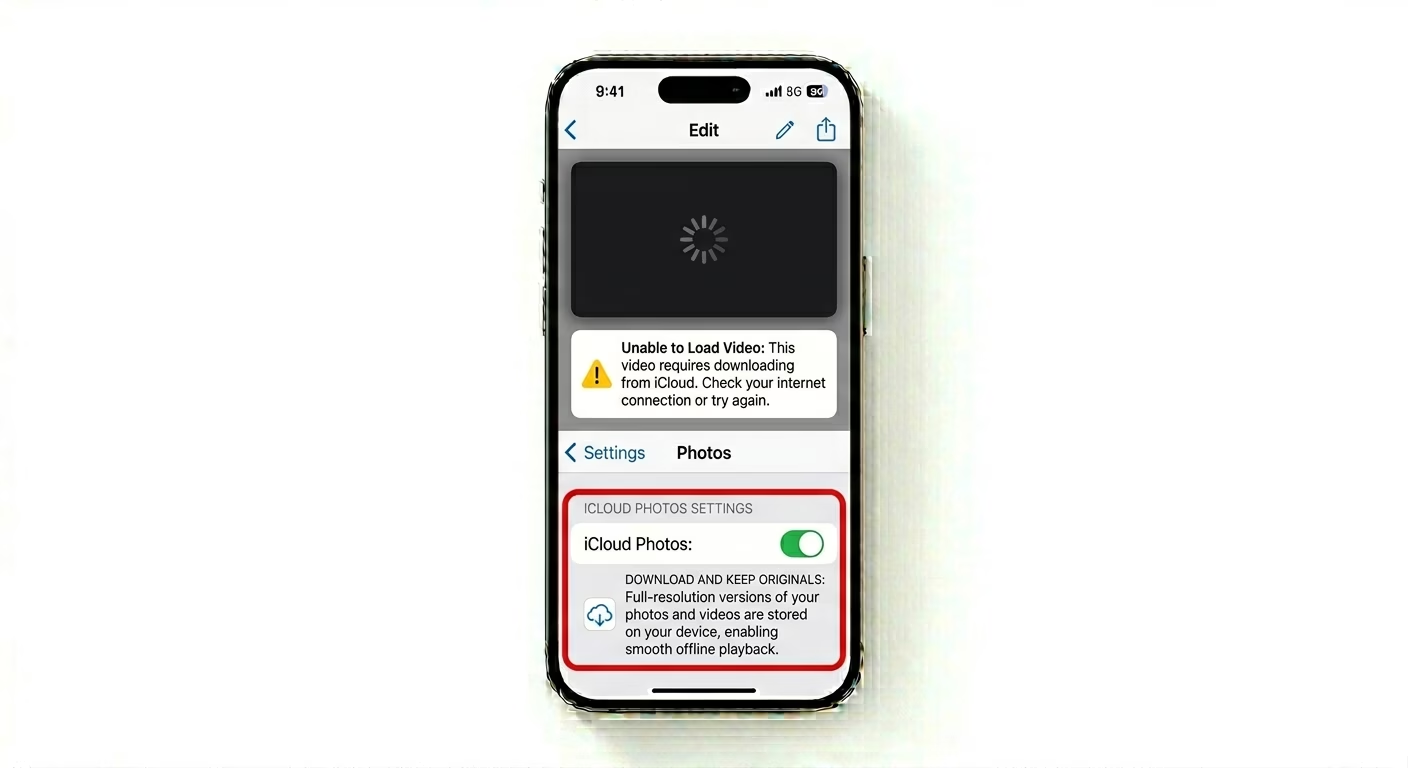
If you see a spinning circle or get an error when playing videos from your gallery, it’s probably an iCloud sync issue. Go to Settings > Photos. If “Optimize iPhone Storage” is ON, your phone needs a good internet connection to download the full video from iCloud before it plays. If you have enough storage, switch to Download and Keep Originals to avoid playback delays.
2 Resolve App-Specific Video Lag
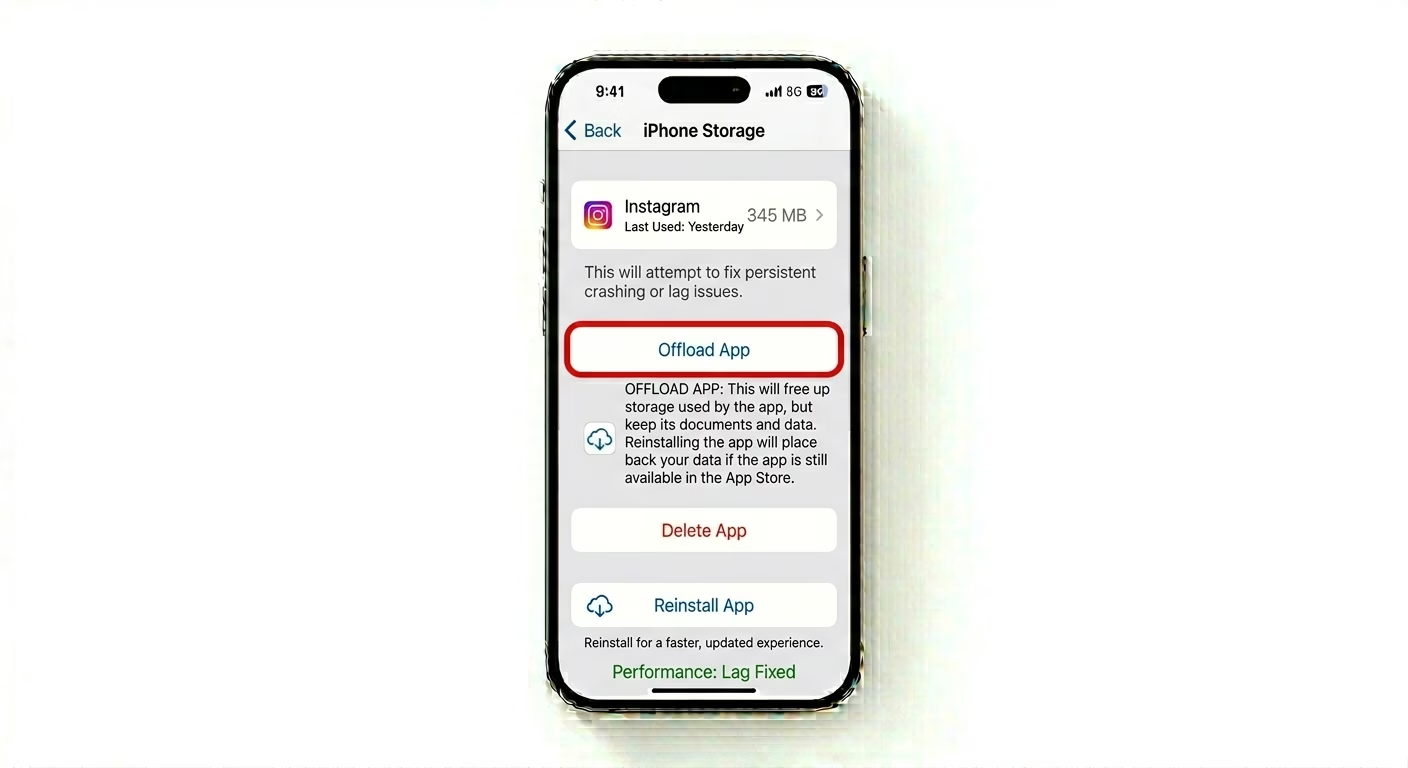
For apps like YouTube or Instagram, built-up cache can cause videos to stutter. The easiest fix on iOS is to “Offload” the app. Go to Settings > General > iPhone Storage, find the app, and tap Offload App. Then reinstall it. This clears out any corrupted temporary video files but keeps your login info and data safe.
3 Perform a Hard Restart
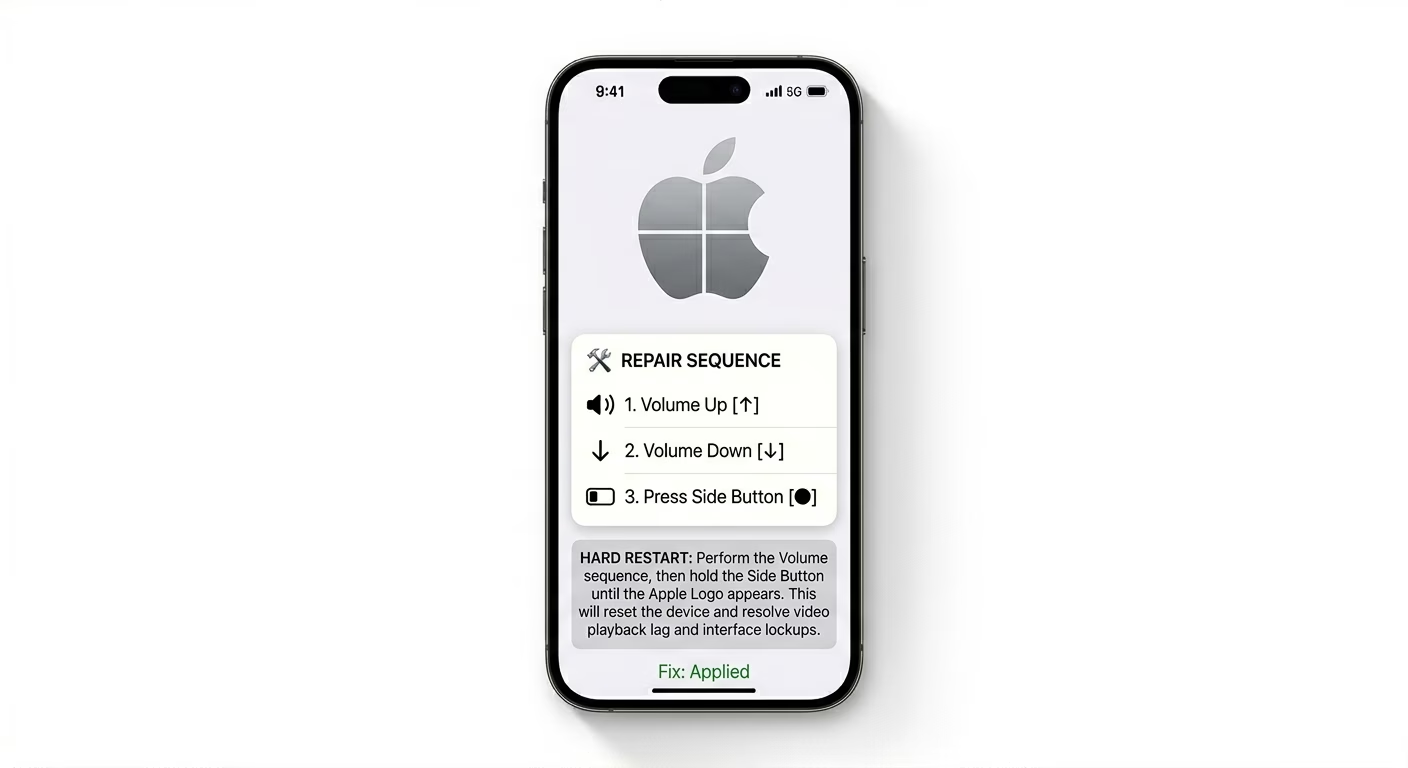
Sometimes the iPhone’s video decoder can freeze up, and a regular restart won’t fix it. You’ll need to do a hard reset to clear the GPU memory. Quickly press Volume Up, then Volume Down, and then hold the Side Button until you see the Apple logo. This forces your iPhone to completely reset the video playback engine.
Why Do Videos Fail to Play?
- Thermal Throttling: If your iPhone is too hot, the CPU slows down video decoding to cool the device.
- Incompatible Codecs: Trying to play 8K or unsupported MKV files without a third-party player like VLC.
- Background Heavy Tasks: Downloading large files or updating apps while watching high-res video.
- Storage Bottleneck: SSD speed drops significantly when storage is 99% full, causing frame drops.
Pro Tips:
- Use VLC Player: For videos downloaded from the web that won't play in the native Photos app, use the VLC for Mobile app as it supports almost all formats.
- Check HDR Settings: If videos look too bright or washed out, go to Settings > Photos and toggle "View Full HDR" to see if it improves the playback quality.
- Reset All Settings: If video lag is system-wide (even in the camera app), a "Reset All Settings" can fix deep software configuration errors.
Frequently Asked Questions
Why does my video have sound but no picture?
This usually happens with DRM-protected content (like Netflix) or when the video uses an unsupported codec. Make sure your app is up to date, or try playing the file in VLC for better compatibility.
Will clearing cache delete my downloaded videos?
No, using the “Offload” method or clearing cache in app settings usually keeps your saved downloads safe—but it’s always a good idea to double-check the app’s specific policy just to be sure.