Quick Fix:
- Check if your iPhone has a stable Cellular or Wi-Fi signal
- Ensure "Do Not Disturb" or "Silent Mode" isn't blocking the notification
- Check other trusted devices (iPad, Mac) for the pop-up code
- Restart your iPhone to refresh the Apple ID security services
Steps to Resolve 2FA Connection & Code Issues
1 Generate an Offline Verification Code
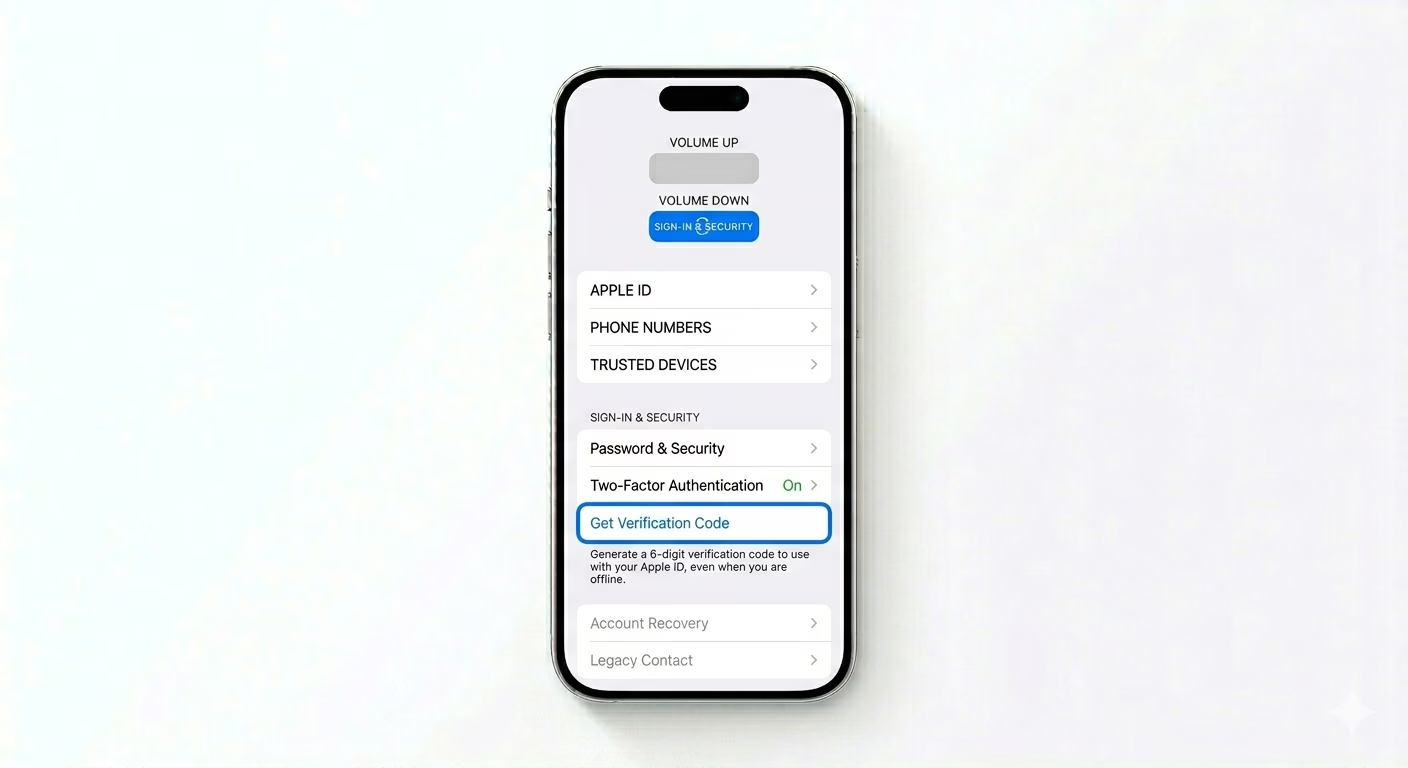
If you’re not getting a code by notification because you’re offline, you can generate one yourself. On your trusted iPhone, go to Settings > [Your Name] > Sign-In & Security and tap Get Verification Code. This will instantly generate a 6-digit code—even if your device isn’t online. You can use this code to sign in on any other device.
2 Verify & Update Trusted Numbers
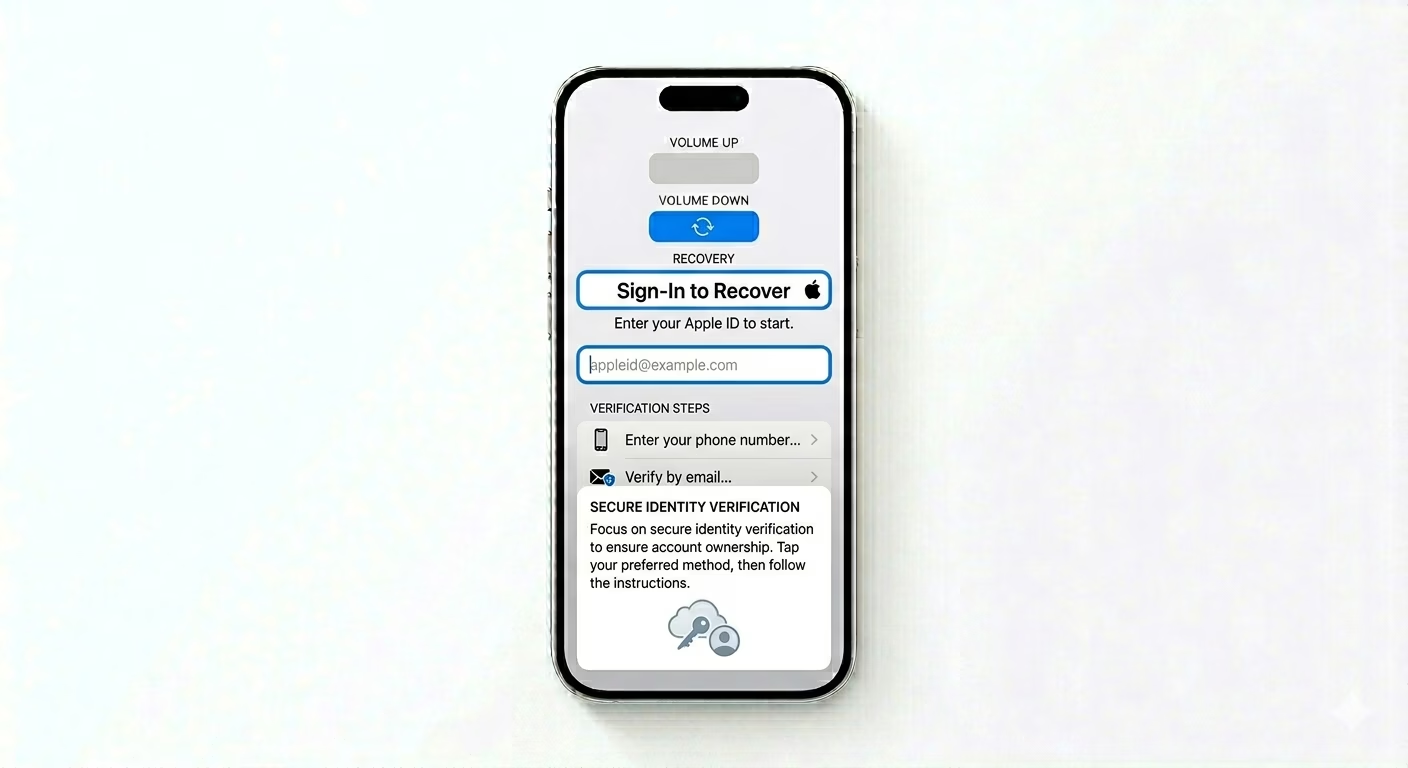
If your code is being sent to an old number, you’ll need to update your trusted numbers. If you’re still signed in on your iPhone, go to Settings > [Your Name] > Sign-In & Security. Tap Edit next to “Trusted Phone Number” and add your new number. It’s smart to keep at least two trusted numbers—like your own and a family member’s—so you’re not locked out if you lose your SIM card.
3 Start Apple Account Recovery
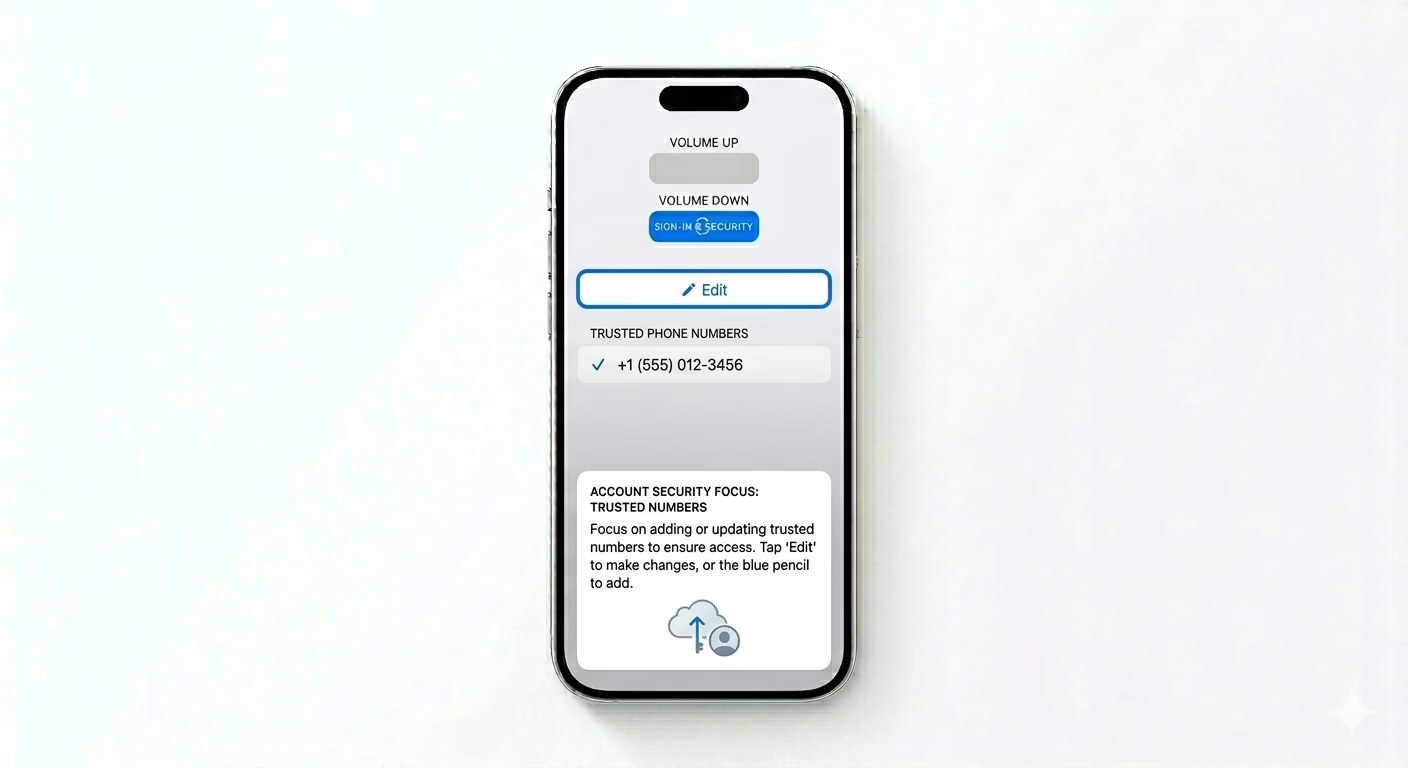
If you don’t have a trusted device and can't access your trusted phone number, you must use Account Recovery. Visit iforgot.apple.com and enter your details. Apple will review your request to verify your identity. Note: This process is automated for security and can take several days or even weeks. Apple will notify you via the provided contact info when your account is ready to be unlocked.
Why Am I Not Getting a Code?
- Network delays or outages from your mobile carrier (SMS delivery)
- The device you are using is not yet recognized as "Trusted"
- The time and date on your iPhone are incorrect (syncing issues)
- Apple's internal security servers are undergoing maintenance
Pro Tips:
- Recovery Contact: In iOS 15+, you can set a "Recovery Contact." This person can receive a code for you if you ever lose access to your own devices.
- Physical Security Key: For maximum security, you can use a physical FIDO-certified security key to replace SMS codes entirely.
- Avoid SMS: Whenever possible, use the automatic on-screen pop-up on your trusted devices instead of SMS, as it is much faster and more secure.
Frequently Asked Questions
What if I changed my phone number and didn't update it?
If you can’t get an SMS and don’t have another trusted device, your only choice is to go to iforgot.apple.com and start Account Recovery. That’s why it’s so important to keep your trusted numbers up to date.
Can Apple Support bypass 2FA for me?
No. For your privacy, Apple Support can only guide you through the recovery steps—they can’t manually verify your identity or send a code to a new number for you.