Quick Fix:
- Lock and Wake your iPhone multiple times
- Perform a Force Restart
- Switch to a different Wi-Fi network
- Turn off VPN or Proxy settings
Steps to Fix Verification Stuck Issues
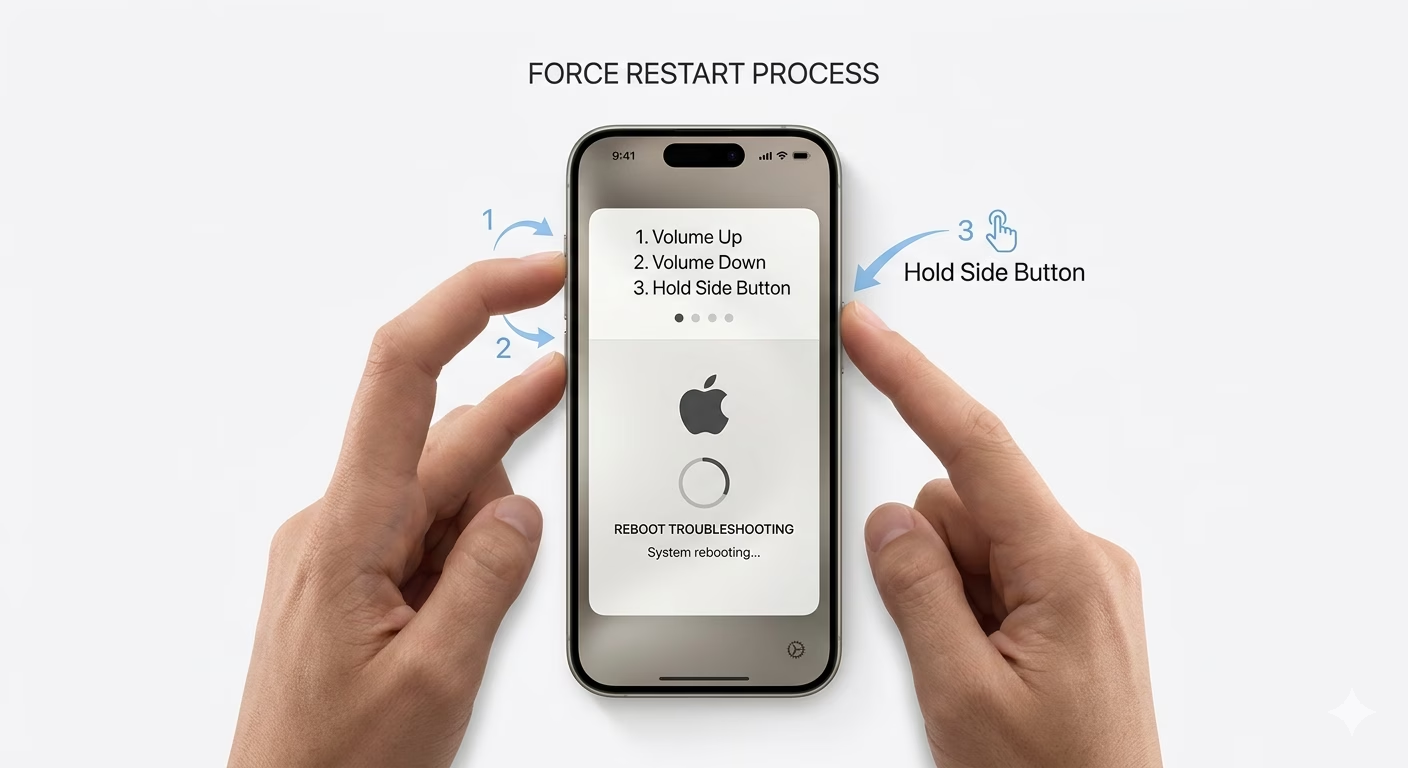
1 Force Restart Your Device
Sometimes, your iPhone gets stuck during the verification process because of a software glitch. Doing a force restart can fix this by clearing temporary files, and it won’t delete any of your data. Just quickly press Volume Up, then Volume Down, and hold the Side Button until you see the Apple logo. Once your phone restarts, go back to Settings and try the update again.
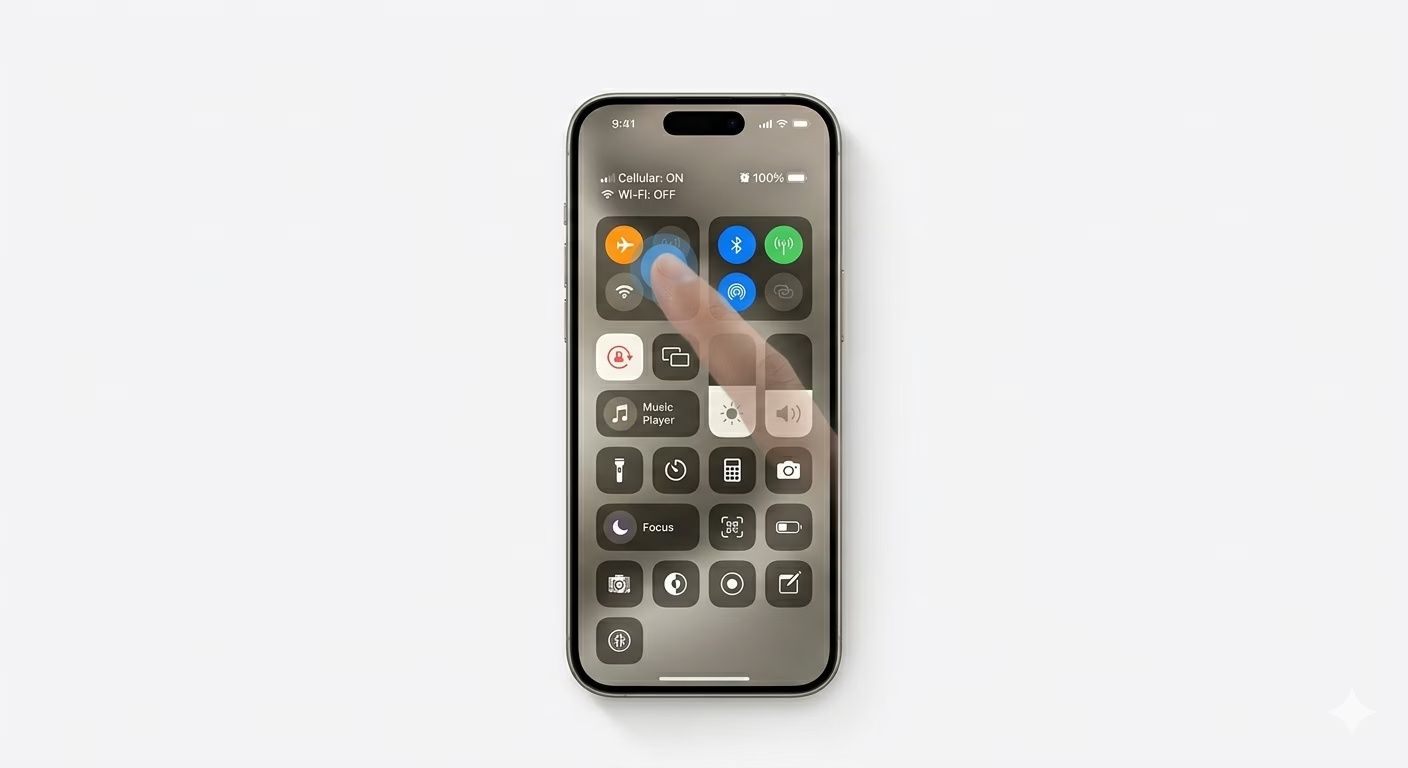
2 Toggle Airplane Mode & Wi-Fi
For your iPhone to verify an update, it needs a strong connection with Apple’s servers. Swipe down to open Control Center, turn on Airplane Mode for about 30 seconds, and then turn it off. Make sure you’re connected to a fast Wi-Fi network and that you don’t have a VPN running, since these things can block the verification process.
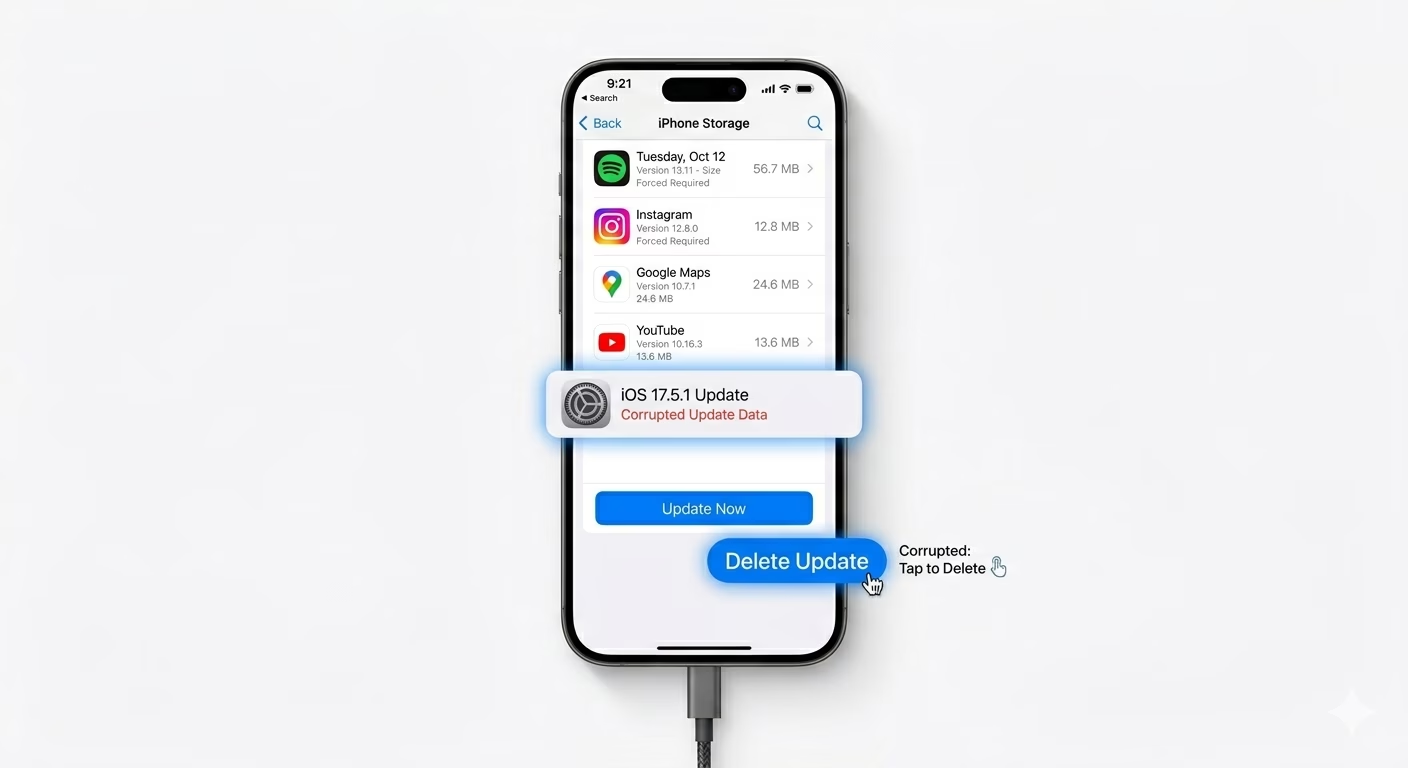
3 Delete the Corrupted Update File
If your iPhone still can’t verify the update, the downloaded file might be damaged. Go to Settings > General > iPhone Storage, find the iOS update in the list, tap it, and choose Delete Update. Then, go back to Software Update and download the update again from scratch.
Why This Happens?
- Unstable or intermittent Wi-Fi connection
- Apple's verification servers are currently overloaded
- A corrupted download file stored on your iPhone
- Active VPN or Firewall blocking Apple's IP addresses
Pro Tips:
- Check Apple's System Status page online to ensure "App Store" and "iOS Software Update" services are green.
- Keep your iPhone plugged into a charger; verification often fails if the battery is below 50%.
- If you are using a public Wi-Fi (like at a cafe), switch to a private home network for better security.
Frequently Asked Questions
How long should "Verifying Update" take?
Usually, the verification process should only take 1 to 3 minutes. If your iPhone has been stuck for more than 15 minutes, it probably needs a force restart to get things working again.
Will deleting the update delete my photos?
No, deleting the update just removes the downloaded installation file from Apple. All your personal data, photos, and apps will stay completely safe and won’t be affected.