Quick Optimization Wins:
- Enable "Optimize iPhone Storage" for Photos
- Turn on "Offload Unused Apps" automatically
- Change video recording from 4K to 1080p if high-res isn't needed
- Clear the "Recently Deleted" album in both Photos and Notes
Professional Steps to Optimize Storage
1 Smart Media Management
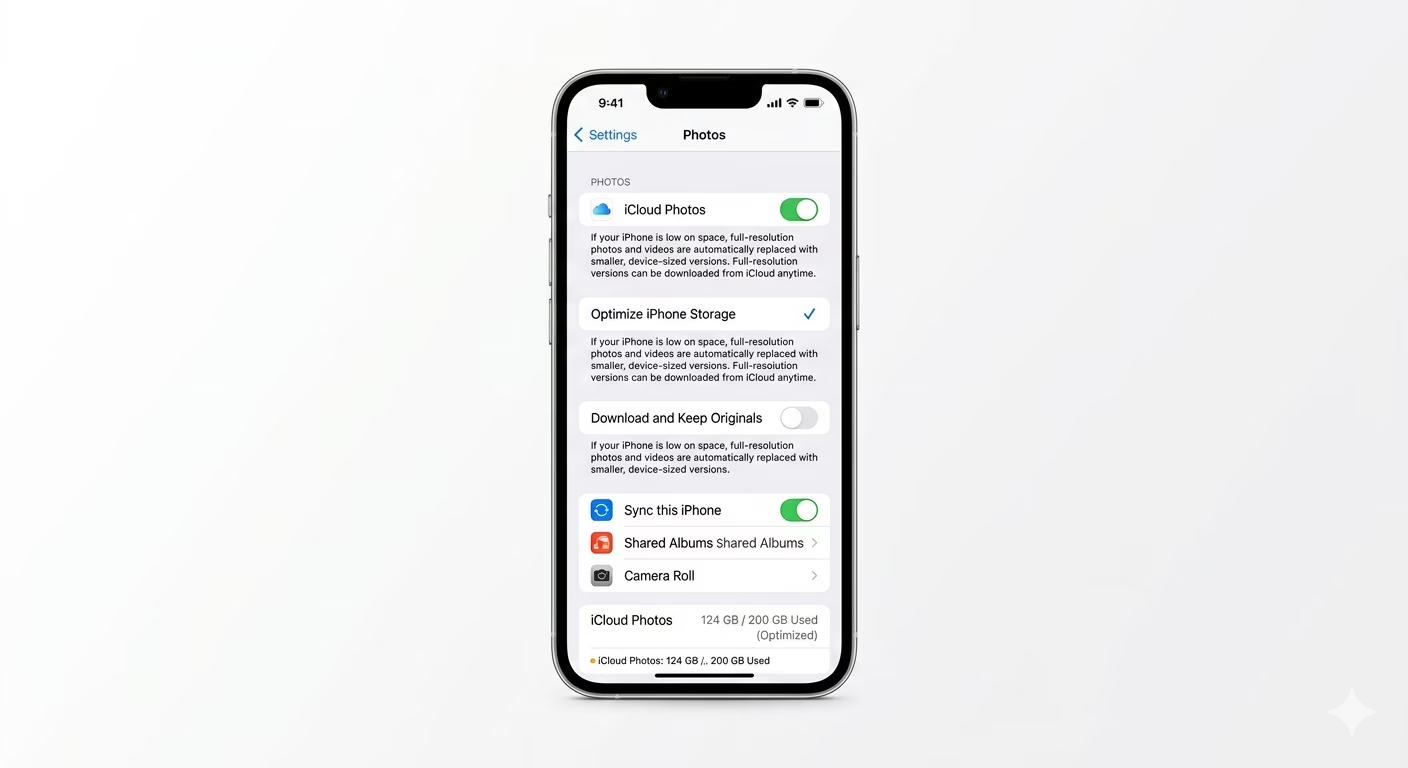
Photos and videos often take up about 70% of your device’s storage. Go to Settings > Photos and make sure Optimize iPhone Storage is turned ON. This keeps smaller versions of your photos on your device, while the full-resolution originals are safely stored in iCloud. When you want to view a photo, it downloads automatically—saving you gigabytes of space.
2 Auto-Offload Unused Apps
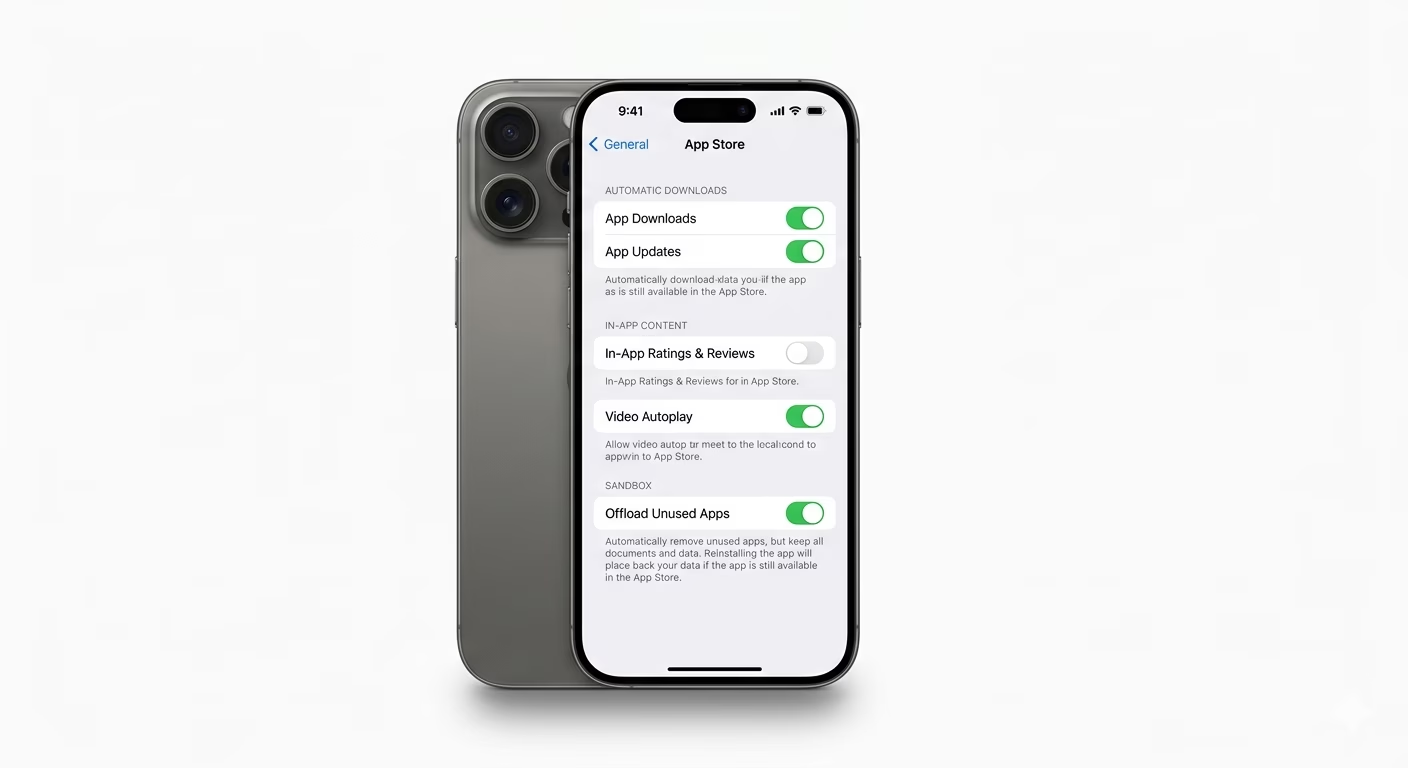
We all download apps we only use once or twice. Go to Settings > App Store and turn ON Offload Unused Apps. This feature automatically removes apps you haven’t used in a while, but keeps all your data and documents. If you need the app again, just tap its icon and it will reinstall with your data right where you left it.
3 Clean Up Large Attachments
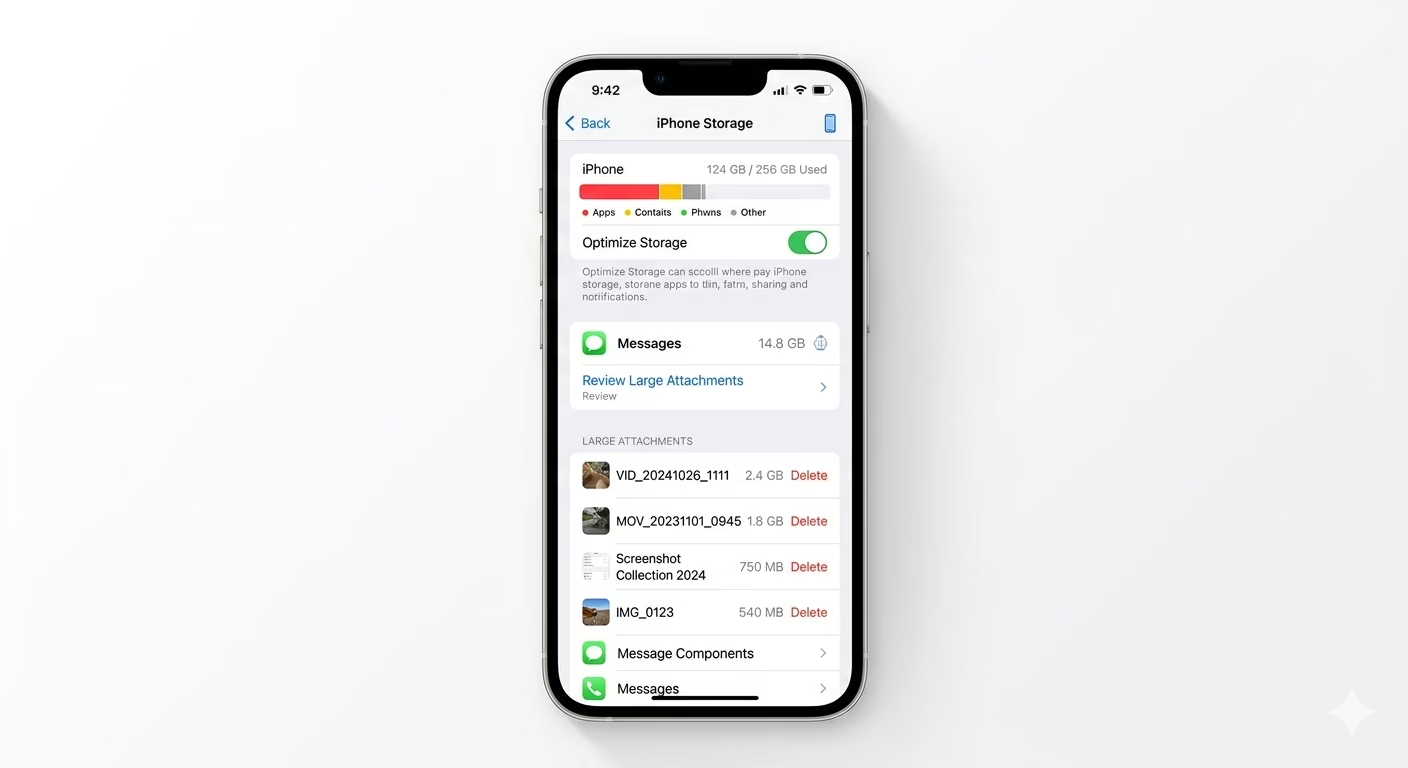
Old text threads with videos and high-res memes can fill up your “System Data.” Go to Settings > General > iPhone Storage and tap on Messages. Use the “Review Large Attachments” tool to see which videos are using space—and delete them right there, without digging through old conversations.
Optimization vs. Deletion
- Flexibility: Optimization keeps your files accessible via the cloud.
- Performance: A less-crowded SSD runs system tasks 20% faster.
- Automation: Once set, iOS manages the space so you don't have to manually delete files every week.
- Seamlessness: Features like "Optimize Photos" work in the background without user intervention.
Pro Tips:
- High Efficiency Format: Go to Settings > Camera > Formats and select "High Efficiency" (HEIF/HEVC). This cuts photo and video file sizes by nearly 50% without losing quality.
- Safari Downloads: Check Settings > Apps > Safari > Downloads and change the location to "On My iPhone" or "iCloud Drive" and clear it monthly.
- System Data (Other) Fix: If your "System Data" is over 15GB, perform an iCloud Backup and Restore. This is the most effective way to clear hidden system logs.
Frequently Asked Questions
Will I lose my photos if I optimize storage?
No, your photos are safely stored in iCloud. You just see a smaller version on your phone to save space. To view the full-quality photo, you’ll need an internet connection to download it.
Does 'Offload' delete my game progress?
No, “Offload” keeps your saved files, settings, and documents. Only the app itself is removed—the data will still be there if you reinstall the app later.