Quick Fix:
- Wait 24 hours for the system to clear temporary files
- Restart your iPhone to refresh storage calculation
- Offload unused apps
- Clear Safari browser cache
Steps to Clear Storage Post-Update
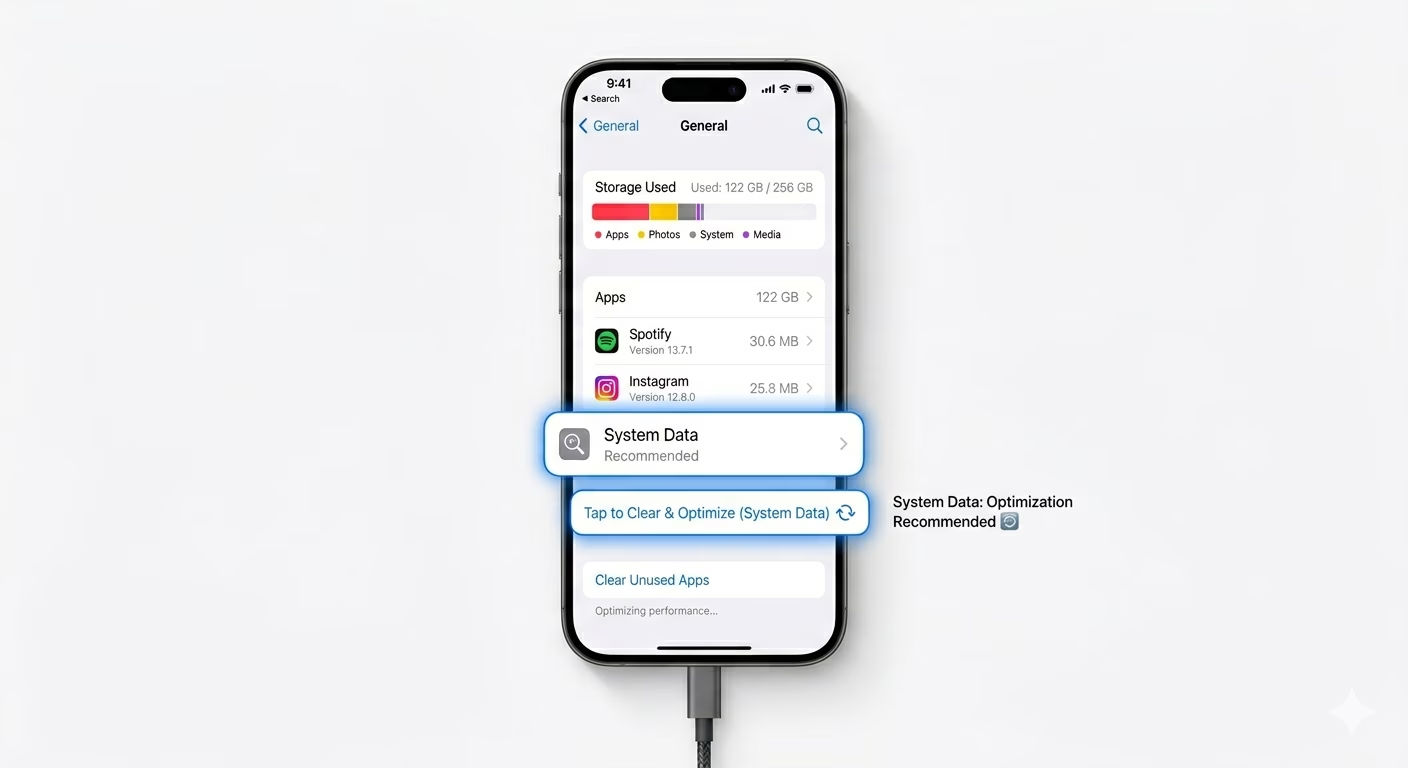
1 Clear System Data (Other Storage)
After you update your iPhone, "System Data" (previously called "Other") might get bigger while your phone organizes your files. To help clear this, go to Settings > Safari and tap Clear History and Website Data. You can also connect your iPhone to a computer and sync it with iTunes or Finder for about 10 minutes—this often helps the system remove old update logs and free up space.
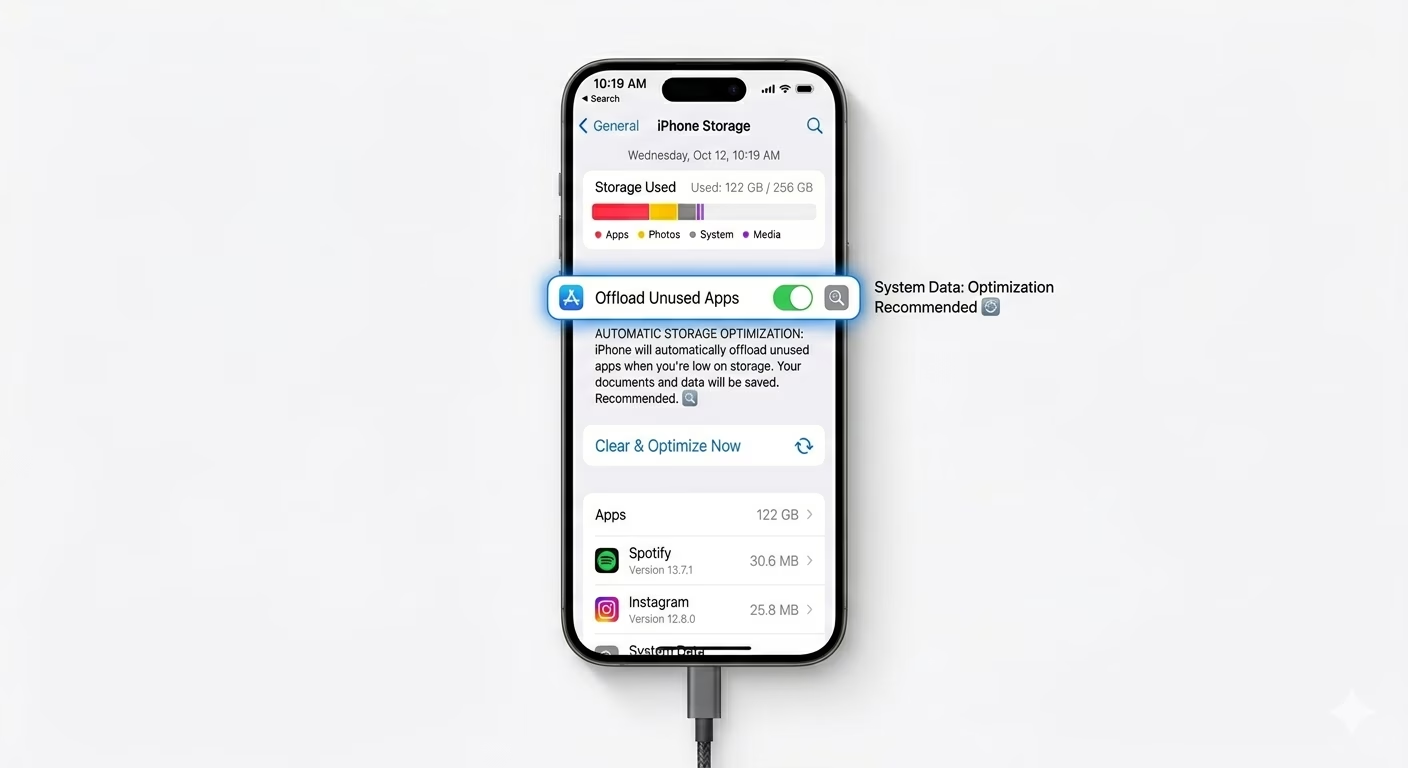
2 Enable Offload Unused Apps
If the new iOS is using more space than before, you can free up storage by letting your iPhone remove apps you don’t use often. Go to Settings > App Store and turn ON Offload Unused Apps. This will automatically clear out unused apps but keep all your documents and data safe, giving your device more space to work with.
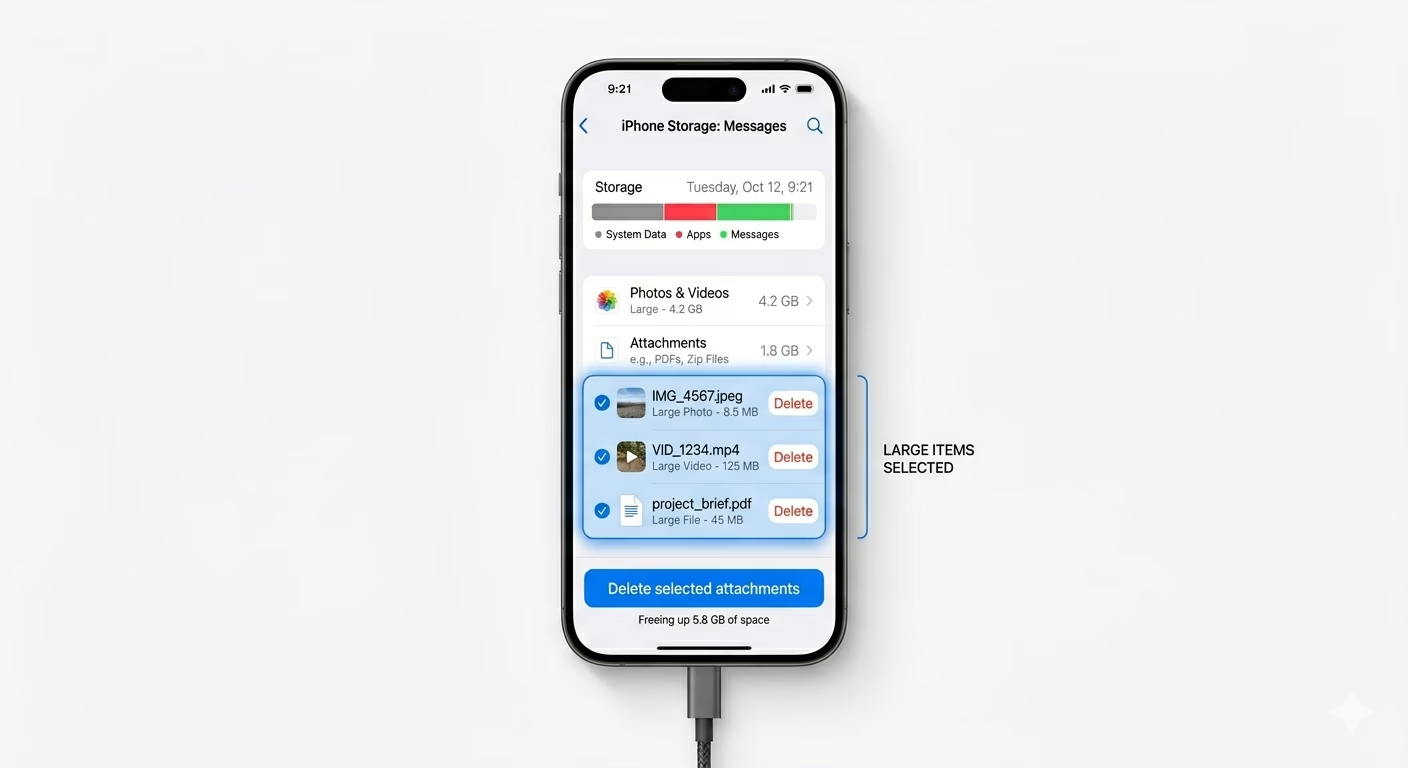
3 Clean Up Large Attachments
After updating, your iPhone might have found old messages with big videos or photos, which can take up lots of space. Go to Settings > General > iPhone Storage and look for options like "Review Large Attachments" or "Review Personal Videos." Deleting just a few of these large video files from your messages can quickly free up several gigabytes of space.
Why This Happens?
- Temporary update files haven't been deleted yet by the system
- The new iOS version has a larger system footprint
- Background indexing of Photos and Spotlight search
- Corrupted log files during the update process
Pro Tips:
- Check Settings > Photos and ensure "Optimize iPhone Storage" is checked to save space.
- If "System Data" is taking more than 10-15GB, a full backup and restore is the most effective way to clear it.
- Restart your phone twice; sometimes the first reboot doesn't properly update the storage bar.
Frequently Asked Questions
What is 'System Data' on iPhone?
System Data includes temporary files like caches, logs, and other resources your iPhone is using. The amount of System Data can go up and down depending on what your device needs. Usually, it will get smaller on its own once your phone finishes organizing everything after an update.
Will deleting the update help after it's installed?
No, after the update is installed, your iPhone automatically deletes the installation file. If your storage still shows as "Full," it’s because of the new operating system itself or background tasks running on your device.