Quick Fix:
- Never click on links in messages from unknown senders
- Enable "Filter Unknown Senders" in your Message settings
- Block individual numbers immediately after receiving spam
- Report junk messages to Apple and your carrier
Steps to Filter and Block Spam SMS
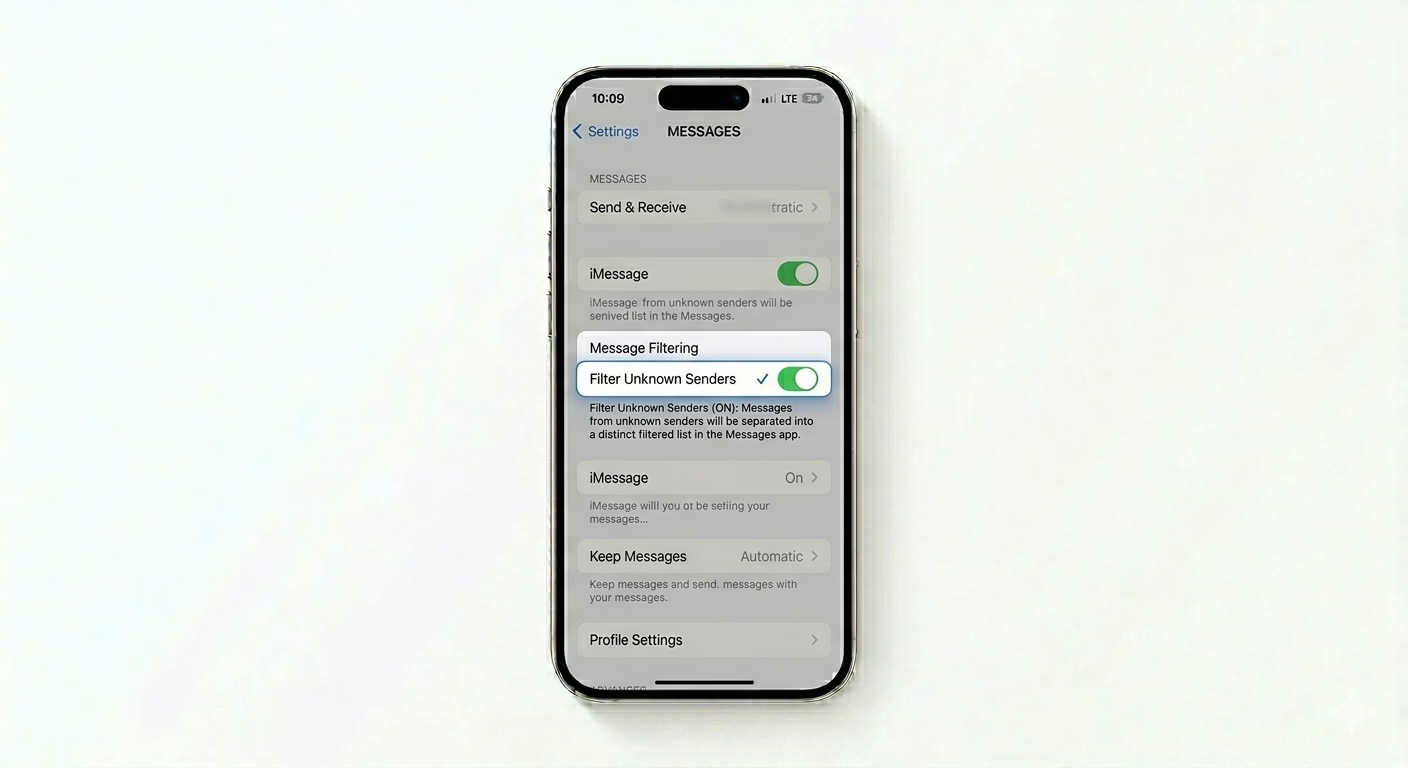
1 Enable "Filter Unknown Senders"
iOS has a built-in feature to separate messages from people not in your contacts. Go to Settings > Messages, scroll down to Message Filtering, and turn ON Filter Unknown Senders. This way, you won’t get notifications for these messages—they’ll go into a “Filters” list, keeping your main inbox tidy.
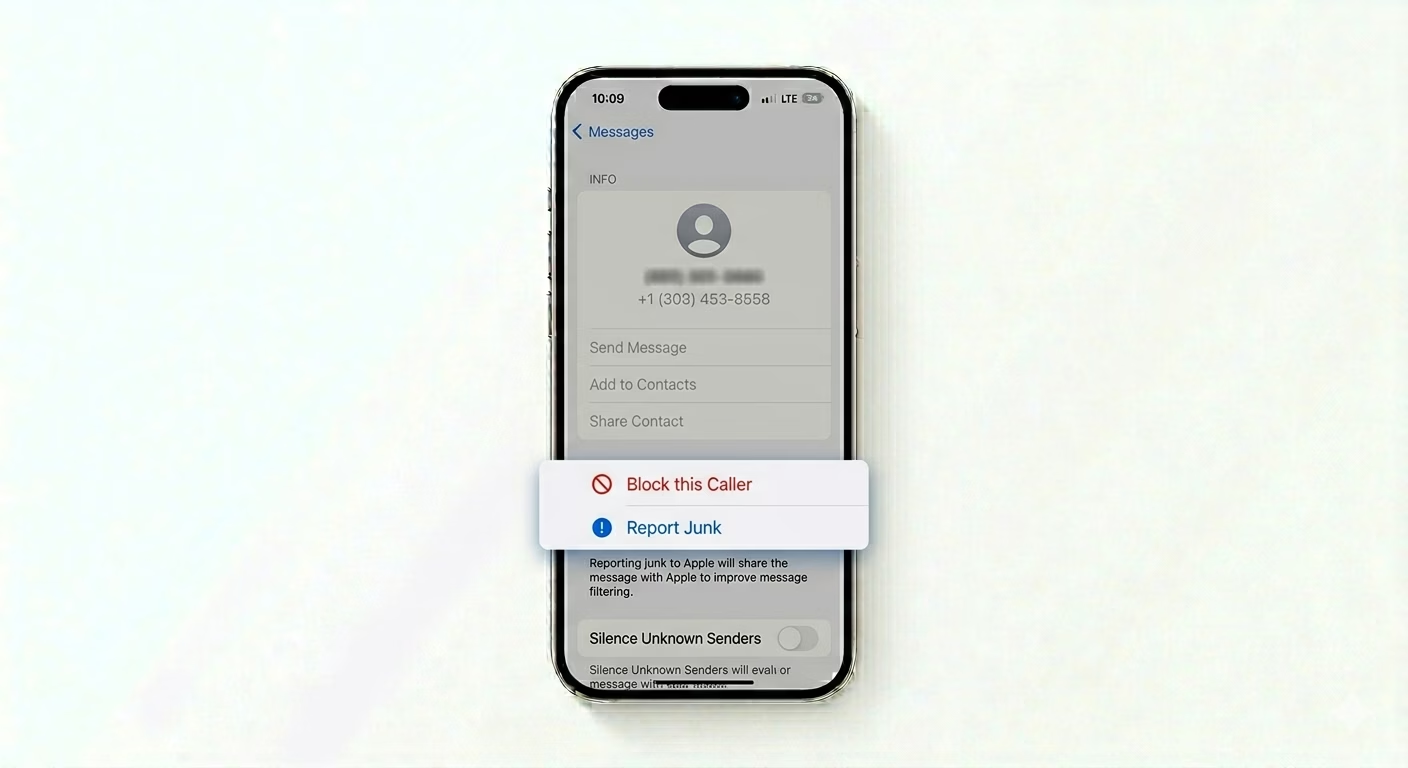
2 Block and Report as Junk
When you get a spam message, tap the sender’s profile icon at the top, then tap the info (i) button. Choose Block this Caller. You can also tap the “Report Junk” link under the message—this sends the sender’s info and message to Apple to help improve spam protection for everyone.
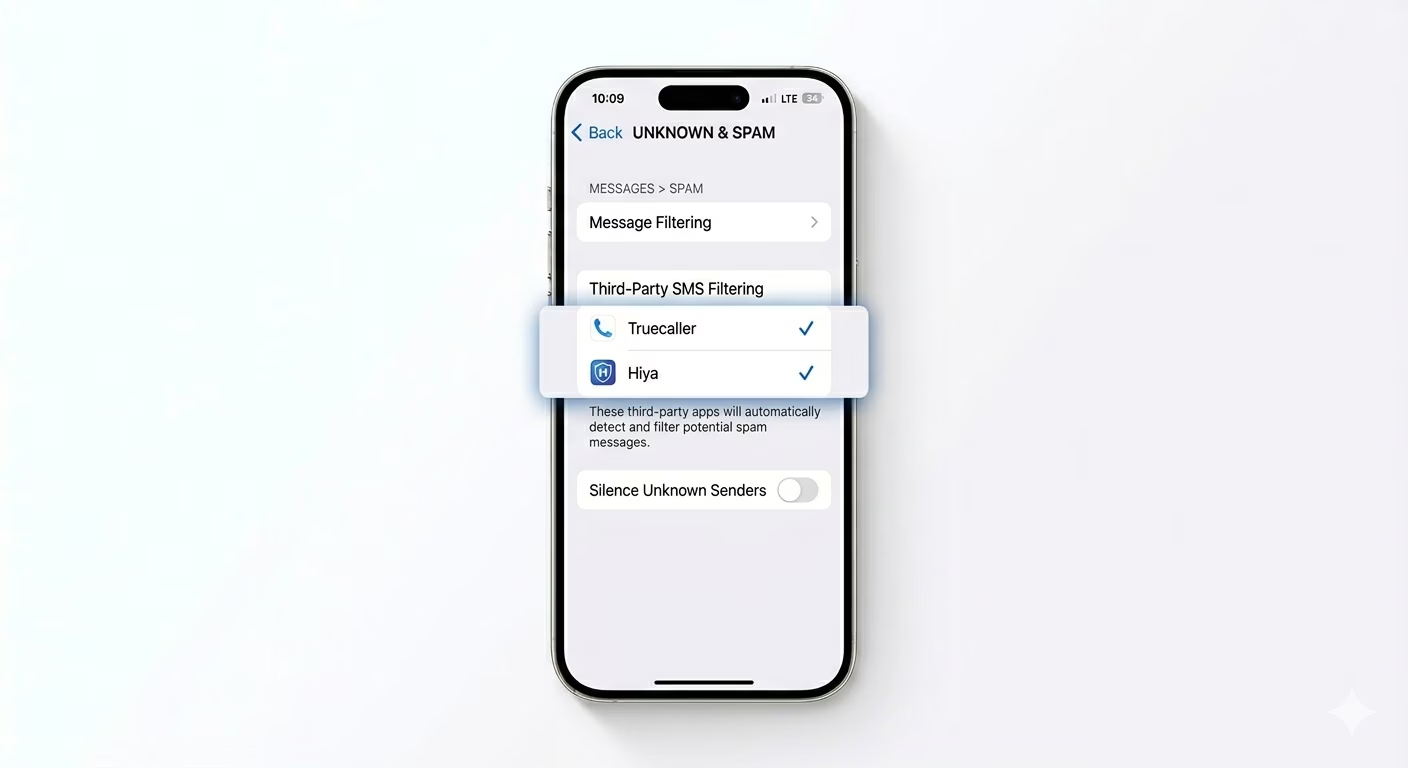
3 Use Third-Party Spam Apps
If you get a lot of spam texts, try apps like Truecaller or Hiya. After installing one, go to Settings > Messages > Unknown & Spam and turn on the third-party filter under “SMS Filtering.” These apps use large databases to spot and move marketing texts into a special “Spam” folder automatically.
Why Do I Get So Much Spam?
- Your phone number was leaked in a data breach of a website or app
- You signed up for a service that sold your data to marketers
- Random computer programs are "Auto-dialing" sequences of numbers
- Publicly listing your number on social media or classified websites
Pro Tips:
- Don't Reply "STOP": Replying to a scammer (even to say "stop") confirms your number is active, which often leads to *more* spam. Just block.
- Hide Your Email: Use Apple’s "Hide My Email" feature when signing up for websites to prevent your main address from being linked to your phone number.
- Check Carrier Tools: Many carriers have their own free apps (like T-Mobile Scam Shield) that block spam at the network level before it even reaches your iPhone.
Frequently Asked Questions
Is it safe to open a spam message?
Opening the message is usually safe, but never click any links or download attachments. These links are often part of “smishing” (SMS phishing) scams designed to steal your passwords.
Can I block spam emails in the Messages app?
Yes. If you get iMessages from an email address, you can block that email just like blocking a phone number—use the info menu to do it.