The 48-Hour Rule:
After a major update, your iPhone needs to re-index photos, files, and search data, which uses a lot of CPU power. Give it 24–48 hours on a charger and Wi-Fi before deciding if there’s a lasting problem.
Steps to Restore Speed After Update
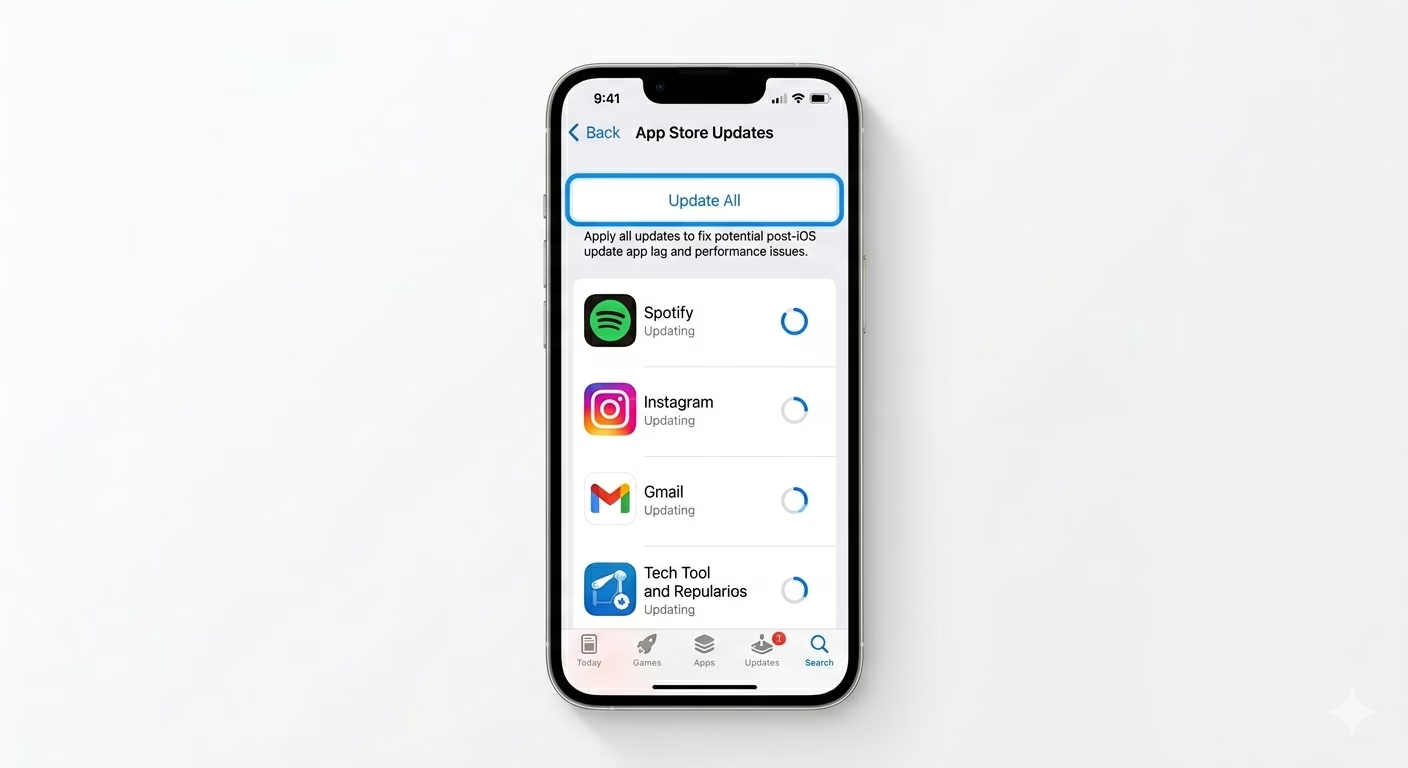
1 Update All Third-Party Apps
Old apps that aren’t optimized for the latest iOS can slow down your phone. Open the App Store, tap your Profile Icon, and scroll down to Update All. Developers usually release patches soon after a new iOS version comes out to fix these bugs. Updating your apps is the most common fix for “App Lag” after an update.
2 Perform a Force Restart
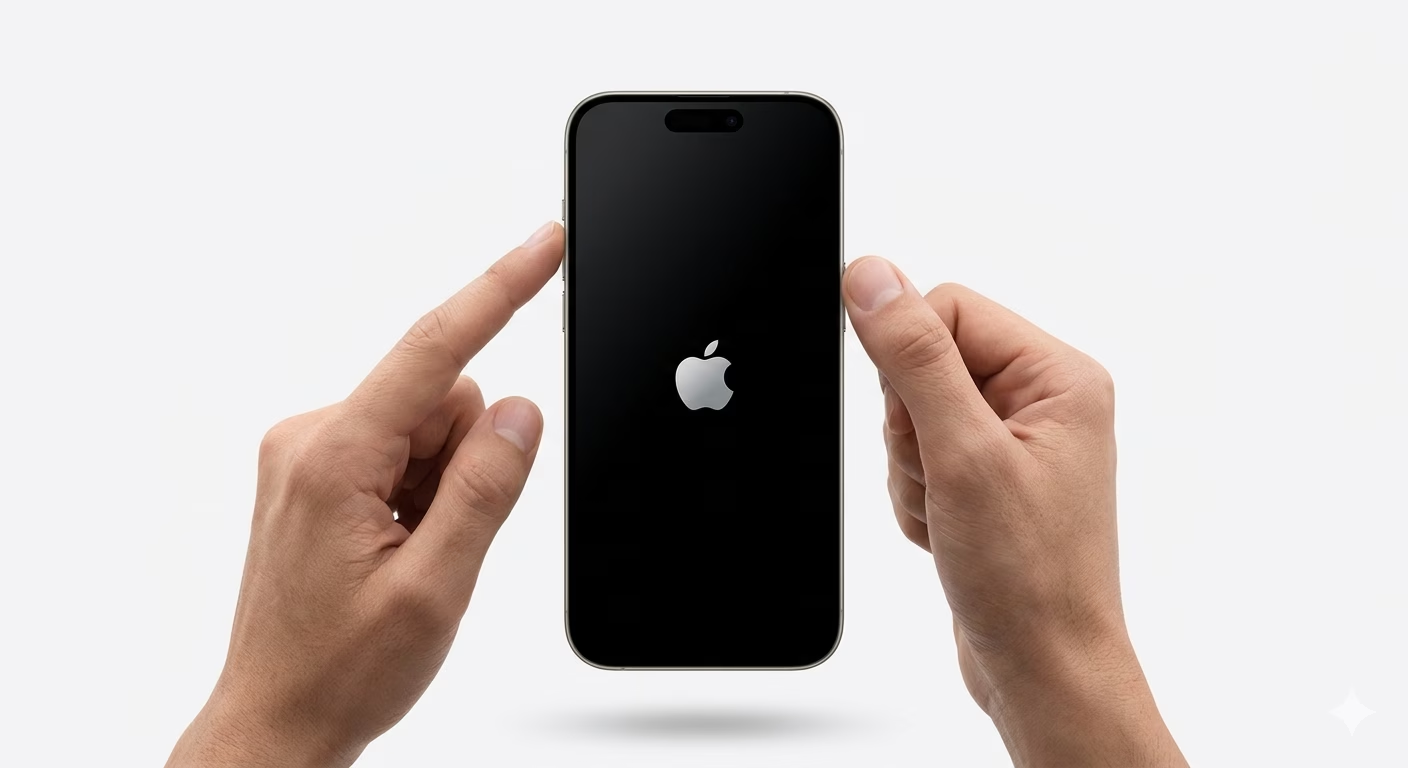
A regular restart won’t clear out deep system cache after an update. Quickly press and release Volume Up, then Volume Down, then hold the Side Power Button until you see the Apple logo. This forces your iPhone to reload its system and clears temporary files that might be causing UI lag.
3 Reset All Settings (Clean Slate)
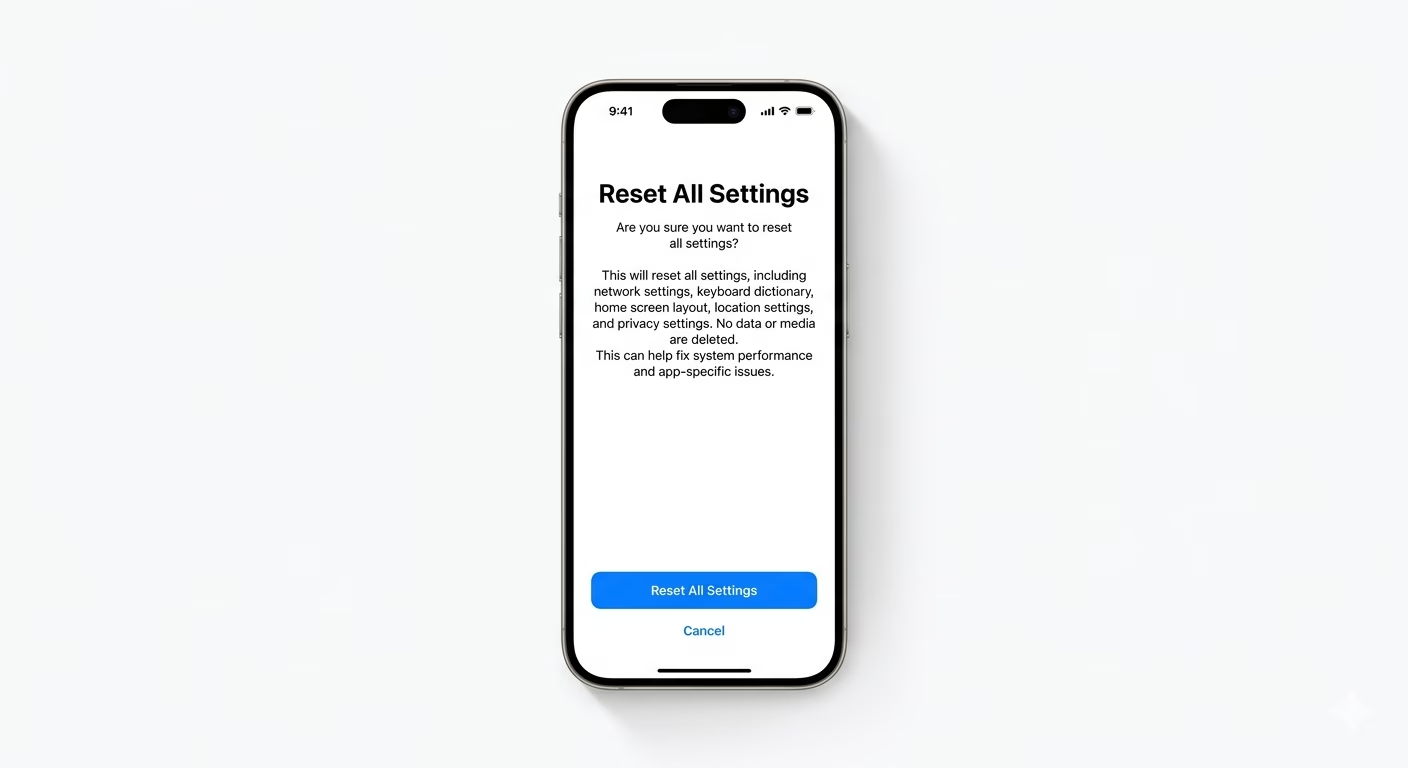
If your iPhone is still slow after 48 hours, old system settings might be conflicting with new software features. Go to Settings > General > Transfer or Reset iPhone > Reset > Reset All Settings. This won’t delete your photos or apps, but it will reset your Wi-Fi passwords and system preferences—often fixing deep software issues.
Why Is My iPhone Slow?
- Background Indexing: Spotlight and Photos are reorganizing your data.
- Incompatible Apps: Older apps struggling with new iOS architecture.
- Low Storage: Updates take up space; if you have less than 10% free, the phone will lag.
- Battery Recalibration: The system is relearning your battery's health and peak power.
Pro Tips:
- Check Battery Health: Updates sometimes reveal that an old battery can no longer handle the new software's power demands.
- Disable Transparency: Go to Accessibility > Display & Text Size > Reduce Transparency to help the GPU render the new UI faster.
- Stay on Charger: Let the phone finish its background tasks overnight while connected to power and Wi-Fi.
Frequently Asked Questions
Should I downgrade to the previous iOS version?
Downgrading is hard and usually not recommended. It’s better to wait for the next “Point Update” (like iOS 19.0.1), which is released to fix performance issues from the initial update.
Is my iPhone too old for this update?
If your iPhone is 4–5 years old, new features can be harder on its hardware. Turning off “Background App Refresh” can help older models run smoother with new software.