Quick Fix:
- Wait 24-48 hours for background indexing
- Update all your apps in the App Store
- Restart your iPhone twice
- Check if Low Power Mode is accidentally ON
Steps to Improve Speed After an Update
1 Give it Time to Index
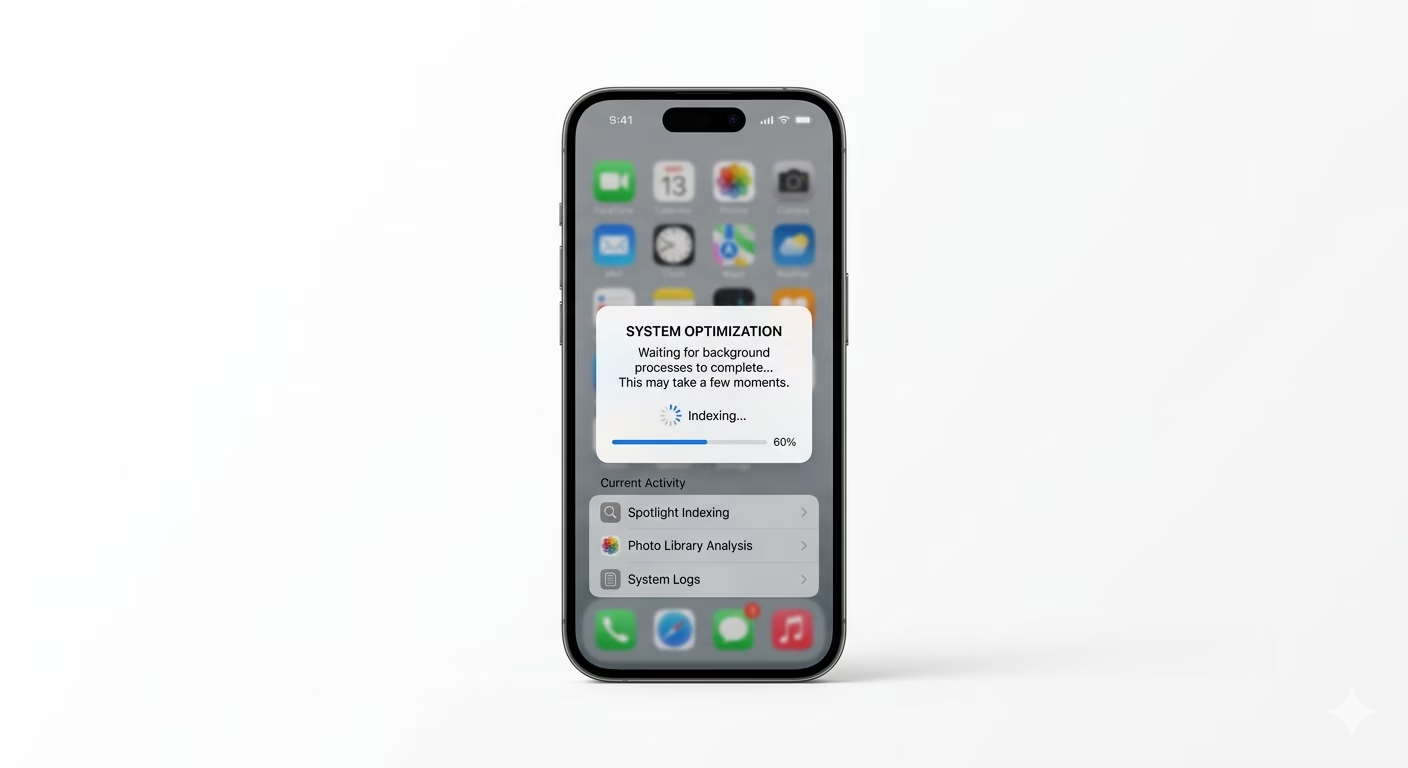
After a major update, iOS runs background tasks to re-index your photos, files, and spotlight search. This uses a lot of processing power and can make your phone feel slow. To speed things up, leave your iPhone on the charger and connected to Wi-Fi overnight. In most cases, the lag goes away within 24 to 48 hours after indexing is finished.
2 Update All Third-Party Apps
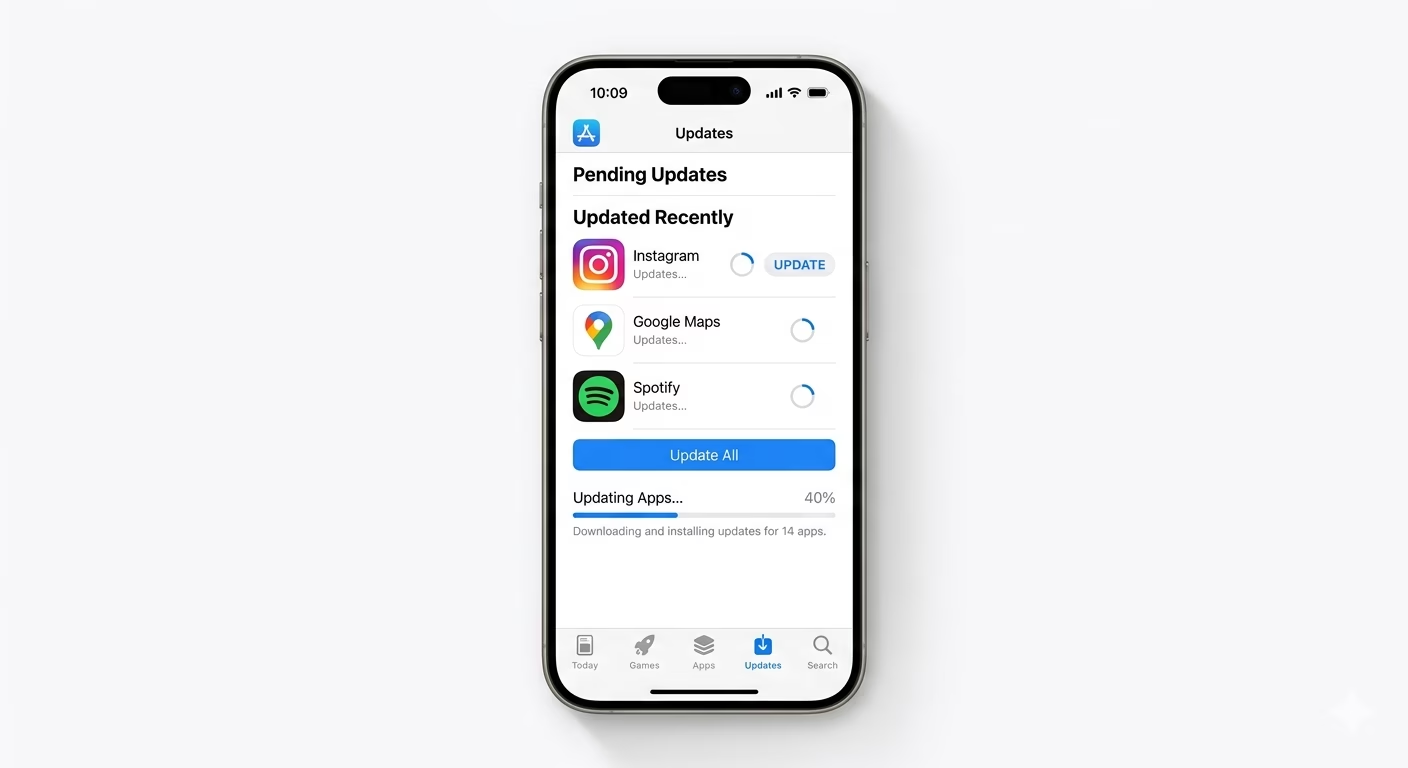
Old app versions may not work well with the new iOS, which can cause crashing or lag. Open the App Store, tap your profile icon, and choose “Update All.” This will make sure all your apps are updated and fully compatible with the latest system.
3 Adjust Visual Effects
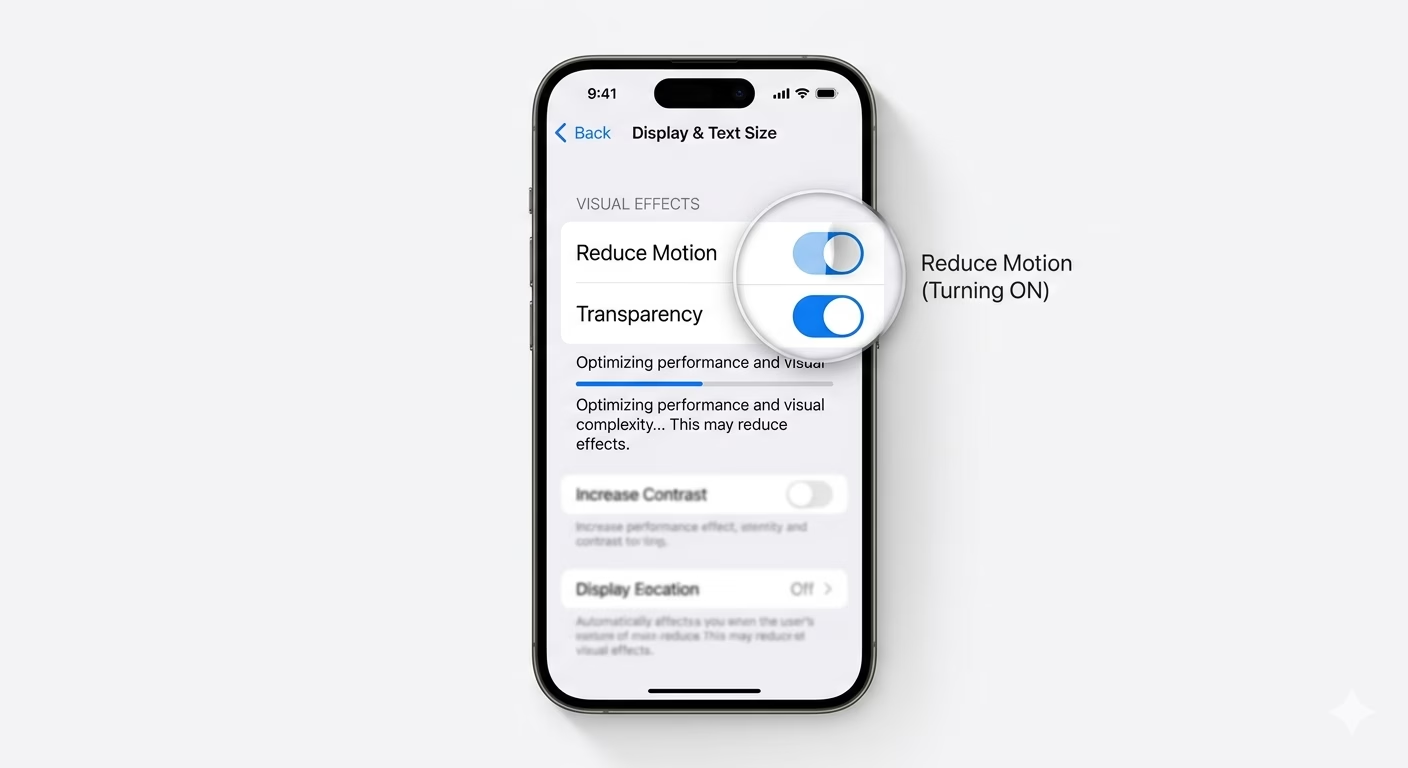
If your iPhone still feels slow, you can reduce the strain on the graphics processor. Go to Settings > Accessibility > Motion and turn on Reduce Motion. Then, in the “Display & Text Size” section, enable Reduce Transparency. These settings can help make the interface feel faster, especially on older devices.
Why This Happens?
- Heavy background indexing and database migration
- Incompatible third-party apps consuming high CPU
- Temporary system cache files causing friction
- Battery health being unable to support peak performance
Pro Tips:
- Check Settings > Battery > Battery Health. If it’s below 80%, the update might be triggering performance management.
- Reset All Settings (no data loss) to clear out old system preferences that might conflict with the new update.
- Avoid using the phone heavily while it's hot; heat always causes thermal throttling and lag.
Frequently Asked Questions
Is Apple slowing down my old iPhone on purpose?
No, but newer iOS versions are made to work best with the latest processors. Most of the time, any lag you notice after an update is just temporary background tasks running, and it usually goes away after you follow the steps mentioned above.
Should I downgrade to the previous iOS version?
Downgrading is tricky and usually not supported by Apple. It’s better to optimize your current settings and wait for a minor update (like 17.1.1), which often fixes early bugs and improves performance.