Quick Siri Checklist:
- Ensure "Listen for Hey Siri" is enabled in Settings
- Check if your iPhone is face down (Siri is silent by default when covered)
- Verify your Internet Connection (Siri requires data for most tasks)
- Make sure Low Power Mode isn't restricting background listening
Steps to Restore Siri Functionality
1 Retrain "Hey Siri" Recognition
If Siri stops recognizing your voice, you may need to recalibrate it. Go to Settings > Siri & Search. Turn Listen for “Hey Siri” OFF, then turn it back ON. This will bring up the “Set Up Hey Siri” screen. Follow the on-screen prompts in a quiet environment so your iPhone can re-learn your voice patterns for improved accuracy.
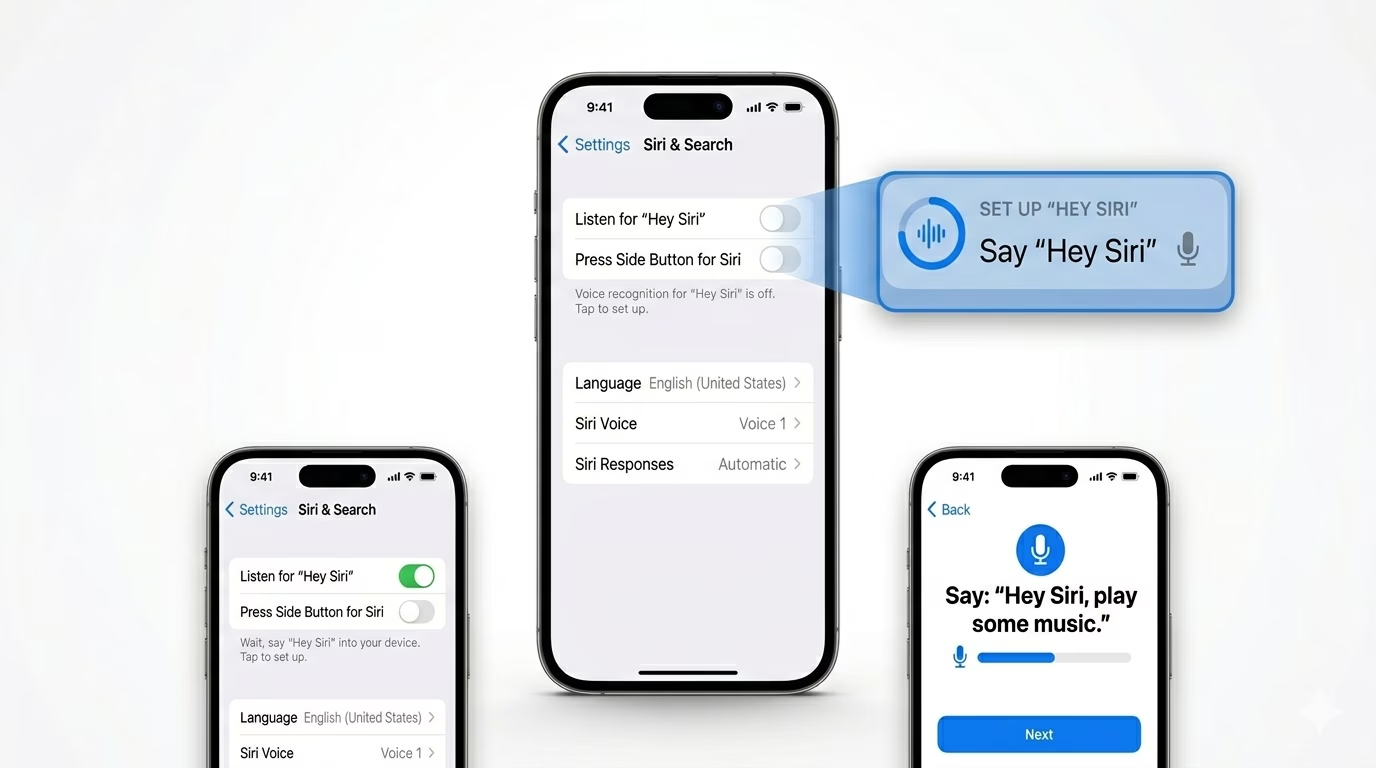
2 Clean the Top Microphone
Siri relies on the microphones near the front-facing camera and earpiece. If this area is blocked by a screen protector or clogged with dust, Siri may not hear you clearly. Gently clean the earpiece mesh using a soft, dry brush. You can also test the microphone by recording a quick selfie video—if the audio sounds muffled, the issue may be hardware-related rather than software.
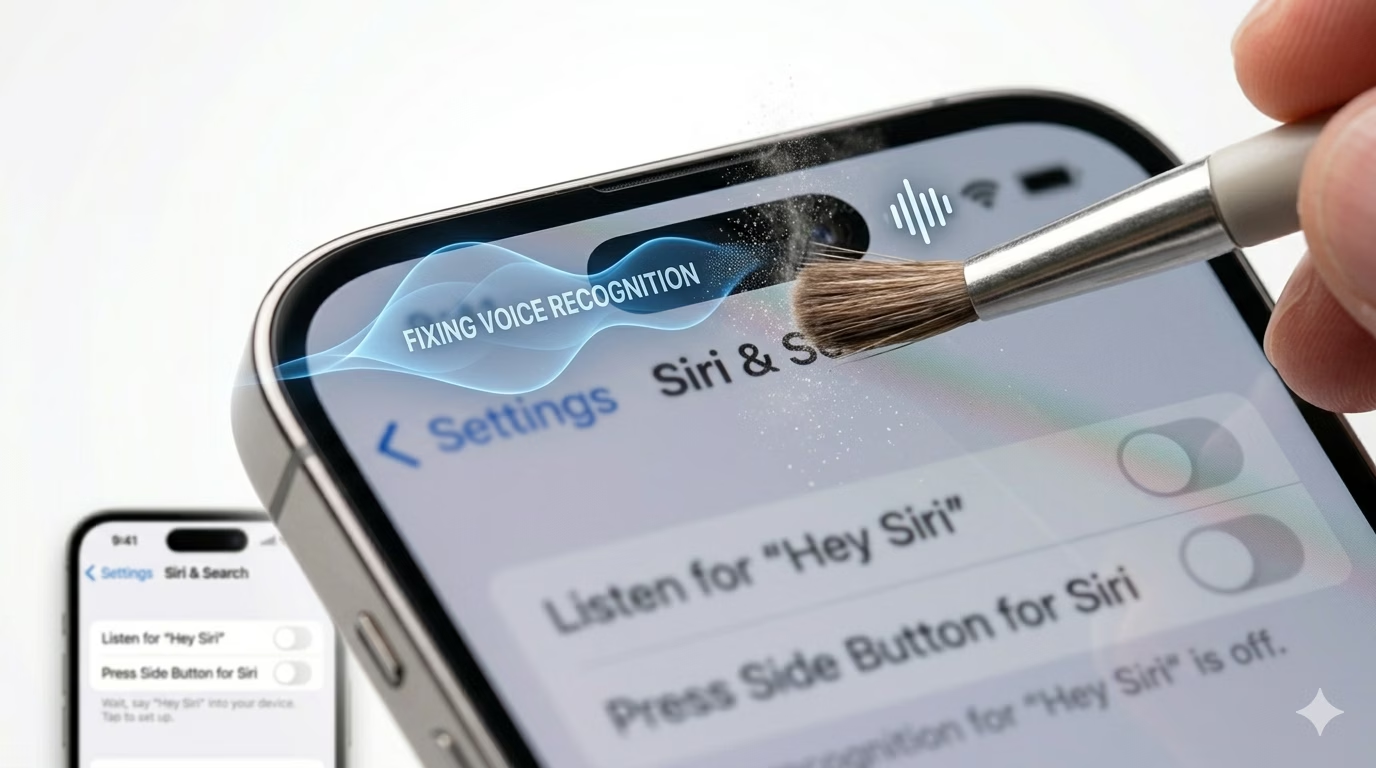
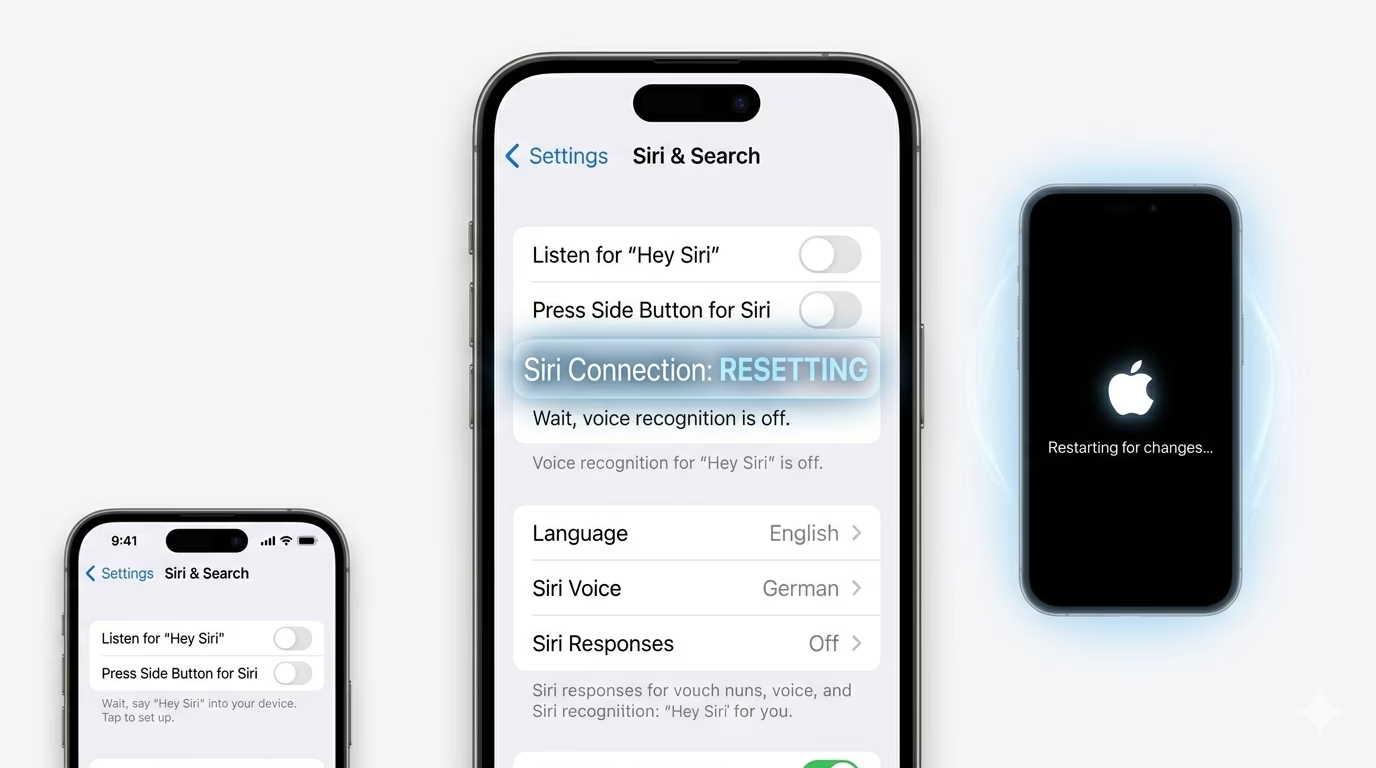
3 Reset Siri Server Connection
Sometimes the connection to Apple’s Siri servers can get stuck. Go to Settings > Siri & Search and turn OFF both Listen for “Hey Siri” and Press Side Button for Siri. Restart your iPhone, then turn them back ON. This refreshes Siri’s system data and re-establishes a clean, secure connection to Apple’s voice processing servers.
Why is Siri Silent?
- Silent Mode: Siri’s voice feedback might be set to only respond when Silent Mode is OFF.
- Bluetooth Routing: Siri might be listening through a pair of AirPods in your bag or a car Bluetooth system.
- Covered Screen: If your iPhone is in your pocket or face down, "Hey Siri" is disabled to prevent accidental triggers.
- Server Status: Occasionally, Apple’s global Siri servers experience downtime.
Pro Tips:
- Always Listen: If you want Siri to work even when face down, go to Settings > Accessibility > Siri and toggle ON "Always Listen for 'Hey Siri'".
- Type to Siri: If you're in a loud place, enable "Type to Siri" in Accessibility settings so you can use text instead of voice.
- Language Match: Ensure your Siri Language matches the language you are speaking, as Siri's AI is highly tuned to specific accents.
Frequently Asked Questions
Why does Siri say 'I'm having trouble connecting'?
This is almost always a network issue. Siri relies on Apple’s servers to process your voice requests, so a weak or unstable connection can cause failures. Try switching from Cellular to Wi-Fi to improve stability and response accuracy.
Can Siri work without the Internet?
On newer iPhones (iPhone 12 and later), many basic commands like setting alarms or opening apps can run on-device without an internet connection.