Quick Touch Fixes:
- Clean the protector with a Microfiber cloth to remove oil/moisture
- Check for Air Bubbles (they create dead zones for sensors)
- Update to the latest iOS (Apple often tunes touch sensitivity)
- Restart your iPhone to refresh the Digitizer drivers
Steps to Resolve Protector-Related Touch Issues
1 Adjust Touch Accommodations
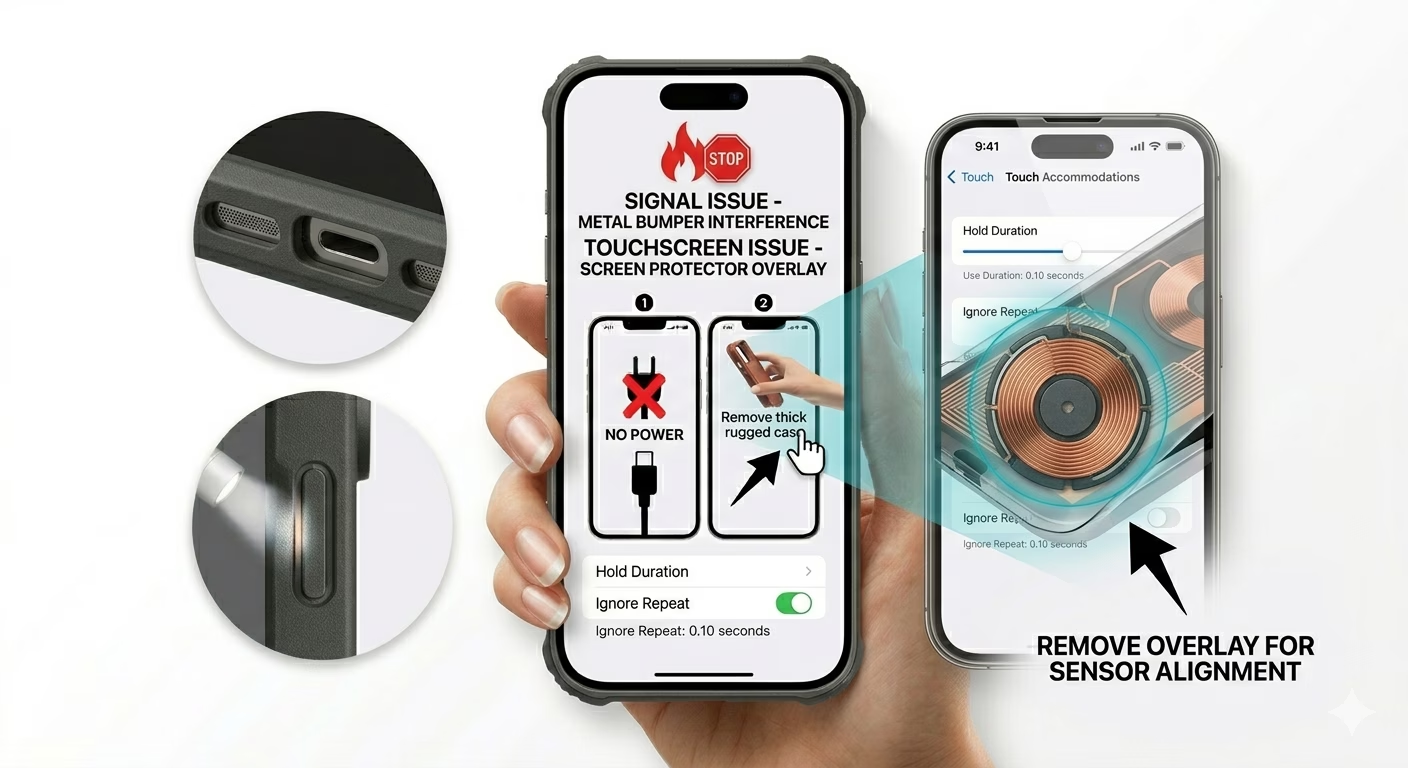
If your screen protector is too thick (common with privacy glass), you may need to adjust how iOS responds to touch input. Go to Settings > Accessibility > Touch > Touch Accommodations. Try adjusting Hold Duration or Ignore Repeat. This can help your iPhone better register touches when there’s a thicker barrier between your finger and the display.
2 Change Haptic Touch Speed
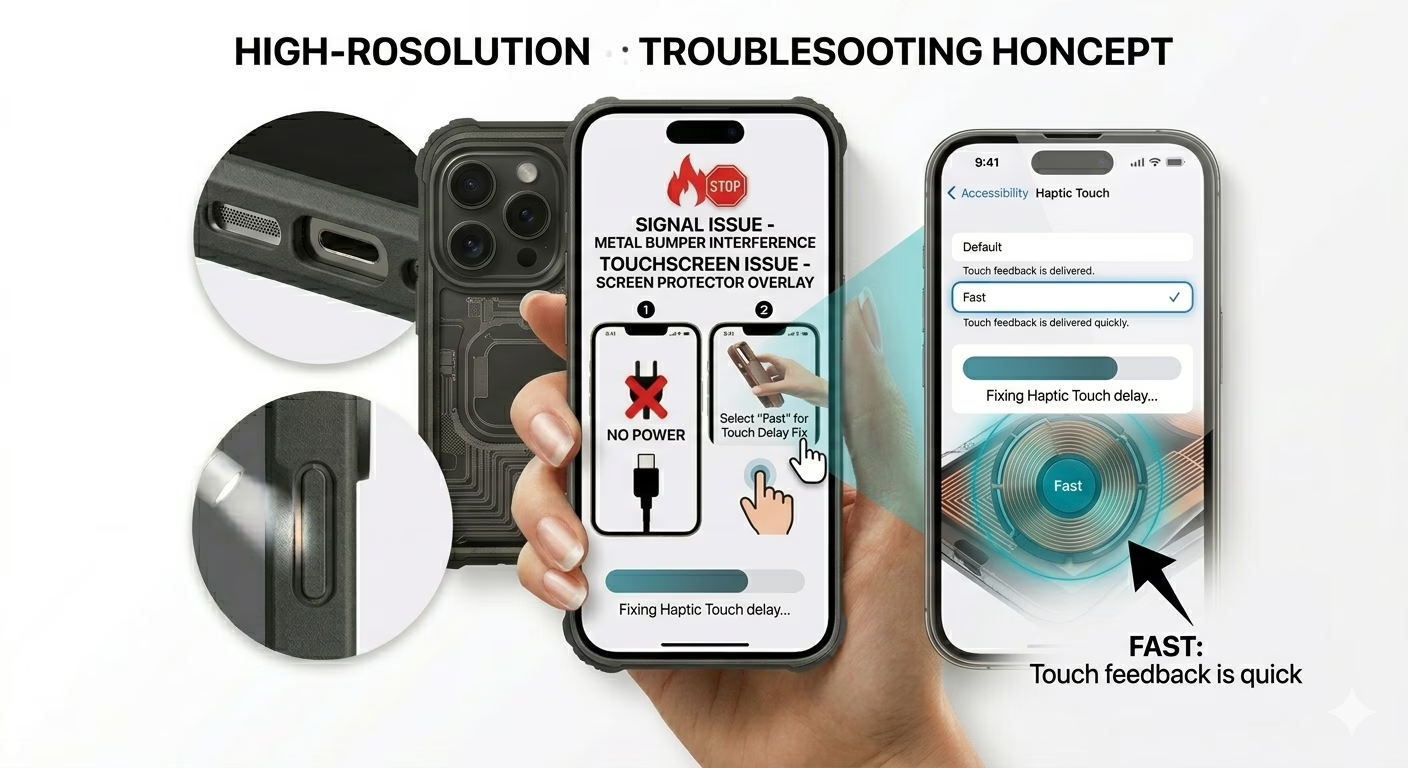
Sometimes the delay isn’t caused by the glass, but by system touch timing. Go to Settings > Accessibility > Touch > Haptic Touch. Change the touch duration from “Default” to “Fast”. This reduces the time required to register a long-press, which can help offset slight delays caused by a tempered glass screen protector.
3 Inspect for Trapped Moisture/Dust
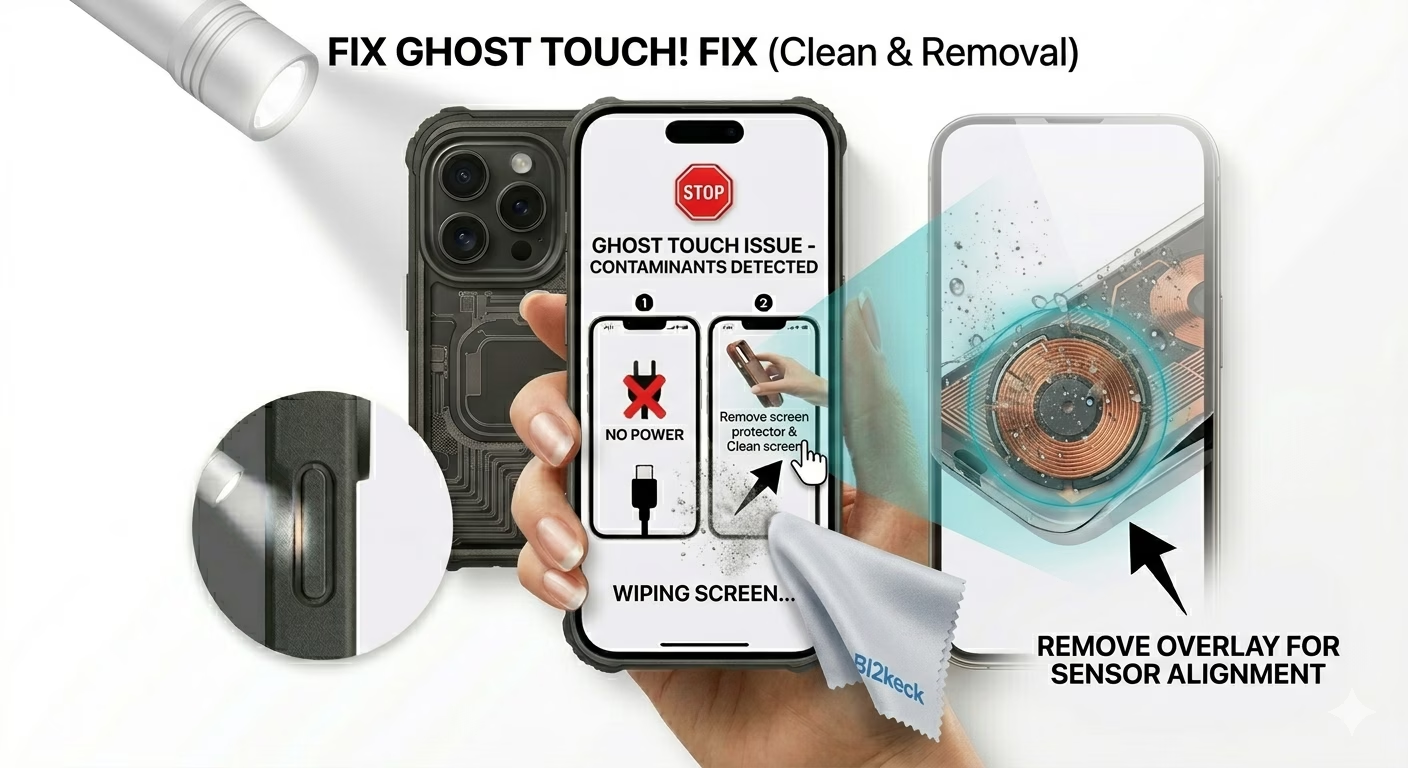
If you’re experiencing “ghost touches” (the screen tapping or reacting on its own), it’s often caused by static, moisture, or debris trapped under the screen protector. If the issue continues, the best step is to remove the protector. Clean the iPhone screen thoroughly with an alcohol wipe, let it dry completely, then apply a high-quality, thinner (around 0.33mm) branded protector for proper capacitive contact and accurate touch response.
Why is My Touch Failing?
- Static Electricity: Cheap plastic protectors can build up static that triggers the digitizer.
- Edge Interference: If the protector is too large, your phone case might be pushing against it, creating "phantom" inputs.
- Thickness (mm): Any glass thicker than 0.33mm can significantly reduce sensitivity on older iPhone models.
- Glue Quality: Low-quality adhesive can create microscopic gaps that block the electrical signal from your finger.
Pro Tips:
- Use "Touch ID" Friendly Glass: For older models, ensure the protector doesn't obstruct the Home Button's ring.
- Avoid Wet Application: Unless specified, wet-apply protectors can cause liquid damage to the earpiece if not handled carefully.
- Test Without Case: Sometimes it's the Case pushing the protector, not the protector itself. Remove the case to see if touch returns to normal.
Frequently Asked Questions
Does iPhone have a 'Glove Mode' for sensitivity?
Unlike some Android devices, iPhone does not include a dedicated “Glove Mode.” However, adjusting Touch Accommodations in Accessibility is Apple’s official way to improve touch response and fine-tune screen sensitivity.
Can a cracked protector affect touch?
Yes. Cracks can disrupt the screen’s uniform electrical field, which may cause dead zones, unresponsive areas, or erratic scrolling behavior.