Quick Fix:
- Perform a Force Restart
- Clean your screen with a microfiber cloth
- Remove any screen protector or case
- Plug into a power source
Steps to Unfreeze Your iPhone Screen
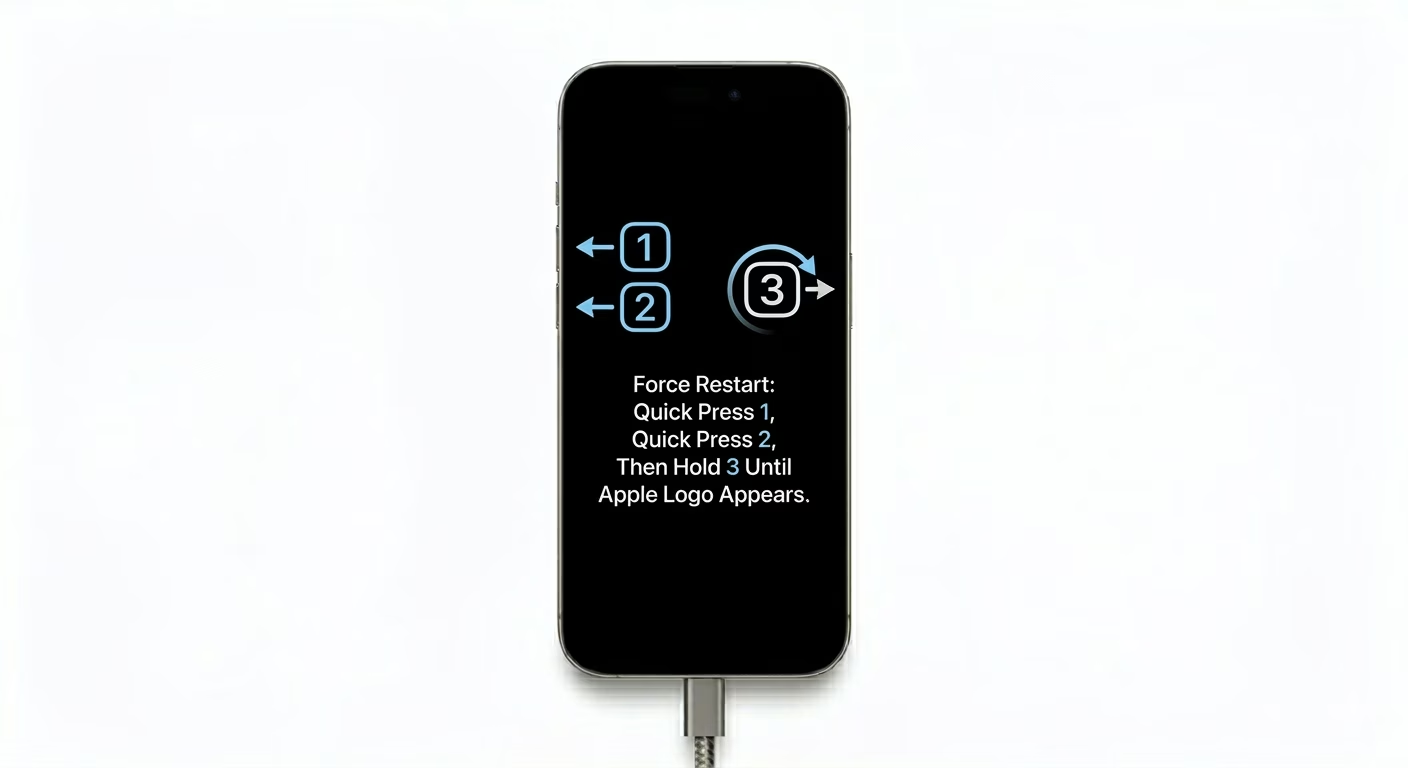
1 Force Restart Your iPhone
The best way to fix a frozen screen on iPhone 8 or newer is to quickly press and release Volume Up, then Volume Down, and then hold the Side Button until you see the Apple logo.
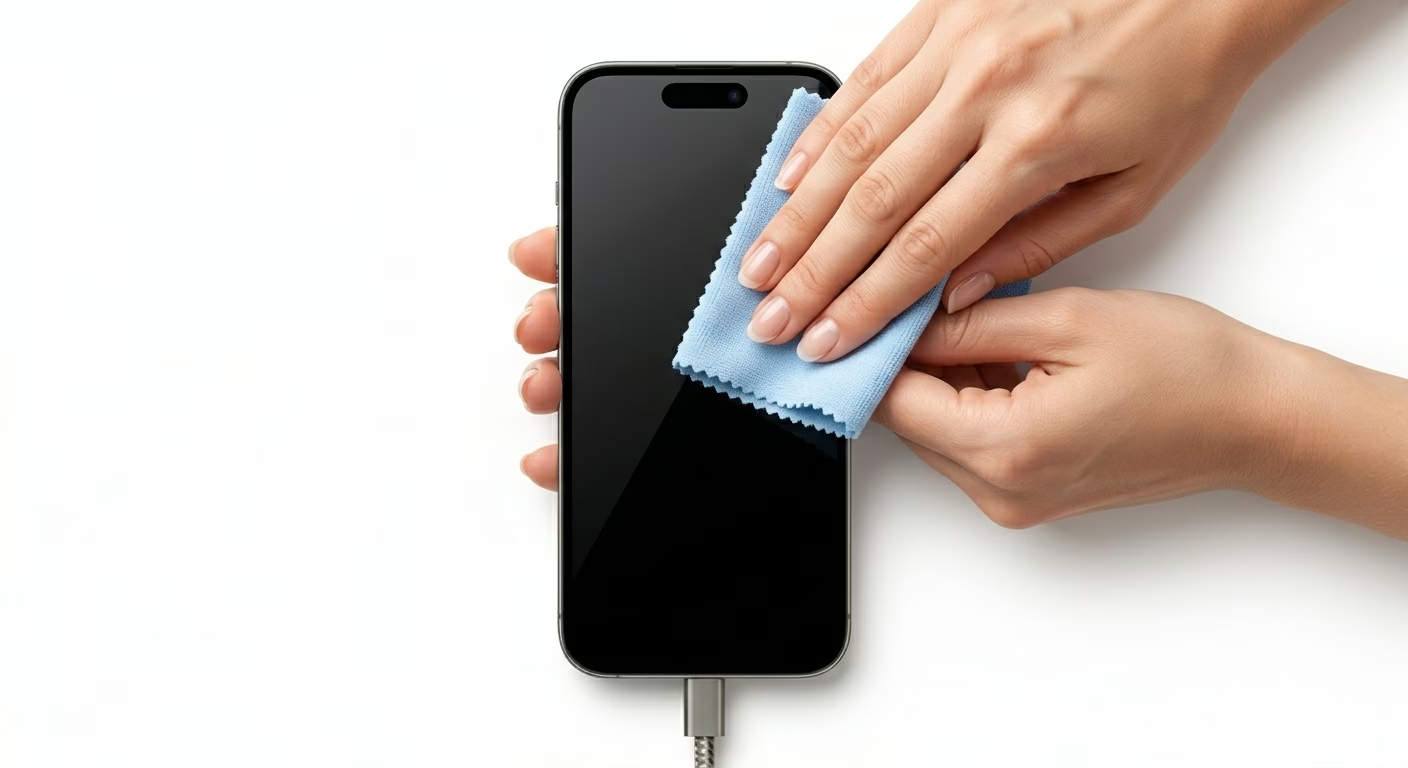
2 Clean the Display & Your Hands
If your screen isn’t responding, it might just be dirty. Gently wipe it with a soft, clean cloth, and make sure your fingers are dry and clean before using your phone.
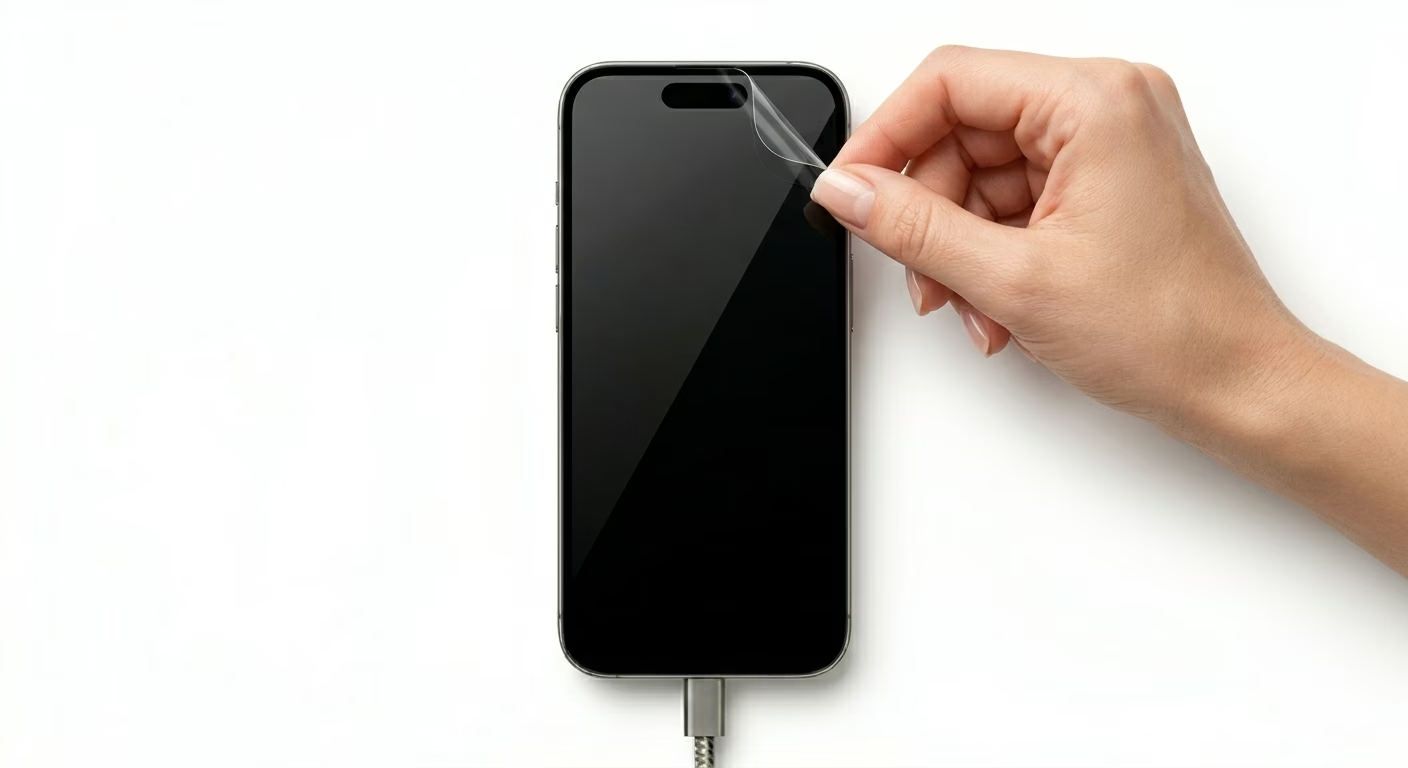
3 Remove Case or Screen Protector
If your screen is still stuck, a tight case or a badly fitted screen protector might be the problem. Try removing them to see if your touch screen starts working again.
Why This Happens?
- Too many heavy apps running at once
- Low storage space on your device
- Software bugs or outdated iOS version
- Hardware damage (Digitizer failure)
Pro Tips:
- Keep at least 10% of your storage free for smooth performance.
- Always update to the latest iOS for bug fixes.
- If the screen freezes in a specific app, delete and reinstall it.
Frequently Asked Questions
Will a force restart delete my data?
A force restart is just a “hard reboot” and won’t delete your photos, messages, or any of your personal data.
What if my screen is still frozen after a restart?
If restarting doesn’t help, connect your iPhone to a computer and use iTunes or Finder to update your software without losing any data.