Quick Fix:
- Check your Wi-Fi or Cellular signal
- Force close Safari and restart it
- Turn off Airplane Mode and turn it back on
- Restart your iPhone
Steps to Fix Safari Issues
1 Clear Safari Cache & History
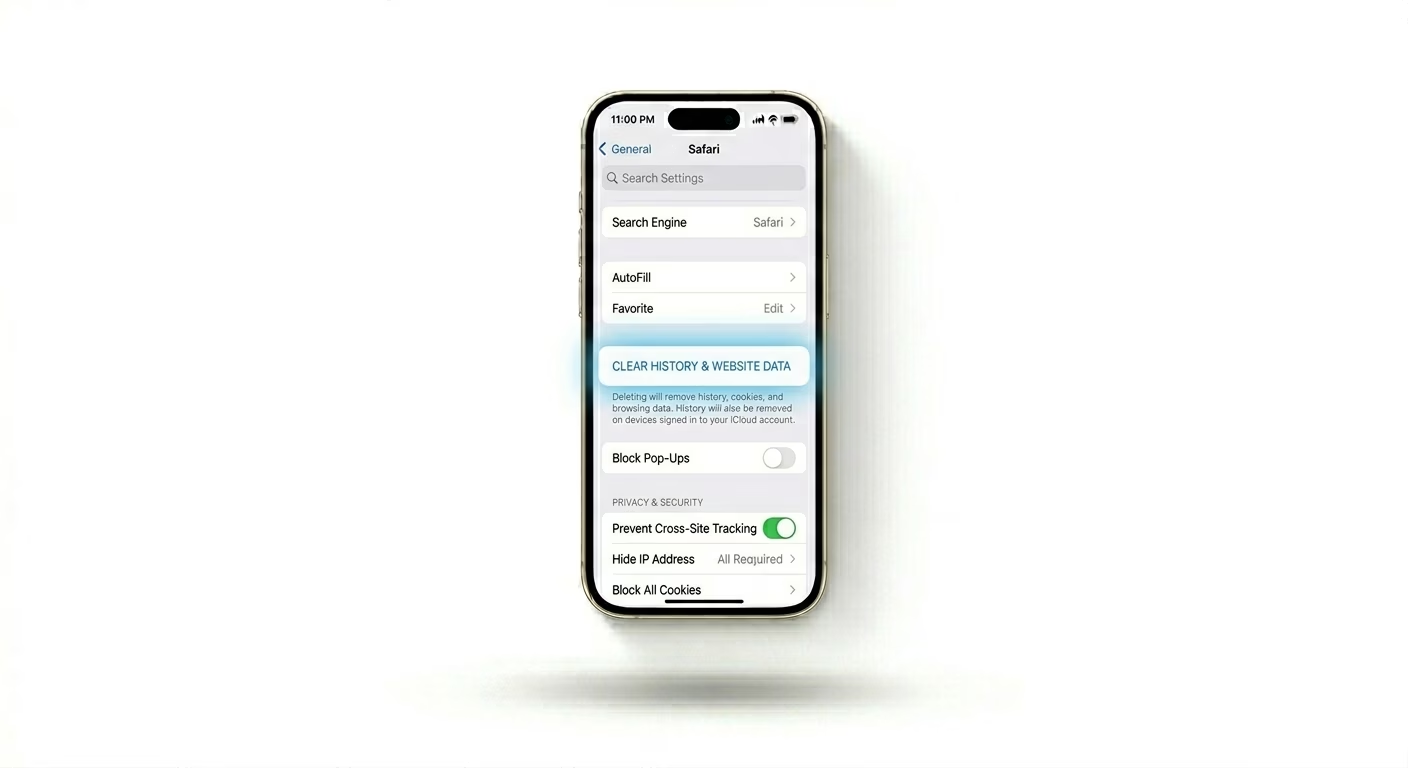
Corrupted temporary files are the main reason Safari freezes or won’t load pages. Go to Settings > Safari, scroll down, and tap Clear History and Website Data. Confirm by tapping "Clear History." This deletes cookies and browsing data that could be causing the problem.
2 Turn Off Safari Extensions
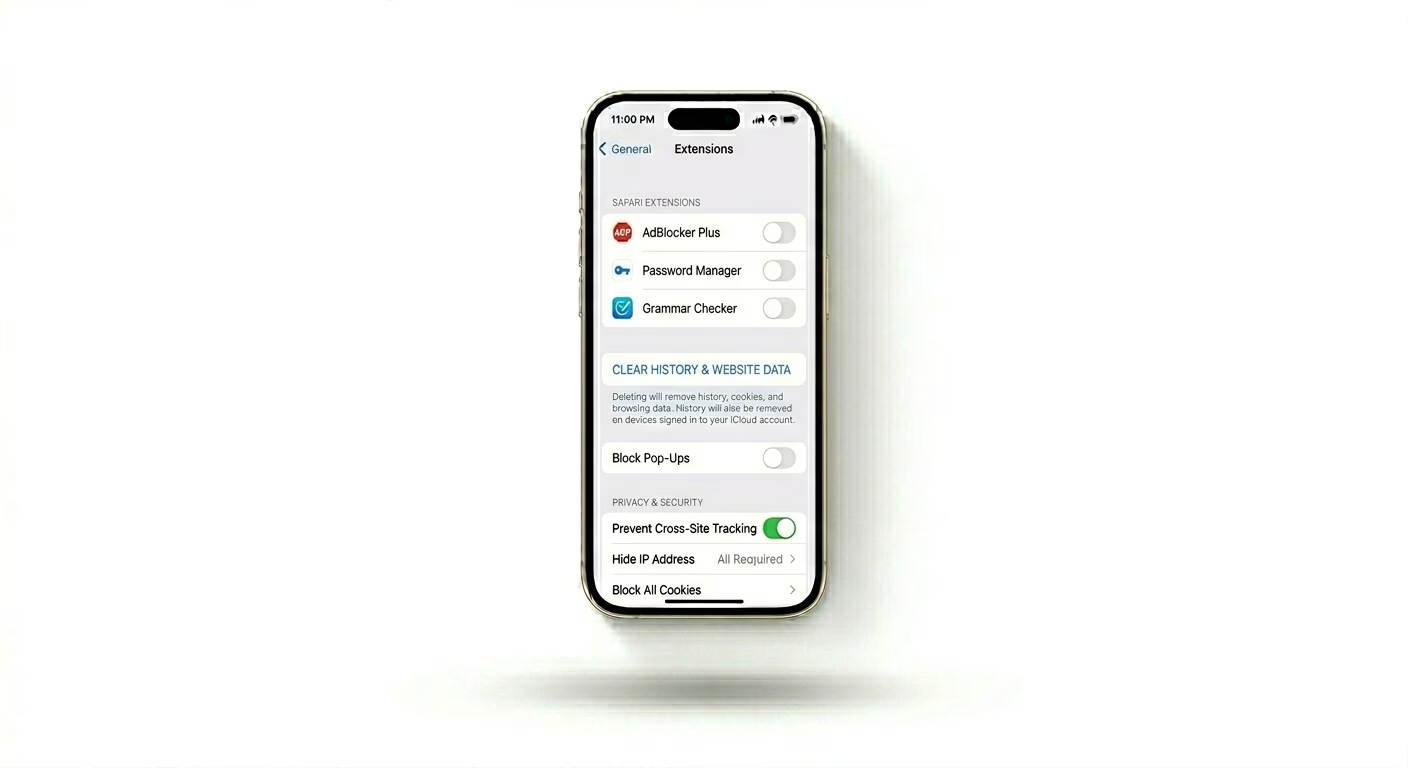
Sometimes, a third-party content blocker or extension can stop Safari from loading pages. Go to Settings > Safari > Extensions and turn off all active extensions. If Safari works after this, turn the extensions back on one at a time to find out which one is causing the problem.
3 Reset Experimental Features
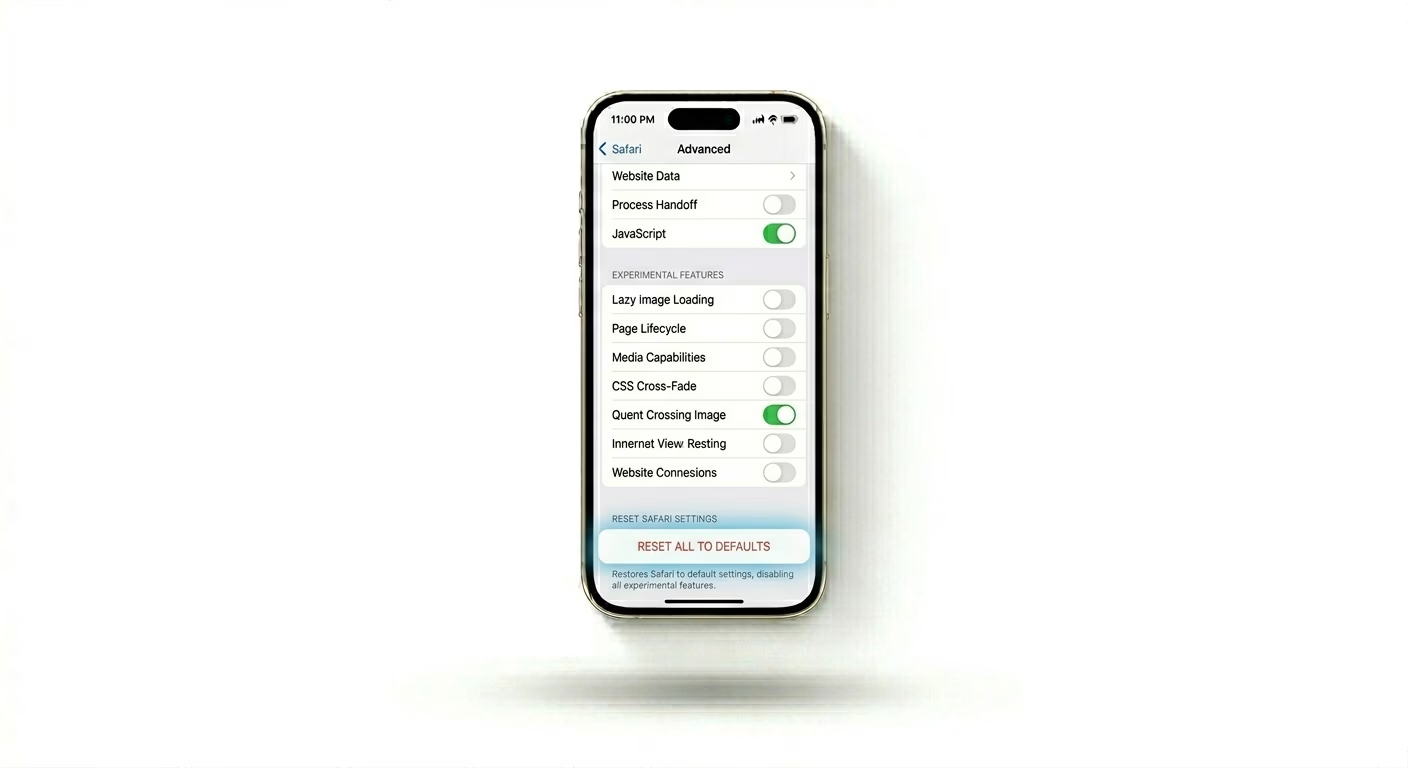
If you’ve changed Safari’s advanced settings, it might make the browser unstable. Go to Settings > Safari > Advanced > Experimental Features. Scroll down and tap "Reset All to Defaults." This puts Safari’s engine back to its factory settings for best performance.
Why This Happens?
- Overloaded browsing cache or corrupted cookies
- Conflict with third-party extensions or ad-blockers
- Incorrect network DNS settings
- Parental control restrictions (Screen Time)
Pro Tips:
- Private Browsing: If a site won't load, try opening it in a Private Tab. If it works there, the issue is definitely with your cookies/cache.
- Check VPN: A stuck VPN can block Safari from reaching the internet while other apps stay connected.
- JavaScript: Ensure JavaScript is enabled in Settings > Safari > Advanced, as many modern websites won't load without it.
Frequently Asked Questions
Why is Safari slow but Chrome is fast?
Safari runs on its own engine, called WebKit. If Safari feels slow, it’s often because of things like "Reading List" syncing or having too many tabs open. Try closing all your tabs and clearing your history to speed things up.
Will clearing history delete my bookmarks?
No, clearing History and Website Data only erases your browsing trail and cookies. Your bookmarks and favorites won’t be affected—they’ll stay just as they are.