Instant Speed Boost:
- Force restart your iPhone to clear temporary memory
- Check if your storage has at least 10-15% free space
- Update iOS to the latest version for performance patches
- Turn off "Low Power Mode" if it's currently enabled
Professional Steps to Speed Up Your iPhone
1 Limit Background Activity
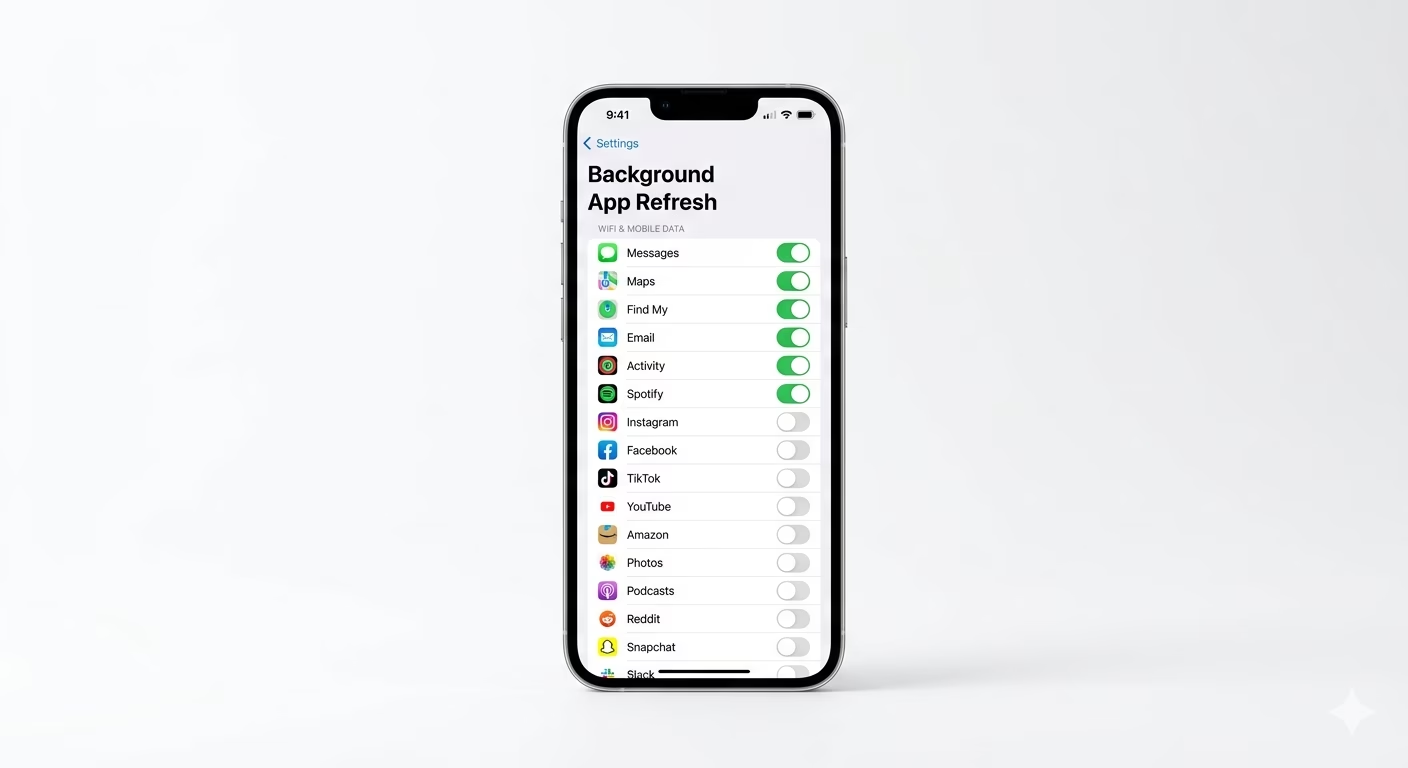
Too many apps refreshing in the background can drain your CPU and slow things down. Go to Settings > General > Background App Refresh. You can turn it off completely or allow only essential apps like Mail or WhatsApp. This lightens your processor’s load, so the apps you’re using feel much faster.
2 Optimize Visual Effects
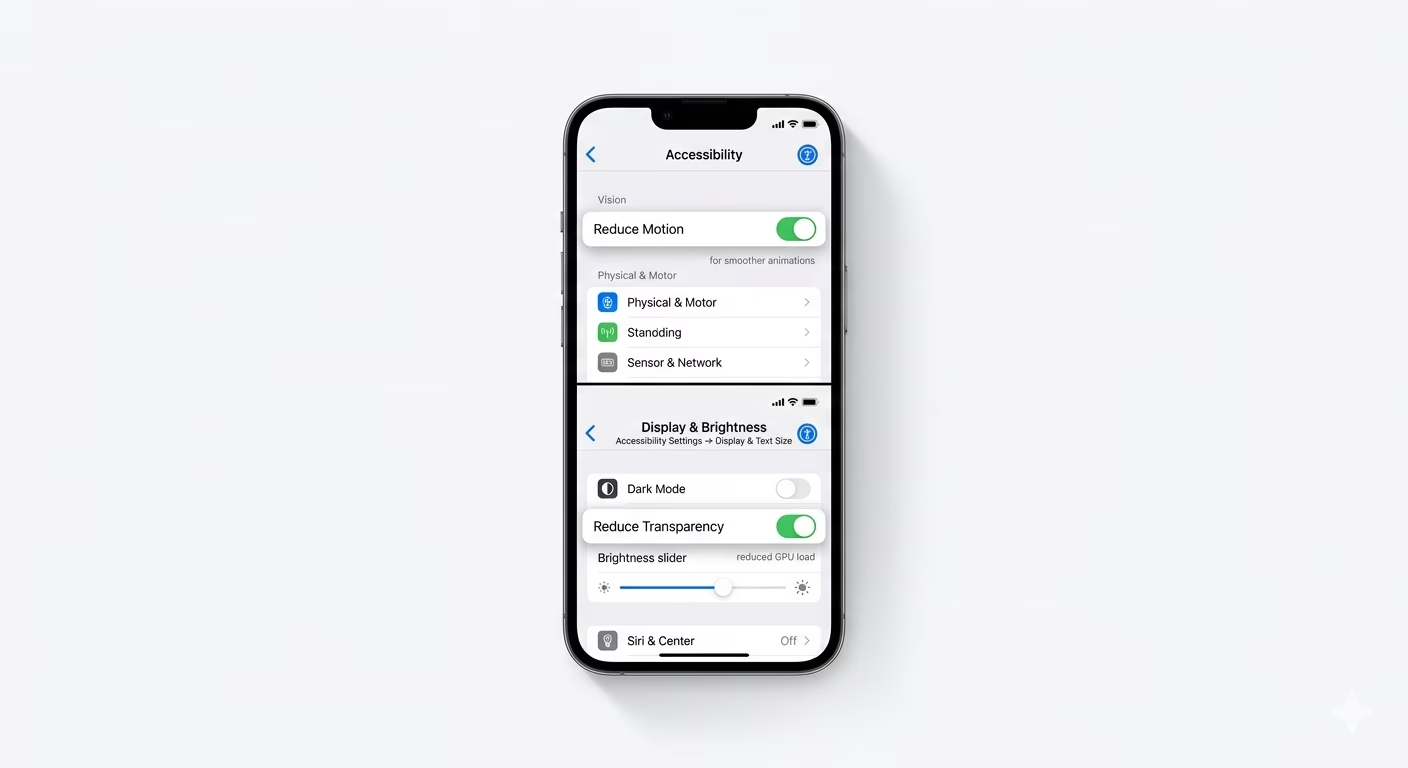
If your iPhone’s animations are stuttering, lowering the GPU workload can help. Go to Settings > Accessibility > Motion and turn on Reduce Motion. Next, head to Display & Text Size and enable Reduce Transparency. This swaps out heavy blur effects for solid colors, making your phone run more smoothly.
3 Audit Battery Health & Performance
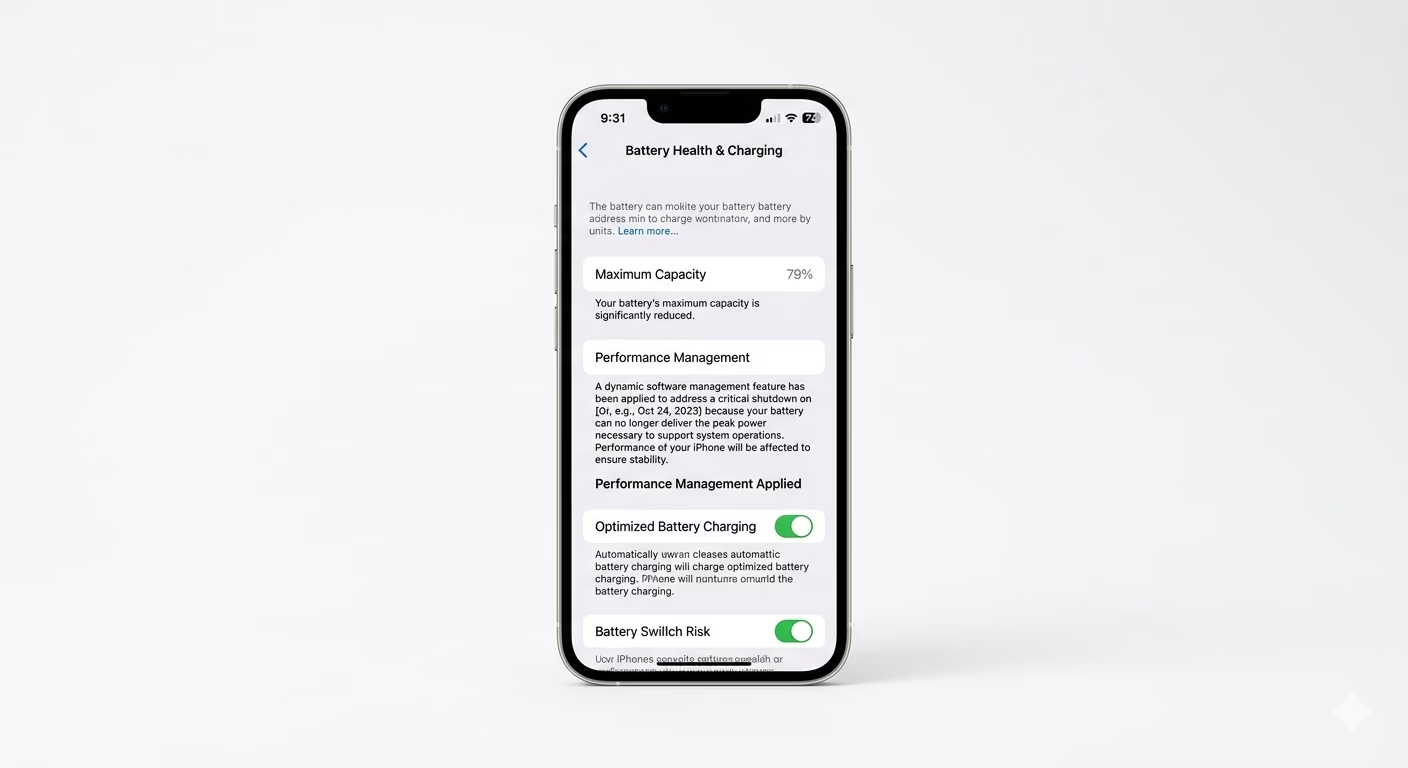
If your battery health is below 80%, iOS may slow down your CPU to prevent sudden shutdowns. Go to Settings > Battery > Battery Health & Charging. If you see “Performance Management has been applied,” your phone is being intentionally slowed. The only way to get your original speed back is to replace the battery.
Why Is My iPhone Slow?
- System Data Bloat: Hidden caches and logs taking up storage.
- Thermal Throttling: Using the phone while it's hot or in direct sunlight.
- Incompatible Apps: Using old versions of apps on a new iOS.
- Storage Overload: SSD performance drops when the drive is near capacity.
Pro Tips:
- Clear Safari Data: Go to Settings > Apps > Safari and clear "History and Website Data" to speed up browsing.
- Restart Weekly: A simple restart clears minor software loops that accumulate over days of usage.
- Reset All Settings: If the lag is system-wide, use "Reset All Settings" in the General menu. This flushes configuration bugs without deleting your personal data.
Frequently Asked Questions
Will deleting photos speed up my iPhone?
Only if your storage is nearly full. iPhones need about 10% free space to work efficiently. If you already have plenty of space, deleting photos won’t make your phone faster.
Does 'Low Power Mode' cause lag?
Yes. Low Power Mode slows down the CPU and turns off smooth animations to save battery, which makes your iPhone feel slower than normal.