Quick Fix:
- Enable "Block Pop-ups" in Safari settings
- Clear your Safari History and Website Data
- Check for and remove any suspicious Calendar subscriptions
- Update to the latest iOS to get the newest security patches
Steps to Block Intrusive Pop-up Ads
1 Enable Safari's Built-in Ad Blocker
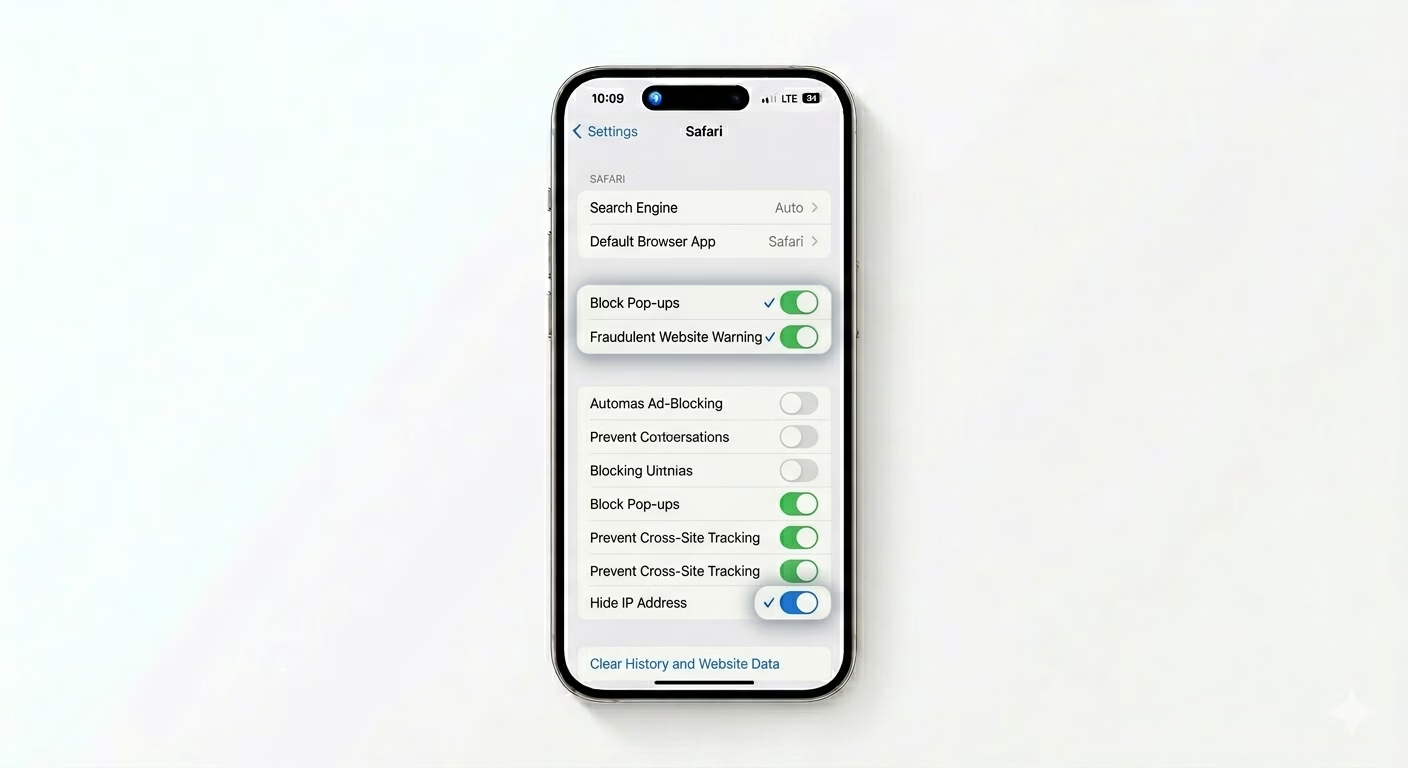
Apple offers a built-in way to block most pop-ups. Go to Settings > Apps > Safari. In the “General” section, make sure Block Pop-ups is turned ON. Also enable Fraudulent Website Warning—this will alert you if you visit a site known for phishing or serving malicious ads.
2 Clear History and Website Data
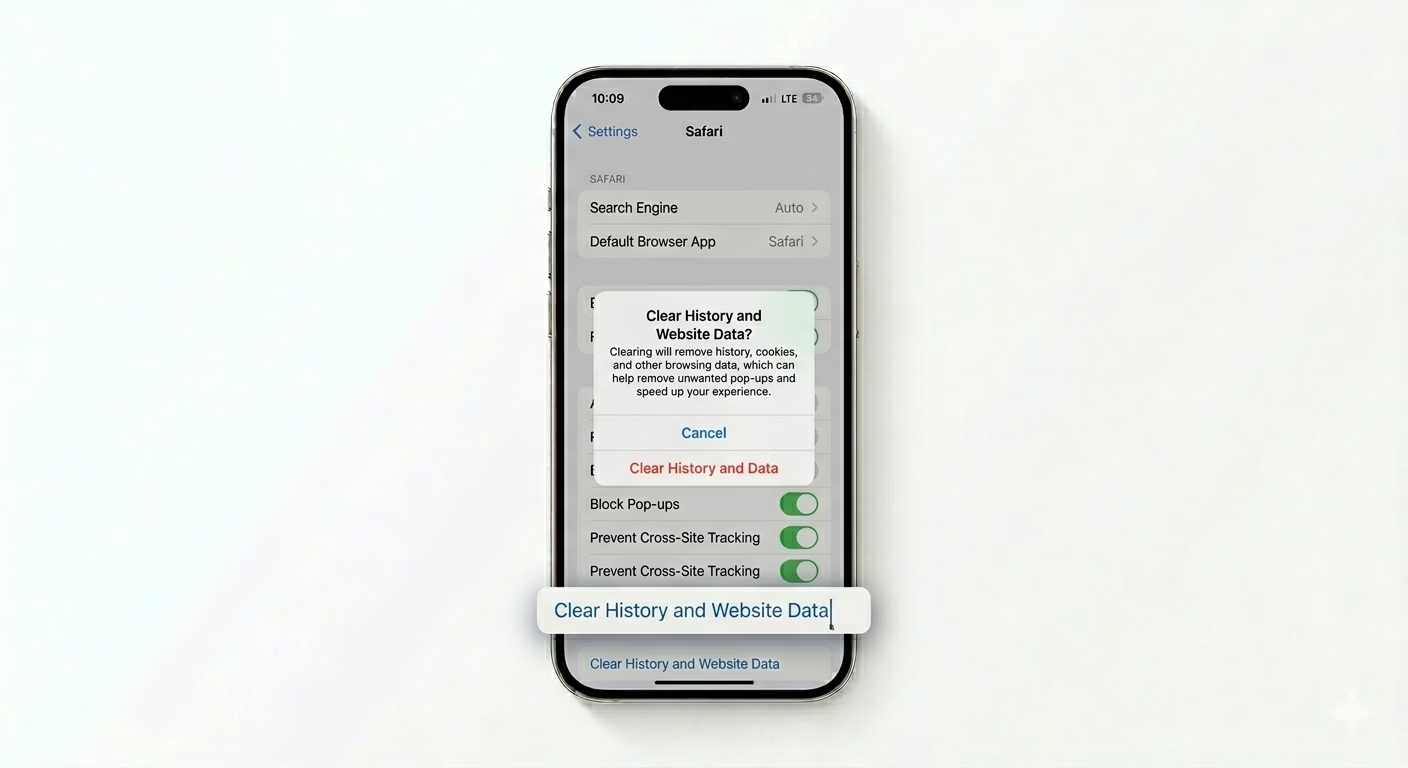
Persistent pop-ups are often saved in your browser’s cache. To clear them, go to Settings > Apps > Safari and tap Clear History and Website Data. Select “All History” and confirm. This will log you out of websites but will also remove any ad-loops stuck in your browser’s memory.
3 Check for Malicious Profiles
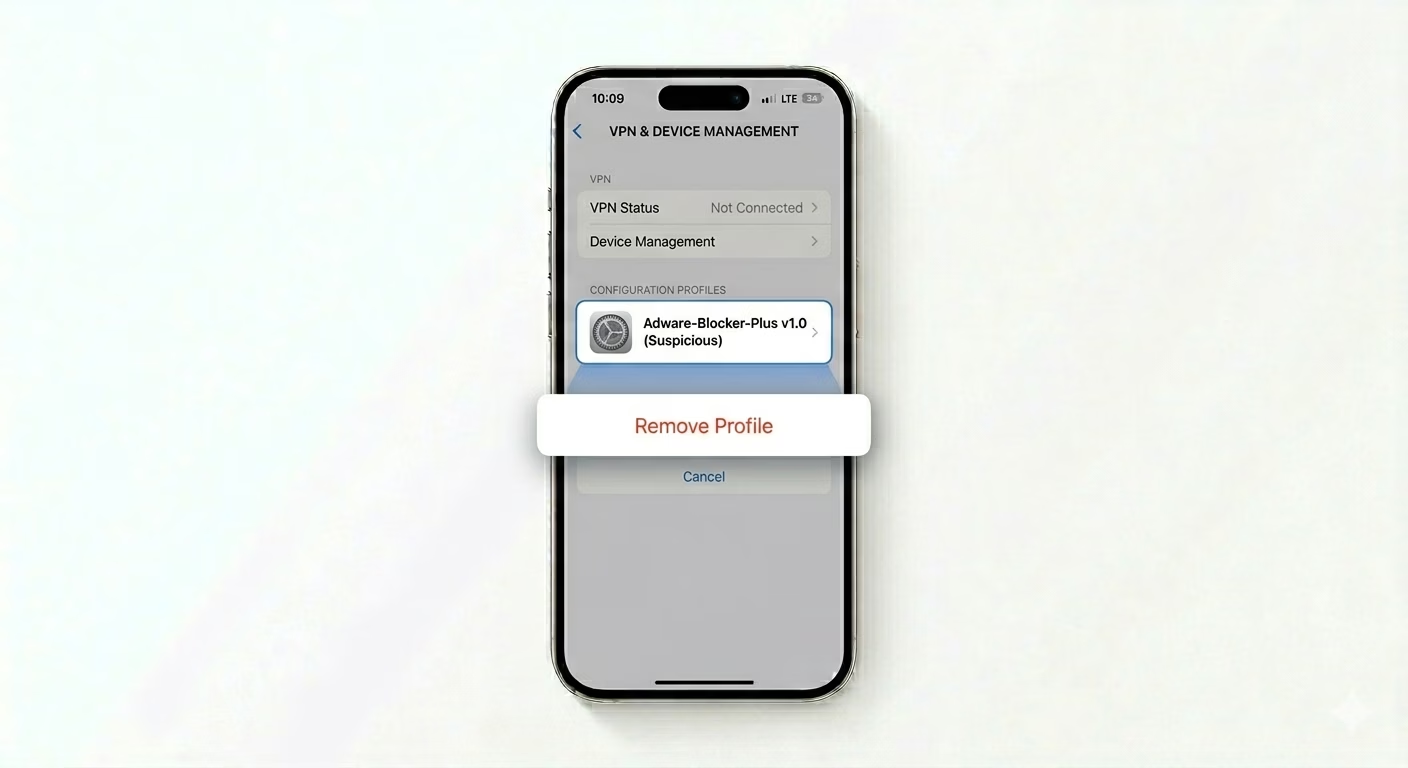
Some “free” apps or websites install configuration profiles that can force ads onto your device. Go to Settings > General > VPN & Device Management. If you see any profiles you don’t recognize—especially ones related to “Ads” or “App Markets”—tap on them and choose Remove Profile. This often fixes ads that show up outside your browser.
Why Am I Seeing Ads?
- Browsing unsecured websites that use aggressive ad-scripts
- Accidentally subscribing to a spam "Calendar" via a pop-up
- Granting "Notification" permissions to a suspicious website
- Installing "Free" apps that include intrusive ad-ware components
Pro Tips:
- Ad-Block Extensions: Download a content blocker like AdGuard from the App Store and enable it in Safari settings for even stronger protection.
- Spam Calendars: If you get "Virus Detected" pop-ups in your Calendar app, go to Settings > Apps > Calendar > Accounts and delete any "Subscribed Calendars" you don't recognize.
- Limit Ad Tracking: Go to Settings > Privacy & Security > Apple Advertising and turn OFF "Personalized Ads" to reduce data collection.
Frequently Asked Questions
Does my iPhone have a virus if I see pop-ups?
It’s highly unlikely. iOS is very secure. Most pop-ups are just browser scripts trying to scare you into downloading unwanted apps. Simply close the tab and the problem usually goes away.
Can ads appear on the home screen?
Yes, if you have a malicious Configuration Profile or a spam Calendar subscription, ads can appear outside your browser. Removing suspicious profiles and deleting unwanted calendar subscriptions, as described in Step 3 and the Pro Tip, will fix this.