Quick Sync Checklist:
- Ensure iCloud Photos is toggled ON in Settings > Photos
- Check if your iCloud Storage is full (Uploads stop at 100% capacity)
- Verify that you have a stable Wi-Fi connection
- Ensure your iPhone has more than 20% Battery (Sync often pauses in Low Power Mode)
Steps to Restore iCloud Photo Syncing
1 Resume Paused Library Uploads
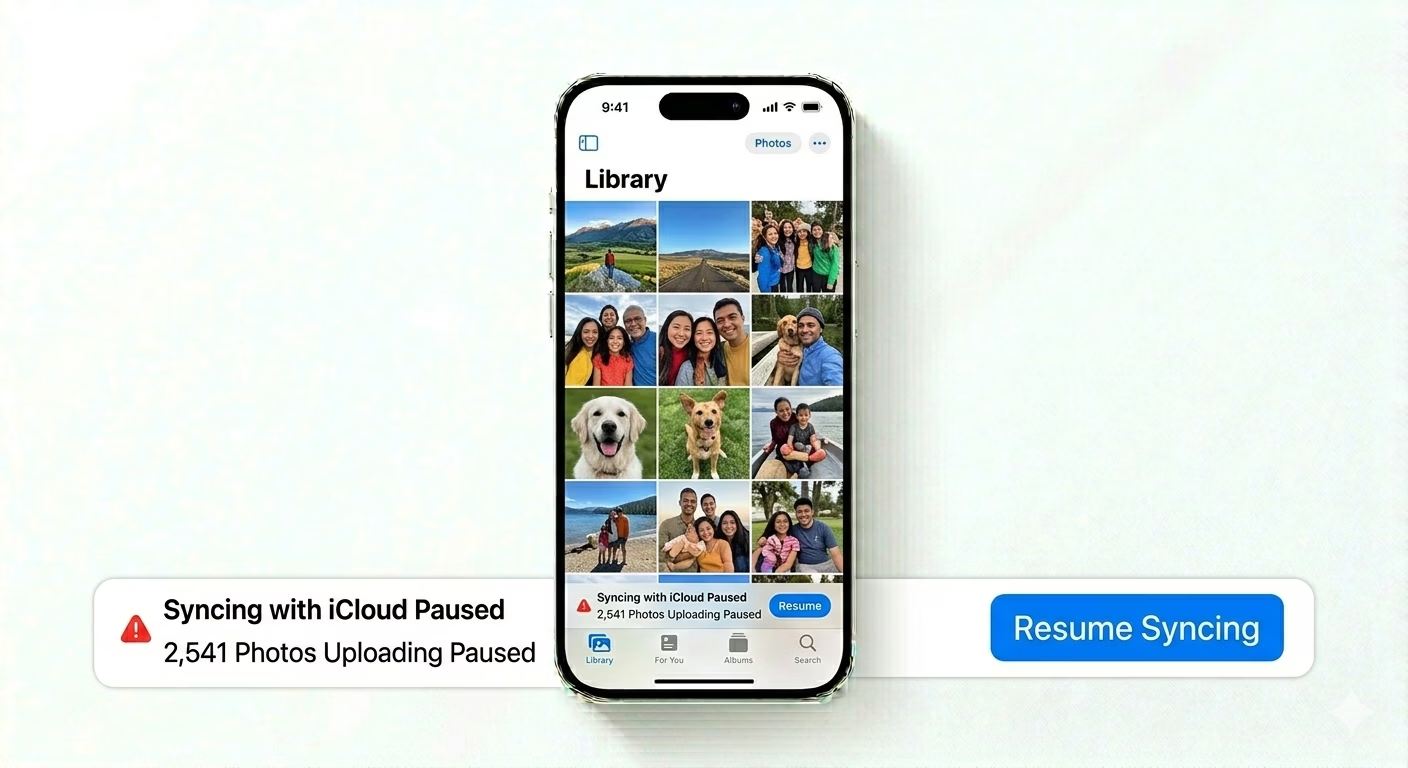
Sometimes iOS pauses syncing to save battery or reduce data usage. Open the Photos app and go to the Library tab. Scroll all the way to the bottom. If you see "Syncing with iCloud Paused," tap Resume. This manually overrides the pause and forces your iPhone to start uploading your latest photos immediately.
2 Refresh iCloud Authentication
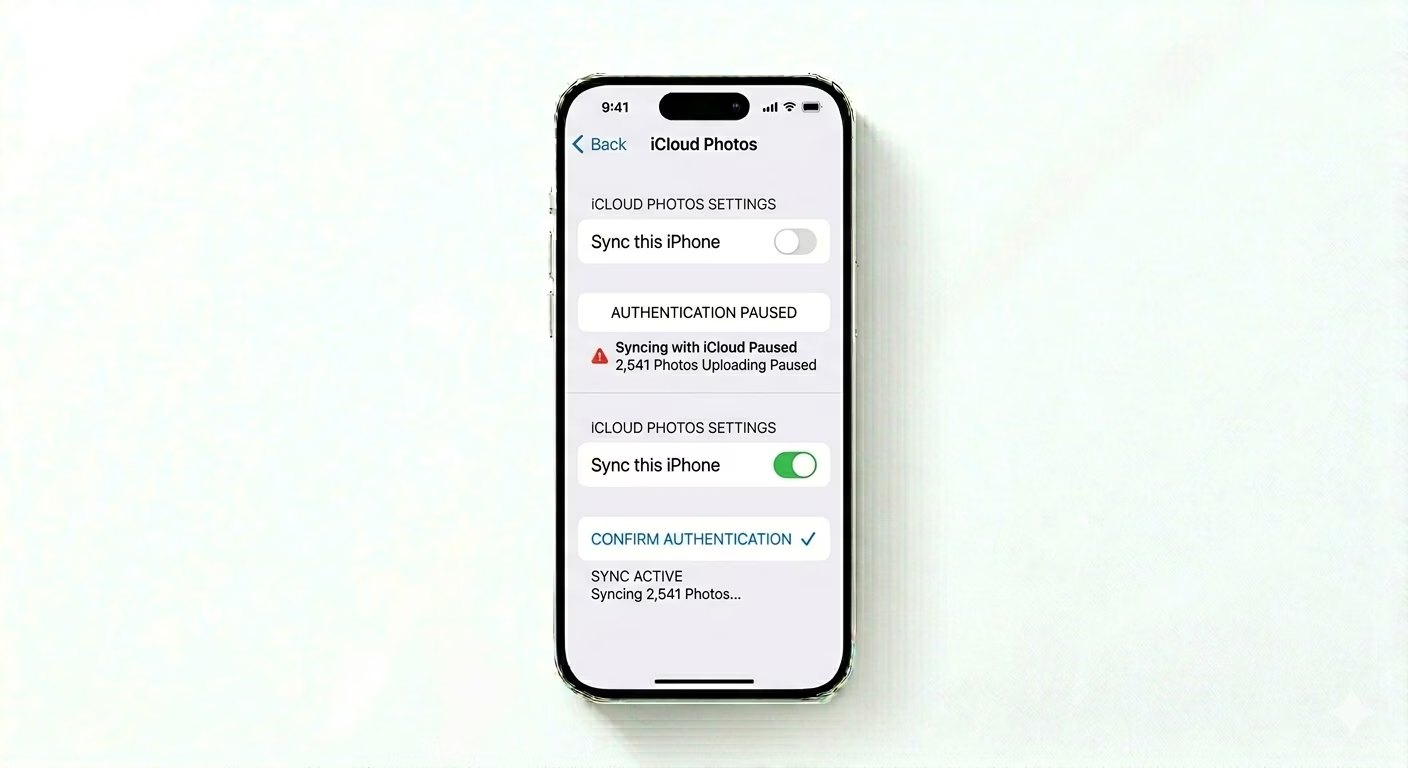
If your settings are correct but nothing is syncing, your login token may have expired. Go to Settings > [Your Name] > iCloud > Photos. Toggle "Sync this iPhone" OFF, restart your device, then toggle it back ON. This forces a fresh connection with Apple’s servers and re-indexes your entire photo library.
3 Enable Mobile Data for Photos
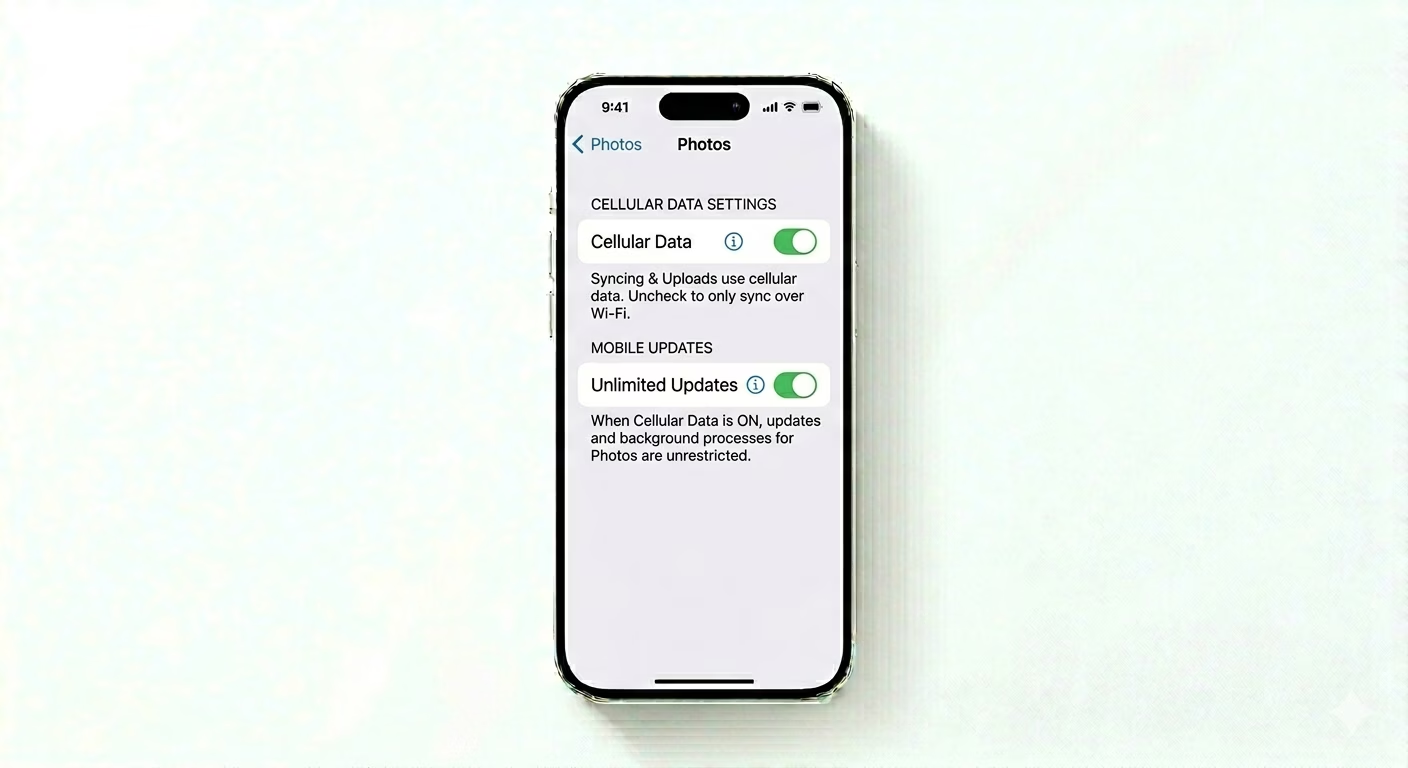
If your photos only sync when you’re at home, your cellular data settings may be restricted. Go to Settings > Photos > Cellular Data. Make sure Cellular Data is turned ON. For larger libraries, also enable Unlimited Updates so syncing doesn’t stop or time out when you’re away from Wi-Fi.
Why Won't My Photos Sync?
- Insufficient Storage: Both your iPhone local storage and iCloud storage must have space.
- Low Power Mode: iOS disables all background syncing to preserve battery life.
- VPN Conflicts: Some VPNs block the background ports used by iCloud for data transfer.
- Optimization Bottleneck: If "Optimize iPhone Storage" is active, syncing large files can take much longer.
Pro Tips:
- Check System Status: Visit Apple’s System Status page to ensure the "iCloud Photos" service isn't currently undergoing maintenance.
- Keep the App Open: For very large uploads, keep the Photos app open and connect your phone to a charger.
- Manage Duplicates: Use the Duplicates album in Photos to merge similar shots; this reduces the total data your iPhone needs to sync.
Frequently Asked Questions
Will toggling iCloud Photos delete my pictures?
No. When you turn it off, iOS will ask whether you want to download a copy to your iPhone. Your photos remain safe in iCloud and will automatically re-sync once you turn the setting back on.
How long does a 1,000 photo sync take?
This depends entirely on your upload speed. On a standard Wi-Fi connection, it can take anywhere from 30 minutes to several hours for high-resolution 48MP images to fully upload.