Quick Creative Fixes:
- Close all other background apps to free up RAM
- Check if your iPhone has at least 5GB of free Storage space
- Update the app from the App Store to fix compatibility bugs
- Restart your iPhone to refresh the image processing engine
Steps to Resolve Editing App Performance Issues
1 Clear App-Specific Cache
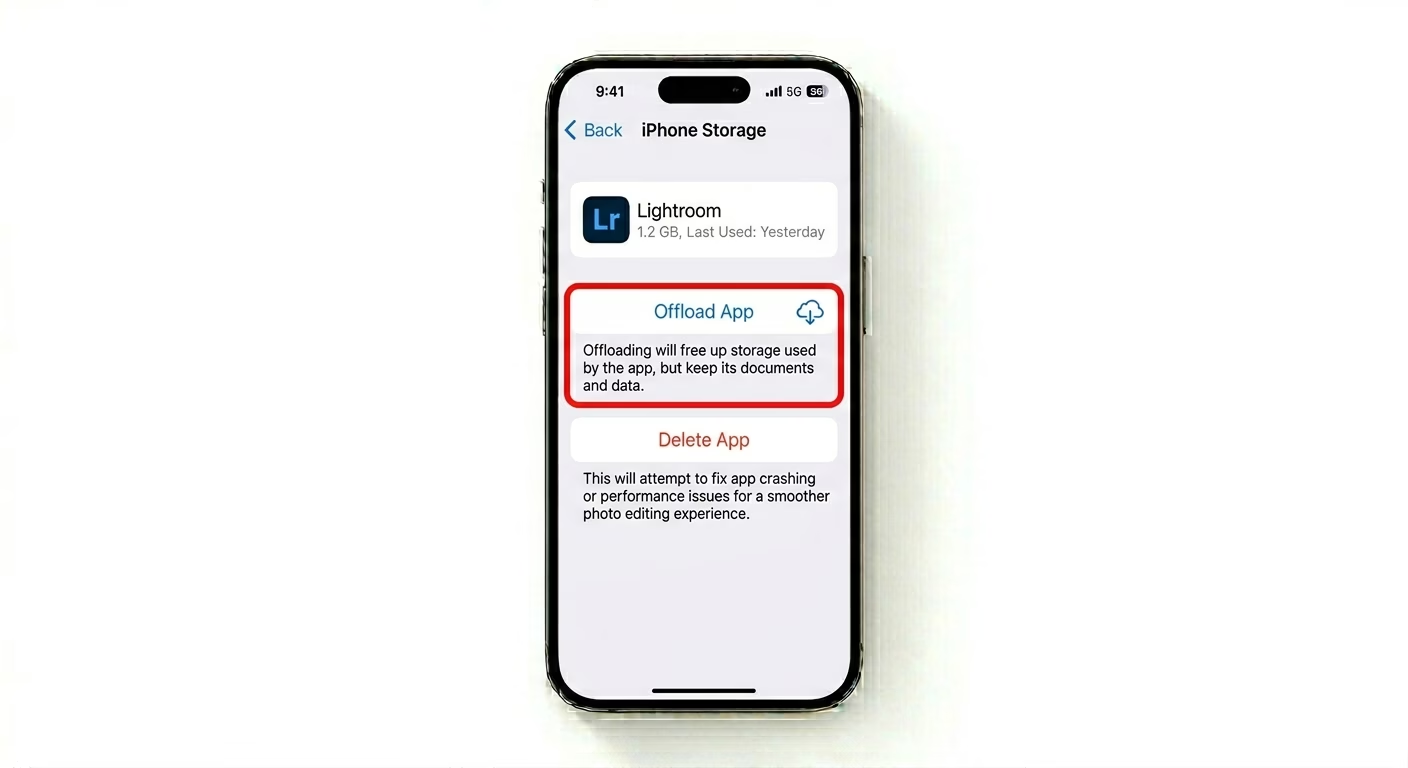
Apps like Lightroom and Picsart save large preview caches for every photo you edit. If the app feels slow, check for a “Clear Cache” or “Purge Storage” option in the app’s settings. On iOS, you can also Offload the app by going to Settings > General > iPhone Storage. This clears out extra system bloat but keeps your projects and data safe.
2 Resolve iCloud Sync Bottlenecks
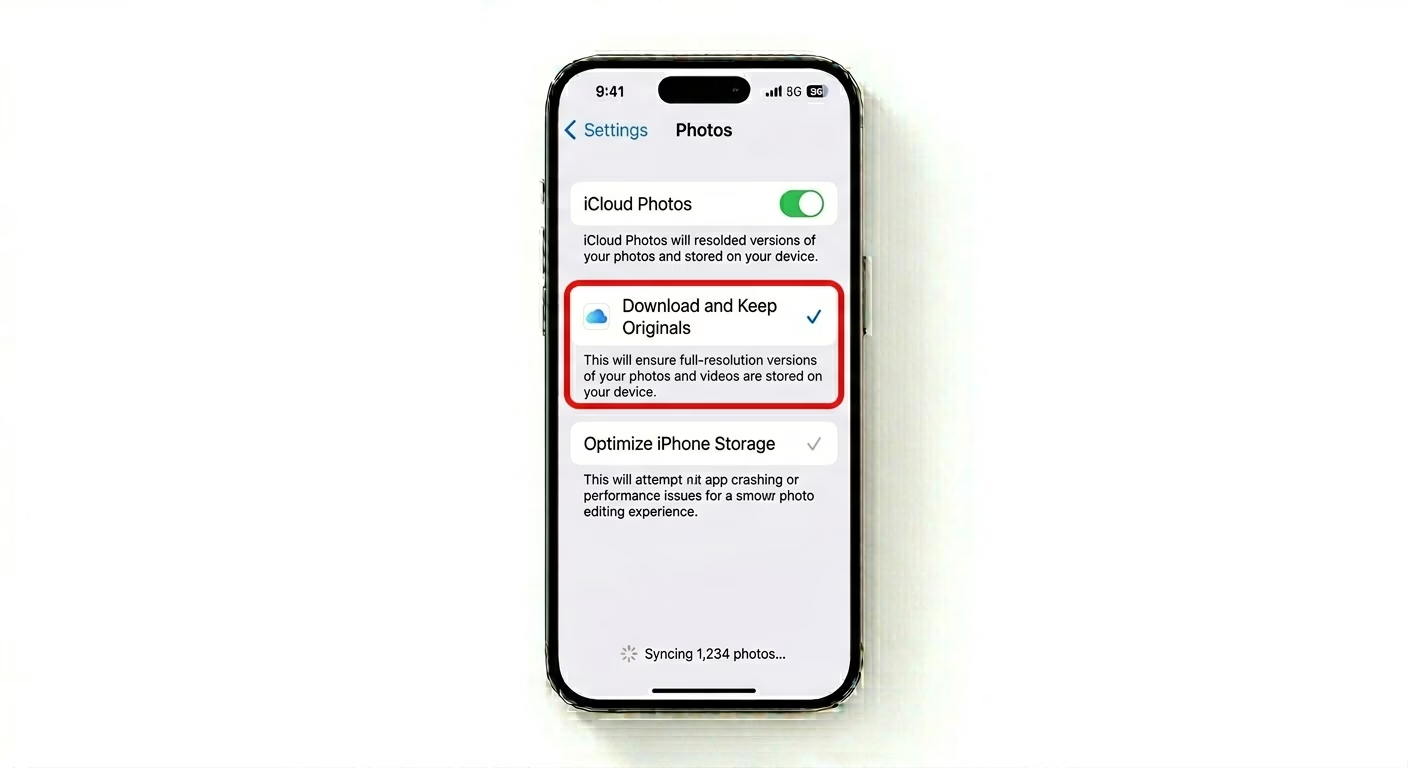
If you get an “Unable to Load Photo” error while editing, it’s likely because the full-resolution file is stored in iCloud. Go to Settings > Photos and make sure you have a reliable internet connection. If you edit photos often, try selecting Download and Keep Originals—this lets third-party apps access your raw files instantly without having to wait for a download.
3 Disable Low Power Mode
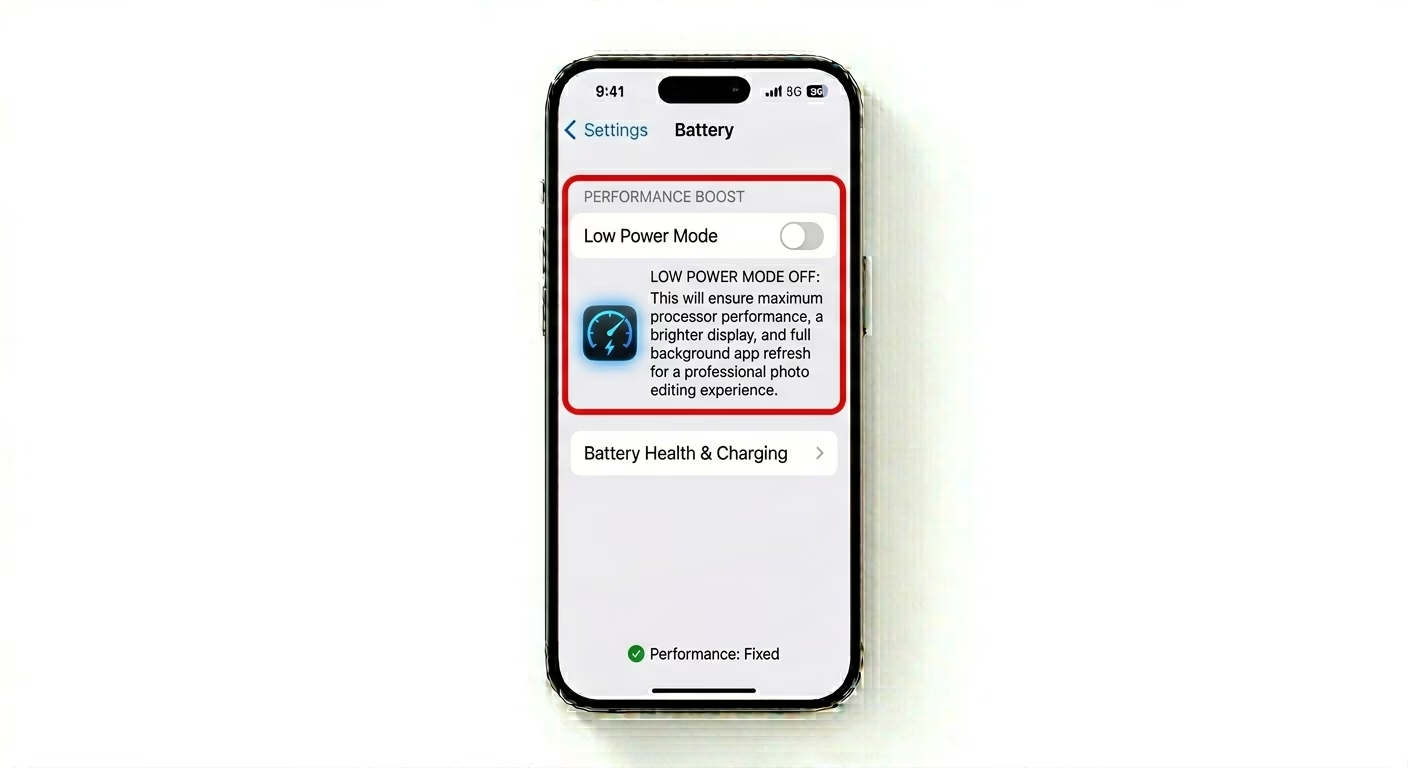
Editing high-res 48MP photos or ProRAW files needs full CPU power. Low Power Mode slows down your processor and GPU, which can make sliders lag and filters apply slowly. For the best editing performance, make sure Low Power Mode is OFF in Settings > Battery before you start a heavy editing session.
Why Do Editing Apps Lag?
- ProRAW Files: Editing 10-bit ProRAW files takes 5x more memory than a standard JPEG.
- Thermal Throttling: Intensive editing generates heat; if the phone gets too hot, it will slow down.
- Background Sync: iCloud or Google Photos syncing in the background while you edit.
- Outdated iOS: Newer app features often require the latest "Metal" graphics API updates in iOS.
Pro Tips:
- Standardize Formats: If an app won't open a photo, try taking it in "Most Compatible" (JPEG) instead of "High Efficiency" (HEIF) in Camera settings.
- Project Management: Delete finished projects inside the app to prevent the database from becoming too large and slow.
- Hardware Check: If your iPhone is older (e.g., iPhone 11 or older), avoid editing while charging to prevent extreme thermal throttling.
Frequently Asked Questions
Will offloading the app delete my presets?
No, offloading an app keeps all your “Documents & Data,” including presets and projects. It only removes the app’s binary code to clear cache and refresh the installation, so your work stays safe.
Why is the "Edit" button missing in Photos?
This usually happens if the photo is a shared file, or if your iPhone’s storage is so full that iOS can’t create a temporary edit copy of the image.