Instant Speed-Up:
- Free up at least 5GB to 10GB of storage space
- Restart your iPhone once a week to refresh system tasks
- Update all apps to their latest versions in the App Store
- Turn off "Low Power Mode" if you don't need to save battery
Professional Tricks to Speed Up iOS
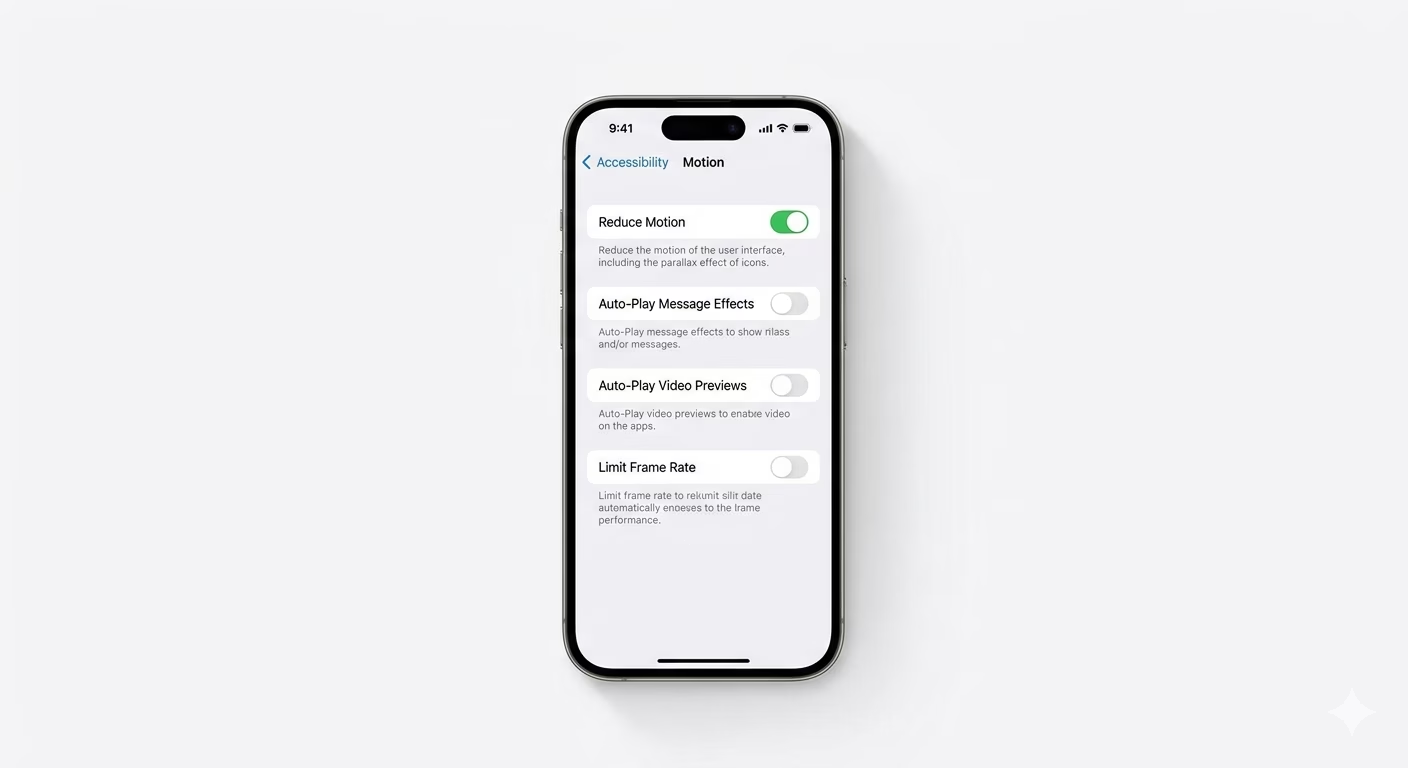
1 Enable "Reduce Motion"
One of the quickest ways to make your iPhone feel faster is to turn off the heavy animations for opening and closing apps. Go to Settings > Accessibility > Motion and turn ON Reduce Motion. This replaces zoom effects with a simple fade, so the interface reacts to your touch much more quickly.
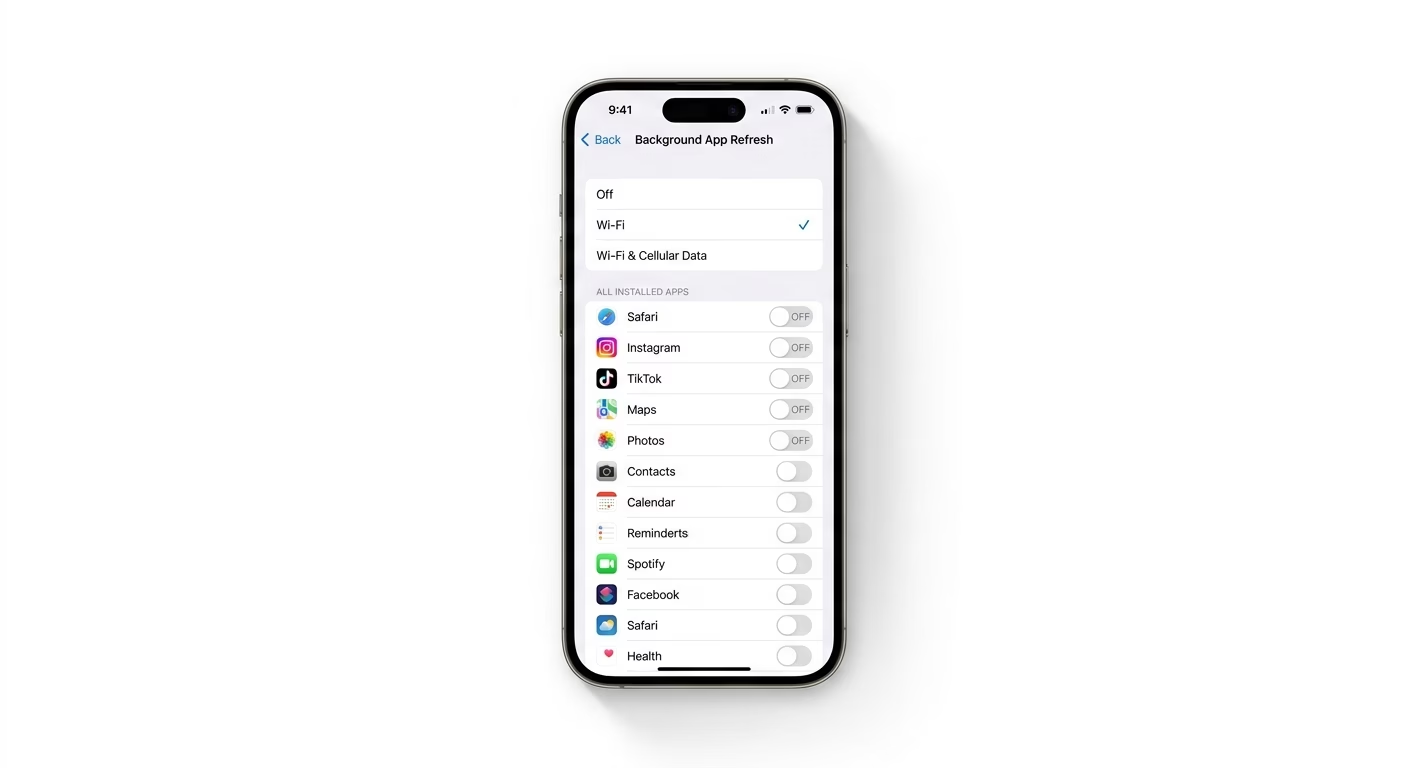
2 Control Background App Refresh
Apps updating in the background use up CPU power and memory. Go to Settings > General > Background App Refresh and set it to Wi-Fi only, or turn it off for apps you don’t use often. This way, the app you’re using gets all the processing power, making your iPhone feel faster.
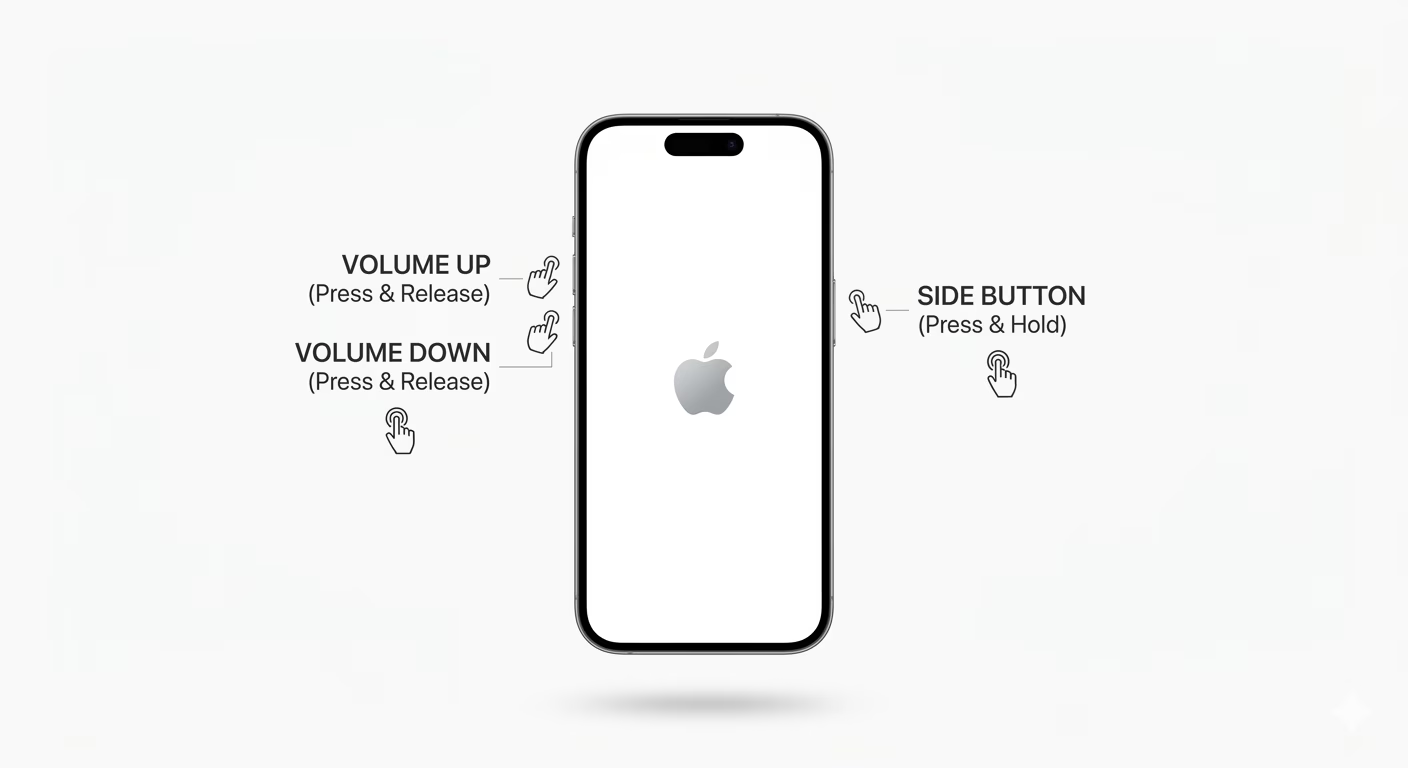
3 The Secret "Force Restart" RAM Flush
For a deep system refresh, try a “Force Restart.” Quickly press and release Volume Up, then Volume Down, then press and hold the Side Power Button until you see the Apple logo. This won’t delete any data, but it force-quits all background system processes that might be causing lag.
Why Does iOS Slow Down?
- Storage Bottleneck: SSDs slow down significantly when they are nearly full.
- Thermal Throttling: If the phone is hot, the CPU slows down to protect itself.
- Battery Degradation: If battery health is under 80%, iOS limits speed to avoid shutdowns.
- Corrupted Cache: Old system files from previous updates can cause conflicts.
Pro Tips:
- Safari Housekeeping: Go to Settings > Apps > Safari and clear "History and Website Data" once a month to keep browsing fast.
- Limit Transparency: Go to Accessibility > Display & Text Size and turn on Reduce Transparency to lower the GPU workload.
- Check Battery Health: If your battery is old, replacing it can restore your iPhone to its original out-of-the-box speed.
Frequently Asked Questions
Does 'Low Power Mode' slow down the phone?
Yes. Low Power Mode slows down the CPU and turns off 120Hz ProMotion (on Pro models), which can make your iPhone feel much laggier.
Should I close all apps in the App Switcher?
Actually, no. Apple’s RAM management is very efficient. Closing apps and reopening them from scratch uses more power and CPU than just leaving them paused in the background.