Quick Fix:
- Clean your screen to ensure no "ghost touches" are interfering
- Force restart your iPhone to clear temporary memory bugs
- Remove any thick screen protectors that might hinder input
- Wait for the lockout timer to expire if you've entered it wrong too many times
Steps to Resolve Passcode & Input Issues
1 Perform a Force Restart
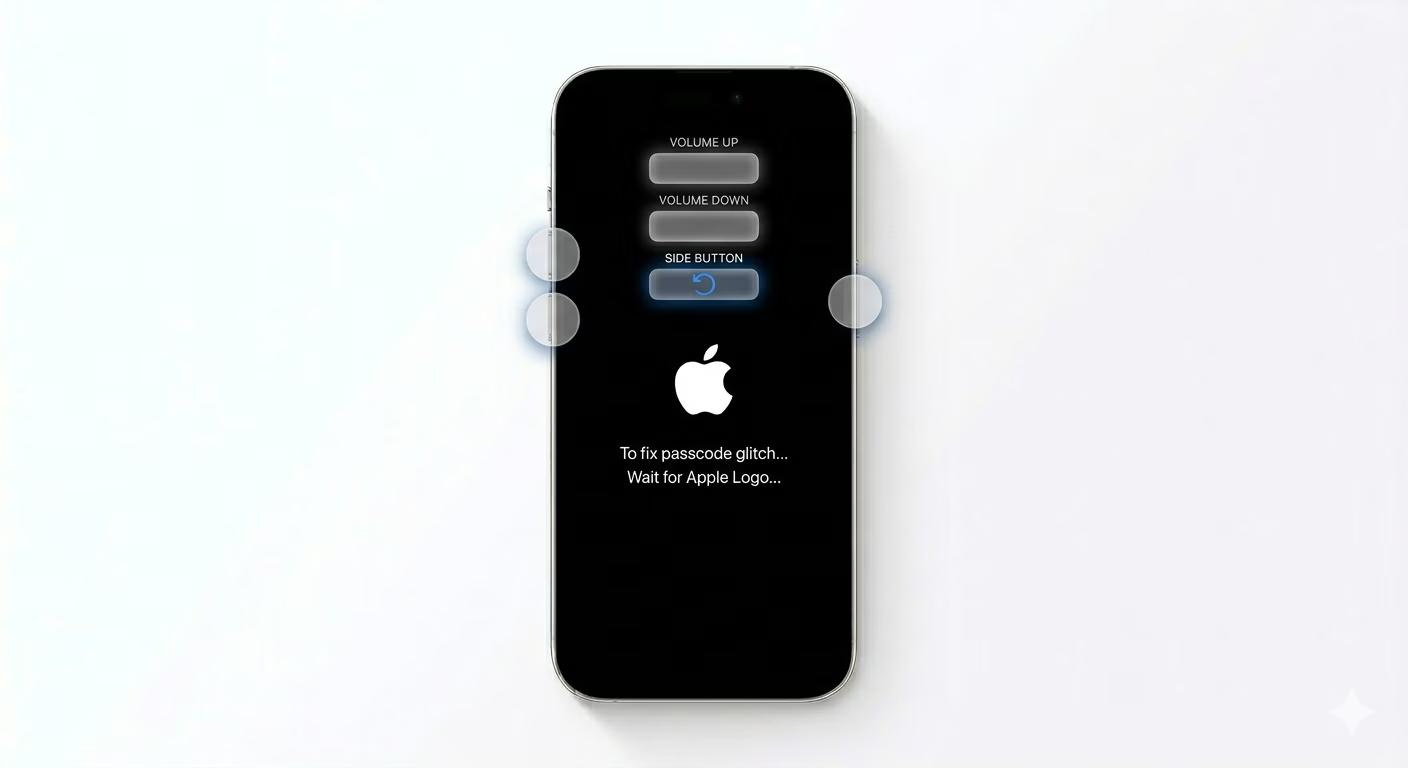
If your iPhone isn’t accepting the right password, it could be a glitch. Quickly press and release the Volume Up button, then the Volume Down button, and finally press and hold the Side Power Button until you see the Apple logo. This restarts the system’s authentication service and often fixes frozen password screens.
2 Use the Security Lockout Reset
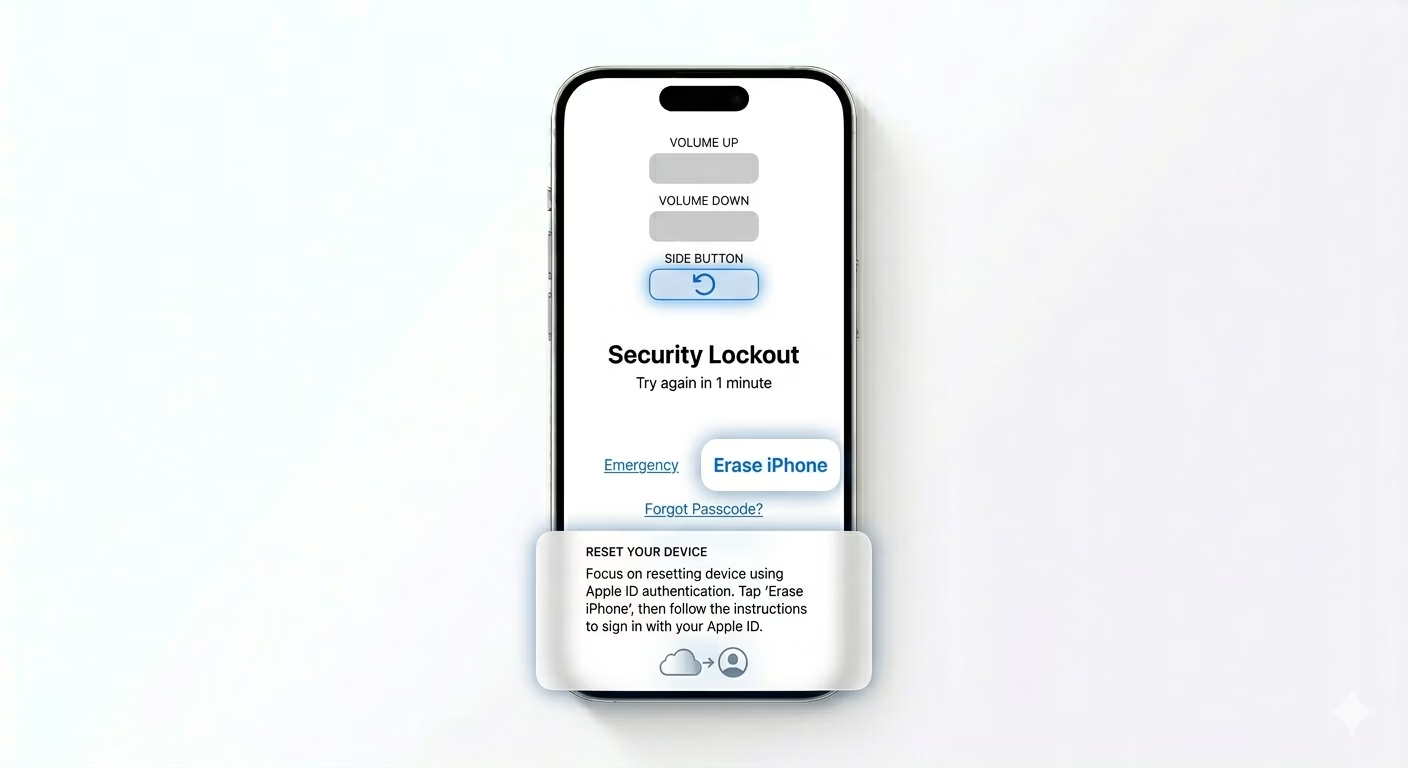
If you’re on iOS 15.2 or later and enter the wrong passcode several times, you’ll see an “Erase iPhone” or “Forgot Passcode?” option at the bottom of the screen. Tap it, enter your Apple ID password, and your device will wipe itself, letting you set a new passcode and restore your data from an iCloud backup.
3 Restore via Recovery Mode
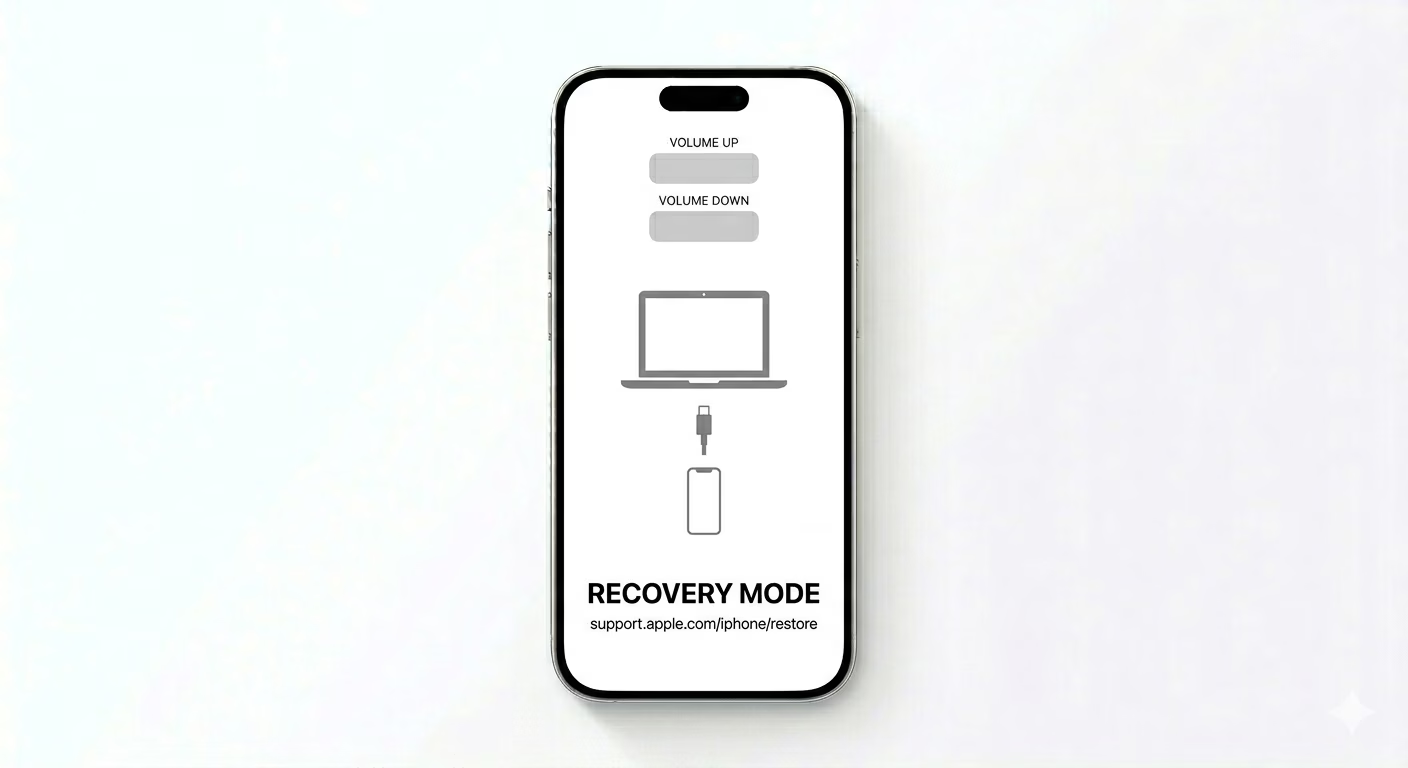
If the on-screen reset doesn’t work, connect your iPhone to a Mac or PC. Put your device into Recovery Mode by pressing Volume Up, then Volume Down, then holding the Side button until you see the computer icon. Open Finder or iTunes and select Restore. This reinstalls iOS and removes the corrupted passcode lock.
Why Is My Password Failing?
- Software corruption in the Secure Enclave after an iOS update
- Hardware failure in the digitizer causing "ghost" inputs
- Security lockout due to too many failed attempts (even accidental ones in a pocket)
- Corrupted system cache preventing the "Handshake" between input and storage
Pro Tips:
- Backup Often: Since a forgotten or failing passcode requires a full restore, always keep your iCloud Backup enabled.
- FaceID / TouchID: Ensure biometric unlocking is active so you have an alternative way to enter your phone if the keypad glitches.
- Avoid Beta Software: Beta versions of iOS often have "Keybag" bugs that can cause temporary passcode rejection.
Frequently Asked Questions
Can I fix this without losing my data?
If your password keeps getting rejected and restarting doesn’t help, you’ll need to restore your device. Your data will be safe as long as you have a recent iCloud or iTunes backup.
What if my Apple ID password is also not working?
You’ll need to go to iforgot.apple.com first to reset your Apple ID password before you can use the “Erase iPhone” feature.