Quick MMS Checklist:
- Ensure Cellular Data is turned ON (MMS does not work over Wi-Fi alone)
- Check if your MMS Messaging toggle is active in Settings
- Confirm you have an active data plan or balance
- Restart your iPhone to refresh the network connection
Steps to Fix MMS Sending & Receiving
1 Verify MMS Toggles
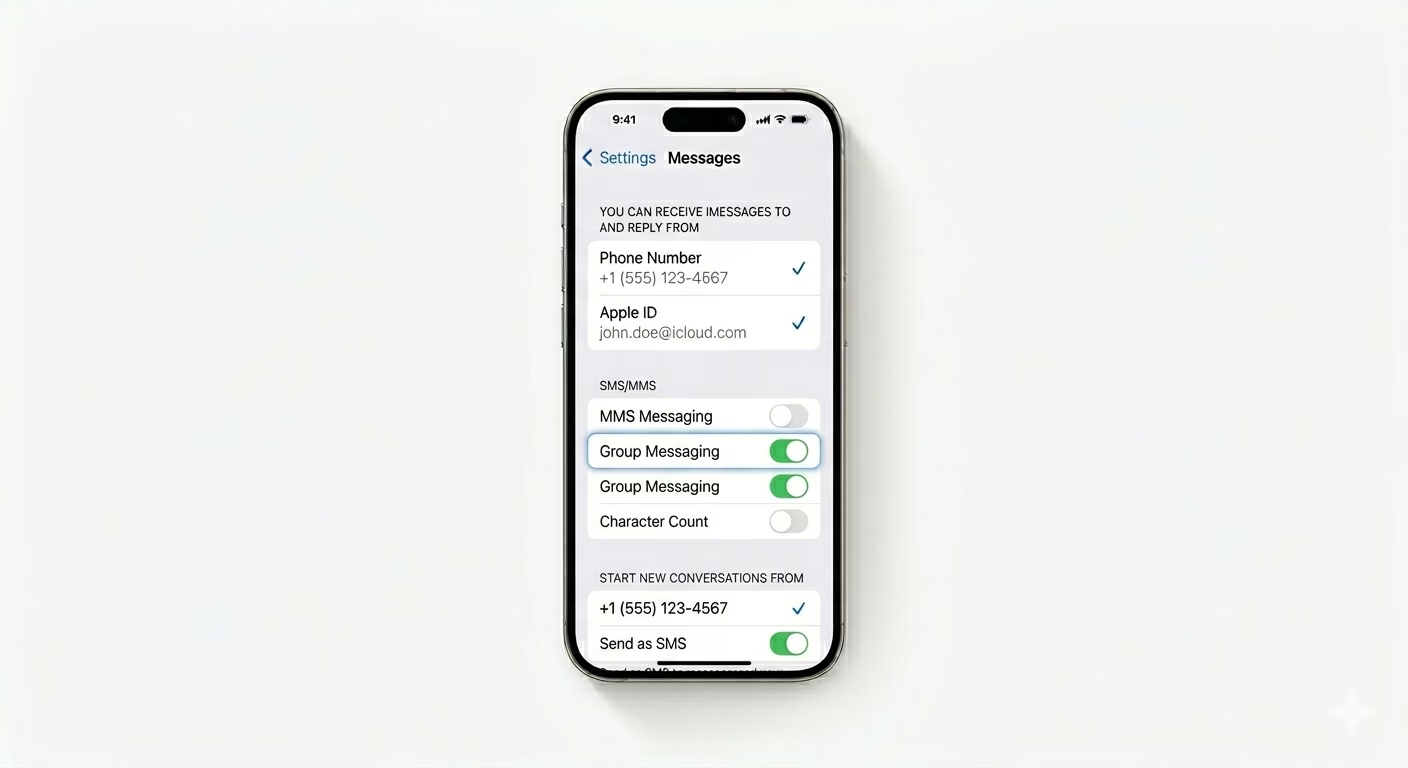
Sometimes, iOS updates can reset your messaging preferences. Go to Settings > Apps > Messages and scroll down to the SMS/MMS section. Make sure MMS Messaging is turned ON. If you’re in a group chat with Android users, also check that Group Messaging is enabled—otherwise, your replies will go out as individual texts instead of to the whole group.
2 Update Carrier Configuration
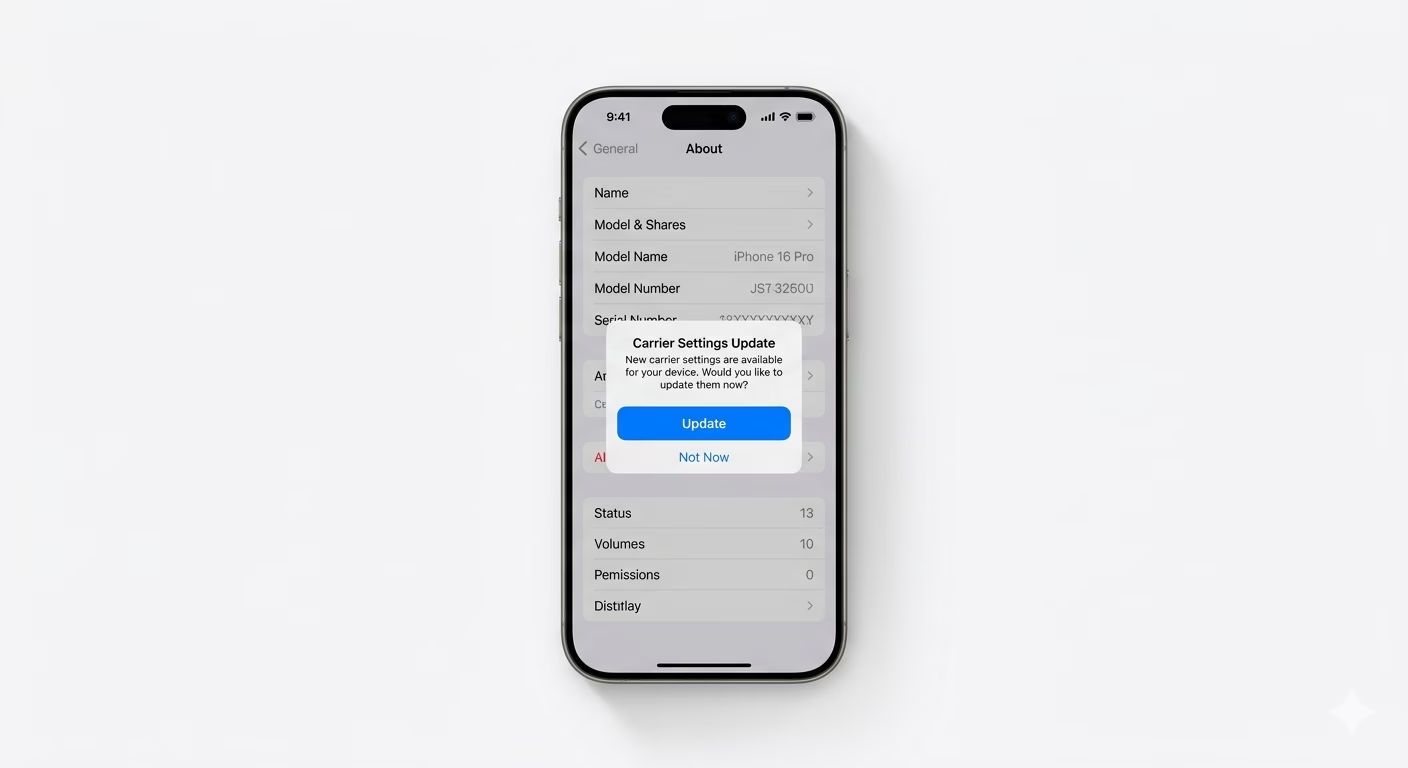
MMS needs special “APN” settings from your carrier (like Jazz, Zong, etc.). Go to Settings > General > About and wait about 20 seconds. If you see a “Carrier Settings Update” pop up, tap Update. This will automatically set up the hidden gateway addresses your iPhone uses to send photos and videos through your carrier’s network.
3 Reset Network Handshake
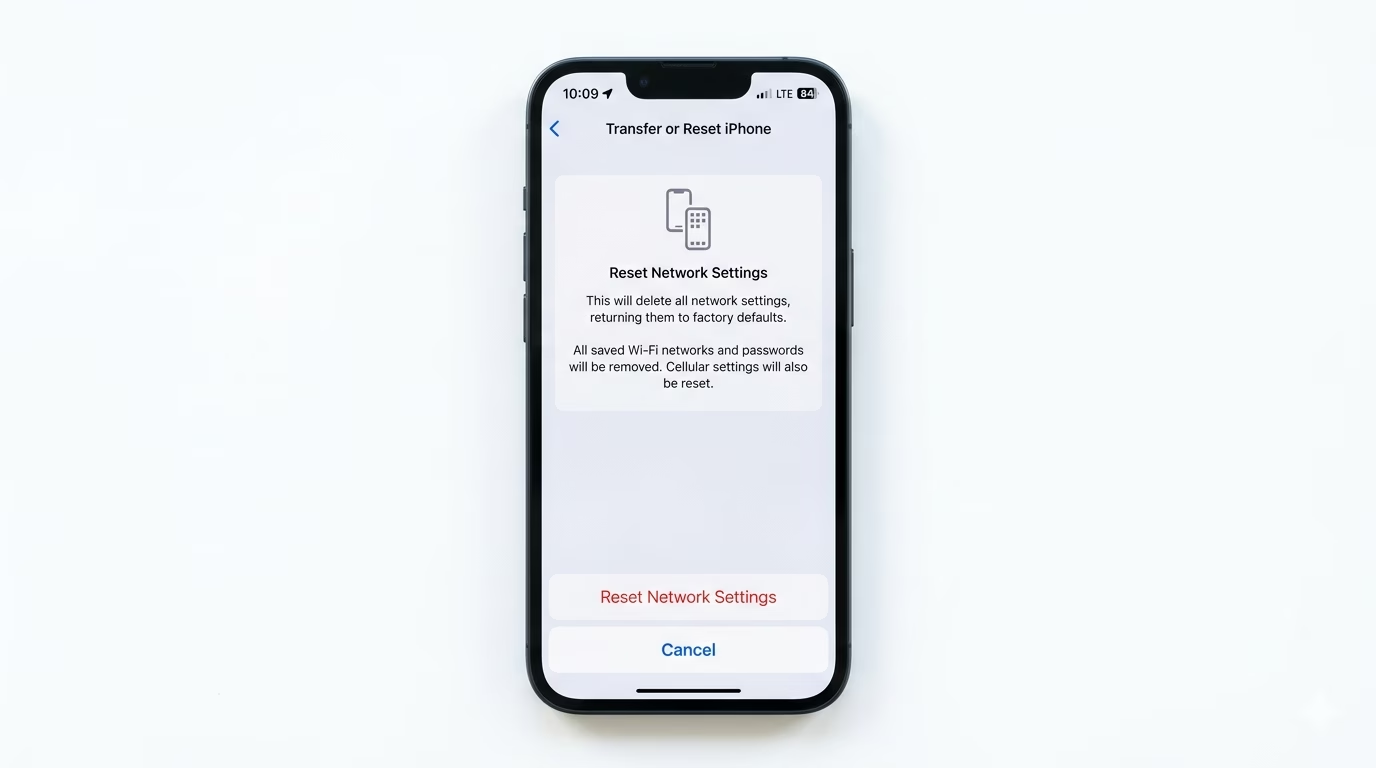
If your settings are correct but MMS still won’t send, your cellular cache might be corrupted. Go to Settings > General > Transfer or Reset iPhone > Reset > Reset Network Settings. This will erase saved Wi-Fi passwords and reset your cellular radio. It’s the best “deep fix” for stubborn MMS “Not Delivered” errors.
Why Does MMS Fail?
- No Cellular Data: Unlike iMessage, standard MMS *requires* a cellular data connection to send.
- File Size Limits: Carriers often limit MMS files to 1MB or 2MB. High-res videos may fail.
- Incorrect APN: Manual APN settings might be wrong if you recently switched carriers.
- Expired Plan: Your data bundle might have expired even if you have "minutes" left.
Pro Tips:
- Check Your Number: In Settings > Messages > Send & Receive, ensure your phone number has a checkmark next to it.
- The "Airplane" Trick: Toggle Airplane Mode for 30 seconds. This forces the phone to re-authenticate with the MMSC (Multimedia Messaging Service Center).
- iCloud Links: If MMS keeps failing, try sending the file as an iCloud Link. This uploads the photo to the cloud and sends a simple text link instead.
Frequently Asked Questions
Does MMS work over Wi-Fi Calling?
Generally, no—most carriers need a direct cellular connection for MMS to work. If you have “No Service” but are connected to Wi-Fi, iMessage (blue bubbles) will still work, but green-bubble MMS messages probably won’t send.
Why are my MMS photos blurry?
MMS compresses photos and videos a lot to fit carrier limits, which can lower quality. For sending high-quality files to non-iPhone users, it’s better to use apps like WhatsApp, Telegram, or share links through Google Drive.