Instant Sending Check:
- Ensure Airplane Mode is OFF and you have a signal
- Check if iMessage is toggled ON in Settings > Messages
- Verify you have SMS/MMS enabled for non-Apple users
- Check your Carrier Balance (for green bubble texts)
Steps to Resolve Message Delivery Failures
1 Verify Messaging Protocols
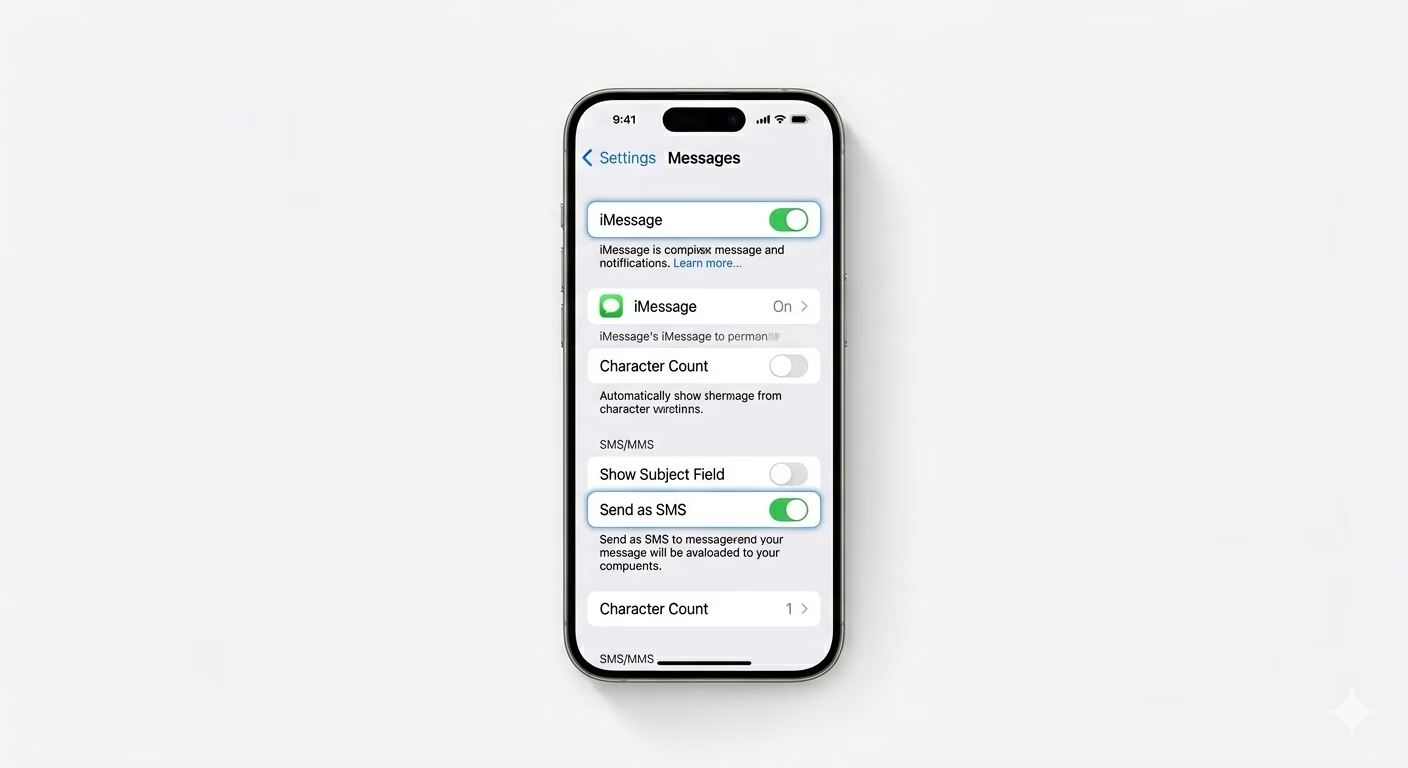
If you’re trying to text an Android user and it’s not going through, make sure SMS is enabled. Go to Settings > Apps > Messages. Check that iMessage is ON for Apple devices, and scroll down to turn ON Send as SMS. This lets your iPhone send a regular text message if iMessage isn’t available or if the person you’re texting doesn’t have an iPhone.
2 Update Send & Receive Identity
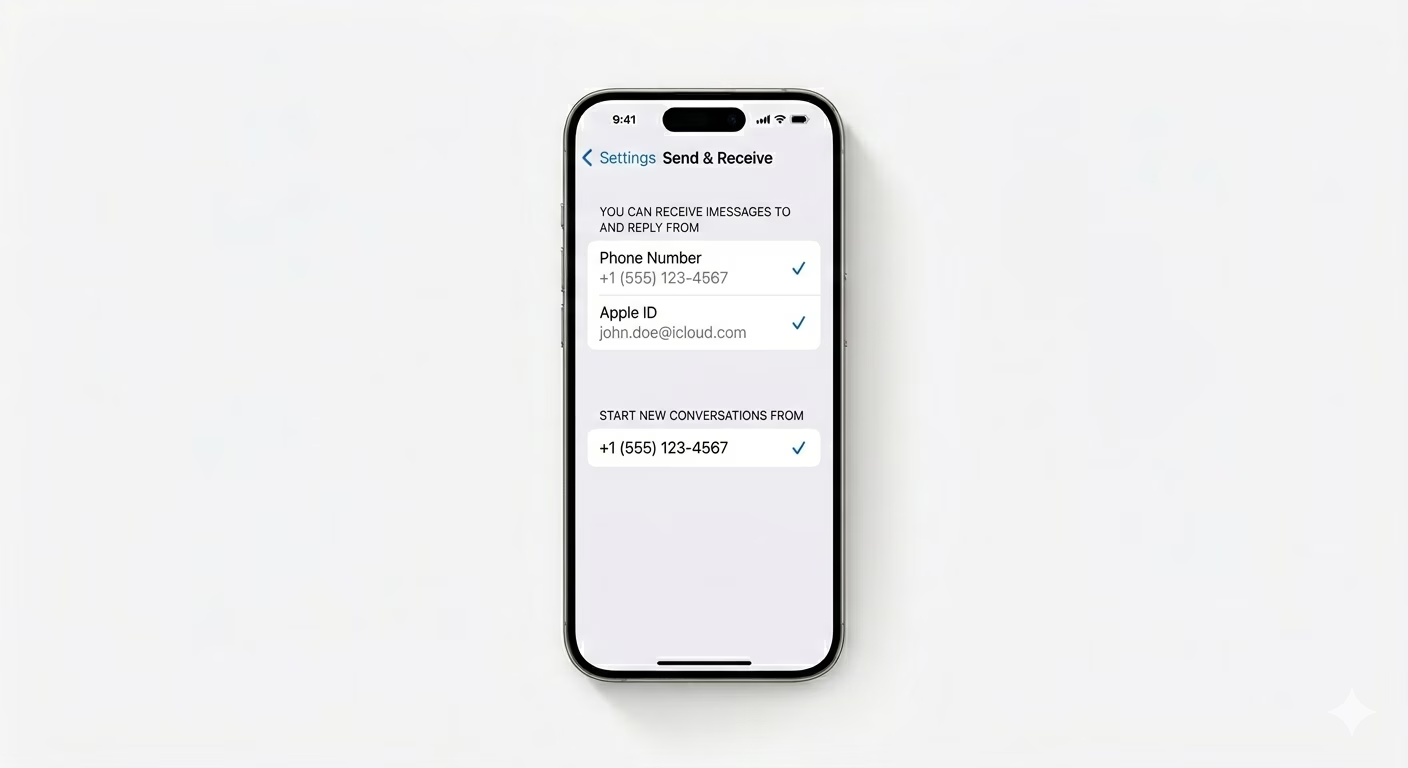
Sometimes the connection between your phone number and Apple ID gets disrupted. Go to Settings > Messages > Send & Receive and make sure your phone number is checked under “You can receive iMessages to and reply from.” If it’s not checked, sign out of your Apple ID at the bottom, restart your device, and then sign back in to refresh your registration.
3 Reset Network Connection
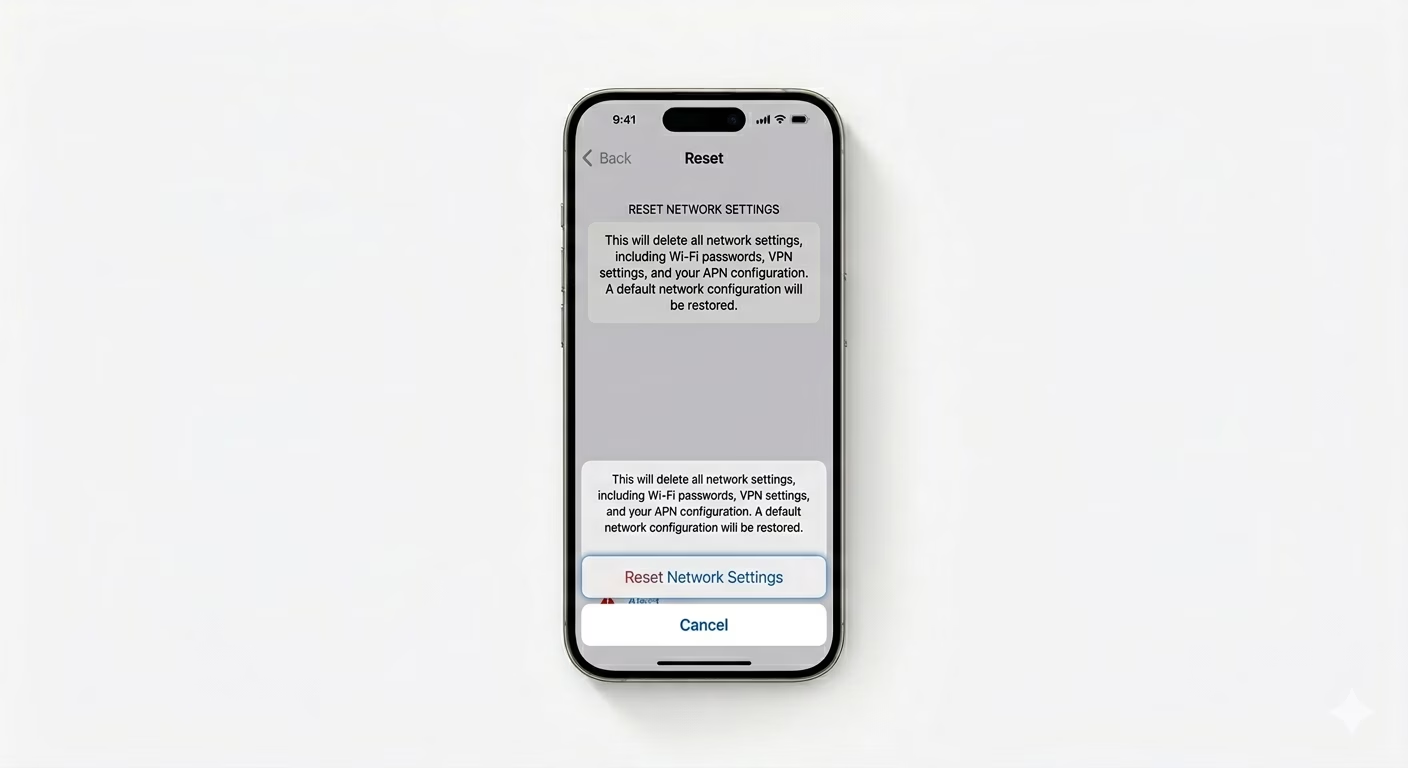
If your messages fail to send no matter who you’re texting, your network handshake could be the problem. Go to Settings > General > Transfer or Reset iPhone > Reset > Reset Network Settings. This will erase your saved Wi-Fi passwords and clear your cellular caches. It’s a powerful fix for internal messaging errors that block outgoing texts.
Why Won't My Messages Send?
- Incorrect Number: The recipient's number might be missing a country code.
- Carrier Block: Some prepaid plans block certain types of SMS or short-codes.
- Storage Full: If your iPhone has 0KB left, it can't process the database for new messages.
- Poor Signal: MMS and iMessage require data; regular SMS requires a cellular voice signal.
Pro Tips:
- Manual Retry: If a message fails, tap the Red Exclamation (!) circle next to the message and select "Try Again" or "Send as Text Message."
- Date & Time Sync: Ensure Set Automatically is ON in Date & Time settings. iMessage security tokens will fail if your clock is wrong.
- Check Blocked List: Ensure you haven't accidentally blocked the person you are trying to message in Settings > Messages > Blocked Contacts.
Frequently Asked Questions
What is the difference between Blue and Green bubbles?
Blue bubbles mean your message was sent as an iMessage over the internet to another Apple user. Green bubbles are regular SMS or MMS messages sent through your cellular carrier to non-Apple users.
Can I send messages without a SIM card?
You can send iMessages (Blue) over Wi-Fi using your Apple ID, but you can’t send SMS (Green) messages without an active SIM card and cellular plan.