Quick Fix:
- Delete large, unused apps from your home screen
- Clear the "Recently Deleted" album in Photos
- Offload apps you don't use often to save space
- Restart your iPhone to clear temporary system cache
Steps to Clear Storage and Remove Warnings
1 Follow System Storage Recommendations
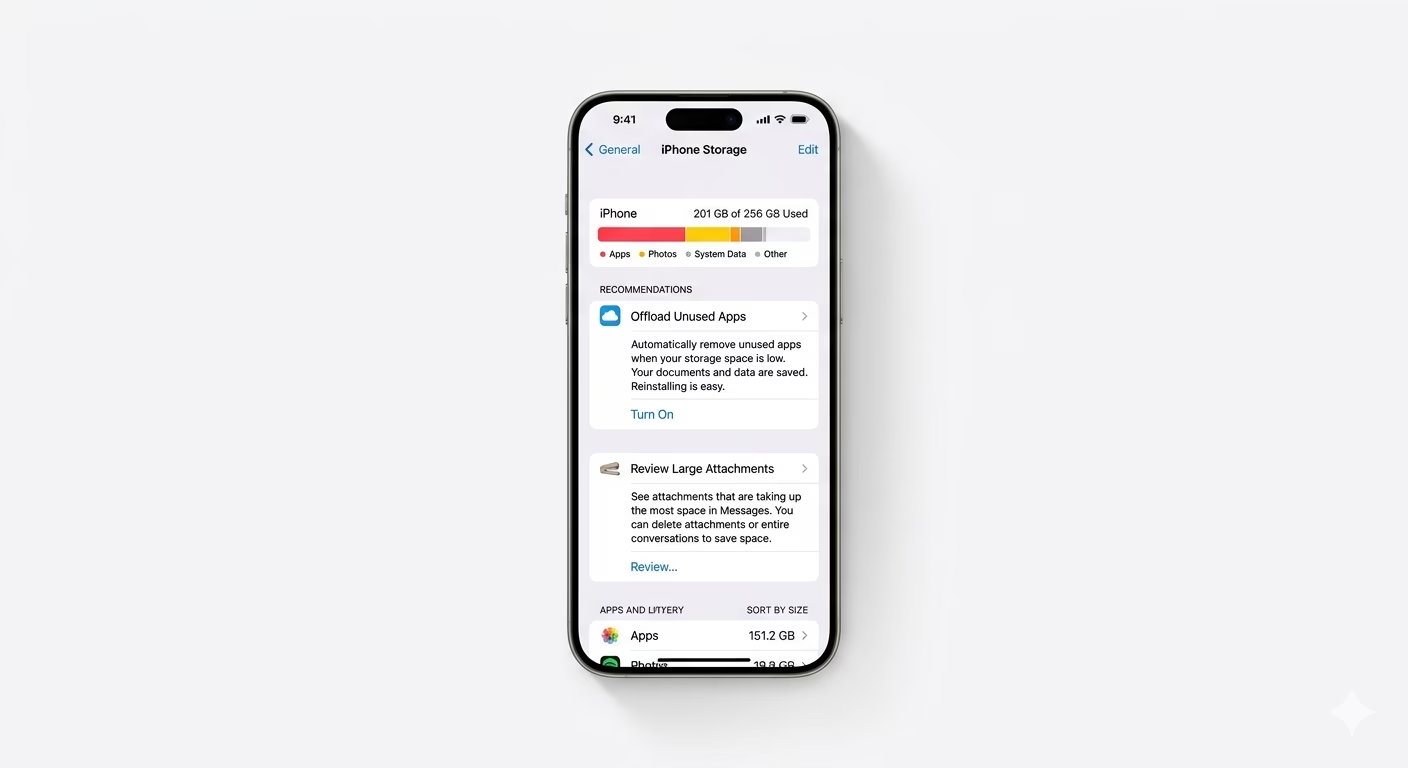
iOS has a built-in tool to show what’s using your storage. Go to Settings > General > iPhone Storage and check the “Recommendations” section. Apple may suggest options like “Offload Unused Apps” or “Review Large Attachments.” Turning these on can quickly free up gigabytes of space without deleting your important files.
2 Flush Browser and System Cache
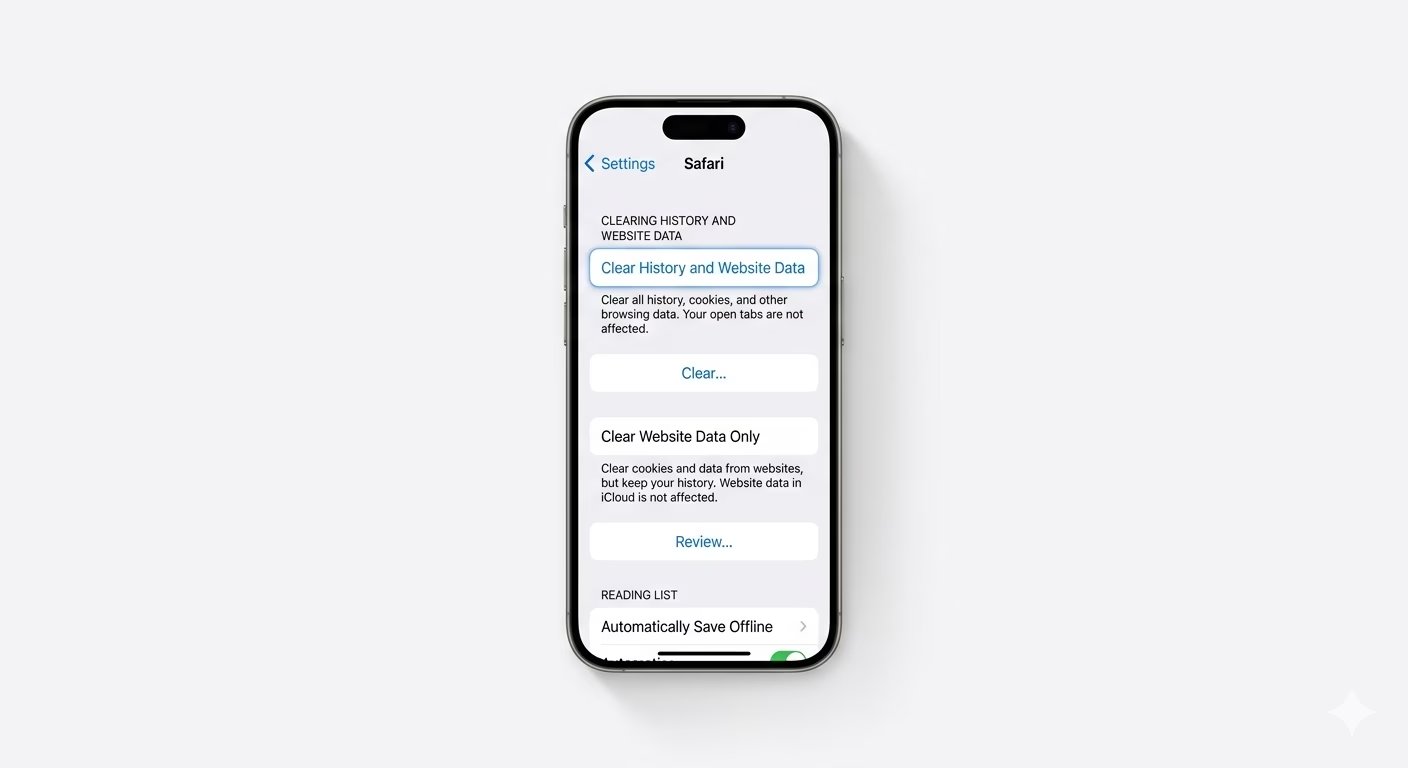
Apps like Safari and TikTok can store a lot of unnecessary “cache” data. Go to Settings > Apps > Safari and tap Clear History and Website Data. For other apps, look in their settings for a “Clear Cache” option. This helps remove “Other” or “System Data” that can fill up your storage.
3 Optimize Photos and Videos
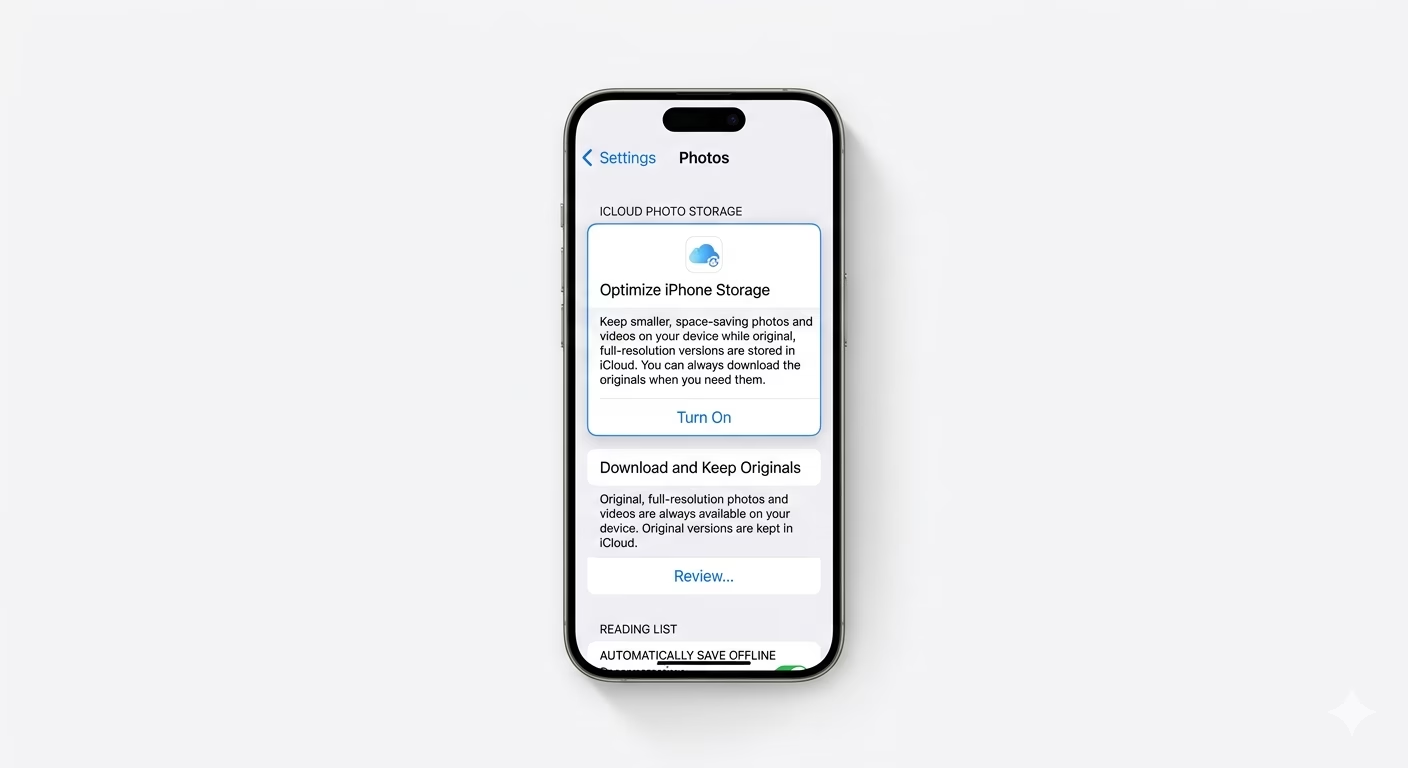
4K videos and high-res photos often take up the most space. Go to Settings > Photos and make sure Optimize iPhone Storage is turned on. This keeps full-size versions in iCloud while saving smaller versions on your device. Also, check your camera settings to avoid recording 4K video if you don’t really need it.
Why is My Storage Full?
- System Data: Temporary files and logs that haven't been cleared.
- Large Backups: Old message threads with heavy video attachments.
- Streaming Offline: Downloaded songs on Spotify or movies on Netflix/YouTube.
- High-Res Content: Photos and videos taken in RAW or 4K format.
Pro Tips:
- WhatsApp Media: Go to WhatsApp Settings > Storage and Data > Manage Storage to delete large forwarded videos that are taking up space.
- Message History: Set your messages to auto-delete after 30 days or 1 year in Settings > Messages > Keep Messages.
- Offload vs Delete: Use "Offload App" to delete the app but keep its data, so you don't lose your progress when you reinstall it later.
Frequently Asked Questions
What is 'System Data' (Other Storage)?
“Other” or “System Data” includes caches, logs, and resources your system is using. If this is taking up too much space, try a Force Restart or do a full iCloud Backup & Restore to reduce it.
Will deleting apps delete my photos?
No, deleting an app only erases that app’s own data. Your photos in the Photos app are stored separately and will stay safe.