Quick Keyboard Fixes:
- Perform a Force Restart to clear the keyboard memory (RAM)
- Check for iOS Updates (Apple frequently patches typing bugs)
- Remove all Third-Party Keyboards (Gboard, SwiftKey) temporarily
- Clean your Screen to ensure no moisture is affecting touch input
Steps to Resolve Keyboard Performance Issues
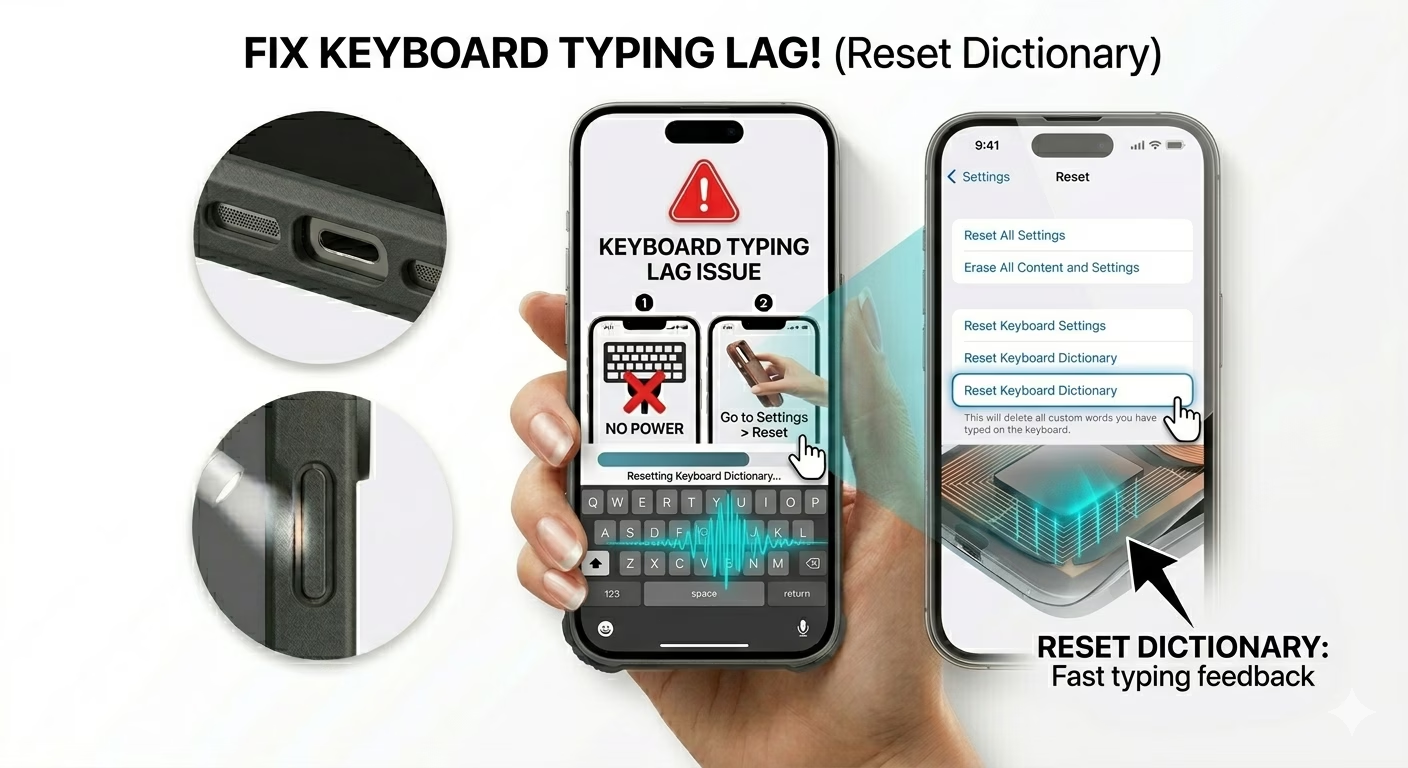
1 Reset Keyboard Dictionary
If your keyboard lags specifically during autocorrect, your dictionary cache may be corrupted. Go to Settings > General > Transfer or Reset iPhone > Reset > Reset Keyboard Dictionary. This will remove all custom words you’ve added, but it’s one of the most effective ways to fix typing lag and freezing issues quickly.
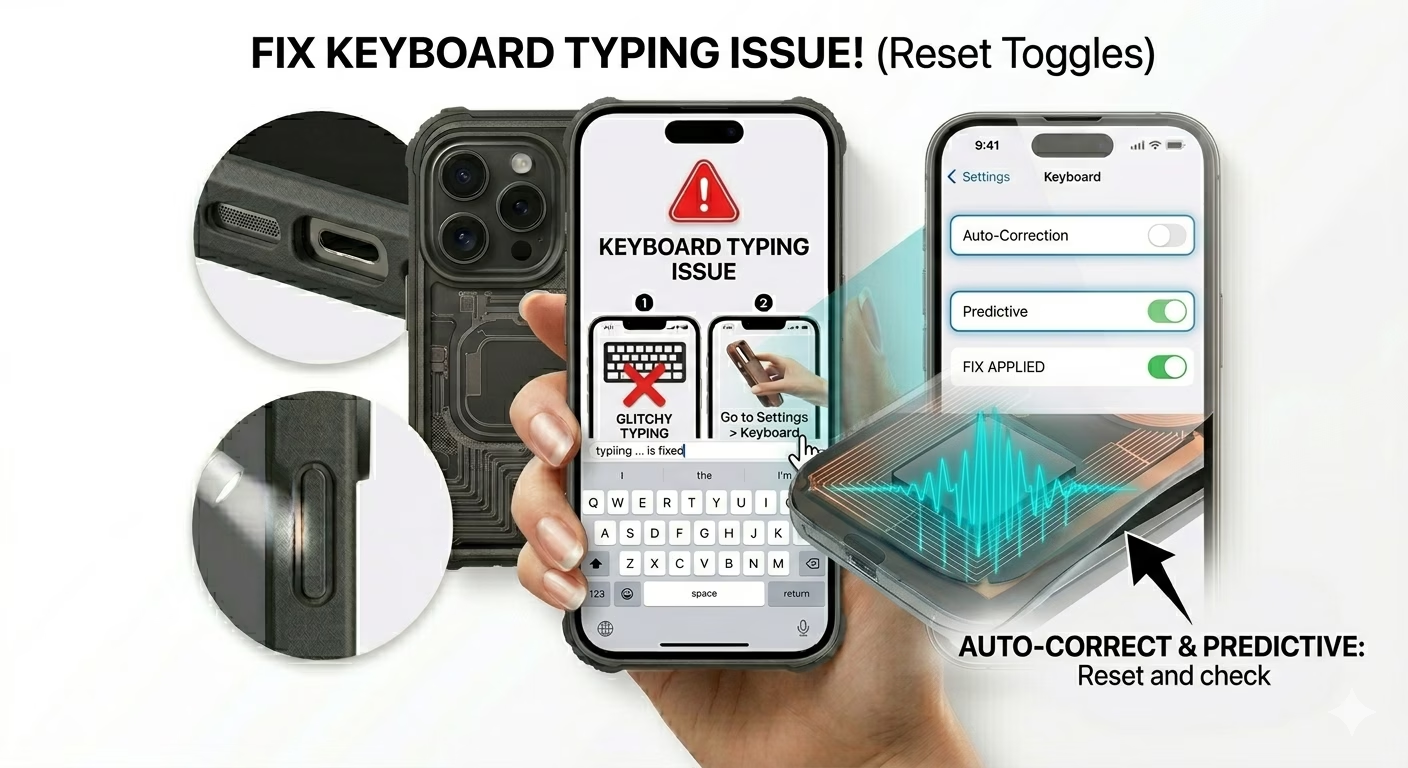
2 Toggle Predictive & Auto-Correction
Sometimes the system behind the keyboard can become overloaded or glitchy. Go to Settings > General > Keyboard. Try turning OFF Auto-Correction and Predictive. If the keyboard starts working smoothly again, turn them back ON one at a time to identify which feature may be causing the conflict with your current iOS version.
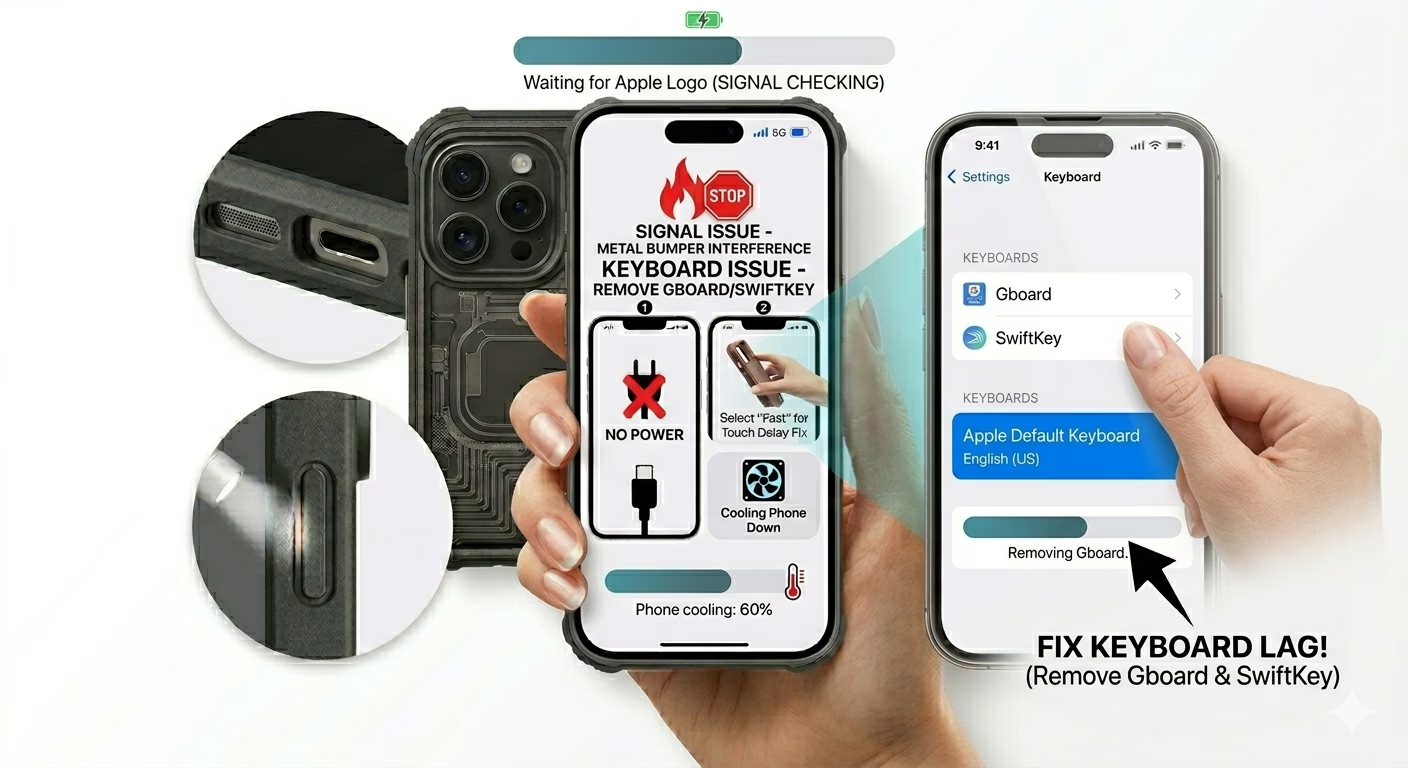
3 Clean Up Third-Party Extensions
Third-party keyboards like Gboard or SwiftKey can sometimes conflict with iOS and cause lag, crashes, or loading issues. Go to Settings > General > Keyboard > Keyboards. Swipe left to remove any non-Apple keyboards. Then use the default Apple keyboard for 24 hours to check if the freezing or unresponsiveness stops.
Why is My Keyboard Glitching?
- System Data Overload: Too much background activity can delay the keyboard rendering.
- Dictionary Bloat: Thousands of custom saved words can slow down the predictive engine.
- Screen Protector Issues: A thick or cracked protector can cause "ghost touches" or dead zones.
- Old Battery: Extreme battery degradation can cause the CPU to throttle, leading to UI lag.
Pro Tips:
- The "Search" Trick: If the keyboard won't pop up, try swiping down on the Home Screen to open Spotlight Search; this often forces the keyboard to initialize.
- Reset All Settings: If the lag is system-wide, a Reset All Settings can fix deep software conflicts without deleting your personal data.
- Reduce Motion: Go to Accessibility > Motion and toggle ON Reduce Motion to make the keyboard appearance feel snappier on older iPhones.
Frequently Asked Questions
Why does my keyboard make no sound?
Check if your Mute Switch is turned ON, or if Keyboard Clicks are disabled in Settings > Sounds & Haptics.
Can a hardware issue cause keyboard lag?
Rarely. If the lag occurs across all apps, it’s usually a software issue. If certain keys only fail in specific areas of the screen, it could indicate a digitizer (hardware) problem.