Quick Fix:
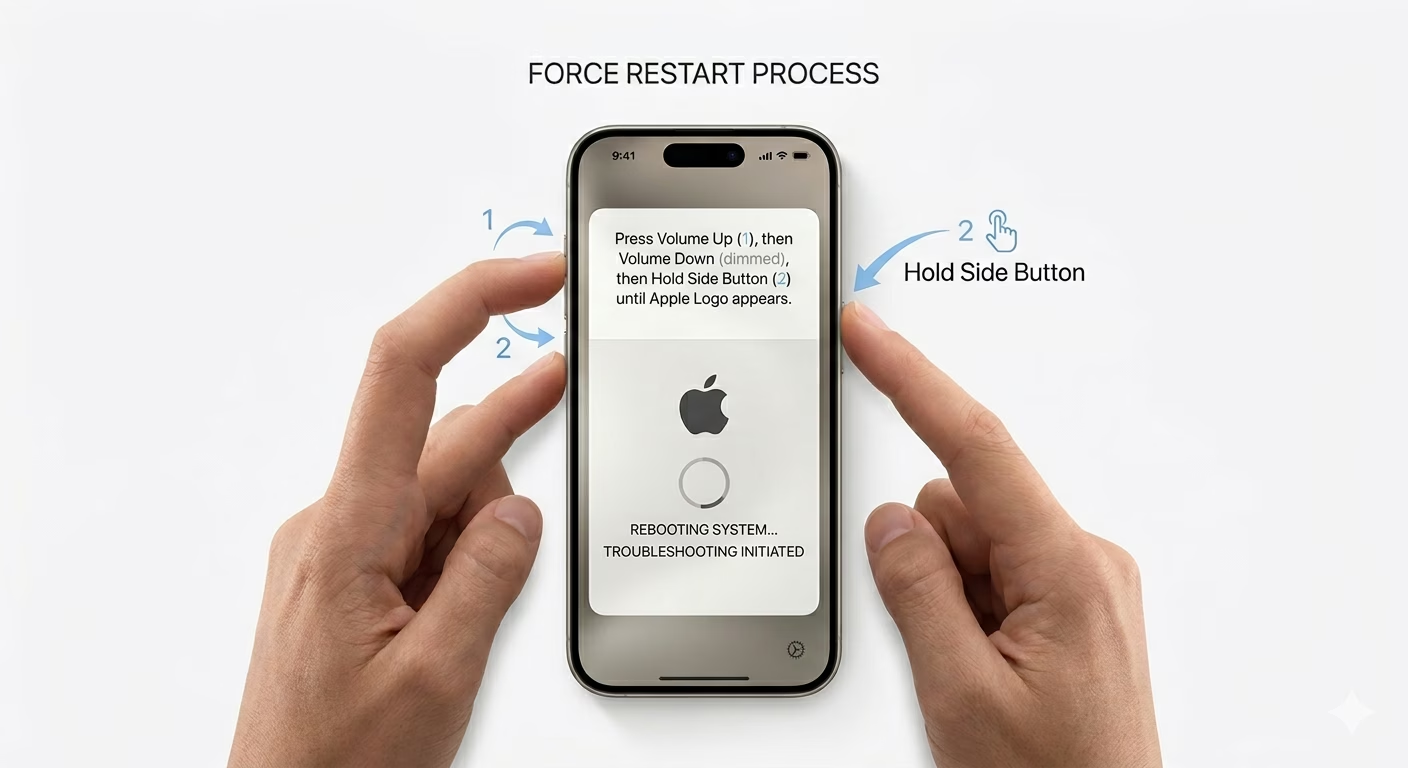
- Perform a Force Restart immediately
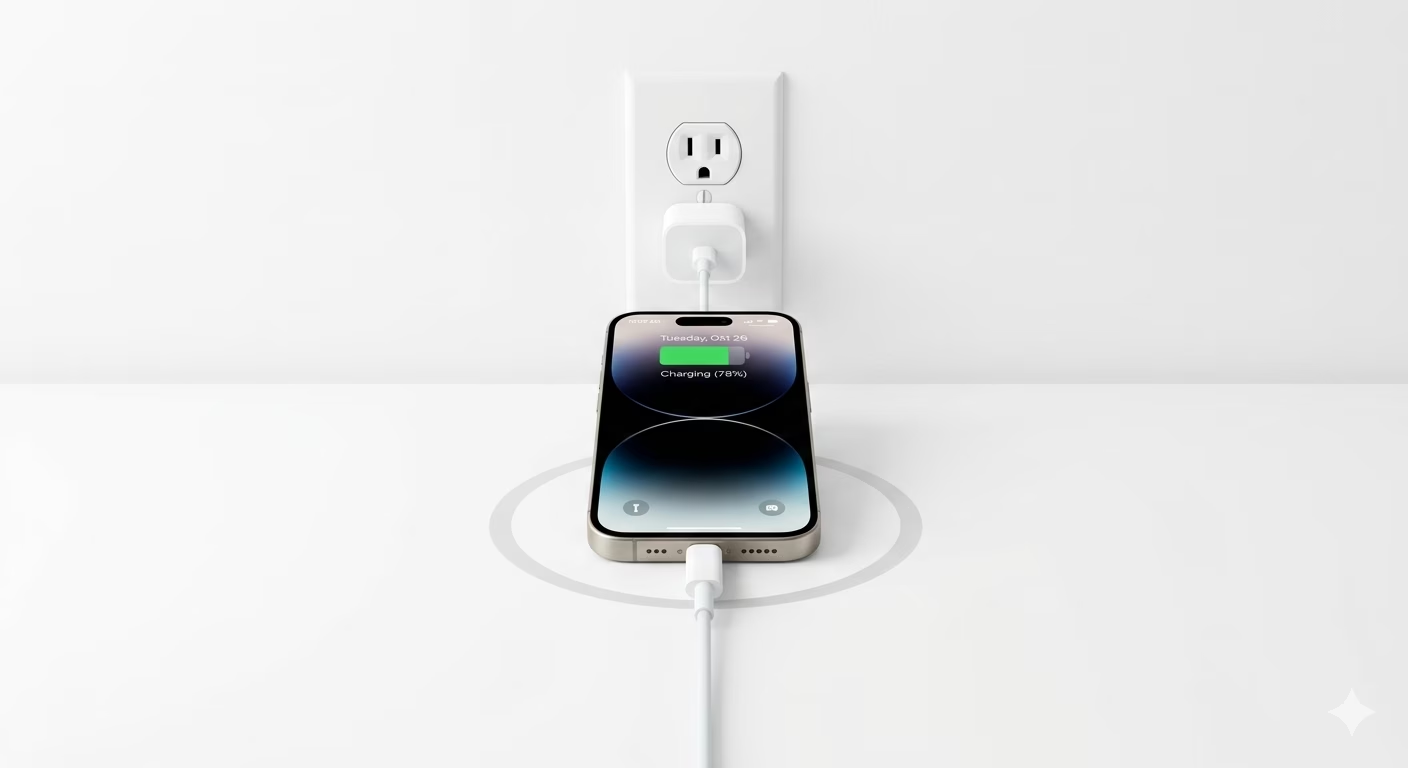
- Plug into a charger and wait 20 minutes
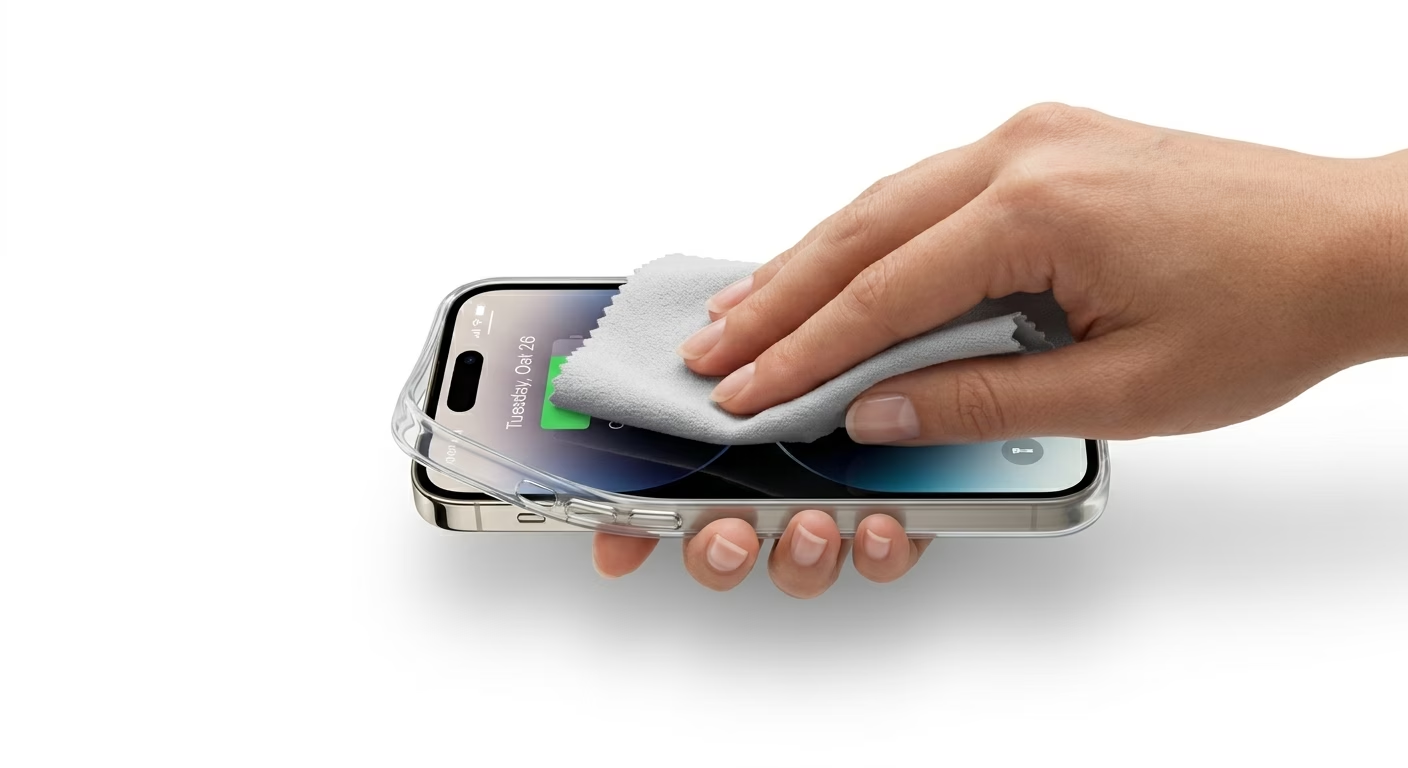
- Remove any case or screen protector
- Update all apps via App Store (if possible)
Steps to Unfreeze Your iPhone
1 Execute a Hard Force Restart
If your screen isn’t responding, you can’t use the normal slide-to-power-off method. Instead, use this special button combination: Press and quickly release Volume Up, then press and quickly release Volume Down, and finally press and hold the Side Button until you see the Apple logo. This forces your iPhone to restart and can help fix the frozen screen.
2 Connect to a Power Source
Sometimes after an update, your iPhone uses a lot of battery and gets stuck in a low-power state. Plug your iPhone into an original wall charger and leave it for at least 30 minutes. This gives your device time to finish background tasks, and it often starts working normally again once it has enough power.
3 Clean the Display & Remove Case
If only parts of your screen are frozen, the problem could be dirt or a tight phone case. Take off your phone case and any third-party screen protector, especially if it might have moved during the update. Gently wipe your screen with a dry microfiber cloth to make sure there’s no moisture or debris causing “ghost touches.”
Why This Happens?
- Software drivers for the touch screen failed to load properly
- Incompatible background apps crashing the UI
- Heavy system indexing causing temporary "UI Hang"
- The update process causing the device to overheat
Pro Tips:
- If the phone freezes again, go to Settings > General > Transfer or Reset iPhone and Reset All Settings.
- Always ensure you have at least 15% battery before starting an update to prevent these freezes.
- Check if your storage is almost full; a full iPhone is 5x more likely to freeze after an update.
Frequently Asked Questions
Will I lose my data by force restarting?
No, a force restart is just like unplugging your device and plugging it back in. It won’t affect your photos, messages, or settings—all your data will stay perfectly safe.
What if my screen is still frozen after a restart?
If your iPhone is still not working, you might need to connect it to a computer and use the "Update" option in Recovery Mode. This can fix the system software without deleting your data.