Quick Sync Check:
- Ensure "Fetch New Data" is set to Push or a frequent interval
- Check your internet connection (Wi-Fi or Cellular)
- Verify your password by logging in via a web browser
- Check if your Storage is full (Gmail stops syncing if Google storage is 100% full)
Steps to Resolve Email Sync & Login Errors
1 Delete and Re-add the Account
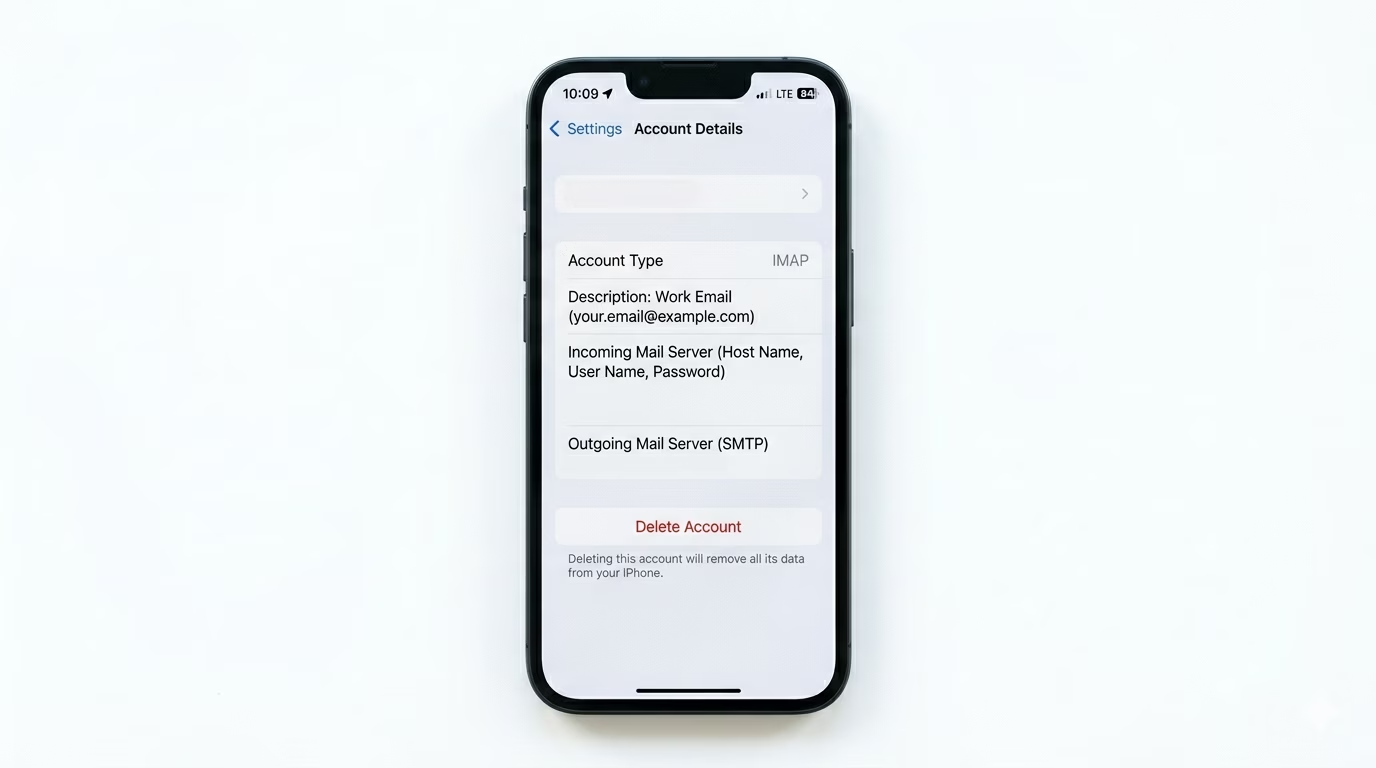
If you’re still seeing a “Password Incorrect” error even after entering the right password, your security token has probably expired. Go to Settings > Apps > Mail > Mail Accounts, tap on the account that’s causing trouble (like Gmail or Outlook), and select Delete Account. Restart your iPhone, then tap Add Account to sign in again. This will set up a fresh, secure connection with the mail server.
2 Fix Background Sync (Fetch vs Push)
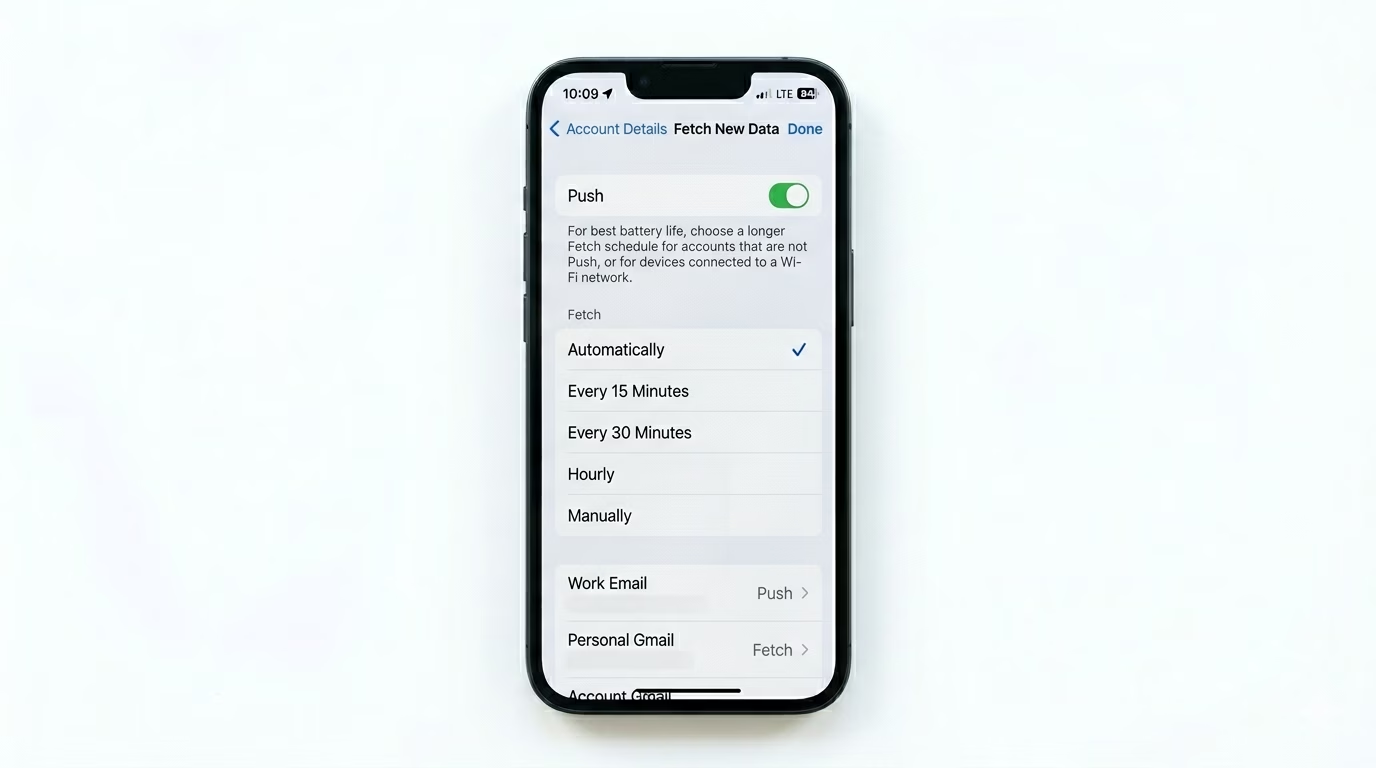
If emails only show up when you open the app, your sync settings might be off. Go to Settings > Apps > Mail > Mail Accounts > Fetch New Data and make sure Push is enabled at the top. For Gmail (since it doesn’t support Push in the native app), set the schedule to Every 15 Minutes so you’ll get alerts regularly throughout the day.
3 Enable Background App Refresh
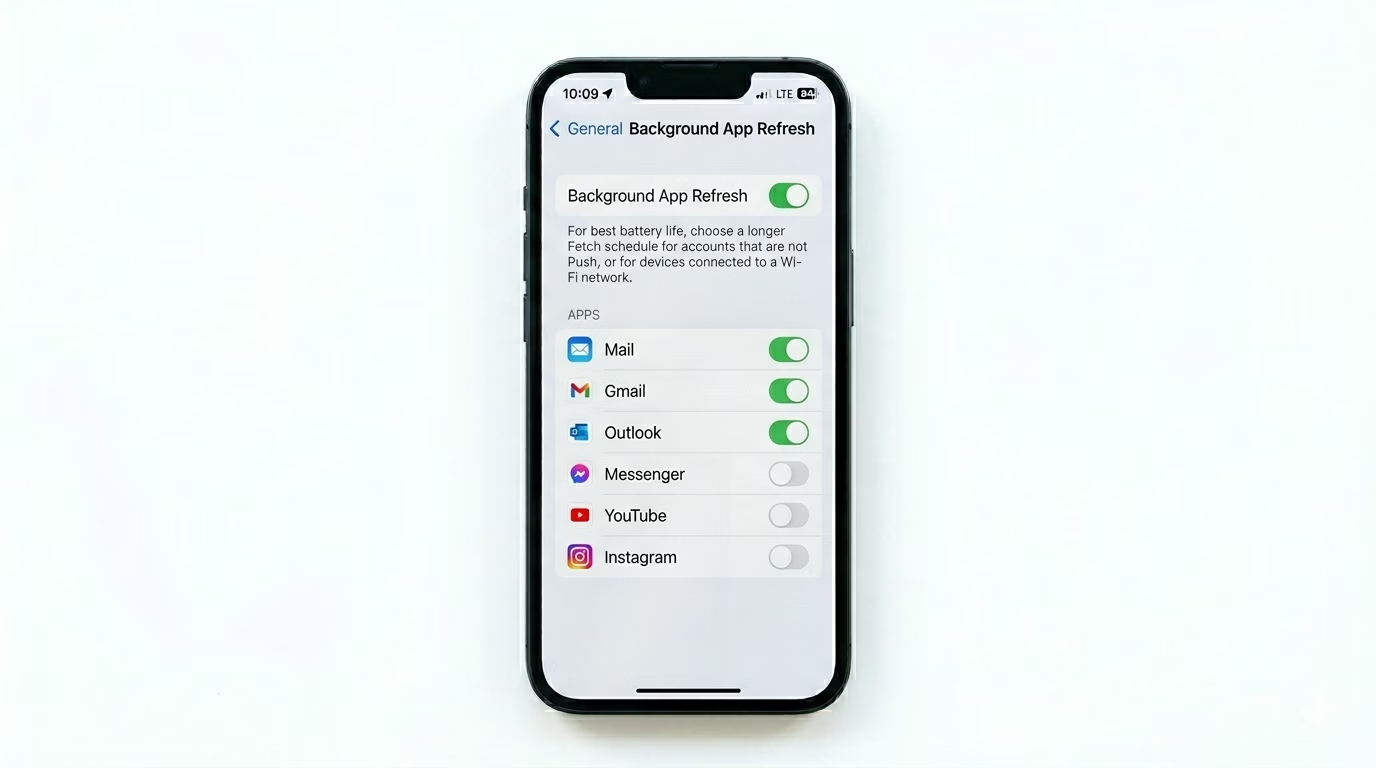
For the dedicated Gmail or Outlook apps to work properly, they need permission to run in the background. Go to Settings > General > Background App Refresh and make sure it’s turned ON for your email apps. Without this, the apps can’t connect to their servers while your phone is locked, which can cause you to miss notifications.
Why is My Email Failing?
- Two-Factor Authentication (2FA): Your account might require an "App Password" instead of your regular one.
- Storage Limits: Google and Microsoft accounts have shared storage; if your cloud is full, you can't receive mail.
- IMAP/POP Settings: Incorrect server addresses for private or business emails.
- VPN Conflicts: Some VPNs block the specific ports used by Outlook (IMAP 993).
Pro Tips:
- Use Dedicated Apps: If the native iOS Mail app keeps glitching, the official Gmail or Outlook apps are often more stable and support instant "Push" notifications.
- Check System Status: Visit the Google Workspace Status or Microsoft 365 Status pages to see if their servers are down.
- Clear App Cache: If using the Gmail app, you can clear its cache by offloading the app in iPhone Storage settings.
Frequently Asked Questions
Why does Gmail not 'Push' on the iPhone Mail app?
Google turned off Push support for the native iOS Mail app a while back to encourage people to use the official Gmail app. If you want instant email alerts, you’ll need to use the Gmail app from the App Store.
Will deleting an email account delete my emails?
No, deleting the account from your iPhone only removes it from your device—it doesn’t delete your emails. Your messages stay safe on Google’s or Microsoft’s servers and will show up again when you log back in.