Instant Cleanup:
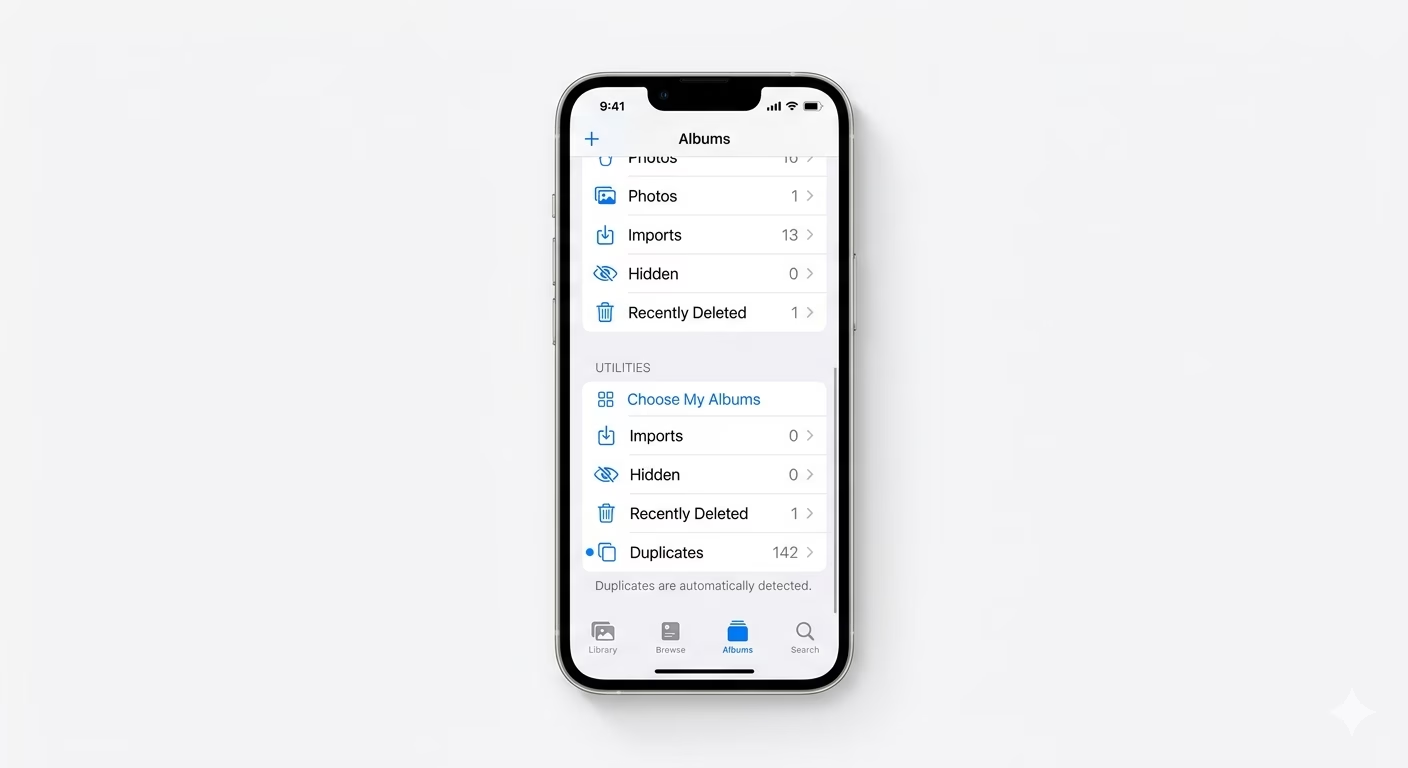
- Go to Photos > Albums > Duplicates to see all copies
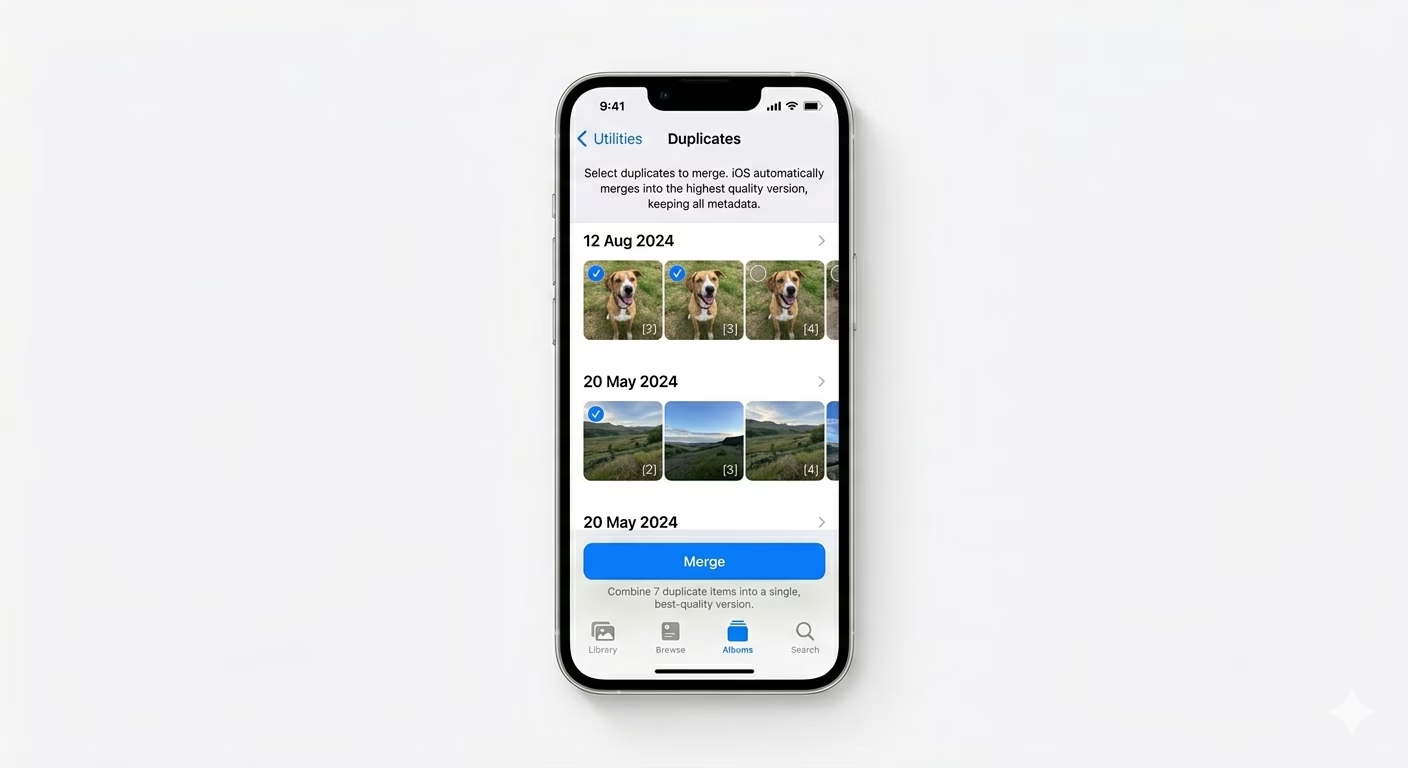
- Use the "Merge" button to keep the highest quality version
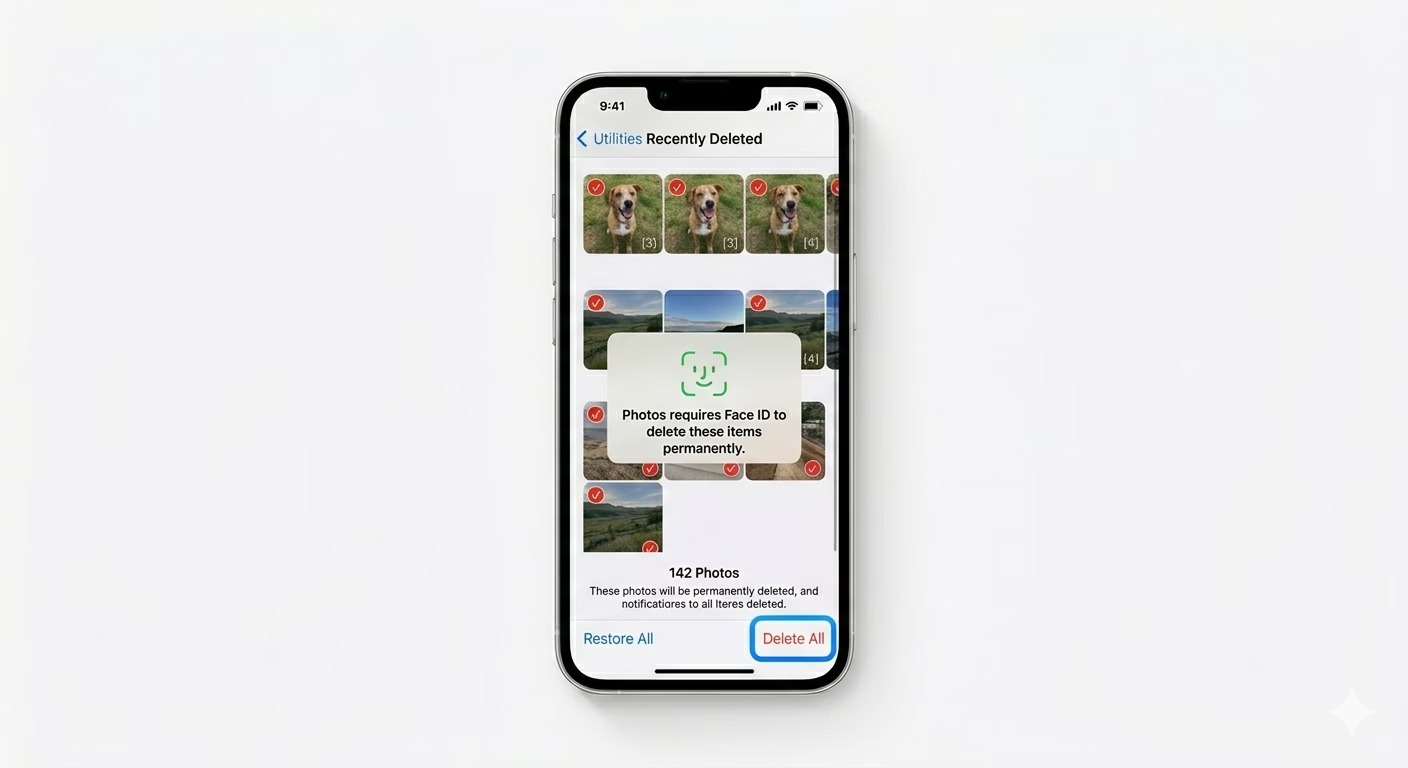
- Check the "Recently Deleted" folder to finalize the removal
- Ensure your iPhone is connected to power for background scanning
Steps to Identify and Merge Duplicate Photos
1 Locate the "Duplicates" Album
Open the Photos app and tap the Albums tab at the bottom. Scroll down to the Utilities section, where you’ll see a Duplicates album. iOS automatically scans your library for identical photos and videos and groups them here for easy review.
2 Use the "Merge" Feature
Inside the Duplicates album, tap Merge next to each set of photos. To save time, tap Select in the top right, then Select All, and tap Merge (X) at the bottom. iOS will automatically keep the highest-quality version—based on resolution, metadata, and clarity—and move the lower-quality duplicates to the trash.
3 Empty the Recently Deleted Folder
After merging, the duplicate photos are sent to the Recently Deleted album for 30 days. If you want to free up storage right away, go to the Albums tab, scroll down, tap Recently Deleted, unlock with FaceID or TouchID, and tap Delete All. This will permanently remove the duplicates from your device and iCloud storage.
Why Do I Have Duplicates?
- Social Media: Saving the same photo from WhatsApp, Instagram, and Facebook.
- Cloud Sync: Conflicts between iCloud and third-party services like Google Photos.
- Multiple Imports: Importing the same SD card or folder multiple times.
- Burst Mode: Taking multiple rapid shots where several look nearly identical.
Pro Tips:
- Missing Album? If you don't see the "Duplicates" album, it means your iPhone is still indexing. Lock your phone and leave it on the charger overnight; the album will appear once the scan is complete.
- Shared Library: The Duplicates tool also works for iCloud Shared Photo Libraries, helping families keep their collective storage clean.
- Screen Recordings: Remember to check for duplicate long videos or screen recordings, as these take up the most space.
Frequently Asked Questions
Is it safe to merge photos?
Yes. iOS is designed to keep the “best” version of each photo when merging duplicates. It also combines metadata—like captions, keywords, and favorites—from the duplicates into the single merged file.
Does this work for videos too?
Absolutely. The Duplicates folder finds both identical photos and videos, so you can free up a lot of storage by removing repeated video files as well.