Quick Power Checklist:
- Check your **Charging Port** for pocket lint or dust
- Try a different **Wall Outlet** or USB port
- Inspect the cable for **Frays, Kinks, or Exposed Wires**
- Ensure you are using an **Apple MFi-Certified** cable
Steps to Solve Charging Cable Failures
1 Remove Pocket Lint & Debris
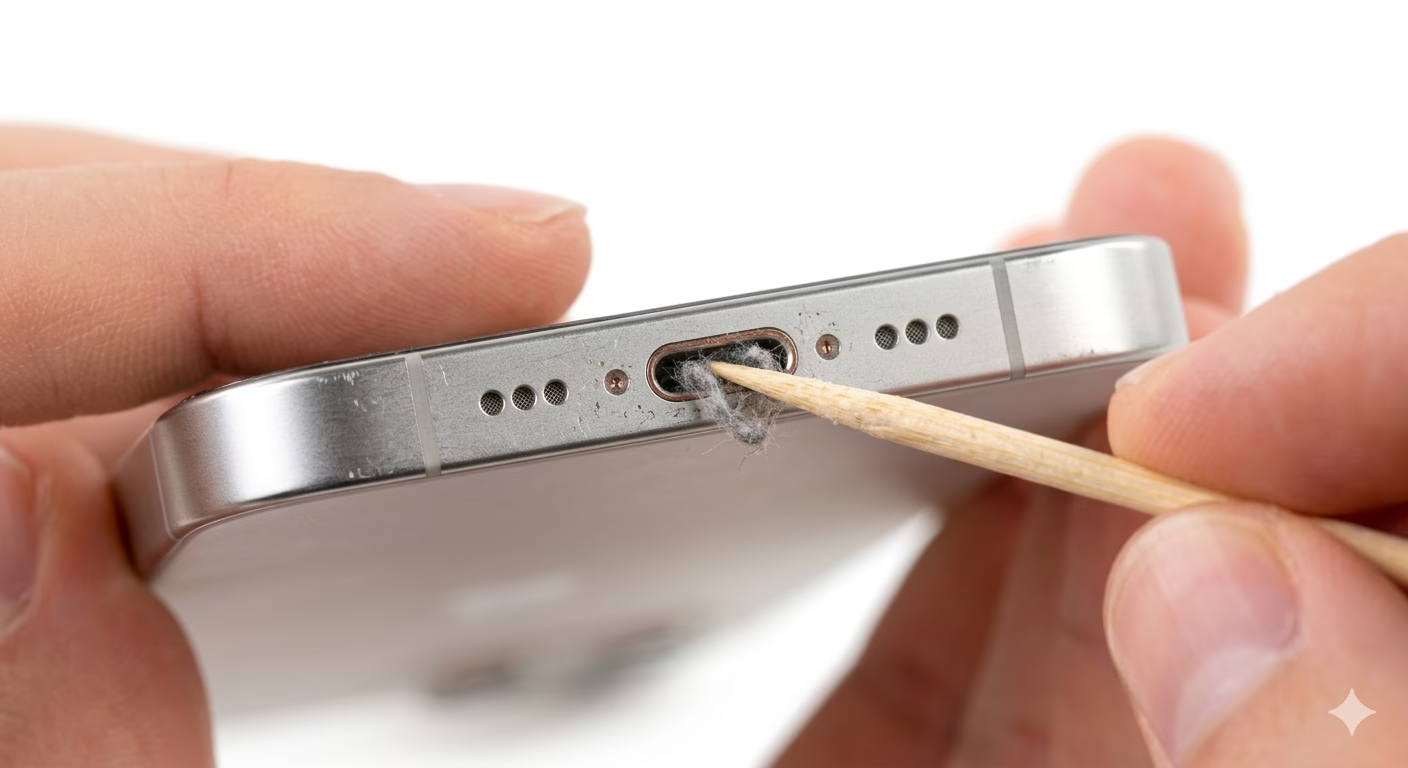
Over time, pocket lint can build up inside the charging port and prevent the cable from making proper contact with the pins. Use a wooden toothpick or a plastic pick to gently remove debris from the bottom of the port. Avoid using metal objects, as they can damage or short the internal connectors. If the cable fits more securely after cleaning, the issue is likely resolved.
2 Refresh Software Charging Drivers
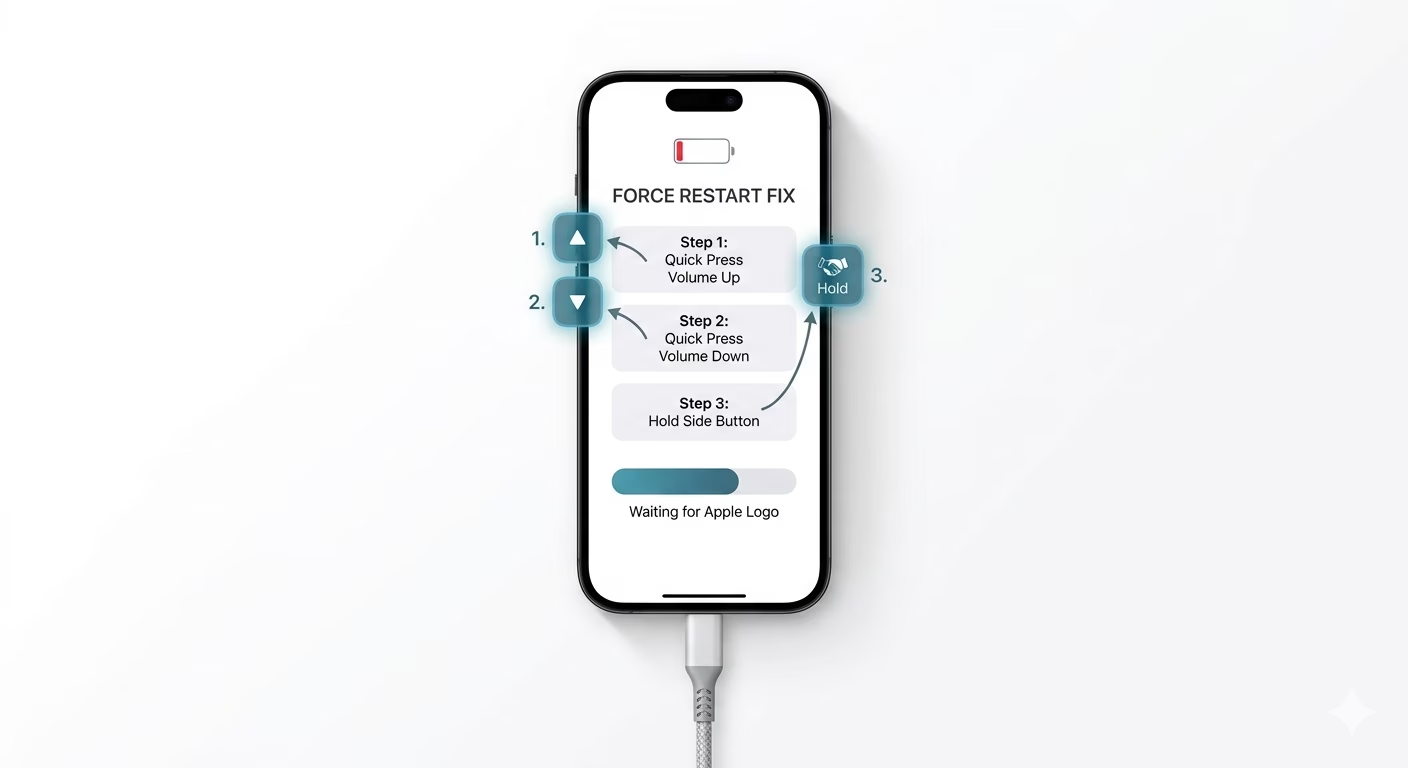
Sometimes iOS may stop recognizing a cable due to a temporary software glitch. Go to Settings > Face ID & Passcode and make sure USB Accessories is turned ON under “Allow Access When Locked.” Then perform a Force Restart (Volume Up, Volume Down, then hold the Side Button). This reboots the power management system and forces your iPhone to re-detect and verify the connected cable.
3 Check for Pin Corrosion
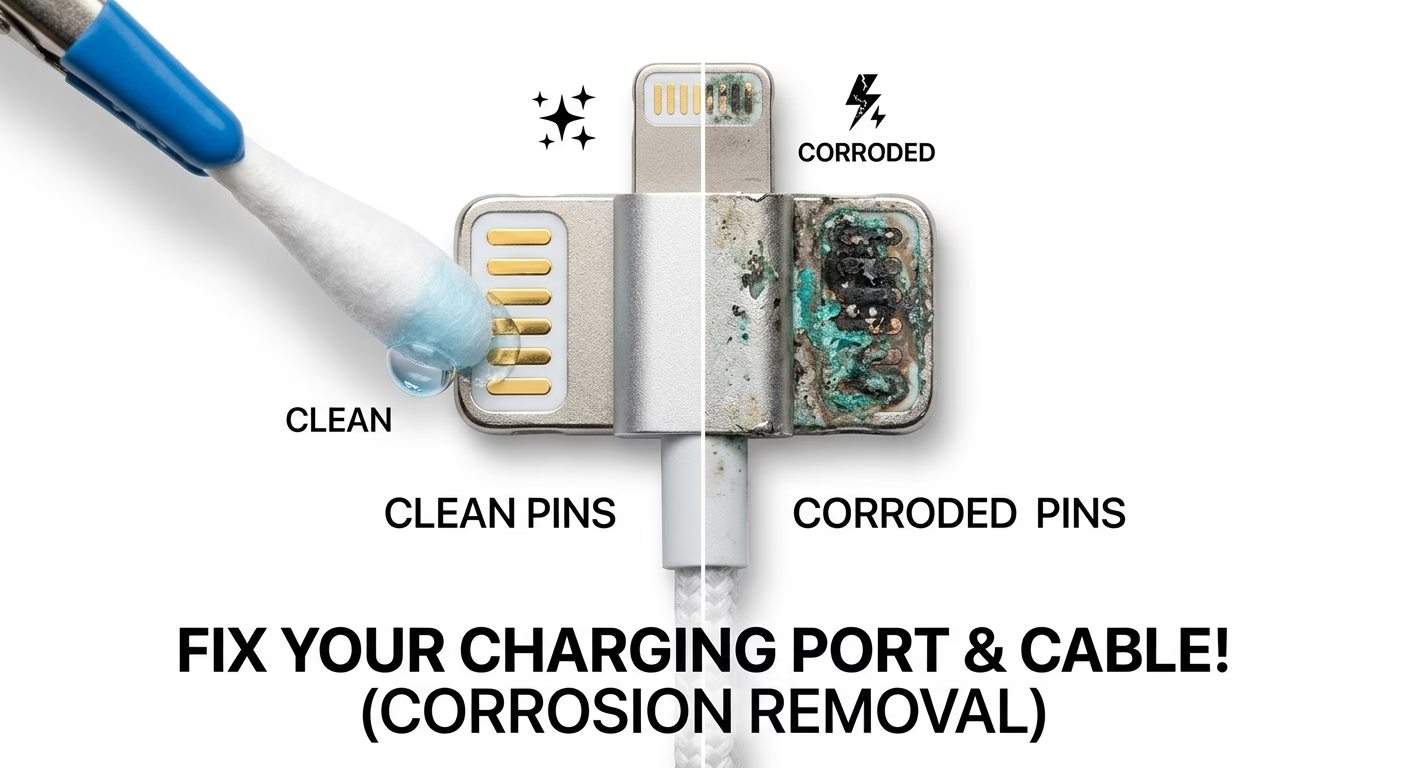
Look at the gold pins on the end of your cable. If you see black or green spots, this is corrosion caused by moisture exposure. Use a small amount of isopropyl alcohol on a cotton swab to gently clean the pins. If the pins are burnt or damaged, the cable is faulty and should be replaced to prevent potential damage to your iPhone’s charging and battery system.
Why Won't My iPhone Charge?
- Non-MFi Cables: Cheap cables lack the "Authentication Chip" required by iOS for safe charging.
- Liquid Detection: If the port is even slightly damp, iOS will disable charging to prevent a short circuit.
- Wall Adapter Wattage: Using a low-power (5W) brick with a modern iPhone can make it seem like it's not charging.
- Internal Port Damage: If the cable "wiggles" too much, the internal solder joints might be broken.
Pro Tips:
- The 90-Degree Rule: If your cable only works when bent at a certain angle, the internal copper wiring is broken. **Discard it immediately** as it's a fire hazard.
- Flip the Cable: Since Lightning and USB-C are reversible, try flipping the cable 180 degrees. If one side works, the pins on the other side are likely damaged.
- Test with Mac/PC: Plug your iPhone into a computer. If it syncs but doesn't charge, the issue is your wall adapter, not the cable.
Frequently Asked Questions
What does 'Liquid Detected' mean?
Your iPhone has detected moisture in the charging port. Unplug it immediately and let it air dry for at least 5 hours. Do NOT use a hairdryer or place it in rice.
Is it safe to use a third-party cable?
Only if it is MFi-certified (Made for iPhone). Non-certified cables can overheat your battery and potentially damage the iPhone’s charging circuitry, including the Tristar/U2 chip.