Quick Case Diagnosis:
- Remove the Case and test if the issue persists
- Check if the case is blocking the microphone or speakers
- Avoid Metal or Magnetic cases that interfere with GPS/Compass
- Ensure the case isn't pushing the screen protector up at the edges
Steps to Resolve Case Interference Issues
1 Prevent Thermal Throttling
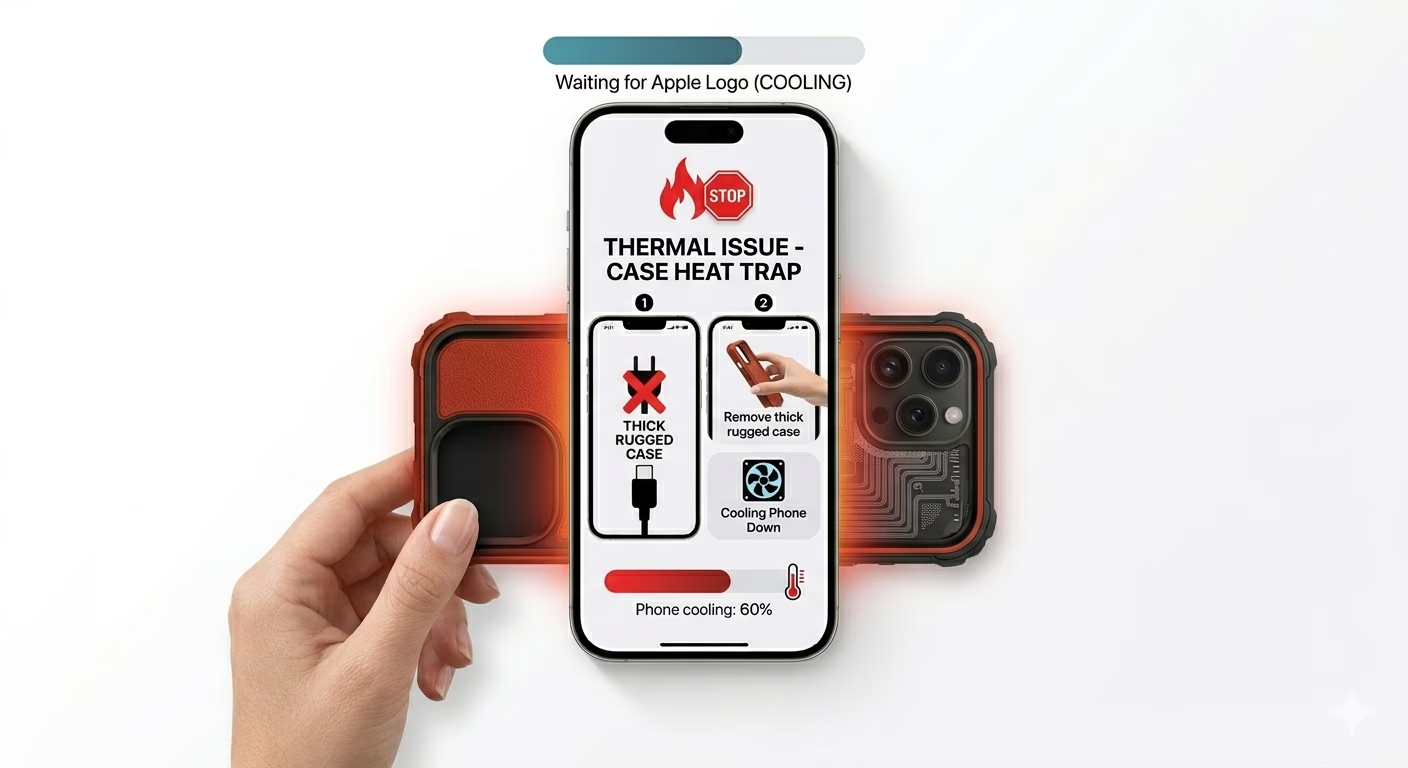
Thick, heavy-duty “rugged” cases can trap heat, especially during fast charging or gaming. If your iPhone shows a “Temperature Warning” or the screen dims, your case may be blocking proper heat dissipation through the back glass. Switching to a ventilated case or a thinner silicone/TPU shell can help improve airflow and keep internal components cooler, maintaining more stable performance.
2 Avoid Metal & Magnetic Interference
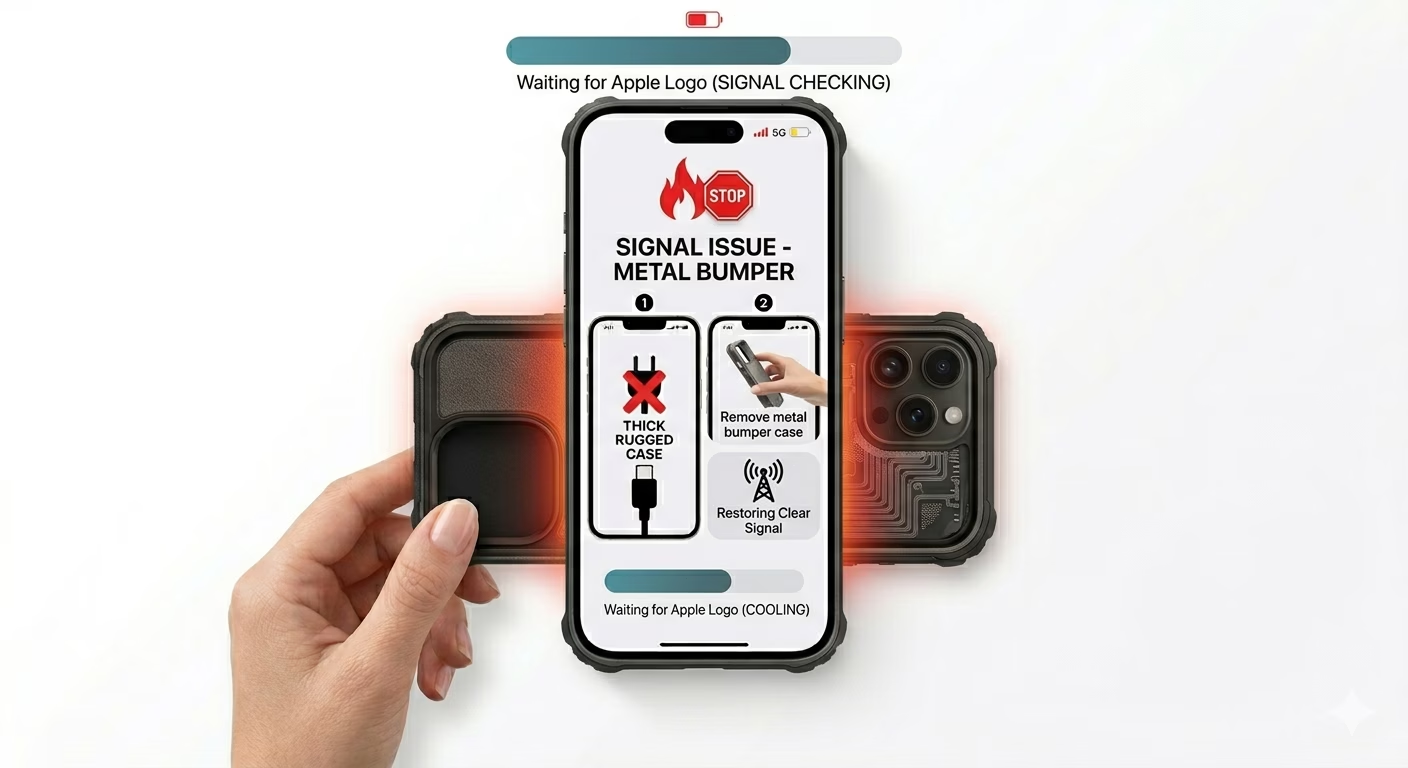
Cases with metal bumpers or strong magnets can interfere with signal performance by partially blocking or disrupting 5G, Wi-Fi, and GPS reception. If your navigation is jumping or calls are dropping, check whether your case contains aluminum or other metal components. Switching to a polycarbonate or leather case can help ensure your iPhone’s internal antennas maintain a clearer connection to nearby cellular and GPS signals.
3 Verify Port & Button Alignment
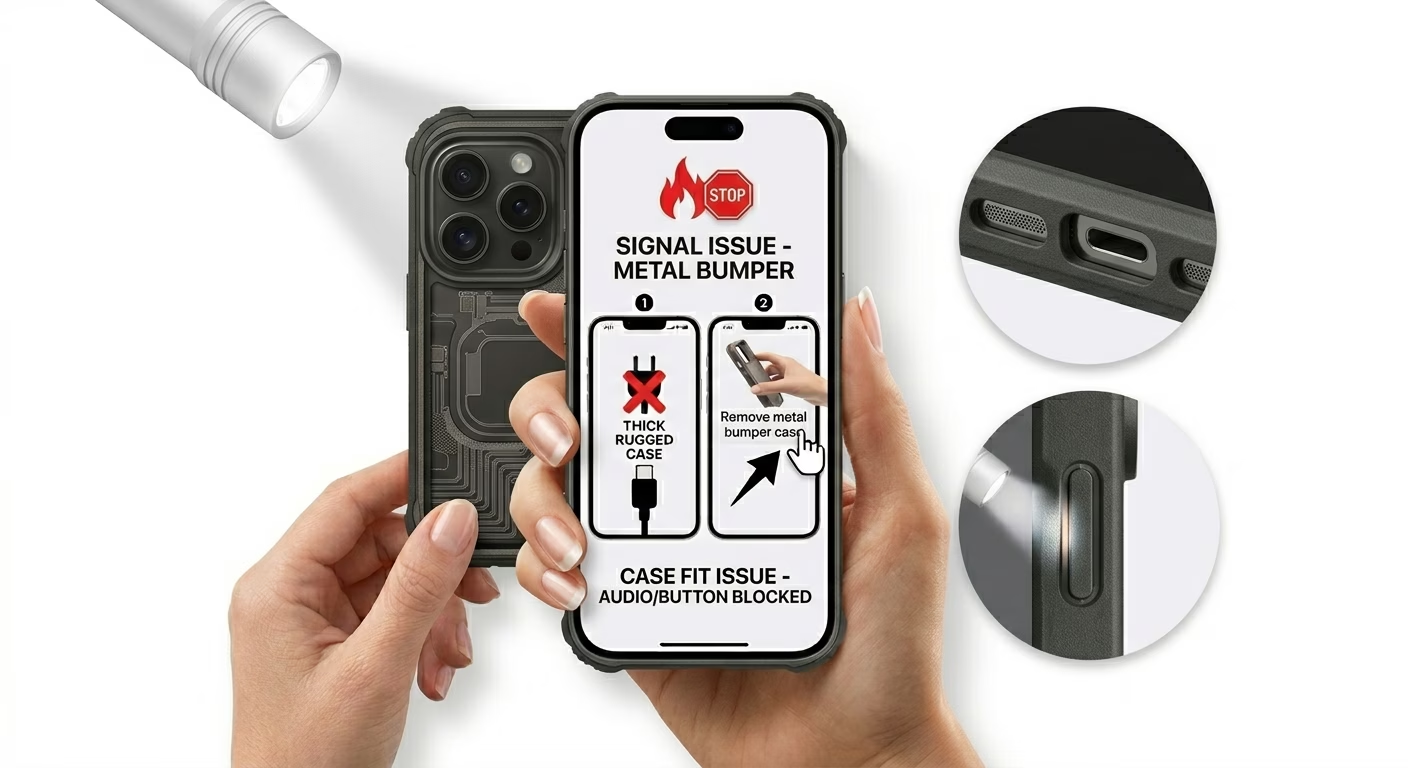
A poorly designed or ill-fitting case can partially block the bottom microphone or earpiece, making your voice sound muffled to others. Use a flashlight to inspect the cutouts at the bottom of the case. If it’s misaligned, it may also press against the Volume or Power buttons, which can lead to unintentional inputs or even random restarts.
Why Does a Case Affect My Phone?
- Heat Dissipation: iPhone uses its metal frame and back glass to cool down; cases act as insulation.
- Sensor Obstruction: Proximity sensors near the notch can be blocked, causing the screen to stay ON during calls.
- Flash Flare: Thick camera cutouts can reflect the flash back into the lens, causing "foggy" night photos.
- Wireless Charging: If the case is thicker than 3mm, MagSafe or Qi charging efficiency drops significantly.
Pro Tips:
- The Naked Test: Whenever you face a hardware issue, the first step should be to use the phone "naked" for an hour. If the problem vanishes, the case is 100% the reason.
- MagSafe Compatibility: Always look for the "Made for iPhone" (MFi) or MagSafe-compatible logo to ensure the magnets won't interfere with the internal compass.
- Clean Regularly: Dust trapped between the case and the phone can act like sandpaper, permanently scratching your iPhone’s frame.
Frequently Asked Questions
Can a case break my iPhone's internal antennas?
A case won’t physically damage them, but it can block or weaken signals, making it harder for your phone to maintain a stable connection. Removing the case can often restore signal strength immediately.
Why is my screen protector lifting at the corners?
This is called “case pinching.” It happens when a case is too tight or slightly overlaps the screen edges, putting pressure on the screen protector or display. The best solution is to use a case-friendly screen protector designed with slightly smaller edges to avoid contact with the case.