Quick Fix:
- Connect your iPhone to a power source (charger)
- Ensure you are using a stable and fast Wi-Fi connection
- Verify that your Apple ID and Password are correct
- Check if Apple's iCloud servers are currently online
Steps to Fix iCloud Restore Errors
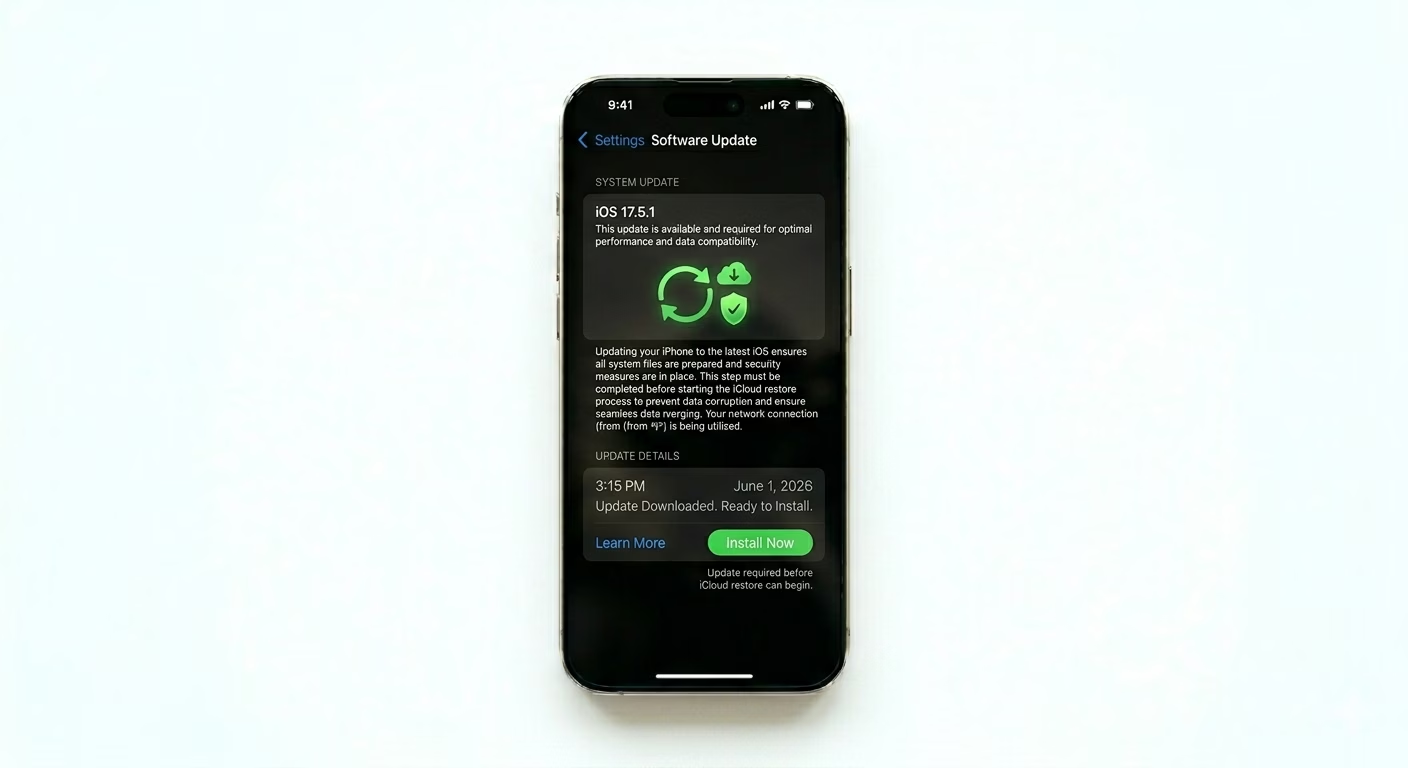
1 Update iOS Before Restoring
If your backup was created on a newer iOS version (like iOS 19.4) but your phone is running an older version (like iOS 19.1), the restore won’t work. First, Set Up as New iPhone, then go to Settings > General > Software Update and install the latest update. After updating, erase your phone again and start the iCloud restore process over.
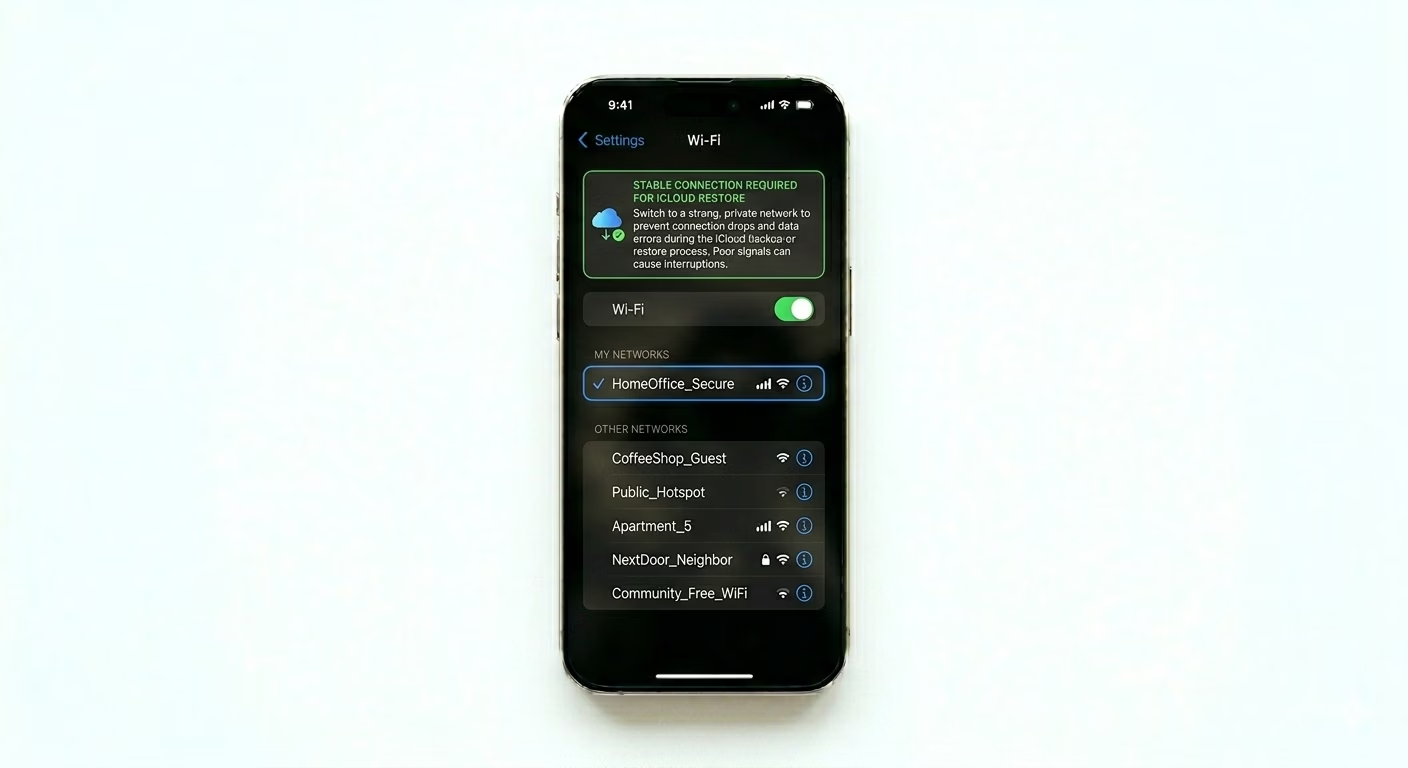
2 Change Your Wi-Fi Network
iCloud restores need a strong, steady internet connection. If your Wi-Fi is weak or uses a “Captive Portal” (like in hotels or cafes), the restore can fail. Try switching to a private, reliable Wi-Fi network. If you’re still stuck, restart both your router and your iPhone at the same time to refresh the connection to Apple’s servers.
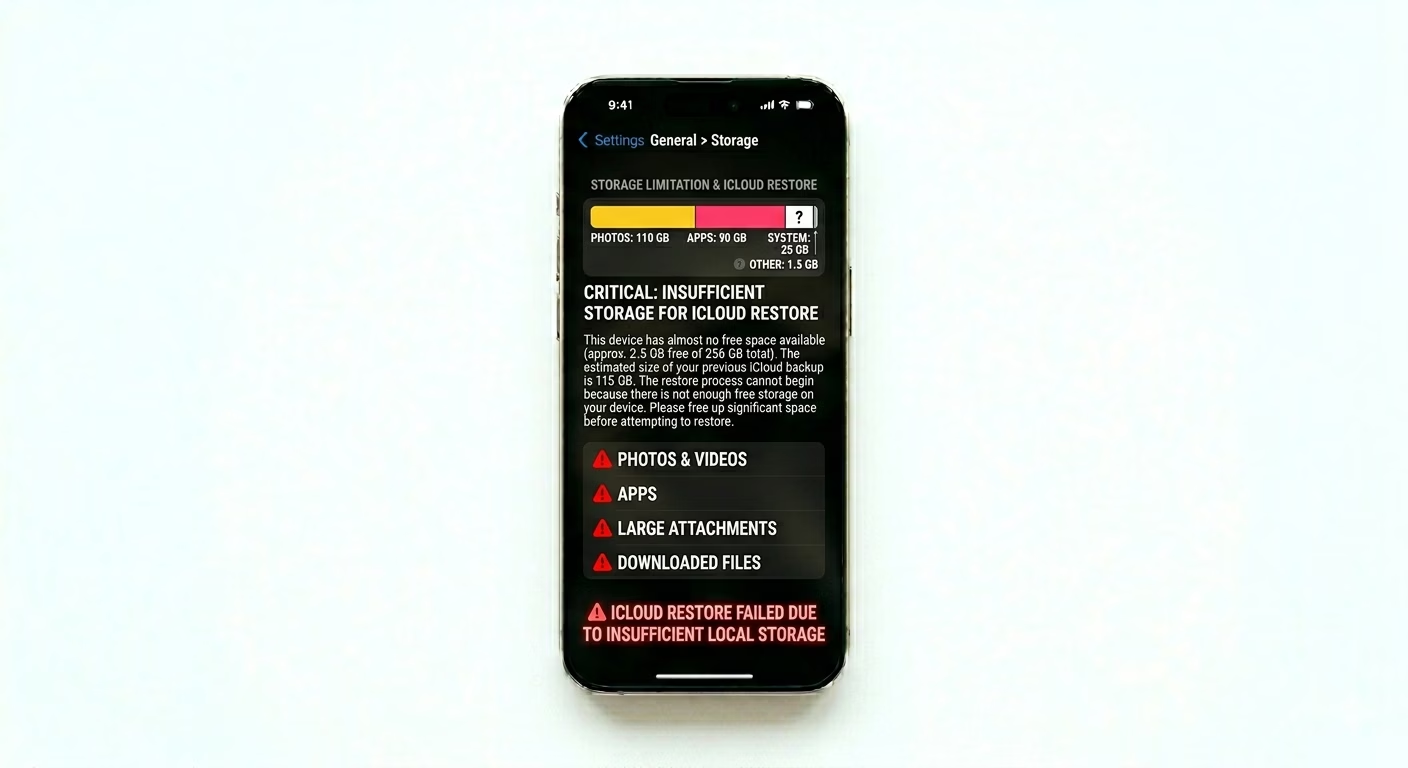
3 Ensure Enough Local Storage
If your backup is 100GB but your new iPhone only has 64GB of storage, the restore won’t even begin. Make sure your device has enough space for the backup. If not, you’ll need to use a phone with more storage or reduce your backup size from another Apple device.
Why This Happens?
- The backup was created on a newer iOS version than the target phone
- Unstable internet connection causing the download to time out
- Insufficient physical storage on the destination iPhone
- Corrupted backup file on iCloud servers
Pro Tips:
- Stay on Wi-Fi: Keep your iPhone connected to Wi-Fi even after it restarts; apps and photos will continue downloading in the background for hours.
- Avoid Public Wi-Fi: Public networks often have "Session Limits" that can kill a 50GB restore halfway through.
- Try Computer Restore: If iCloud fails repeatedly, and you have a backup on a Mac or PC, use Finder or iTunes for a much faster and more reliable local restore.
Frequently Asked Questions
How long does an iCloud restore take?
Depending on how much data you have and your Wi-Fi speed, an iCloud restore can take anywhere from 30 minutes to several hours. For example, a 50GB backup on a regular connection usually takes at least 1–2 hours.
What if I get a 'Media and Purchases' password prompt?
This happens when your backup has apps or music bought with another Apple ID. You can skip signing in, but those apps won’t download until you log in with that specific ID.