Quick Recovery Steps:
- Check if iPhone Storage is 100% full (Photos need space to write)
- Force restart your iPhone to refresh the Media Server process
- Close the Camera and Photos apps from the app switcher
- Toggle iCloud Photos OFF and ON to refresh the sync database
Steps to Fix Camera Storage Glitches
1 Free Up Critical Storage
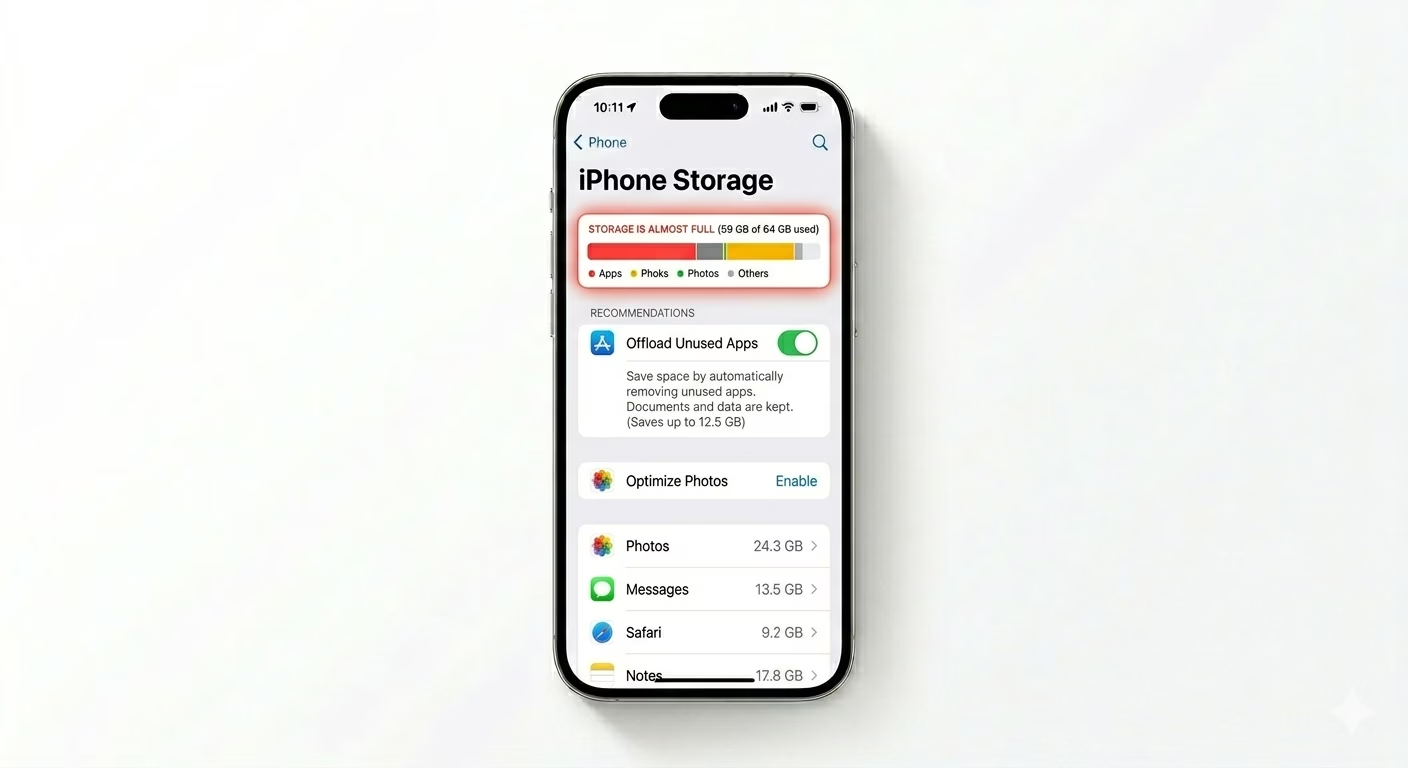
When your iPhone storage is critically low, the Camera app may still let you take a photo but fail to save it to the permanent storage. Go to Settings > General > iPhone Storage. Make sure you have at least 1GB of free space. Delete large videos or “Offload” unused apps to give the camera enough room to process and save new image files.
2 Force Restart to Flush RAM
A simple “turn off and on” may not be enough. A Force Restart clears temporary RAM where the Camera app processes images before saving them to the Photos app. Quickly press Volume Up, then Volume Down, and hold the Side Button until the Apple logo appears. This often resolves the “ghost photo” issue where pictures disappear immediately after being taken.

3 Fix Date/Time Sync Issues
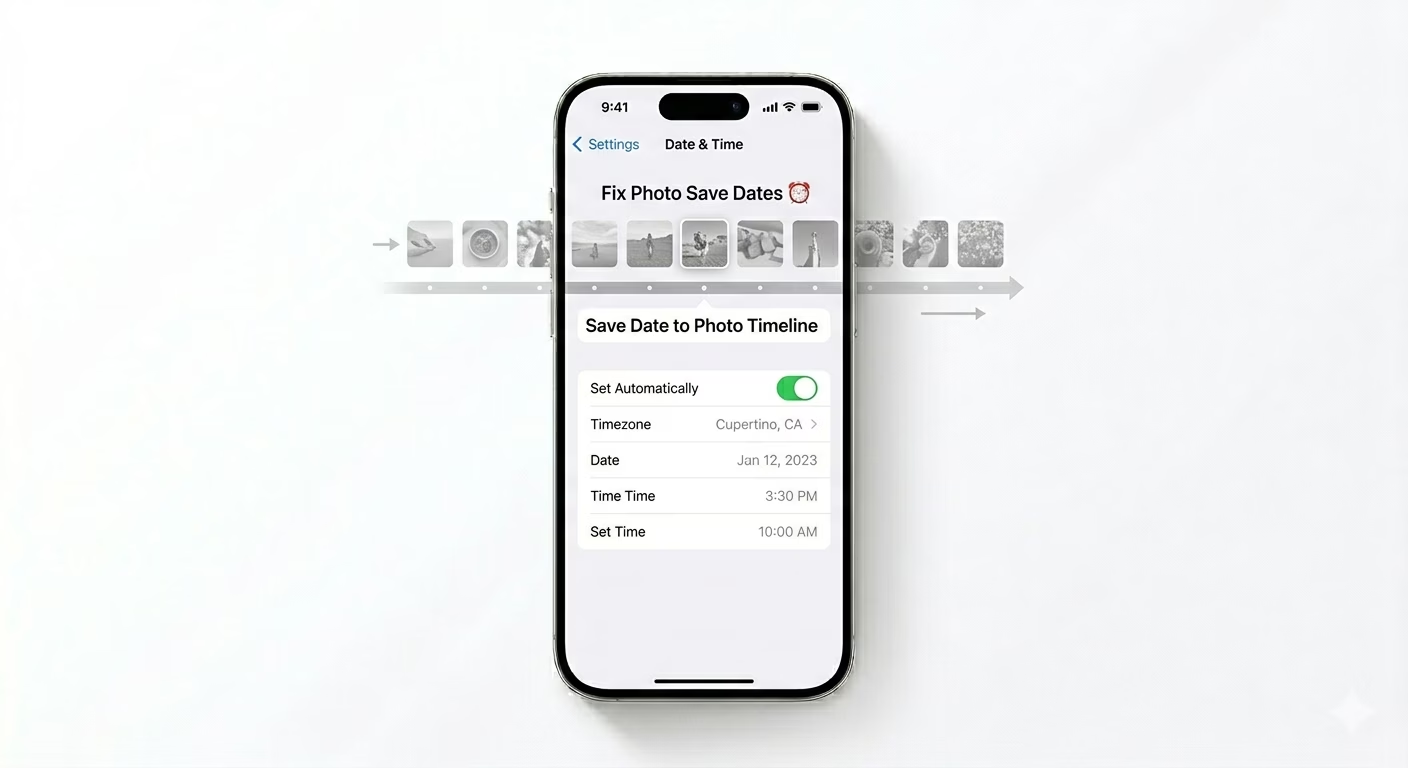
If your iPhone’s date and time are incorrect, photos may still be saved but appear in the wrong place in your timeline (even years in the past). Go to Settings > General > Date & Time and make sure Set Automatically is turned ON. This ensures your photos are timestamped correctly and show up in the right order in your “All Photos” library.
Why Do Photos Disappear?
- Database Corruption: The internal "Photo Library" index is broken and cannot link new files.
- High Temperature: If the phone is overheating, it may fail to process the final image save.
- Software Beta: If you are using an iOS Beta, the camera's file-saving daemon might be unstable.
- Incompatible Formats: Switching between HEIF and JPEG while the phone is low on power.
Pro Tips:
- Switch Formats: Try changing the format to "Most Compatible" in Settings > Camera > Formats to see if it saves correctly.
- Use a Third-Party App: Test if photos save using an app like Instagram or WhatsApp. If they do, the issue is strictly with the Apple Camera app.
- Reset All Settings: If the problem persists, go to Settings > General > Transfer or Reset iPhone > Reset > Reset All Settings. (This won't delete your data).
Frequently Asked Questions
Where do the 'lost' photos go?
If the save process was interrupted, the photos are often lost because they were never fully written to storage. However, it’s still worth checking the Recently Deleted folder just in case they were saved and can be recovered.
Can a hardware issue cause this?
It’s rare. When hardware fails, the camera is usually black or produces blurry output. If the camera works normally but won’t save photos, it is almost always a software or storage issue.