Quick Clean Checklist:
- Clear Safari history and website data regularly
- Offload apps that have large "Documents & Data" sizes
- Delete and reinstall heavy social media apps (TikTok, Instagram)
- Restart your iPhone to clear temporary system logs
Steps to Flush Cache and System Data
1 Clear Safari Browser Cache
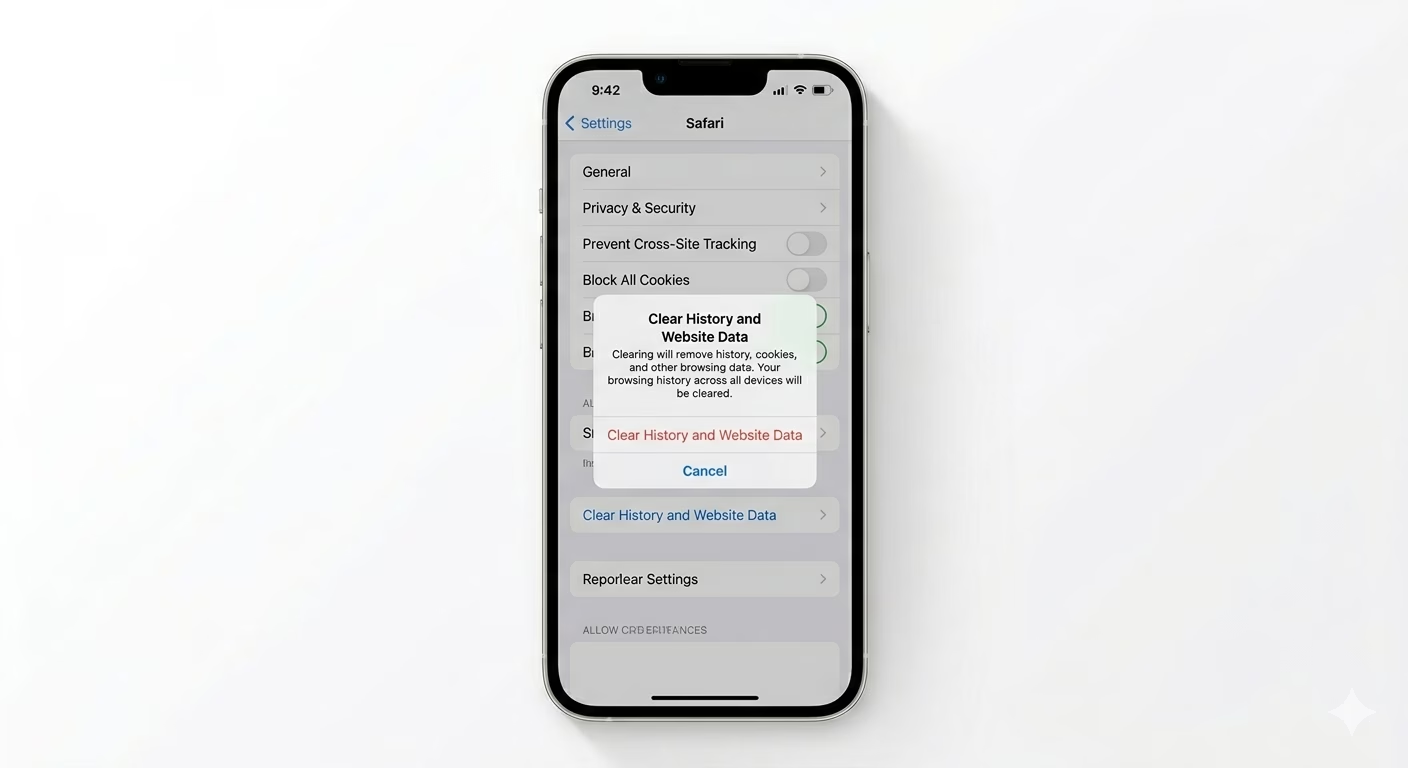
Safari saves images and scripts from every website you visit to help pages load faster, but over time this can fill up your storage. Go to Settings > Apps > Safari, scroll down, and tap Clear History and Website Data. Select “All History” and confirm. This will clear all temporary web files and give Safari a fresh, speedy start.
2 Offload Heavy Apps
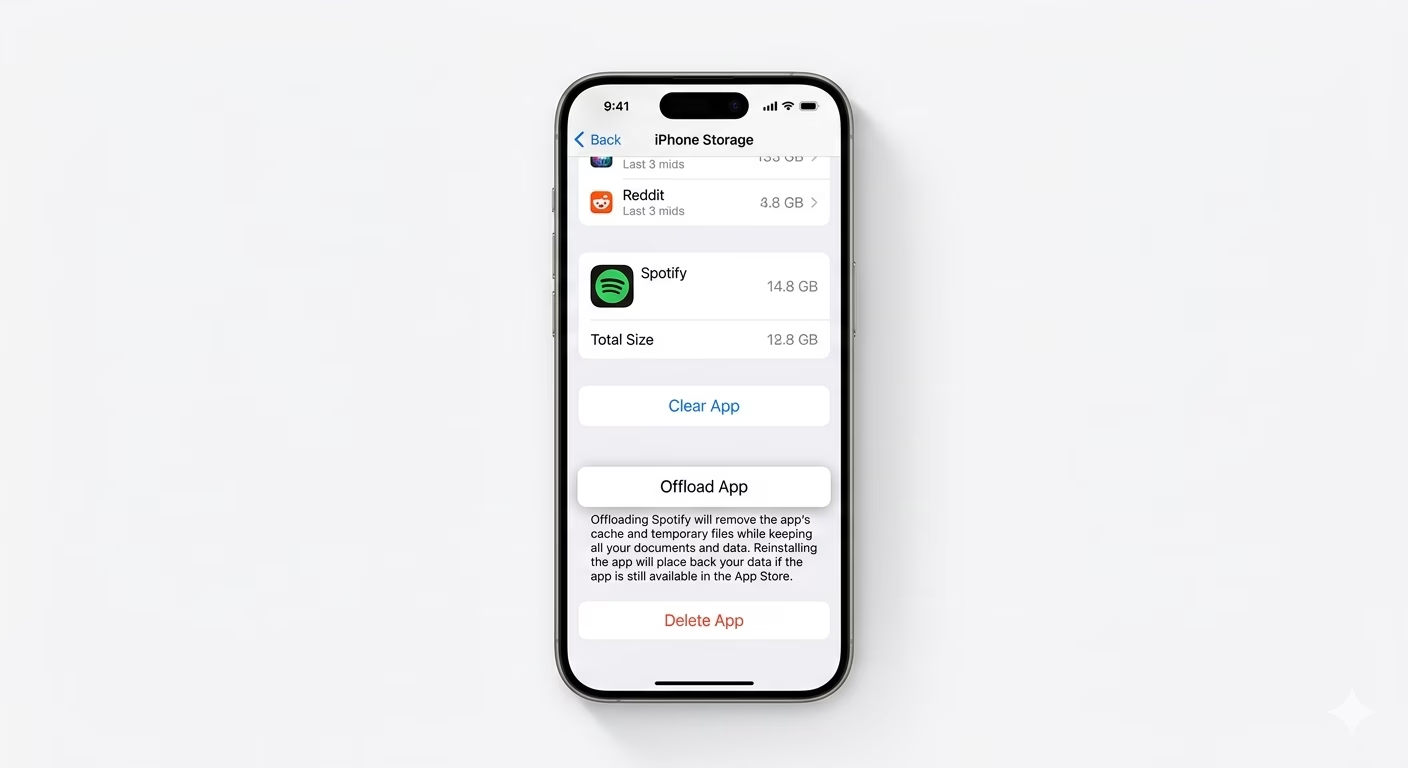
If an app’s “Documents & Data” is much bigger than the app itself, it’s mostly cache files. Go to Settings > General > iPhone Storage, tap on the app, and choose Offload App. This deletes the app but keeps your personal settings. When you reinstall, you’ll get a clean version without the old cache, helping free up space.
3 Use In-App Cache Cleaners
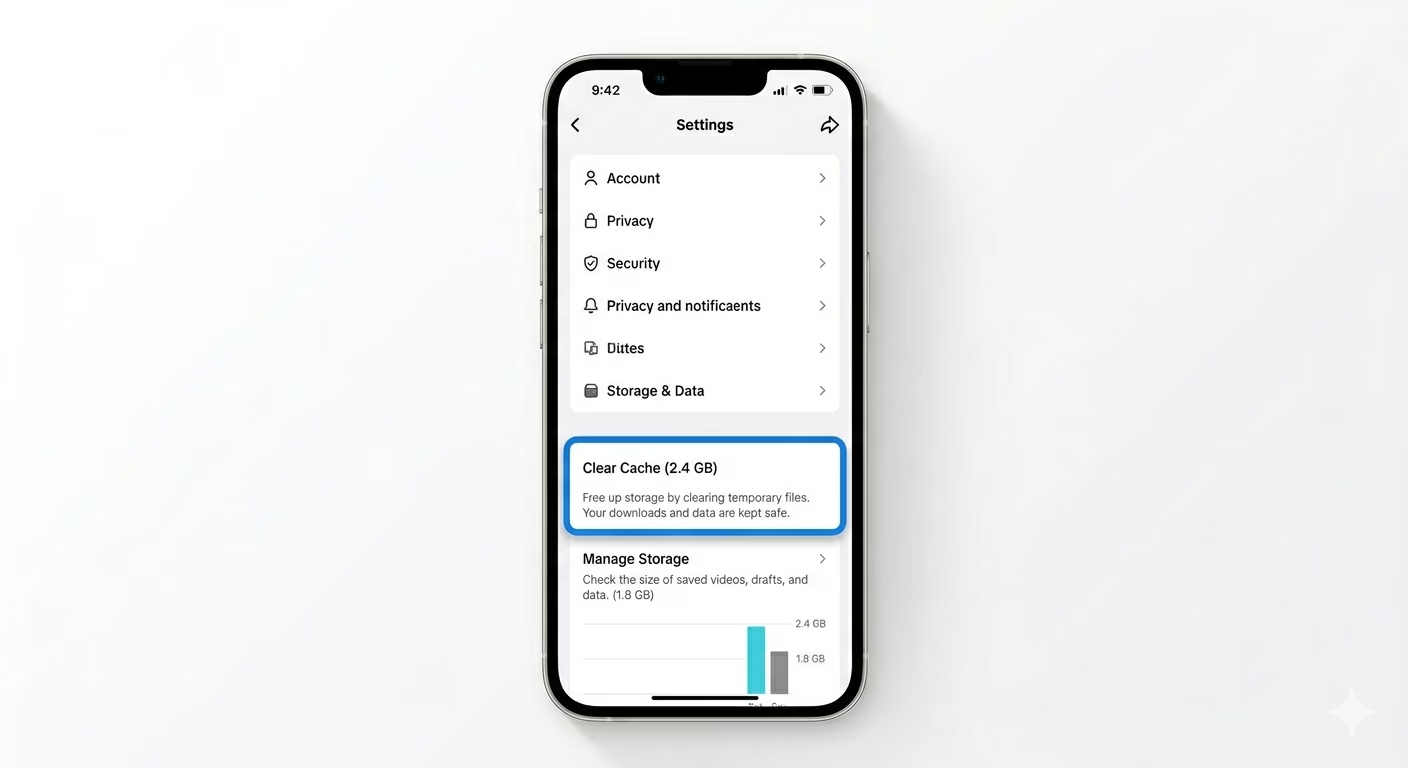
Apps like TikTok, Spotify, and Snapchat have their own internal cache controls. Open each app, go to its Settings or Privacy menu, and find “Clear Cache” or “Storage.” Regularly clearing this can free up 1–5GB of space that iOS can’t remove automatically through the main settings.
Why Should You Clear Cache?
- Reclaim Storage: Cache can often take up more space than the actual apps.
- Fix Glitches: Corrupted cache is the #1 reason for app crashes and freezing.
- Privacy: Clearing cache removes tracking cookies and temporary web data.
- Performance: Reducing "System Data" load allows the CPU to run smoother.
Pro Tips:
- The Social Media Trick: Apps like Facebook and Instagram don't have a "Clear Cache" button. The best way to clean them is to Delete the app and Reinstall it once every few months.
- Force Restart: A force restart (Vol Up, Vol Down, Hold Side Button) clears the "System Data" (Other) storage that accumulates after an iOS update.
- Limit Message History: Set your messages to auto-delete after 30 days to prevent the Messages app cache from bloating.
Frequently Asked Questions
Will clearing cache delete my photos?
No, clearing cache only removes temporary files used by apps. Your photos, videos, and personal files are stored separately and won’t be affected.
What is 'System Data' (formerly 'Other')?
This includes system logs, Siri voices, and app caches. If it’s taking up more than 10GB of space, doing a full iCloud Backup and Restore is the best way to shrink it back to normal.