Quick Fix:
- Check Battery Health in Settings
- Lower Screen Brightness
- Turn off Background App Refresh
- Enable Low Power Mode
Steps to Fix iPhone Battery Drain Issues
1. Check Battery Health & Suggestions
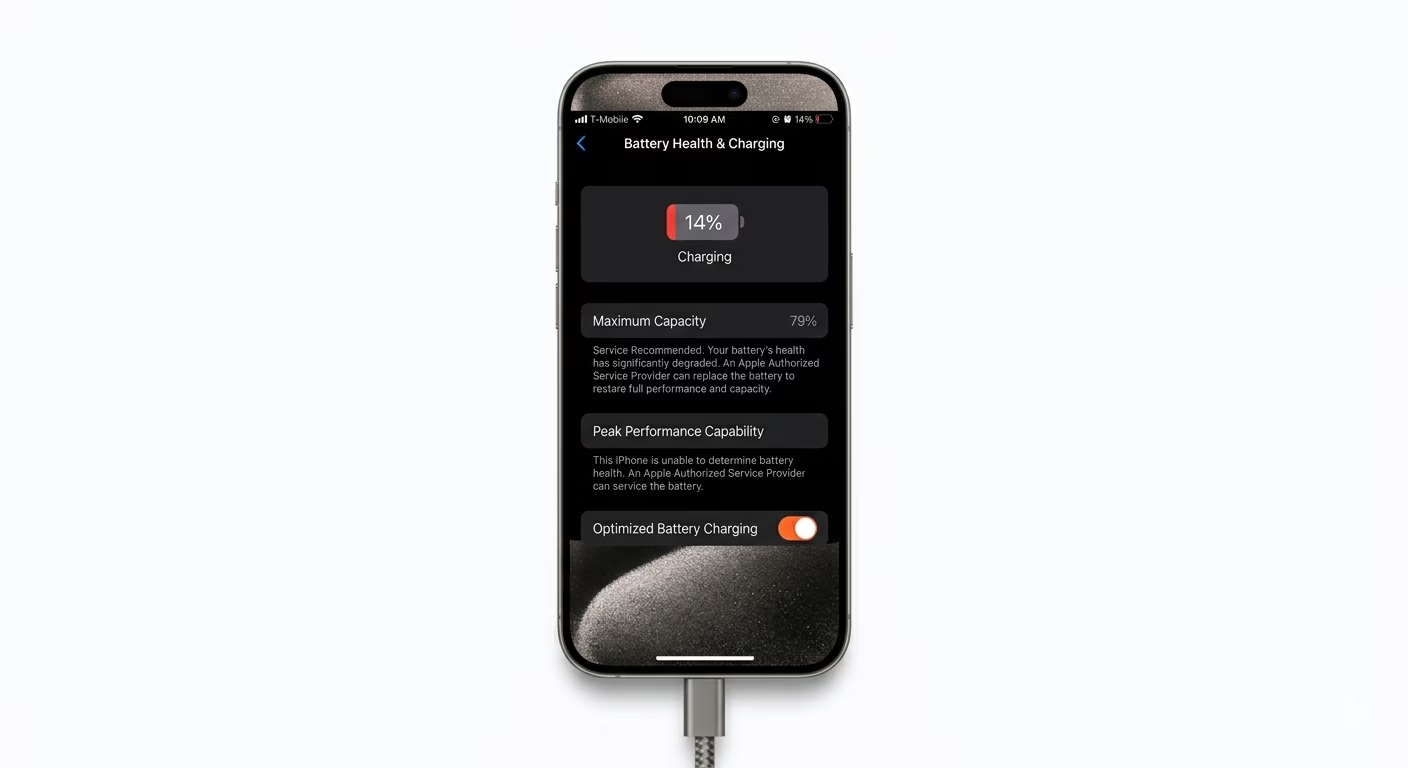
Check your battery’s health: Go to Settings > Battery > Battery Health & Charging . If the Maximum Capacity is less than 80%, you may need to replace your battery. Also, look at the ‘Insights and Suggestions’ section to see which apps are using the most power.
2. Manage Background App Refresh
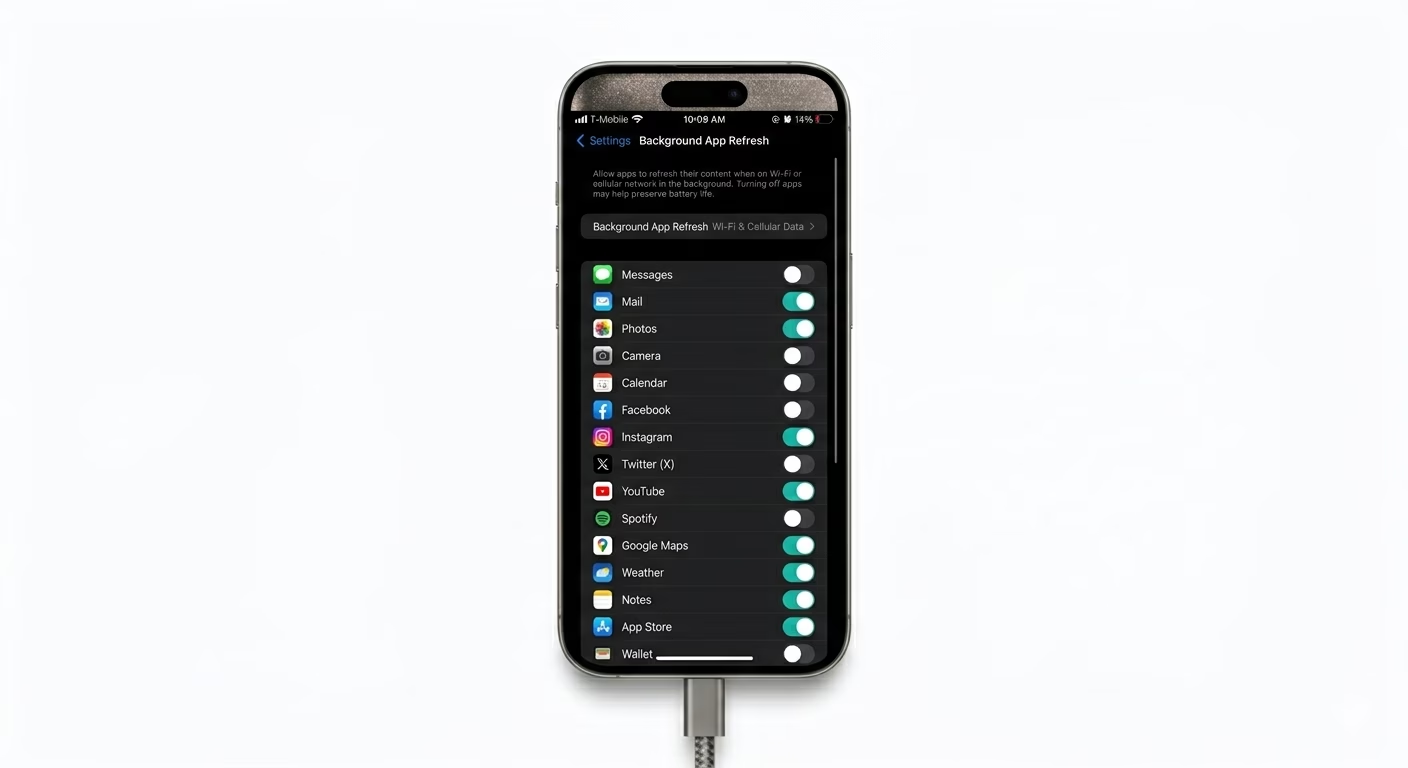
A lot of apps keep running and updating in the background, which can drain your battery. To stop this, just go to Settings, tap on General, then select Background App Refresh. Here, you can turn it off completely or only allow it for the apps you really need.
3. Optimize Display Settings
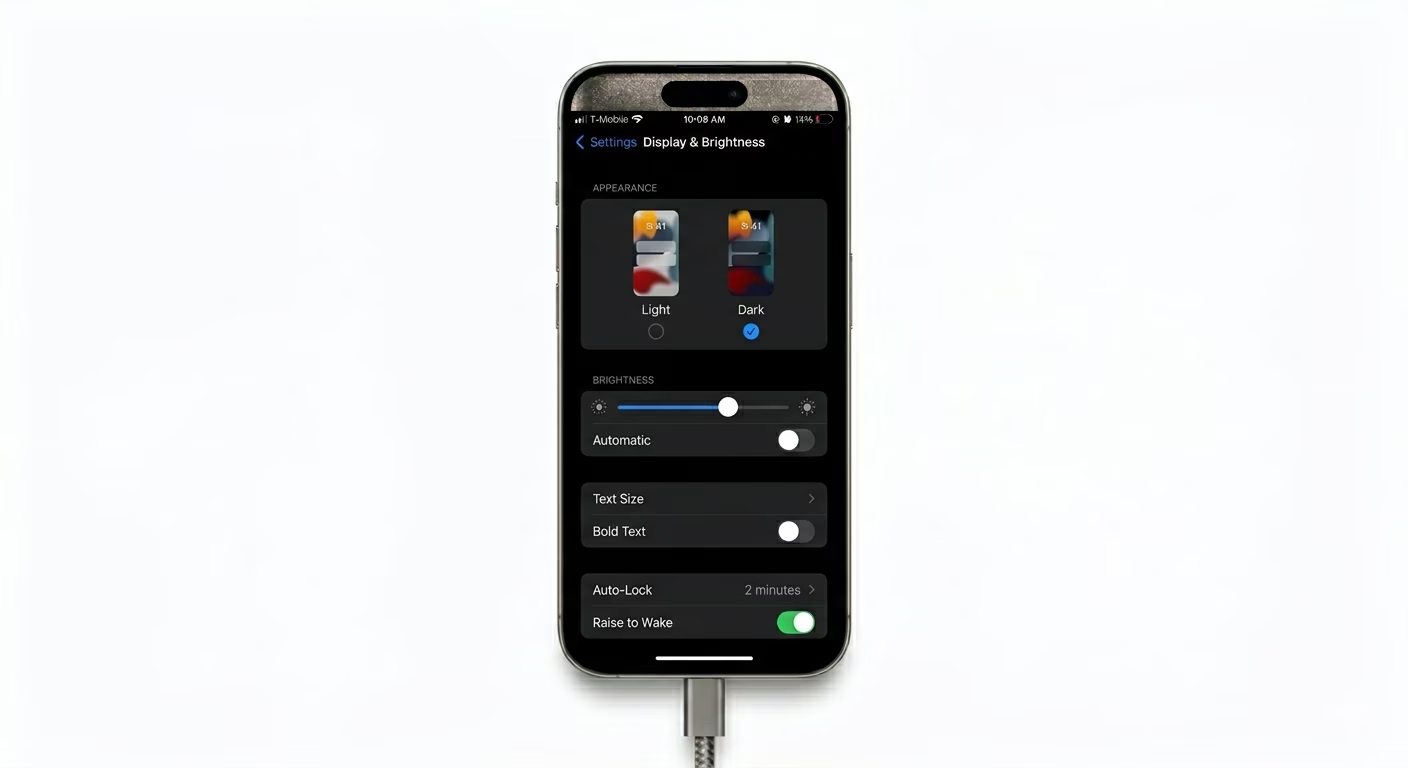
Your phone’s screen uses the most battery. To make it last longer, turn on Auto-Brightness in the Accessibility settings or lower the brightness yourself. If your iPhone has an OLED screen, using Dark Mode (found in Settings under Display & Brightness) can also help save a lot of battery.
Why This Happens?
- High screen brightness and "Always On" display
- Too many apps running in the background
- Weak cellular signal (Phone works harder to find network)
- Old or chemically aged battery hardware
Pro Tips:
- Use Wi-Fi instead of Cellular data whenever possible.
- Turn off Location Services for apps that don't need it.
- Remove unnecessary Widgets from your Home Screen.
Frequently Asked Questions
Does Low Power Mode damage my battery?
Low Power Mode is safe to use. It just cuts down on background activity and some visual effects to help your battery last longer until you can charge your phone.
Should I close all my apps to save battery?
No need to keep closing your apps all the time. It actually uses more battery to keep opening them again and again. Only close an app if it gets stuck or isn’t working right.