Quick Privacy Check:
- Look for the Blue or Hollow Arrow in your status bar (indicates active GPS)
- Turn off "Precise Location" for apps that don't need it (like Calculators or Games)
- Set location access to "While Using the App" instead of "Always"
- Review your Significant Locations history in system settings
Steps to Control App Location Access
1 Review All App Location Permissions
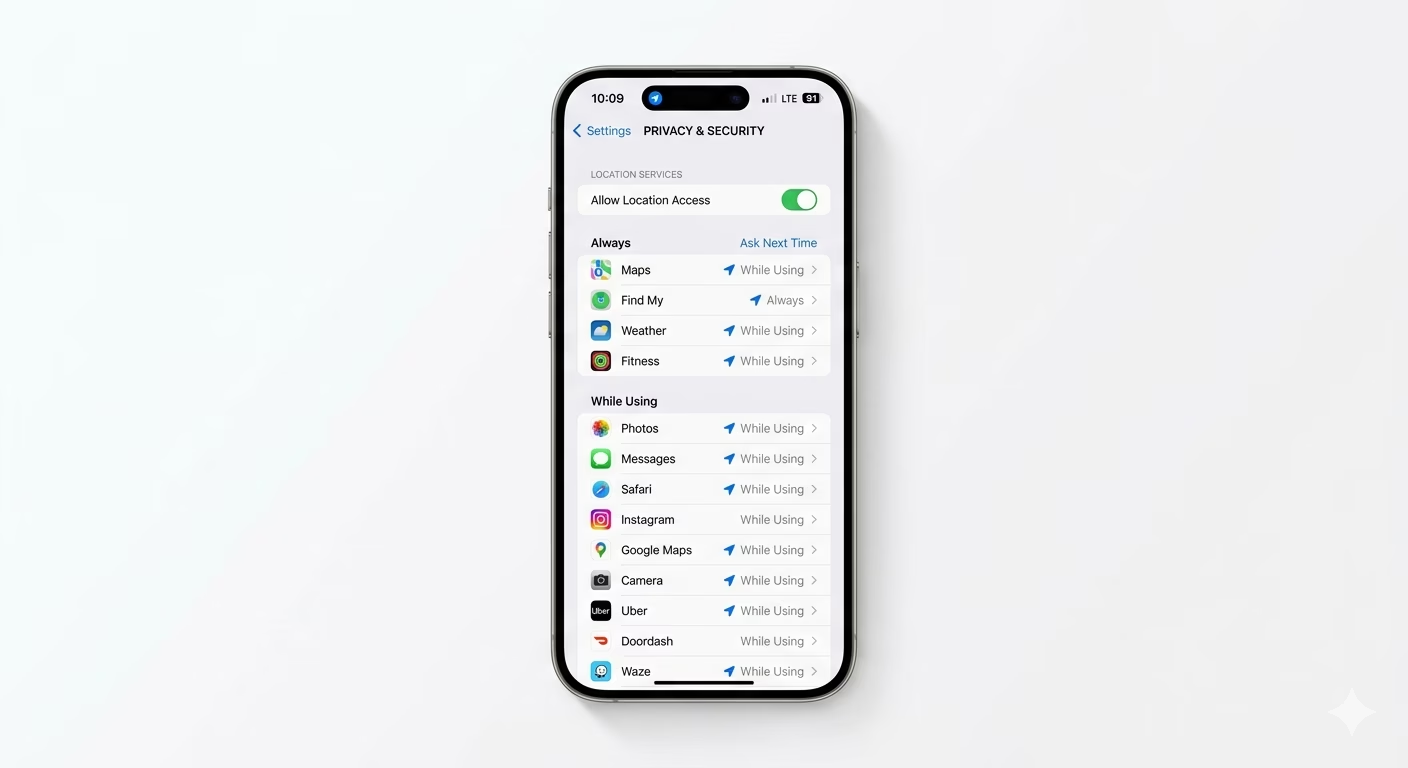
To check which apps have requested your location, go to Settings > Privacy & Security > Location Services. You’ll see a list of all apps and their current access settings. Tap any app to adjust its setting. For most apps, choosing “While Using the App” is the best balance of privacy and functionality.
2 Turn Off "Precise Location"
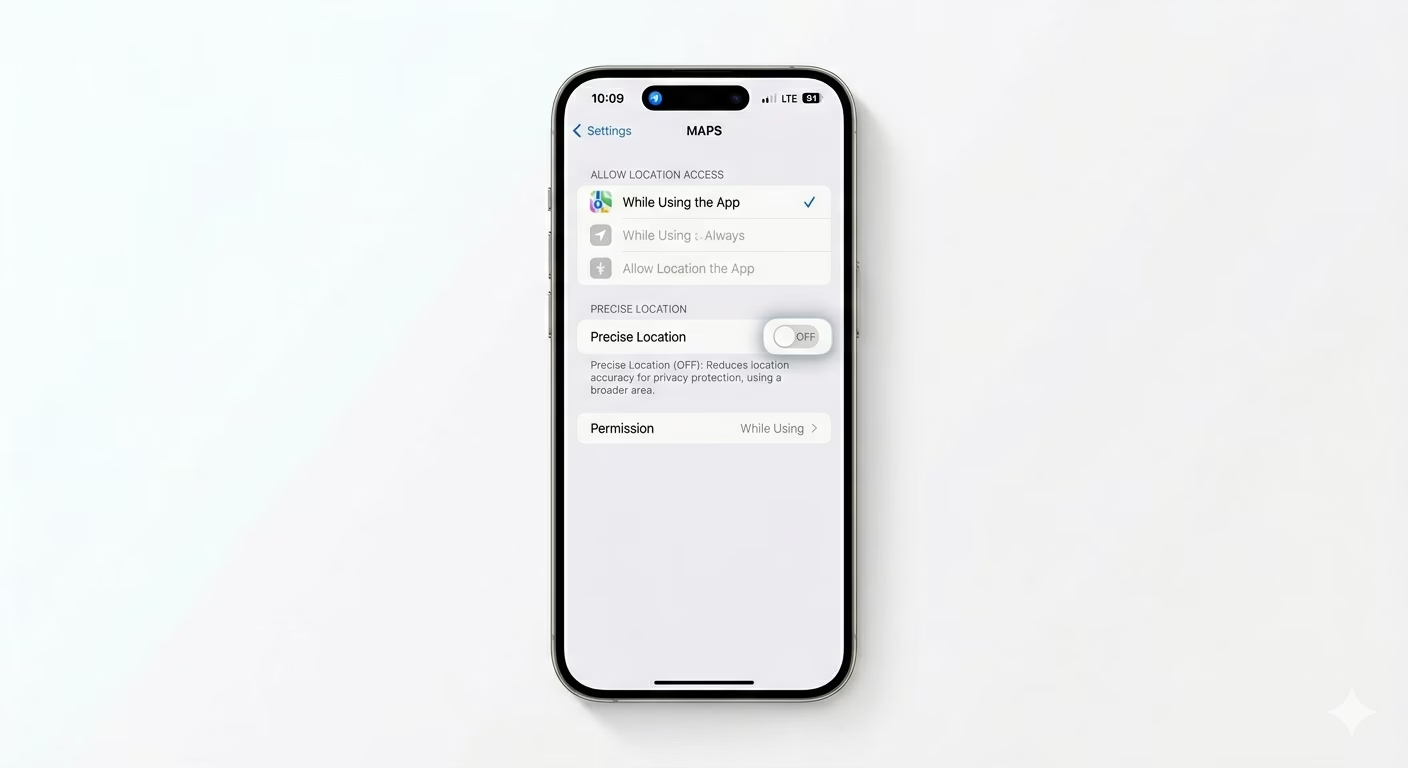
Apps like Weather or News only need to know your general area, not your exact address. In the Location settings for each app, turn OFF Precise Location. This way, the app will only get your approximate location (within a few miles), which boosts your privacy but still lets the app work properly.
3 Clean Up System Location Tracking
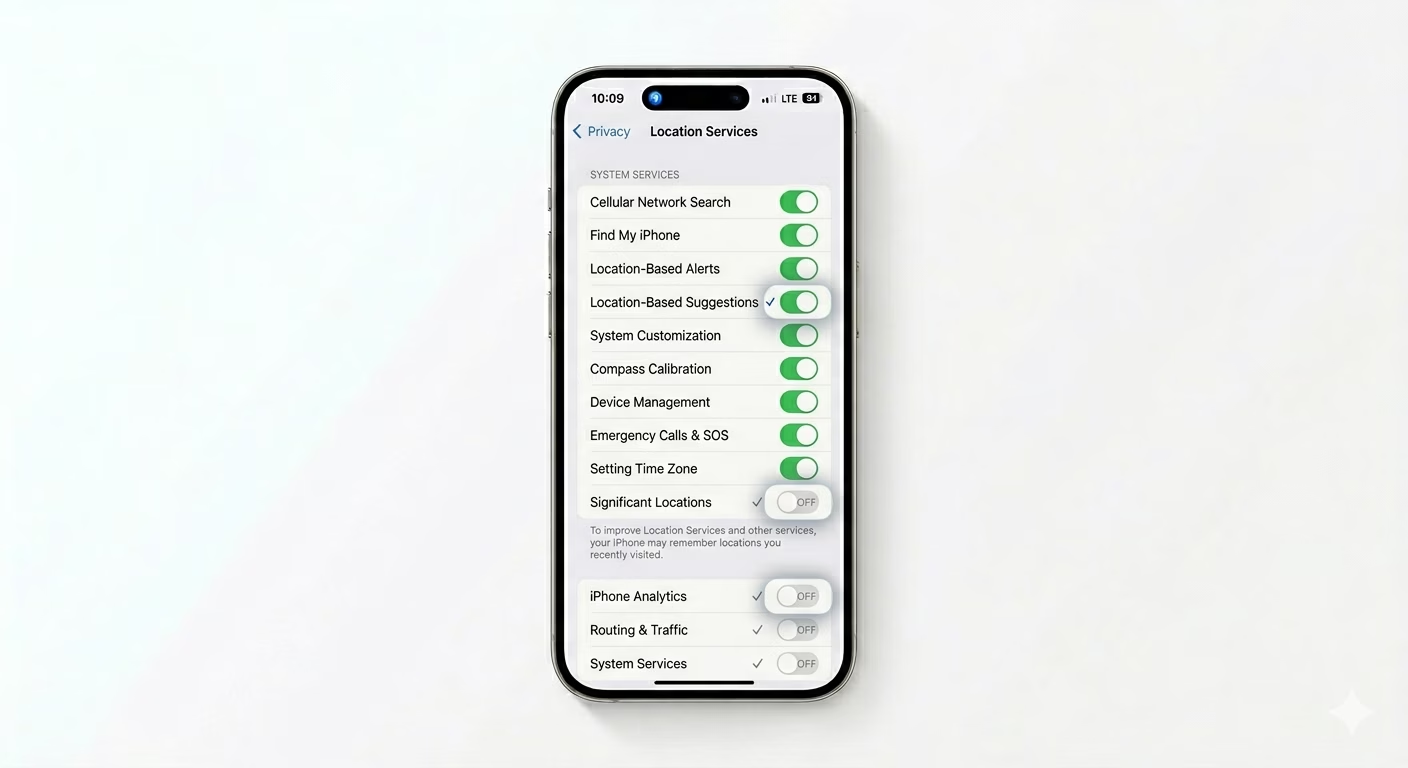
Your iPhone also uses location for system features. Scroll to the bottom of the Location Services page and tap System Services. Here, you can turn off tracking for things like “iPhone Analytics” or “Location-Based Suggestions.” Doing this protects your privacy and can also save a lot of battery life.
Why Manage Location?
- Privacy: Prevent third-party companies from building a profile of your daily routines.
- Battery Life: GPS is one of the biggest battery consumers; fewer apps tracking means longer charge.
- Data Usage: Constant location updates use small amounts of background data that can add up.
- Security: Protect your home and work addresses from being stored on insecure app servers.
Pro Tips:
- The Status Bar Icon: If you see a solid purple arrow, an app is using your location *now*. A hollow arrow means it used it recently.
- App Tracking Transparency: Always select "Ask App Not to Track" when a new app asks for permission to track your activity across other companies' apps.
- Significant Locations: Go to System Services > Significant Locations to see a map of places you visit often. You can clear this history for better privacy.
Frequently Asked Questions
Does turning off Location Services disable 'Find My iPhone'?
No. Even if you turn off the main “Location Services” switch, your iPhone will still let Find My iPhone work in an emergency if you use Lost Mode.
What is 'Always' access?
This setting lets an app track your location even when it’s closed and your phone is in your pocket. Only enable this for truly essential apps, like Google Maps for navigation or Tile/AirTag for tracking your stuff.