Quick Accessibility Check:
- Toggle the specific feature OFF and ON in Settings
- Check if Guided Access is active (it can restrict other features)
- Verify if a triple-click shortcut is accidentally disabling features
- Restart your iPhone to refresh the background accessibility daemon
Steps to Resolve Accessibility Tool Issues
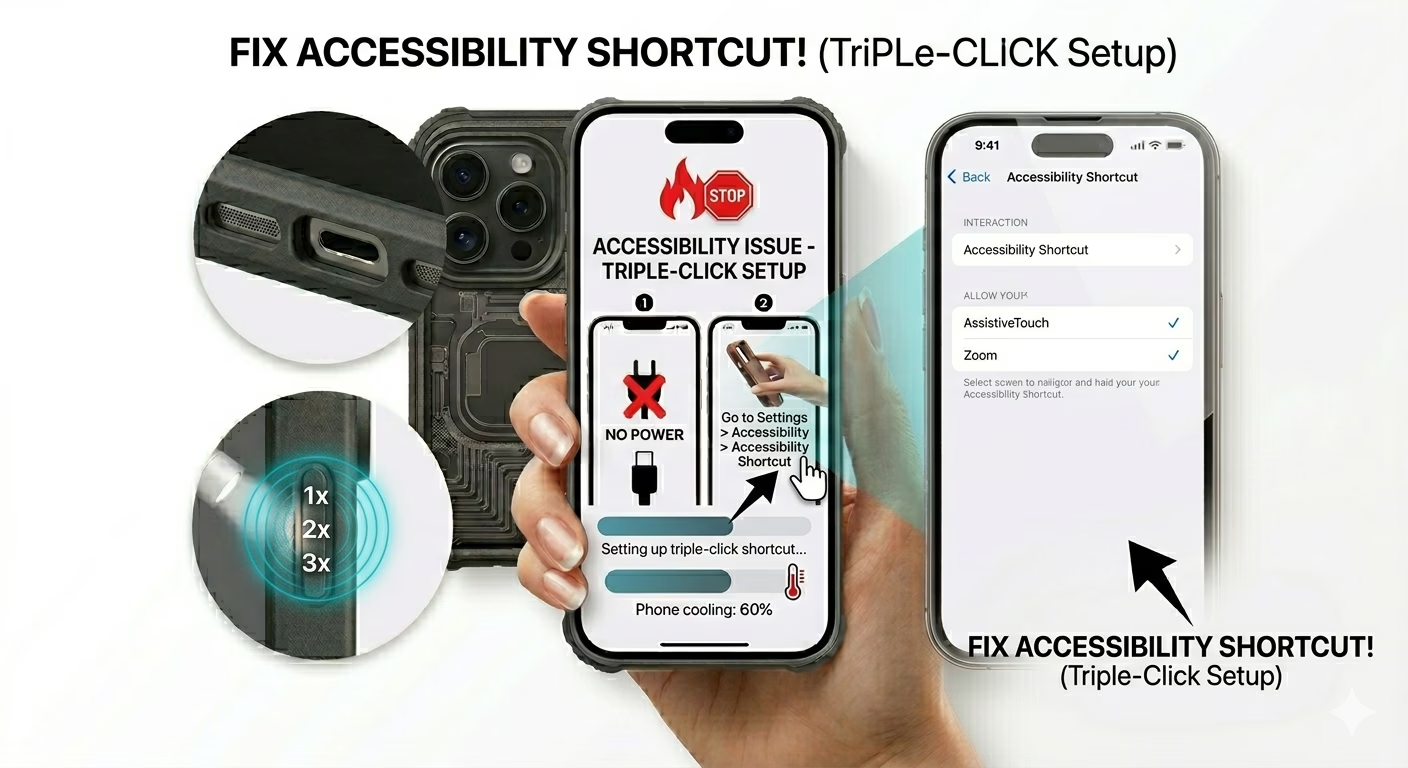
1 Verify the Accessibility Shortcut
If your features suddenly disappear, check your Triple-Click settings. Go to Settings > Accessibility > Accessibility Shortcut (at the bottom). Make sure the features you use (like AssistiveTouch or Zoom) are enabled. Sometimes, a triple-click on the side button can accidentally turn these features off without you noticing.
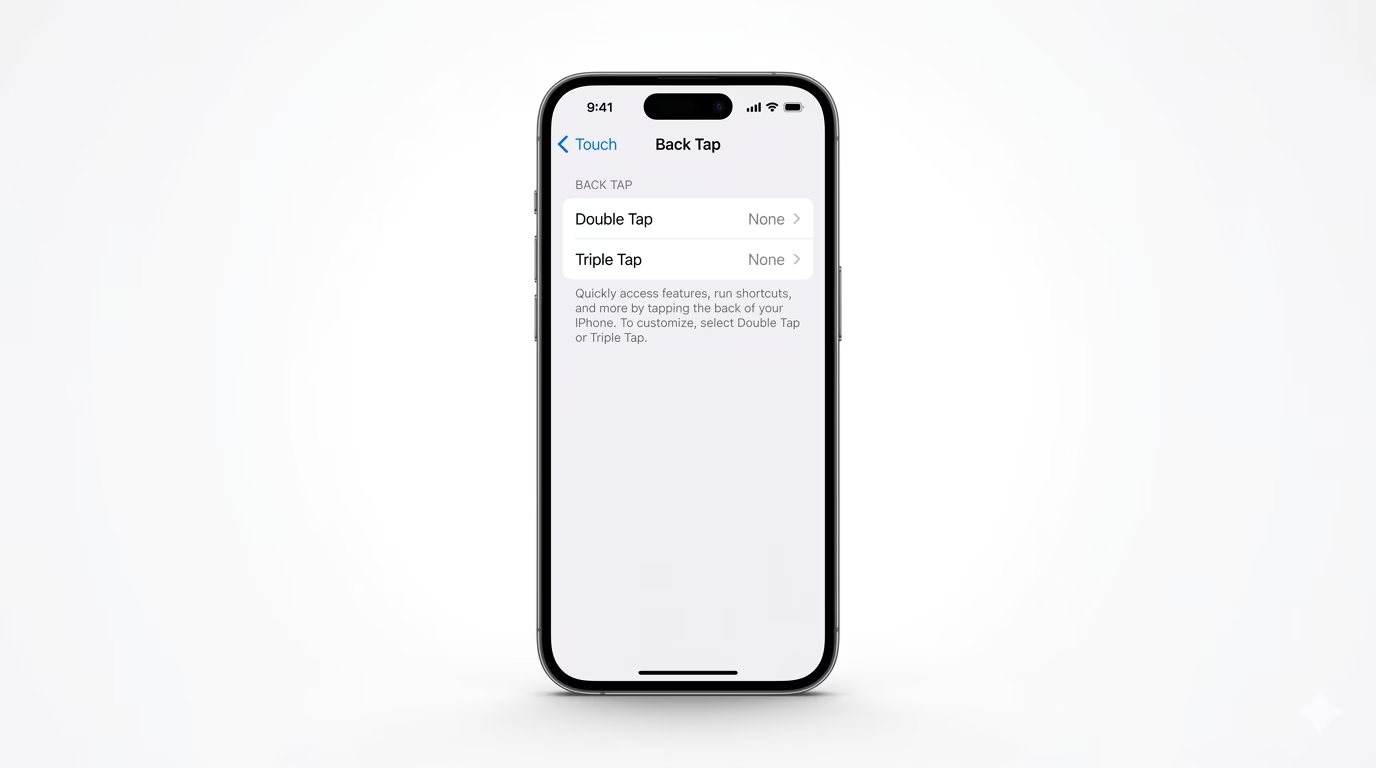
2 Recalibrate Back Tap and Touch
If “Back Tap” isn’t working, it’s often due to a thick phone case or a temporary system lag. Go to Settings > Accessibility > Touch > Back Tap. Set Double Tap or Triple Tap to “None,” restart your iPhone, then reassign your desired action. This refreshes the system’s touch detection and improves responsiveness to physical taps.
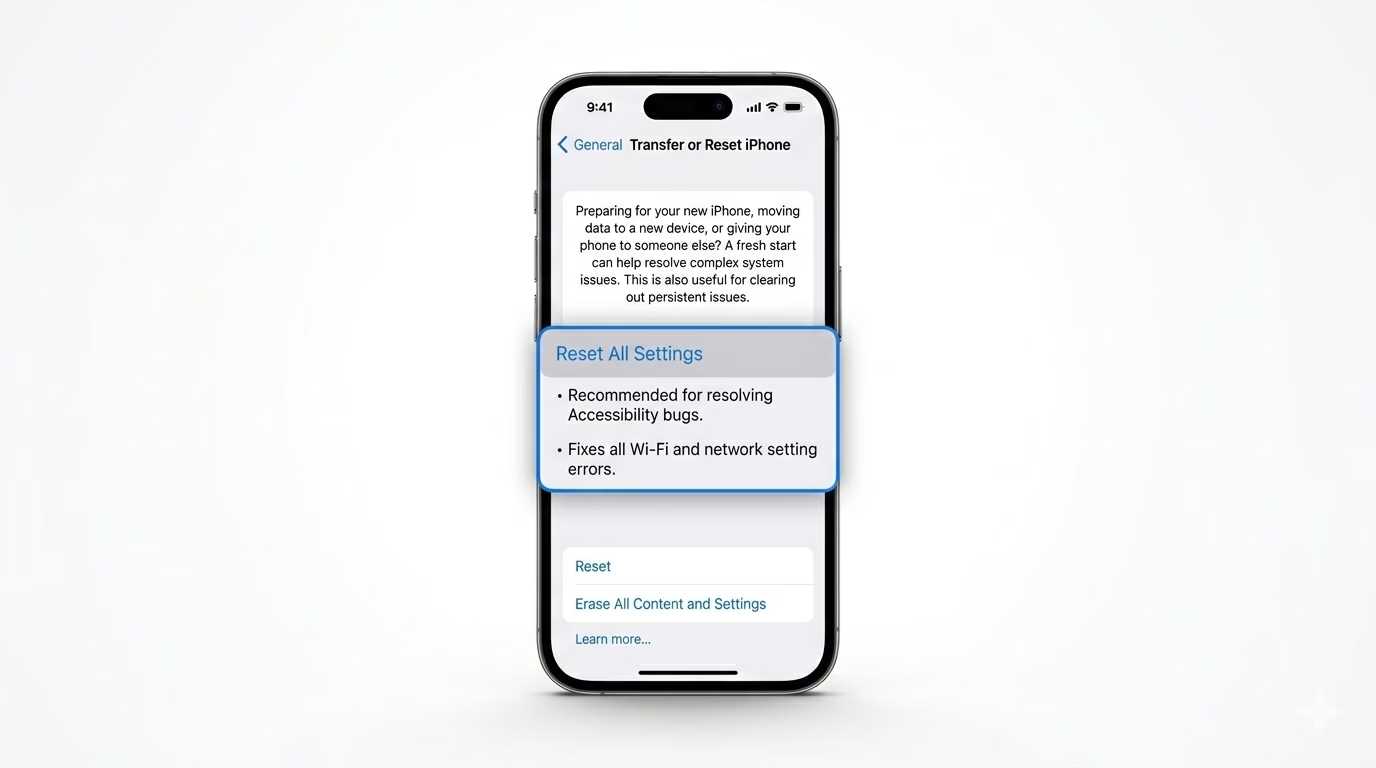
3 Reset System Accessibility Caches
If multiple features are glitching, your accessibility configuration may be corrupted. The most effective fix is to go to Settings > General > Transfer or Reset iPhone > Reset > Reset All Settings. This restores all system settings—including accessibility, Wi-Fi, and display—to default without deleting your photos or apps, allowing you to reconfigure everything from scratch.
Why Do Features Stop?
- Software Updates: New iOS versions often change how background "daemons" handle touch input.
- Guided Access: If you are in a Guided Access session, most other accessibility shortcuts are blocked.
- Hardware Interference: Screen protectors can sometimes interfere with "Touch" related accessibility features.
- RAM Management: If your phone is low on memory, iOS may kill the accessibility process to save resources.
Pro Tips:
- Per-App Settings: Check Settings > Accessibility > Per-App Settings. You might have accidentally customized a feature for one specific app that is overriding your global settings.
- Control Center: Add the Accessibility Shortcuts icon to your Control Center for quick manual access if buttons fail.
- Siri Integration: You can always say, "Hey Siri, turn on AssistiveTouch" if you can't navigate through the menus.
Frequently Asked Questions
Why is my AssistiveTouch button disappearing?
This usually happens because the “Idle Opacity” setting is set too low, or the Accessibility Shortcut is turned off. Check your opacity settings inside the AssistiveTouch menu and adjust them to make the feature visible and responsive again.
Does 'Reset All Settings' delete my data?
No. It only resets system-level preferences like Wi-Fi passwords, alarms, and accessibility settings. Your photos, messages, and apps remain completely safe and are not deleted.