Quick Fix:
- Check if your iPhone is in Low Power Mode (this pauses syncing)
- Ensure you have a stable Wi-Fi or high-speed Cellular connection
- Verify that you have enough iCloud storage space remaining
- Plug your iPhone into a charger (syncing is faster when charging)
Steps to Fix iCloud Photo Syncing
1 Verify iCloud Storage Space
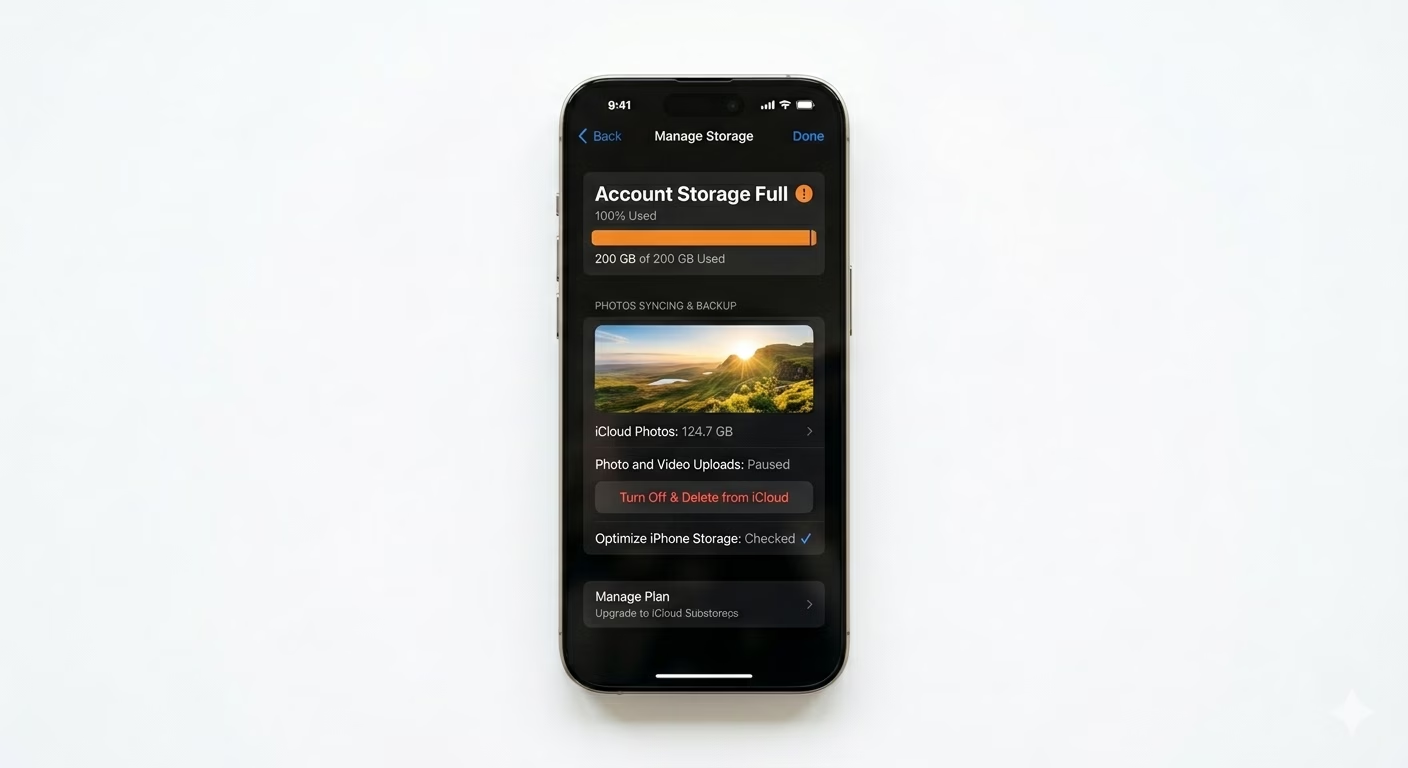
iCloud Photos stops uploading as soon as your cloud storage is full. Go to Settings > [Your Name] > iCloud > Manage Account Storage. If you see an “Account Storage Full” alert, delete old backups or files, or upgrade your storage plan so new photos can sync.
2 Enable Mobile Data for Photos
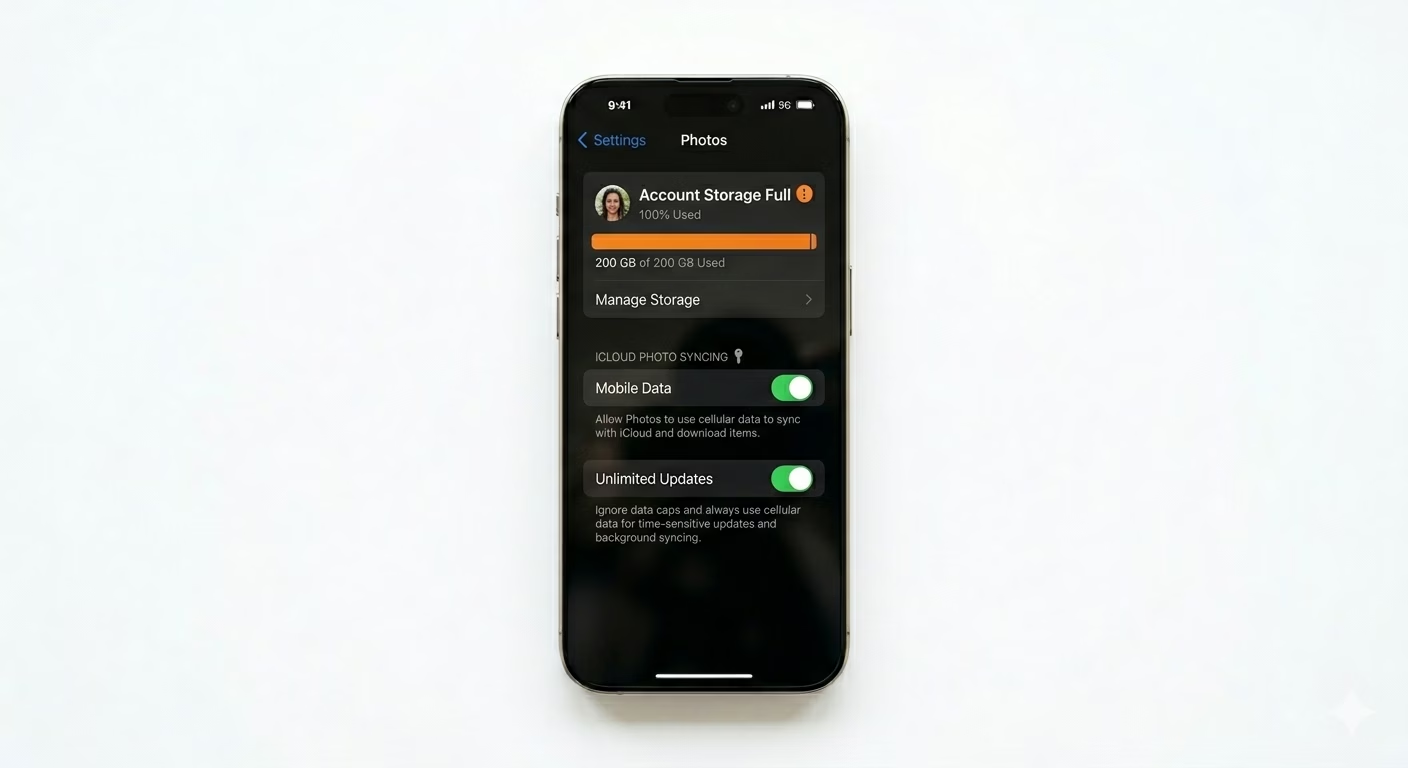
By default, your iPhone stops photo uploads on mobile data to save your plan. If you’re not on Wi-Fi, go to Settings > Photos > Mobile Data. Turn ON Mobile Data and make sure Unlimited Updates is enabled. This lets your iPhone use cellular data to keep your photo library updated in real-time.
3 Reset the Syncing Process
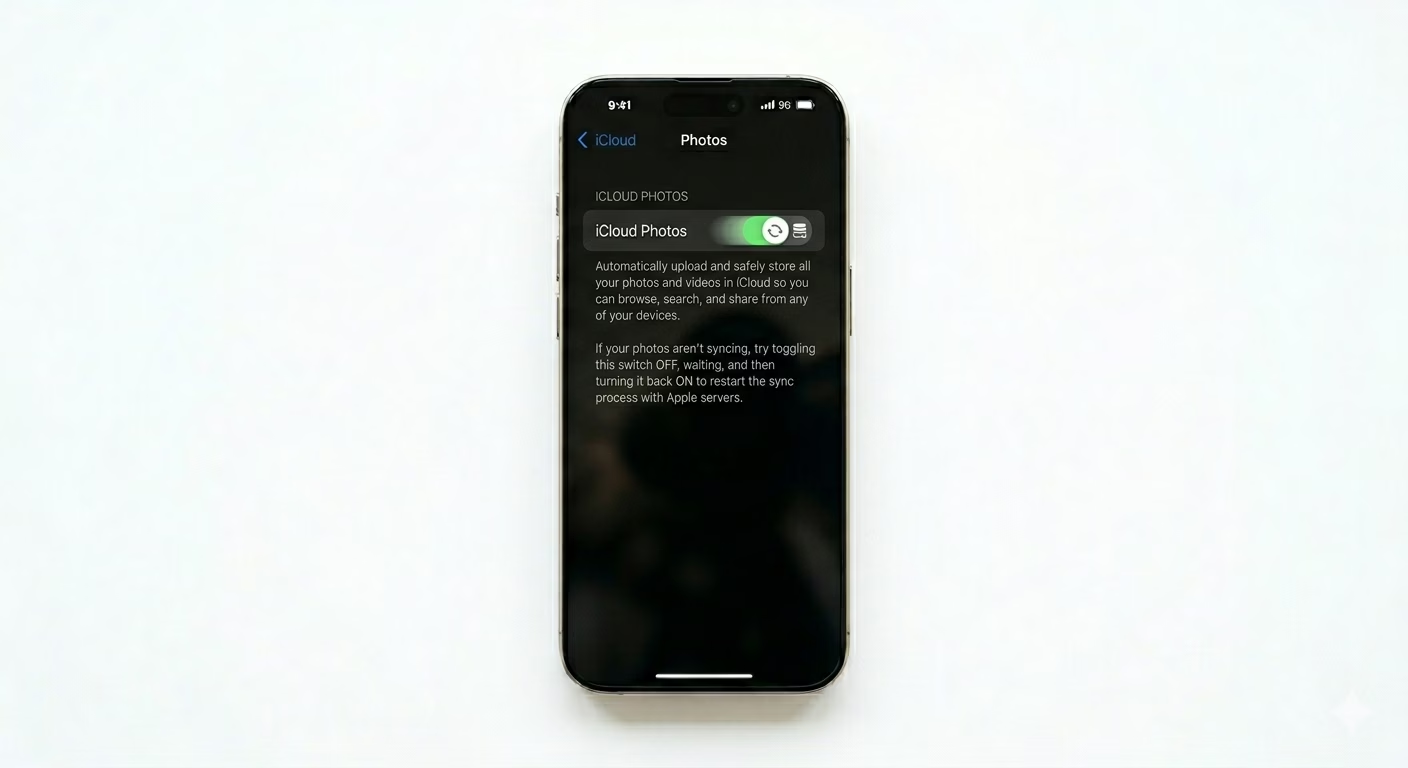
If your upload is stuck, you need to refresh the software. Go to Settings > [Your Name] > iCloud > Photos. Turn iCloud Photos OFF, wait 30 seconds, then turn it back ON. Note: Your photos won’t be deleted—this just restarts the upload process and makes a fresh connection to Apple’s servers.
Why This Happens?
- Insufficient iCloud storage to accommodate new media files
- Low Power Mode restricting background data transfers
- iOS system glitches after a software update or SIM swap
- Large video files causing a "timeout" on slow internet connections
Pro Tips:
- Stay on Wi-Fi: If you have 4K videos, they can take hours to upload. Keep the Photos app open and leave the phone on Wi-Fi overnight.
- Check Battery Health: If your battery is below 20%, iOS will prioritize power over syncing. Charge your phone to at least 50%.
- Optimize Storage: Use the "Optimize iPhone Storage" setting to save space on your device while keeping full-resolution photos in iCloud.
Frequently Asked Questions
Why does it say 'Paused' in my Photos app?
This usually means Low Power Mode is turned on or your iPhone is too hot. iOS will pause syncing to protect your battery and the phone’s internal parts.
Will I lose my photos if I turn off iCloud Photos?
No, turning it off won’t delete your photos from iCloud. Your photos will stay on the iCloud server, but new photos won’t be backed up until you turn the feature back on.