Quick Fix:
- Charge for at least 30 minutes
- Force restart your iPhone
- Check for physical damage
- Connect to a computer
Steps to Fix iPhone Won’t Turn On
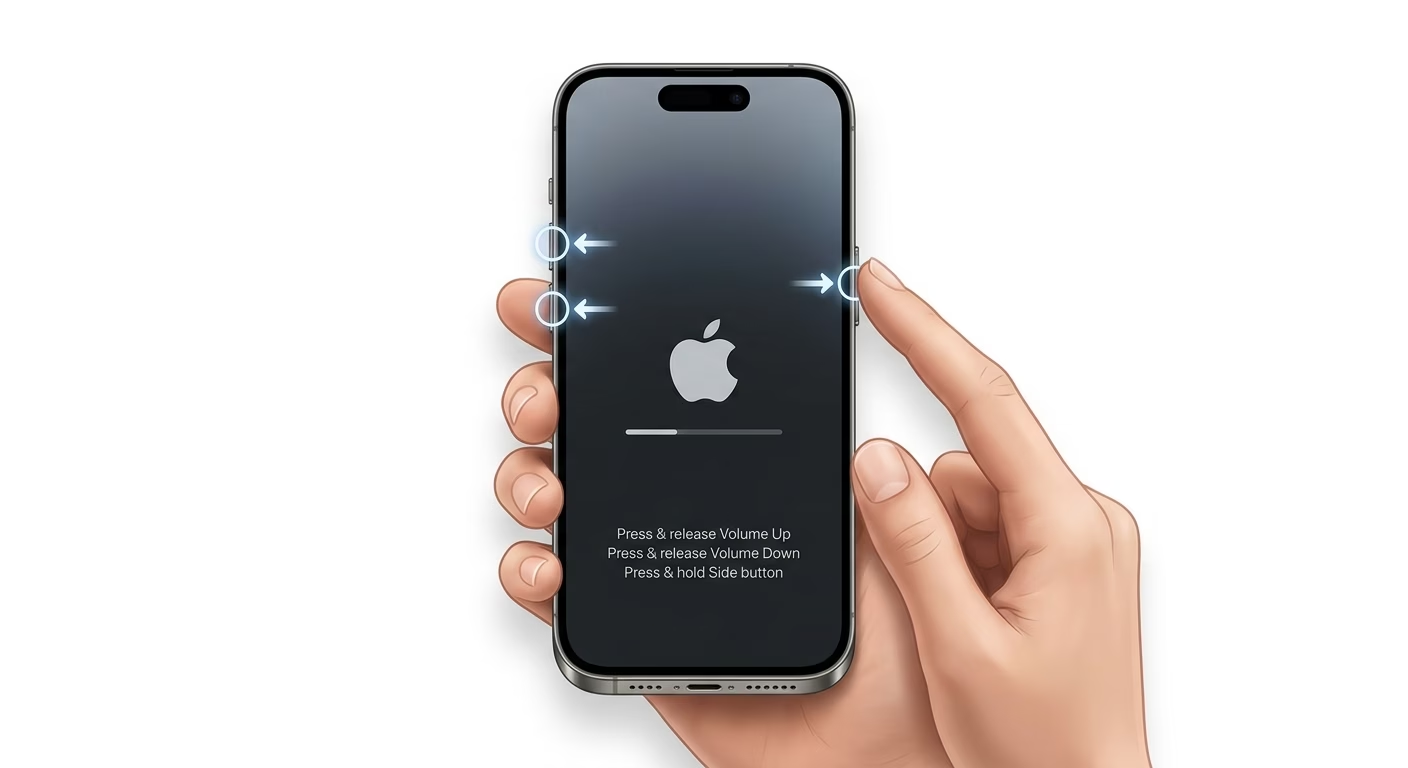
1. Force Restart Your iPhone
Doing a force restart will not delete any of your photos or data. If you have an iPhone 8 or a newer model, just do this: First, press and quickly let go of the Volume Up button. Next, press and quickly let go of the Volume Down button. Finally, press and keep holding the Side button. Keep holding it until you see the Apple logo on your screen. That’s it!.
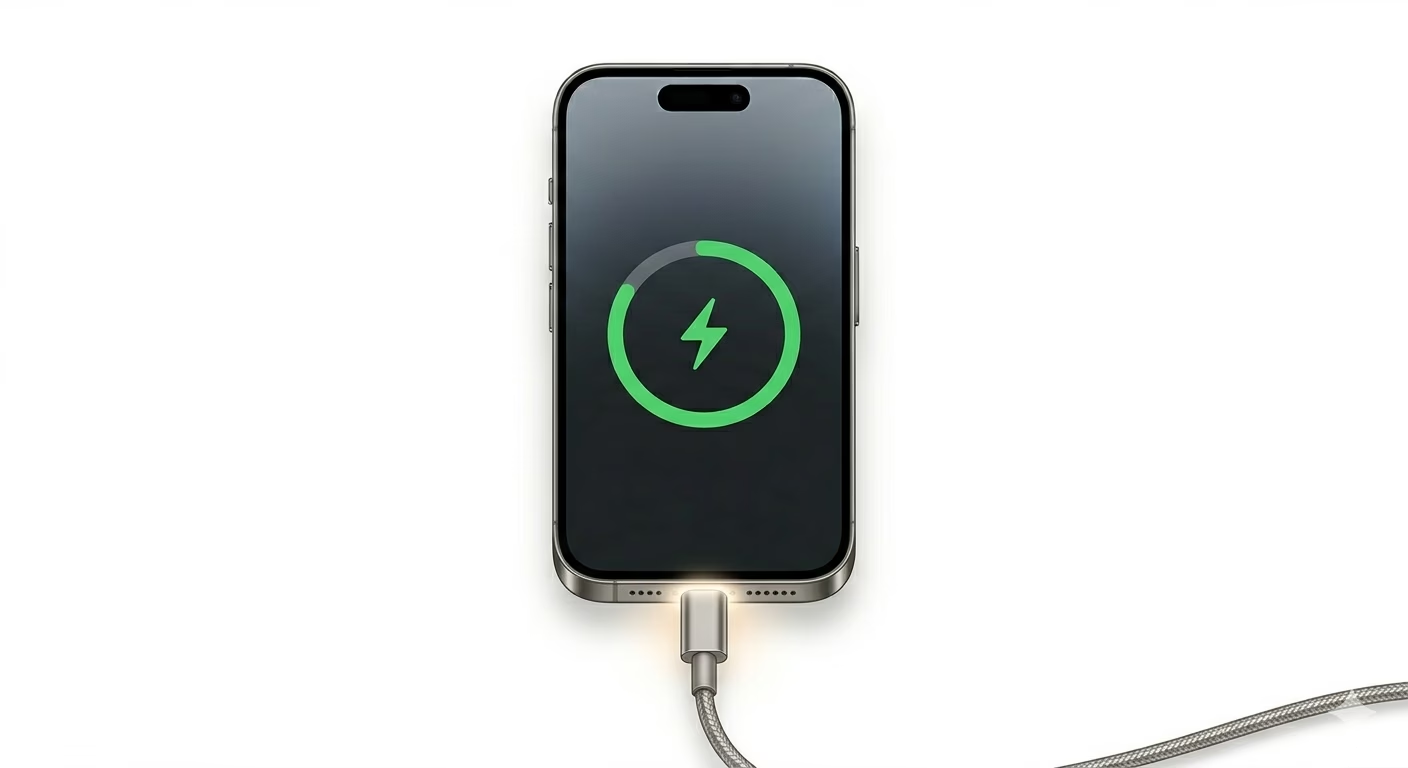
2. Charge Your Device Correctly
Plug your iPhone into the charger and let it charge for up to one hour. Make sure you are using a good quality, certified charging cable and a working wall adapter.
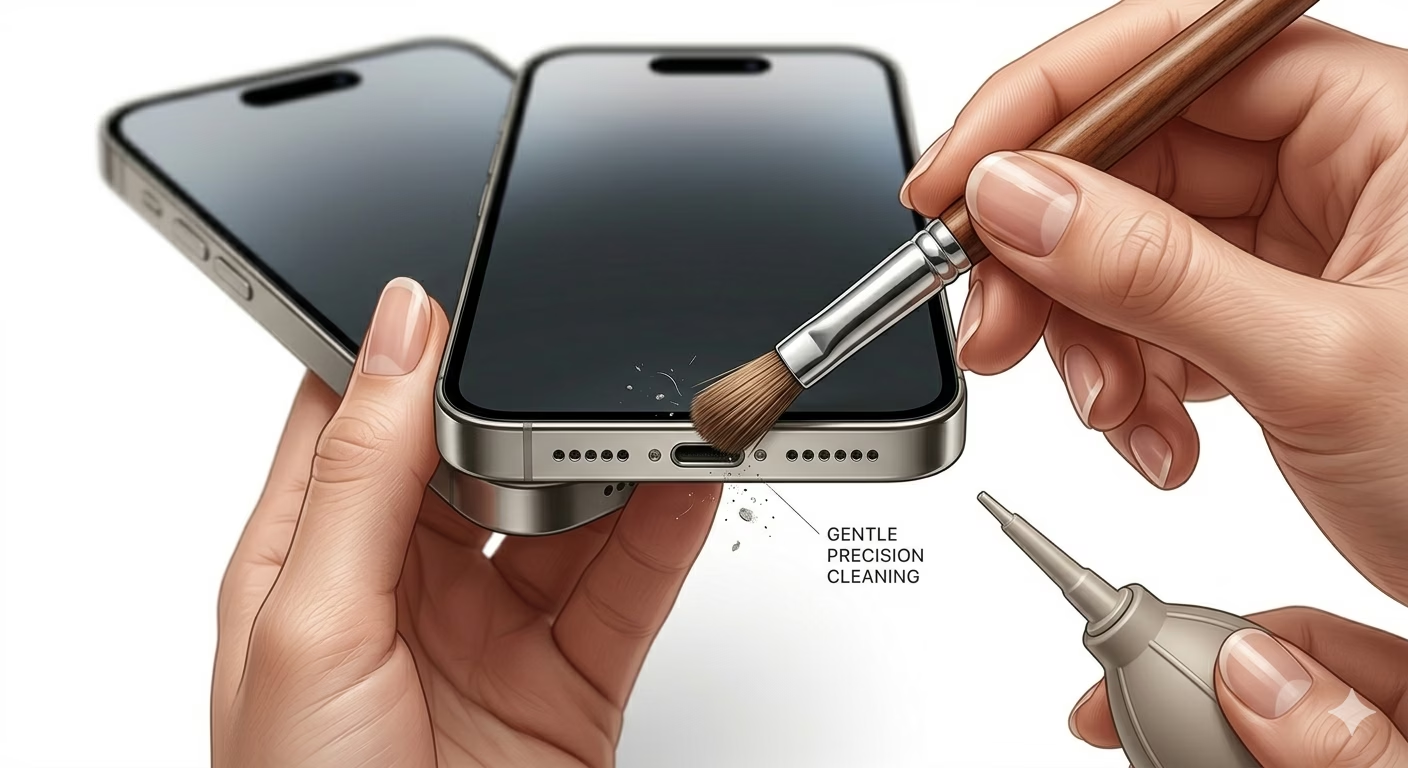
3. Check the Charging Port
Sometimes, your phone won’t charge because there’s dust or lint stuck in the charging port. Use a wooden toothpick or a can of compressed air to gently clean out any dirt from the port.
Why This Happens?
- Completely drained battery
- System software crash
- Faulty charging accessories
- Liquid or physical damage
Pro Tips:
- Always use original Apple or MFi-certified chargers.
- Update your iOS regularly to avoid system bugs.
- Avoid exposing your phone to extreme temperatures.
Frequently Asked Questions
Is my battery dead or is it a software issue?
If you see the Apple logo when you do a force restart, your phone probably just had a software problem. If the logo doesn’t show up, there might be a hardware issue with your phone.
Will I lose my data if I fix it this way?
Don’t worry—doing things like force restarting or charging your iPhone will not erase your photos or personal data.