Quick Fix:
- Try a different lightning/USB-C cable
- Clean the charging port gently
- Restart your iPhone
- Check your power source (Wall outlet vs Laptop)
Steps to Fix Charging Problems
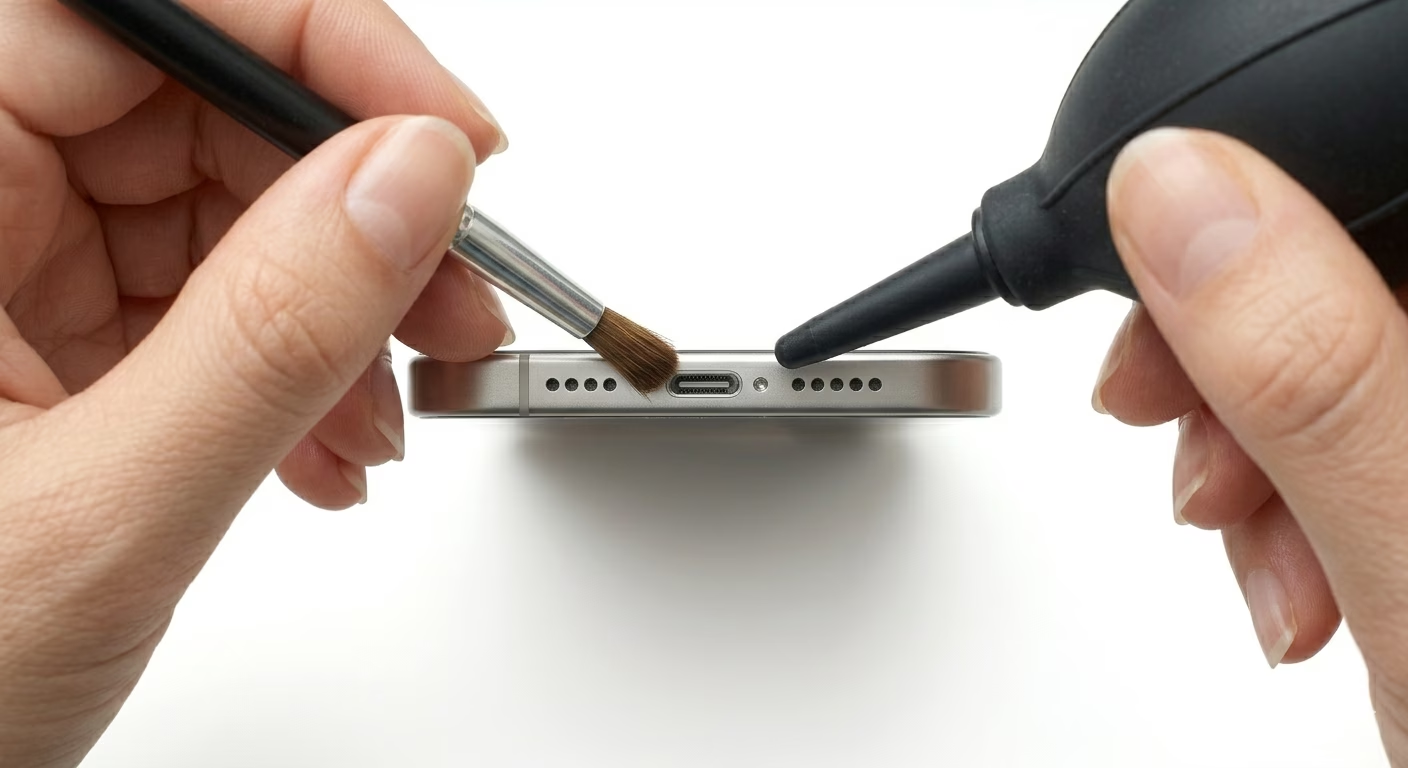
1 Clean Your Charging Port
Sometimes lint or dust gets stuck in the charging port and stops your phone from charging properly. Gently clean it out with a wooden toothpick or a small brush, but don’t use anything metal because it can damage the port.
2 Inspect Your Cable and Adapter
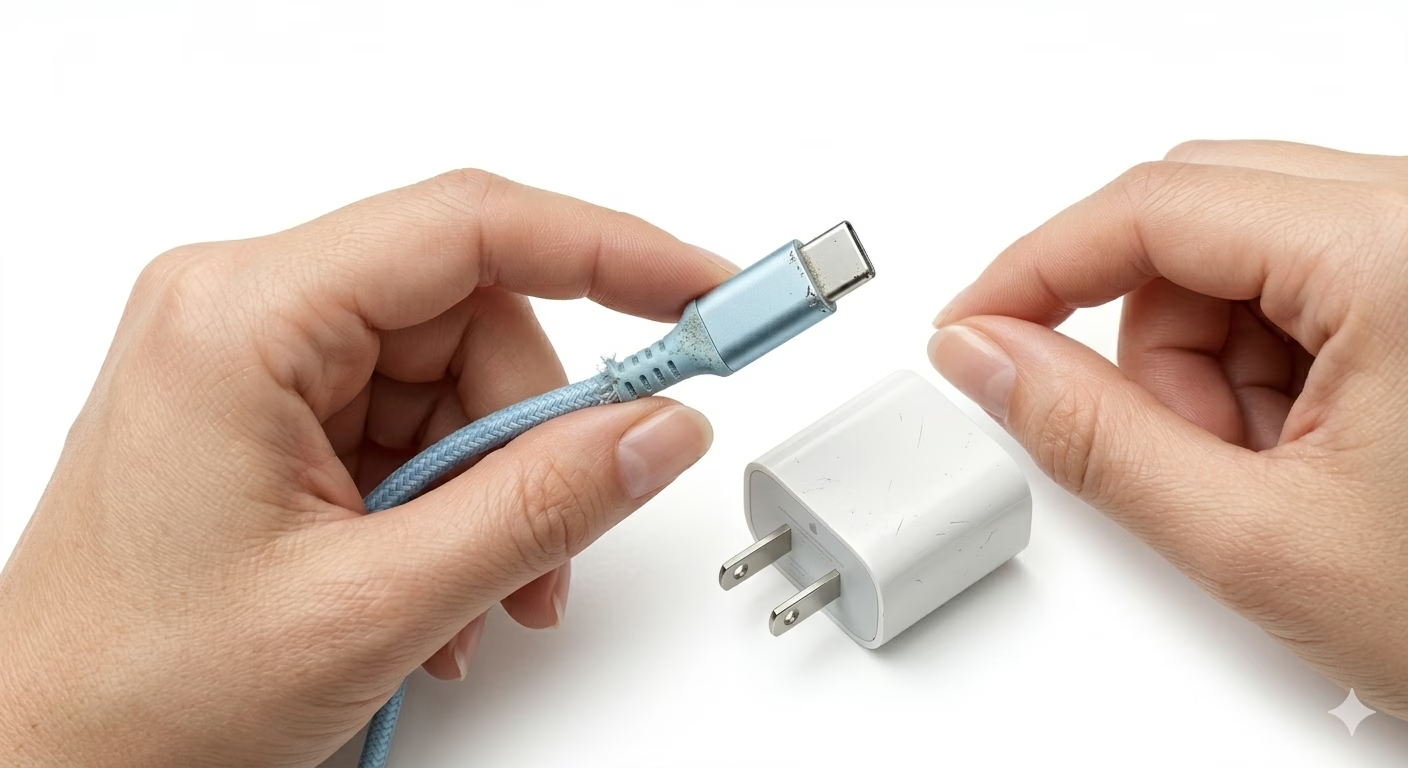
Check your charging cable for damage, like fraying or bent prongs, and always use Apple-certified accessories. If it’s still not working, try a different power adapter or plug it into a computer to see if that helps.
3 Force Restart While Charging
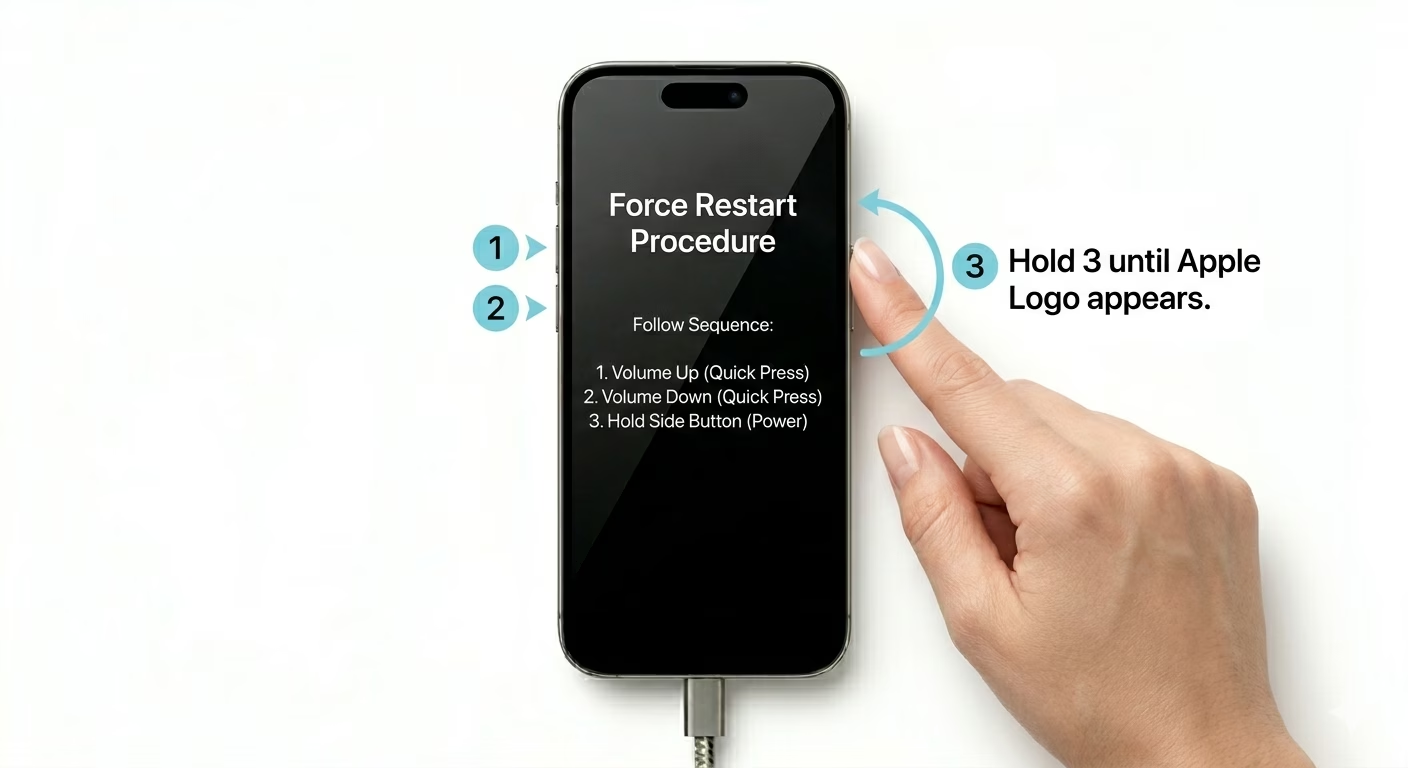
If your iPhone isn’t charging, the software might have crashed. Plug in your phone and do a force restart (press Volume Up, then Volume Down, then hold the Side Button) to help your phone recognize the charger again.
Why This Happens?
- Debris or lint blocking the charging pins
- Using non-certified or "knock-off" chargers
- Liquid detection (iPhone disables charging if port is wet)
- Software glitch in the iOS charging controller
Pro Tips:
- If your phone is hot, let it cool down; iOS may stop charging above a certain temperature.
- Enable "Optimized Battery Charging" in settings to protect long-term battery health.
- Check if your wall outlet is turned on or if the power bank has juice!
Frequently Asked Questions
What does "Accessory Not Supported" mean?
If you see charging issues, it’s often because your cable is damaged, dirty, or not Apple-certified. Try cleaning the cable’s tip or use an original Apple cable.
My iPhone stopped charging at 80%, why?
If your phone charges slowly after 80%, that’s just “Optimized Battery Charging.” It’s a feature that helps protect your battery and is completely normal.