Quick Fix:
- Check your Wi-Fi or Cellular connection
- Pause and resume the download from the Home screen
- Restart your iPhone
- Ensure you have enough free storage space
Steps to Fix App Store Update Stuck
1 Sign Out and Back into Apple ID
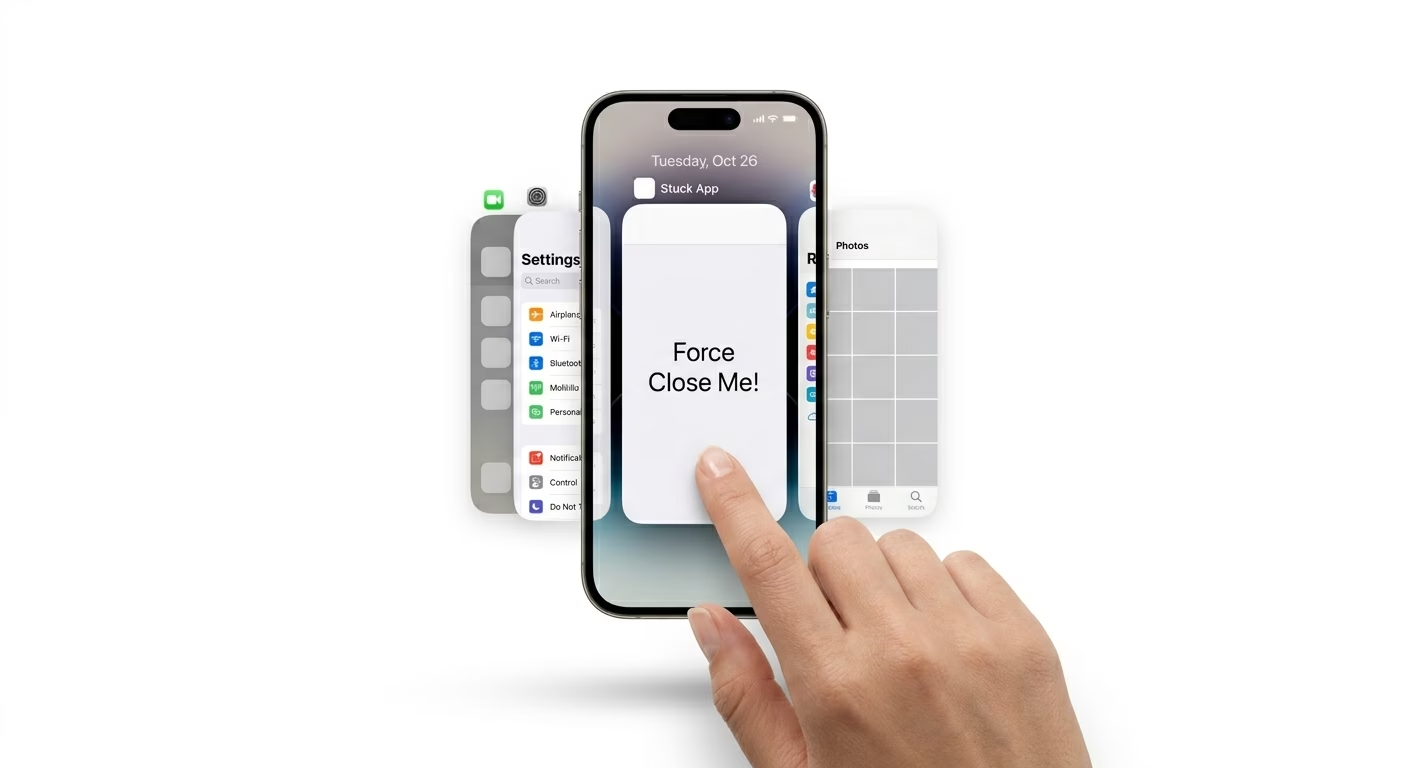
Sometimes your device needs a fresh connection to Apple’s servers. Go to Settings > [Your Name] > Media & Purchases, then tap Sign Out. Restart your iPhone, and after it turns back on, sign back in. This often fixes account-level issues that stop your apps from updating.
2 Verify Date & Time Settings
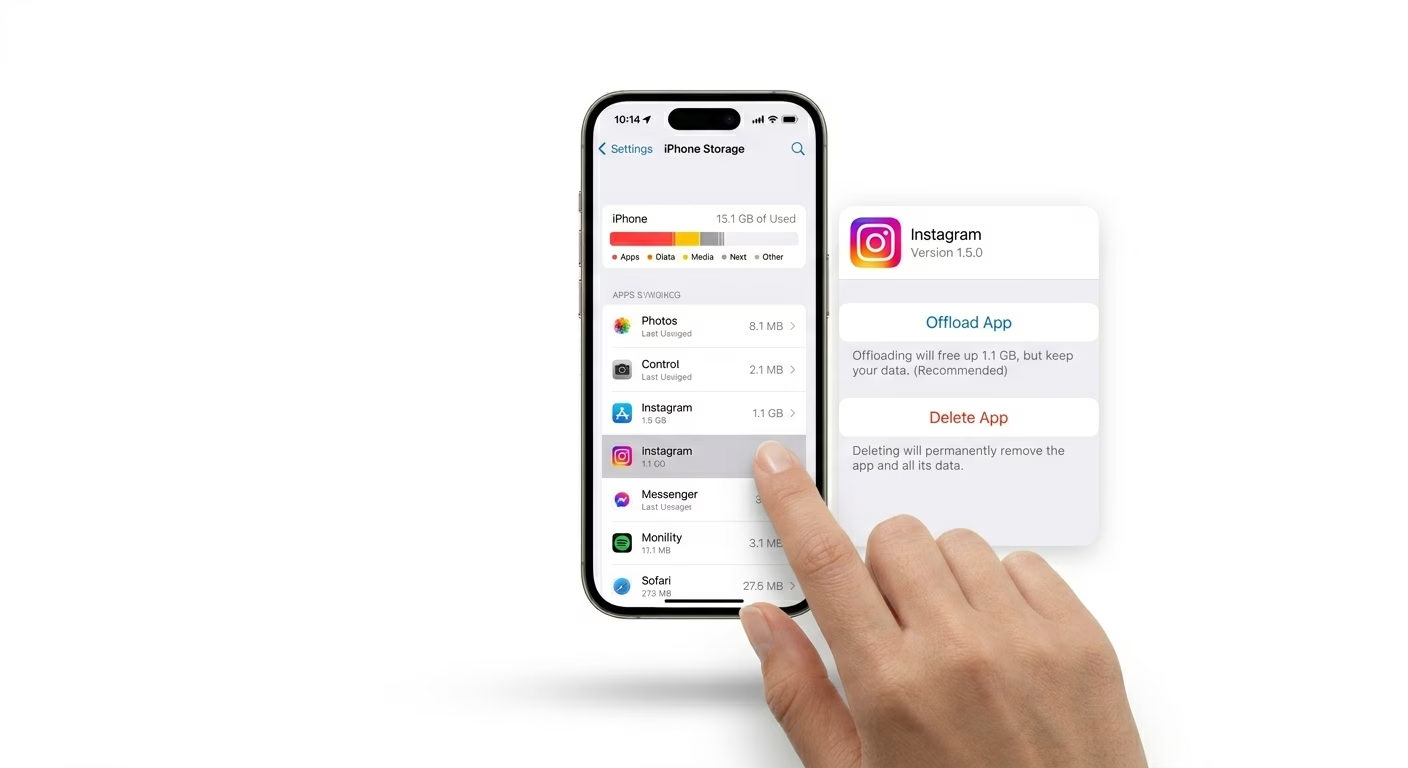
App Store updates need your iPhone's time to match Apple's time for a secure connection. Go to Settings > General > Date & Time and make sure "Set Automatically" is turned ON. If your time is even slightly off, updates might not verify or complete.
3 Update Payment Information
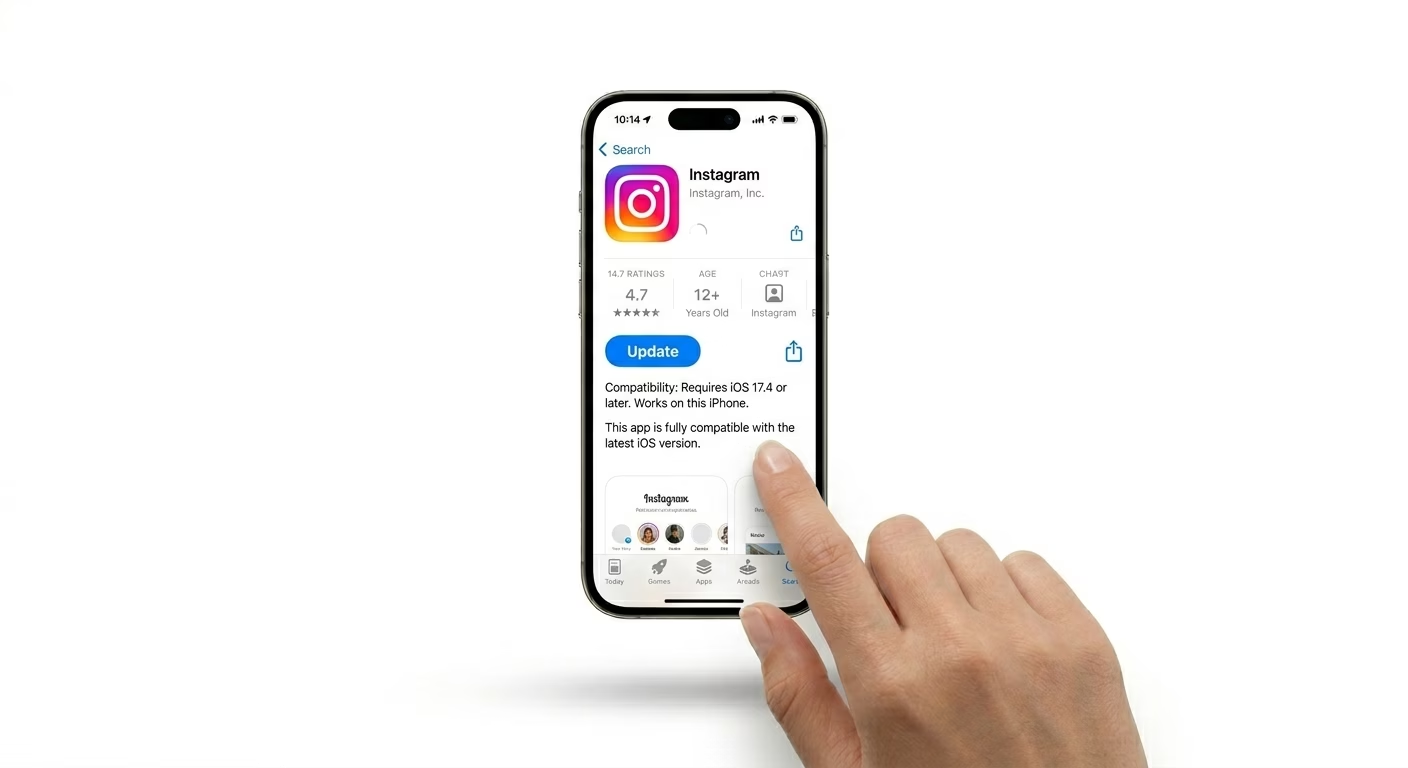
Apple can block updates for all your apps—even free ones—if there’s a problem with a payment for a subscription or a past purchase. Go to Settings > [Your Name] > Payment & Shipping and check that your credit card or payment method hasn’t expired. Updating this info often lets your pending app updates go through right away.
Why This Happens?
- Unstable internet connection or slow Wi-Fi
- Account verification issues with your Apple ID
- Insufficient storage to unpack the update file
- Expired payment method on your Apple account
Pro Tips:
- Prioritize Download: Long-press an app on the Home screen and select "Prioritize Download" to give it more bandwidth.
- Avoid VPNs: Some VPNs block App Store servers; turn your VPN off before updating.
- Manual Update: In the App Store, pull down on the "Updates" page to force a refresh of the latest versions.
Frequently Asked Questions
Why do my apps say 'Waiting' forever?
If an app shows as "Waiting" or "Pending," it usually means the download is in a queue. This can happen if you’re updating too many apps at once or if your internet connection is too slow to get things started.
Can I update apps over Cellular Data?
Yes, you can update apps over mobile data, but make sure to go to Settings > App Store > App Downloads and select "Always Allow." If this isn’t set, iOS might wait for Wi-Fi before downloading bigger apps.